 Easy Tech Tuts
How to Remove Google Workspace Account 2026 Easily
By Impran M NLast checked against official docs
Closing out a Google Workspace account involves more than canceling a subscription. You need an account with the right administrator privilege, a completed backup, every subscription canceled, and a trip to the Account management screen where deletion actually lives.
This guide follows the real Admin Console screens for that process and corrects a detail that trips a lot of people up: there is no separate step to "release" your domain. Deleting the organization does that on its own. It's aimed at freelancers, startups, and small business owners who signed up for a trial or a short-term project and now want to shut things down cleanly, without getting billed again or losing data they meant to keep.
Before you start
- The Domain settings administrator privilege on the Workspace account you're closing
- Anything you want to keep, exported before you start: Google Takeout, the admin Data Export tool, and your billing invoices all become unreachable the moment the account is deleted
01Sign in with the right administrator account
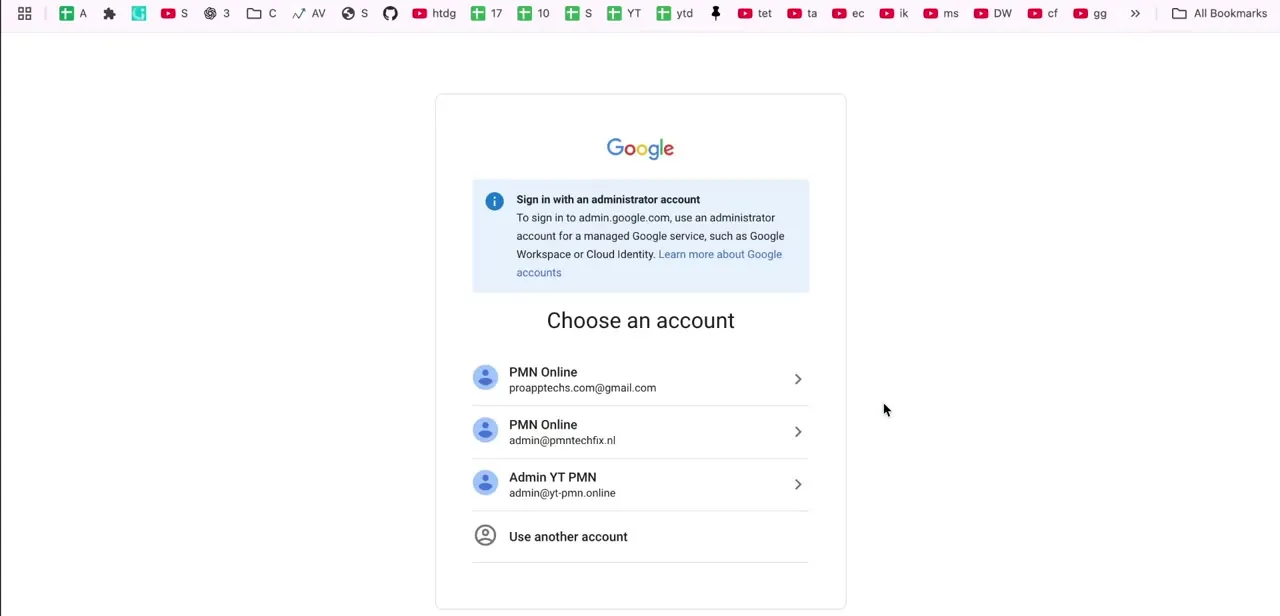
Head to admin.google.com and Google prompts you to choose which account to continue with. Deleting the organization itself needs more than ordinary admin access: Google requires the Domain settings administrator privilege specifically.
If you manage several admin-level accounts, confirm the one you're using actually carries that privilege before you get deep into the process. If you manage more than one Workspace organization, the account picker lists the email address under each profile name, so check the domain matches the one you're actually closing.
02Back up everything Google will delete for good
Once you delete the organization, Google states plainly that none of it comes back: mail, Drive files, users, groups, organizational units, even your own billing history. Google's own pre-deletion checklist covers more than a personal export.
Save or print your billing invoices and payment receipts, since billing records become unreachable the moment the account is gone. Run Google Takeout, or the admin-level Data Export tool, for Gmail, Drive, Calendar, and Chat across your users.
Uninstall any Google Workspace Marketplace apps still connected, and delete any Google Cloud or Apps Script projects tied to the organization, since none of that is cleaned up automatically by deleting the account. You don't have to suspend or delete individual users first.
Deleting the organization removes every user, group, and organizational unit on its own. Doing it manually beforehand is only worth the time if you want a chance to check what's tied to a specific mailbox before it disappears.
03Cancel every subscription except Cloud Identity Free
Google won't let you delete the organization while a paid subscription is still active, with one exception: Cloud Identity Free can't be canceled and doesn't block deletion. From Billing, or from Account, then Account settings, then Account management, select your subscription, choose Cancel Subscription, pick a reason when prompted, and confirm through to Cancel My Subscription. If you're mid-trial rather than a paying subscriber, there's often nothing left to unwind here, but it's still worth confirming nothing shows as active before you move on.
04Use the search bar if you're unsure where to start
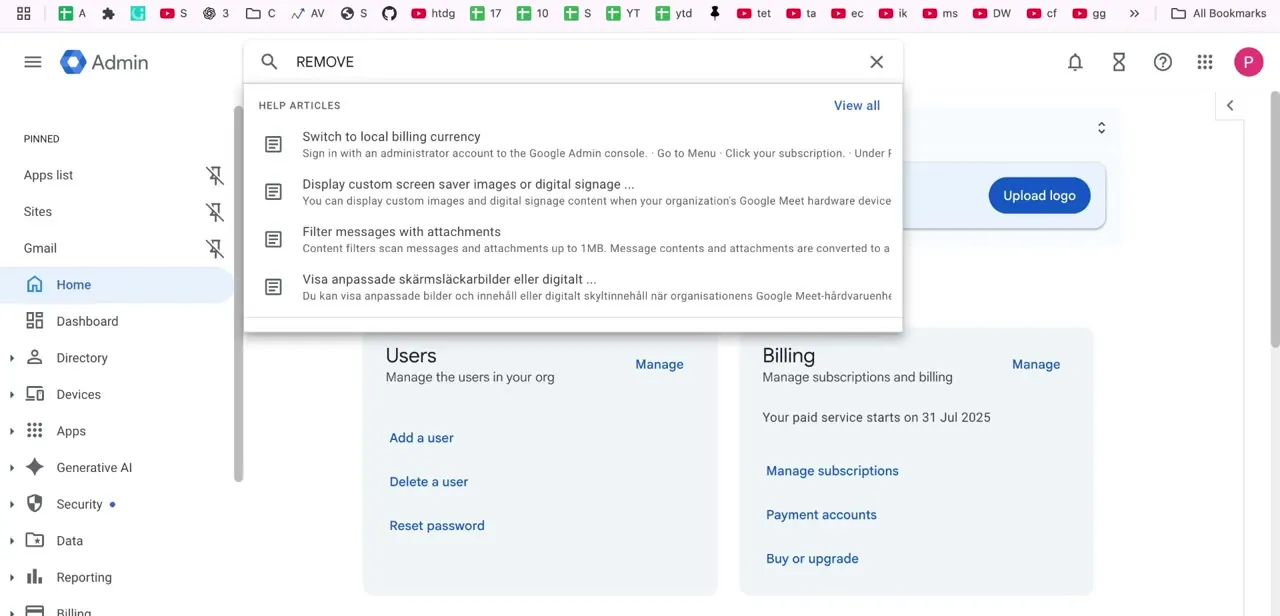
The Admin Console's search bar at the top of the screen accepts plain-language queries. Typing something like "remove" surfaces related help articles alongside matching settings, a reasonable check before an action Google describes as irreversible. The setting you actually need lives under Account, not Billing, which is where most people look first.
05Open Account management and delete the account
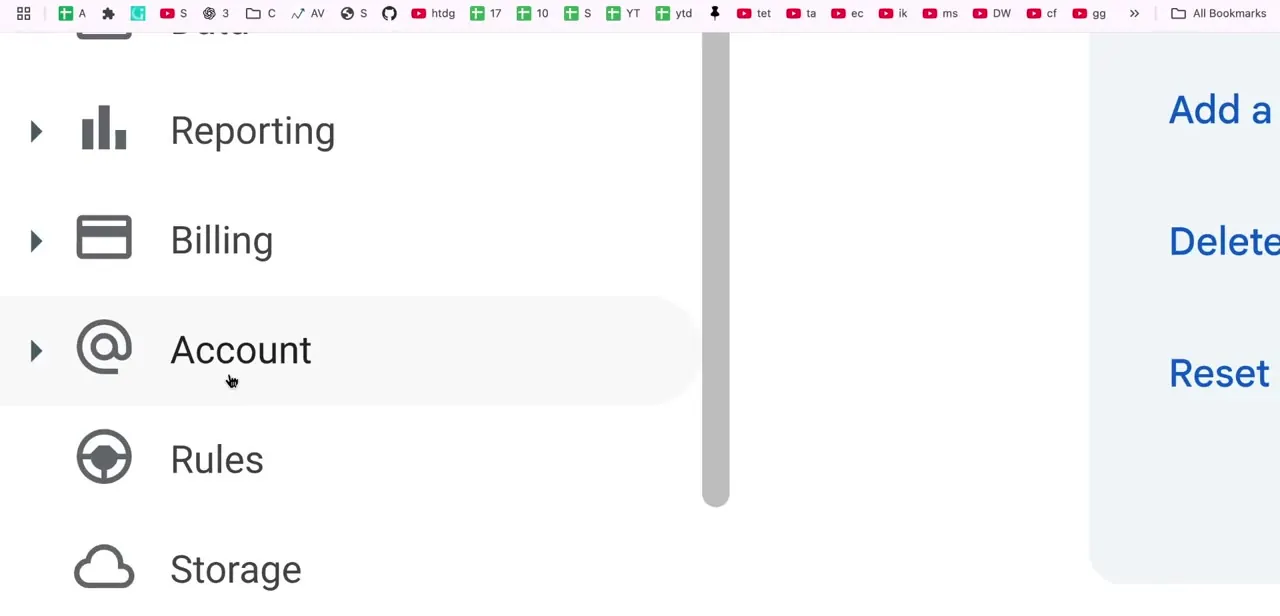
Go to Menu, then Account, then Account settings, then Account management. Click Delete Account, check the box confirming you've read what deletion does, and click Delete Account a second time to confirm.
You need the Domain settings administrator privilege to see this option at all. If Delete Account isn't there, that privilege is the most likely reason, followed by a subscription other than Cloud Identity Free still needing to be canceled first.
06Know what happens after you click Delete Account
You're signed out immediately and lose access to the Admin Console, including billing records, so anything you meant to save from step two needs to already be saved. Every user, group, and organizational unit is deleted and, per Google, can't be restored. There's no separate step for releasing the domain: deleting the organization automatically frees it within 24 hours for use with a new Google Account, whether that's a different Workspace setup or a personal Gmail-based one.
| Action | What it does | Can you undo it? |
|---|---|---|
| Cancel Subscription (Billing) | Stops future billing on that subscription; the organization and its data can still exist afterward | Often recoverable for a period; check the Billing section |
| Delete Account (Account management) | Removes every user, group, and organizational unit, ends your own admin access, and frees the domain within 24 hours | No. Google states this cannot be undone |
From Google Workspace's official Admin Help pages, checked September 2026.
When it doesn't work
Delete Account doesn't appear in Account management
Why: The signed-in account doesn't hold the Domain settings administrator privilege, or a subscription other than Cloud Identity Free is still active.
Fix: Sign in with an account that holds that specific privilege, and cancel any remaining subscription first. Cloud Identity Free is the one exception that doesn't need canceling.
There's no button to release my domain
Why: There isn't a separate manual release step in the Admin Console.
Fix: Complete the account deletion. The domain becomes available for a new Google Account on its own, within 24 hours.
I can't find my old invoices after deletion
Why: Billing records become unreachable the moment the account is deleted, and there's no way to retrieve them from Google afterward.
Fix: Save or print invoices and payment receipts from the Billing section before you delete the account.
A Google Cloud project or Marketplace app is still active after I thought I'd shut everything down
Why: Deleting the Workspace organization doesn't automatically remove installed Marketplace apps or associated Google Cloud and Apps Script projects.
Fix: Uninstall Marketplace apps and delete Cloud or Apps Script projects yourself, before or shortly after deleting the organization.
Frequently asked questions
Will I lose my data if I delete my Google Workspace account?
Yes. Google states the deletion can't be undone, which is why it's worth exporting anything important through Google Takeout or the admin Data Export tool, and saving your billing records, before you start.
Do I need to cancel billing separately from deleting the account?
Yes. Google won't let you delete the organization while a paid subscription is active, with one exception: Cloud Identity Free can't be canceled and doesn't block deletion.
Can I keep using my domain after removing Google Workspace?
Yes. There's no separate manual step for it; deleting the organization automatically frees the domain within 24 hours for use with a different provider or a personal Gmail setup.
Where in the Admin Console is account deletion actually located?
Under Account, then Account settings, then Account management, where the Delete Account button lives. It's not inside Billing, which is where most people first look for it.
Do I need to remove all users before deleting the organization?
No. Deleting the organization automatically removes every user, group, and organizational unit. Removing them individually first only helps if you want to review what's tied to a mailbox beforehand.
What admin privilege do I need to delete the organization?
The Domain settings administrator privilege specifically. Without it, the Delete Account option won't appear even for other kinds of admin accounts.
What happens to Google Cloud projects or Marketplace apps?
Nothing, automatically. Deleting the Workspace organization doesn't remove installed Marketplace apps or associated Google Cloud and Apps Script projects; those need to be deleted separately.
Sources and last check
Click path and screens come from a walkthrough recorded in 2026. The deletion process, admin privilege requirement, and domain-release behavior were re-checked against Google Workspace's official Admin Help documentation in September 2026. That check corrected the original claim that domain release is a manual step inside the deletion flow (it isn't; deletion frees the domain automatically within 24 hours), added the Domain settings administrator privilege requirement, added the Cloud Identity Free exception to subscription cancellation, clarified that removing users first is optional rather than required, and added the pre-deletion items the original omitted: billing records, Marketplace apps, and Google Cloud or Apps Script projects.
About the author

Impran M N
I've been hooked on technology for as long as I can remember — especially the new tools and AI apps that seem to land every other week. Easy Tech Tuts is where I write up whatever I've just worked out: I do the task in the real product, record the screen, and turn it into the guide I wish I'd found first.



