 Easy Tech Tuts
How to Open FREE Google Workspace Account, Easy Sign up,& Access Admin Console 2026
By Impran M NLast checked against official docs
Google Workspace's free trial is the easiest way to test business email, Drive, Meet, and Docs under your own domain before committing to a paid plan. The sign-up itself is a short form, but the part that matters for running a business — the Admin Console, where you add users, manage billing, and control every app your team touches — lives in a completely separate interface most new admins don't find on their own. This guide walks through the marketing site's sign-up flow and then straight into the Admin Console, so you know exactly where to land once your trial is active.
Before you start
- An email address to sign up with, personal or business
- A domain you already own, or plans to register one during signup
- A payment method. Google requires one on file before the trial activates, even though it isn't charged during the 14 days
01Start from the Google Workspace marketing page
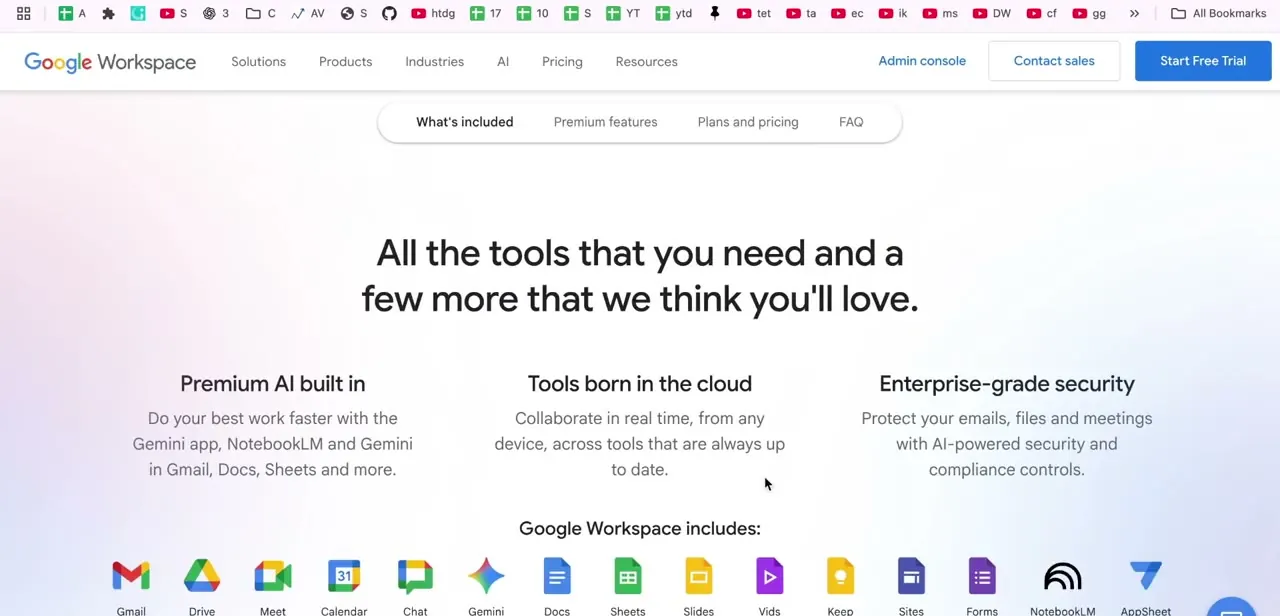
The signup begins on Google's Workspace page, which lists everything included in a plan: Gmail, Drive, Meet, Calendar, Chat, Docs, Sheets, and more, laid out as an icon row under a "What's included" tab. The Start Free Trial button sits in the top navigation, next to a separate Admin console link that only becomes useful once you already have an account.
Ignore it for now if this is your first time here. Google asks for a payment method before the trial activates, though it isn't charged unless you keep the account after the 14-day trial ends. It's not the cost-free, no-signup-needed flow the button alone suggests.
02Sign up with your business email and set your domain
Clicking Start Free Trial walks you through a short form: your business name and size, a contact email, and then the domain question. Connect a domain you already own, or have Google help you register a new one during the same flow.
This domain is what your professional email addresses will be built on, so it's worth getting right the first time instead of changing it later. Once it's set, Google creates your organization and gives you your first admin account tied to that domain.
The same flow asks for a payment method. Google documents the trial as supporting up to 10 users, so a small team can test the suite before anyone adds the rest of the company.
03Create your professional email address
As part of finishing setup, you'll create your first user, typically yourself, with an address in the format yourname@yourdomain.com. This is the account you'll use to sign into Gmail, Drive, and every other app in the suite, and it's the same account that has admin rights over the organization by default. Additional team members get added later from inside the Admin Console instead of during this initial signup.
04Land in the Admin Console home
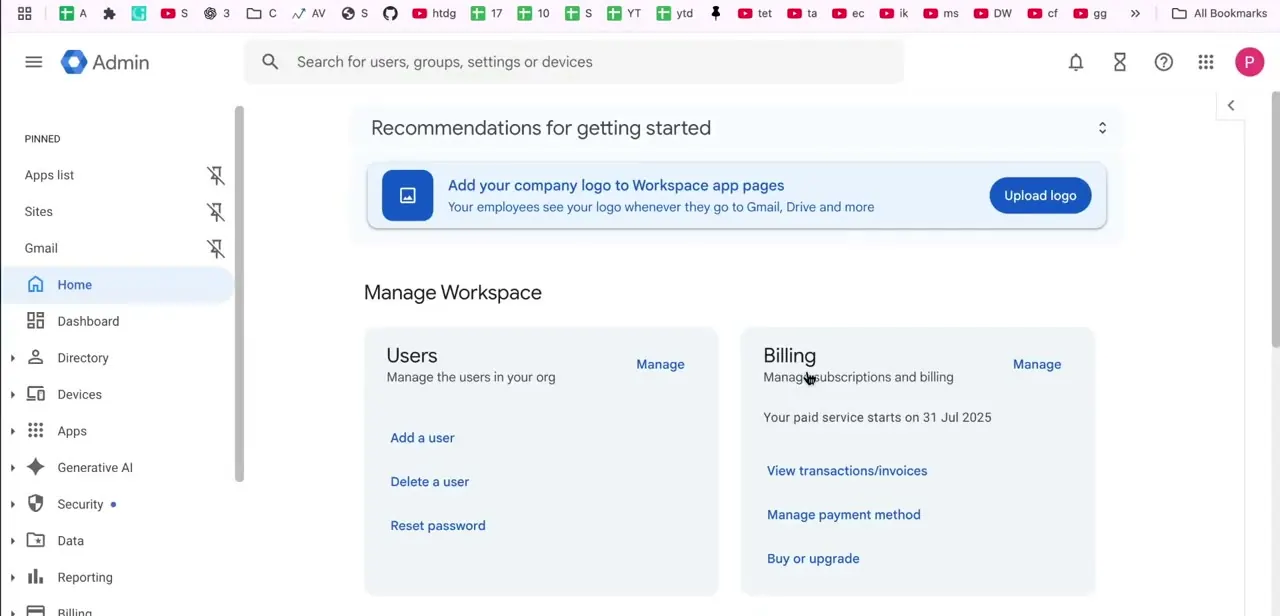
Once setup finishes, you're dropped into the Admin Console, a distinct interface from Gmail or Drive, reachable at admin.google.com. The home screen opens on "Recommendations for getting started," with a Manage Workspace section below split into cards for Users (add, delete, or reset passwords for people in your org) and Billing (view invoices, manage your payment method, or upgrade). This home screen is worth bookmarking, since it's the fastest route back to user management once your trial is running.
05Use the app switcher to jump between tools
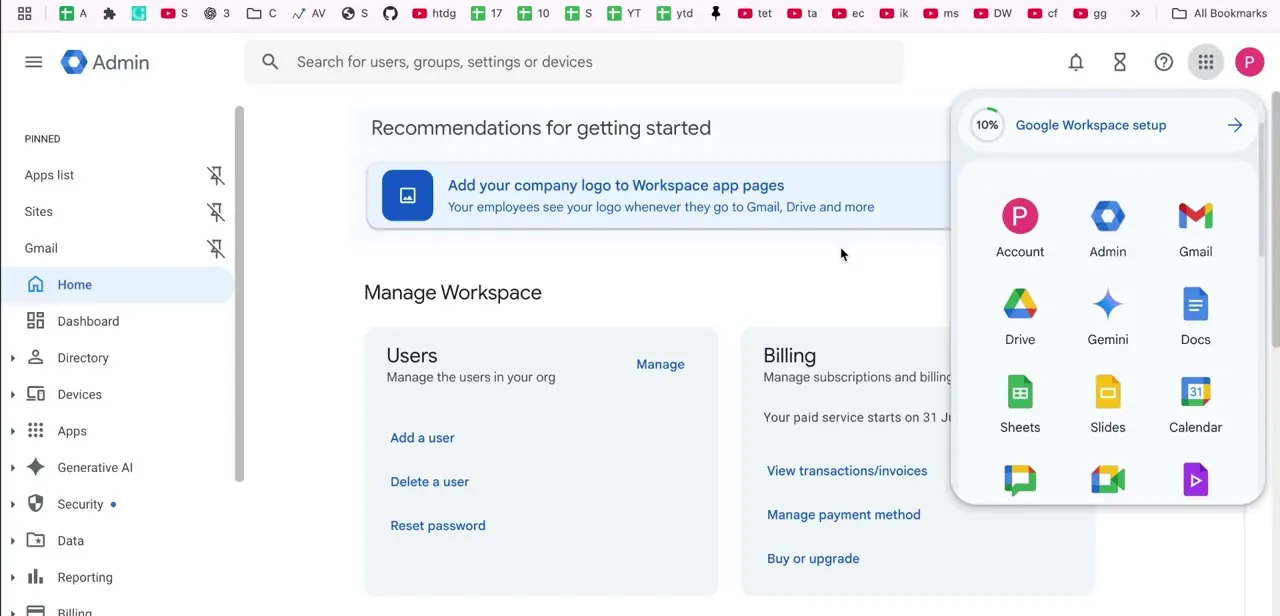
The grid icon in the top-right corner of the Admin Console opens a switcher with direct links to Account, Admin, Gmail, Drive, Gemini, Docs, Sheets, Slides, Calendar, and more. It's the same grid pattern Google uses across its consumer products, just populated with your organization's tools. A small progress indicator above it, labeled "Google Workspace setup," tracks how much of the initial configuration, like adding your logo or verifying your domain, you've completed so far.
06Test the suite, then check billing before it converts
With the account active, spend the 14 days using the suite instead of just clicking through settings. Send mail from your new address, store a few files in Drive, and start a Meet call to check video and audio quality on your network.
If your plan includes Gemini, it sits inside Gmail and Docs instead of living as a separate app, so try it from a draft email or document. Before the trial runs out, return to the Billing card on the Admin Console home and check your plan, payment method, and renewal date.
Google shows exactly when paid billing starts on that same card. Cancel there if you're not ready to commit. Left alone, a trial with a payment method on file converts to a paid subscription automatically; a trial with none suspends the account instead.
When it doesn't work
The account gets suspended right after the trial ends
Why: No payment method was ever added during setup, or it was removed before the trial expired. Google suspends rather than charges an account with nothing on file.
Fix: Sign back into the Admin Console and add a payment method under the Billing card to restore access.
Can't find the Admin Console after signing up
Why: It's a separate interface from Gmail and Drive, and nothing inside those apps links to it by default.
Fix: Go directly to admin.google.com and sign in with the admin account created during setup, or open the app switcher grid inside any Workspace app and choose Admin.
Frequently asked questions
Is the Google Workspace free trial really free for 14 days?
Yes, Google doesn't charge anything during the 14-day trial. It does ask for a payment method before the trial activates, and if none is on file when the trial ends, the account is suspended rather than left running.
Do I need my own domain to sign up for Google Workspace?
No. You can connect a domain you already own, or register a new one during the same signup flow if you don't have one yet.
How many users can I add during the trial?
Up to 10. That's the limit Google documents for trial accounts; you can add more once you've moved to a paid subscription.
How do I access the Google Workspace Admin Console?
Go directly to admin.google.com and sign in with your Workspace account, or use the app switcher grid in the top-right corner of any Google Workspace app to jump to Admin.
Will I be charged automatically after the free trial ends?
Only if a payment method is already on file, in which case billing starts automatically on the date shown on the Billing card. If no payment method was added, Google suspends the account instead of charging it.
Sources and last check
Click path and screens come from a walkthrough recorded in 2025. The trial length, the payment-method requirement, the 10-user cap, and what happens at trial end were re-checked against Google Workspace's official help documentation in September 2026. The original draft said no card was required to begin the trial; that was corrected here, since Google documents a payment method as required before the trial activates even though it isn't charged during the 14 days.
About the author

Impran M N
I've been hooked on technology for as long as I can remember — especially the new tools and AI apps that seem to land every other week. Easy Tech Tuts is where I write up whatever I've just worked out: I do the task in the real product, record the screen, and turn it into the guide I wish I'd found first.



