 Easy Tech Tuts
How to Login Google Workspace Account, Resolve Errors in Sign in Access 2026 Easily
By Impran M NLast checked against official docs
Signing into Google Workspace should be a two-field form, but a wrong password, a stuck two-step prompt, or a suspended account can turn it into a dead end fast. This guide follows the actual sign-in screen at admin.google.com and the AI support chat Google surfaces for Workspace issues, so you know what each looks like when troubleshooting. It covers the standard login path and what to do when that path fails, including a domain mix-up that produces an error looking like a broken account, and the separate recovery process Google runs for admins who lock themselves out of the console entirely.
01Start at the right sign-in page
For day-to-day access, sign in through gmail.com or your organization's custom login link. If you're an administrator trying to reach account or user settings, go to admin.google.com instead: that's a separate sign-in flow from a standard Gmail login.
Mixing these up is a common source of confusion. Entering your Workspace email at a personal Gmail login, or a personal Gmail address at the Admin Console, produces an error that looks like a broken account when it's just the wrong entry point.
02Verify your identity with your password
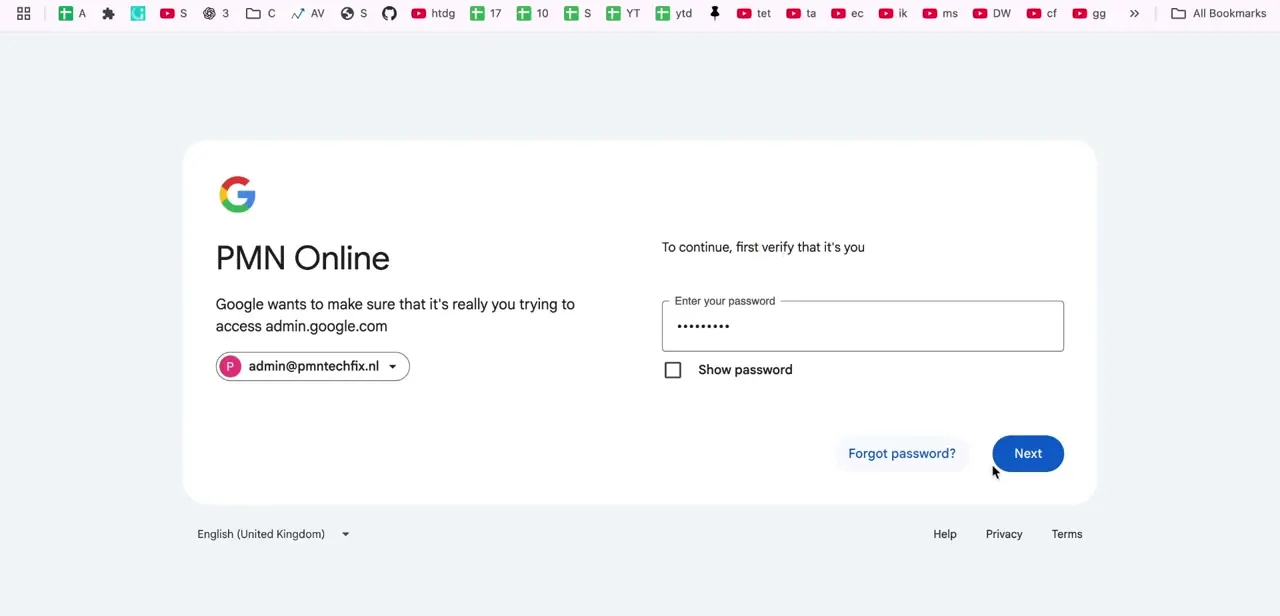
When you sign into admin.google.com, Google adds an extra password confirmation step even if you're already logged into that Google account elsewhere in the browser. The Admin Console controls organization-wide settings, so Google asks for a fresh confirmation instead of relying on an existing browser session. If this screen won't accept your password, use Forgot password instead of retrying the same one repeatedly: several failed attempts in a row can trigger a temporary lock on the account.
03Fix "couldn't find your Google Account" errors
Google's own troubleshooting for this error points to three causes: a typo in the username or password, a misspelled domain if you typed the admin URL directly, or signing in with a domain alias instead of the organization's primary domain. Type the full Workspace address on the primary domain, not a shortened or aliased version of it.
If the device already has a personal Gmail account signed in, that session can interfere with an admin login. Google's fix for this specific case is to open an Incognito window, go to admin.google.com there, and sign in with the admin address, which doesn't end in @gmail.com.
04Get past a stuck two-step verification prompt
If 2-step verification is blocking you, a lost phone, an expired app-based code, or a prompt that never arrives, use a backup code if you saved one during setup, or fall back to whichever secondary recovery method you registered, such as a recovery phone number or email. Admins can also adjust 2-step verification enforcement for a specific user from the Admin Console's security settings if a team member is locked out with no working recovery option of their own.
05Ask Google's Workspace AI support directly
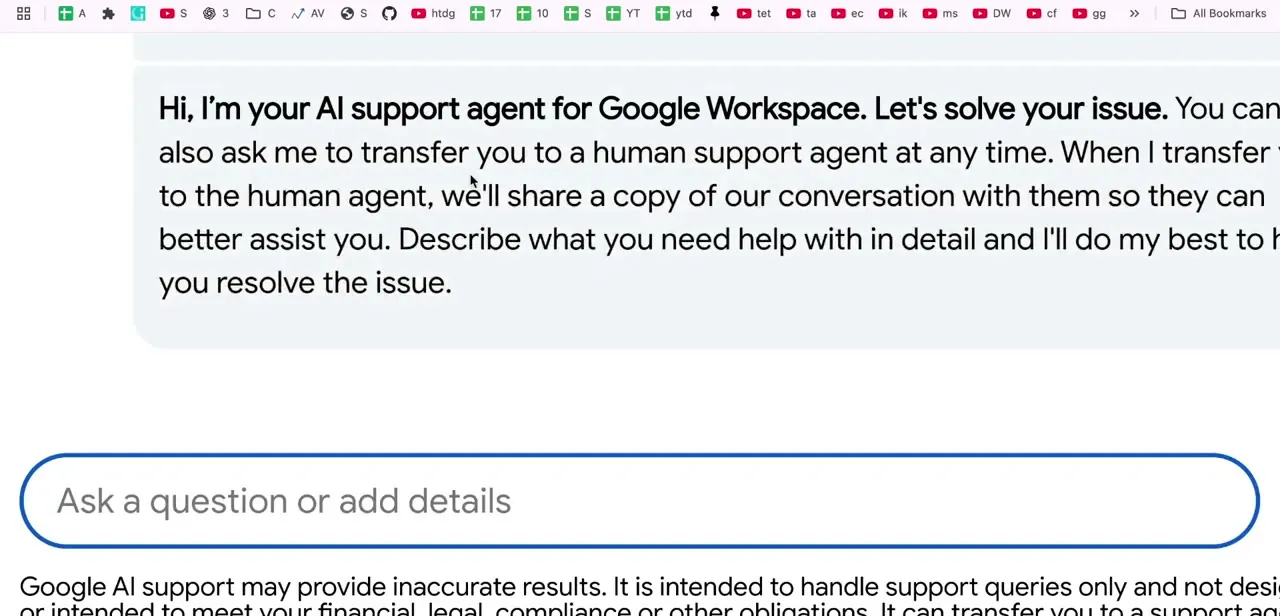
Google surfaces a built-in AI support chat for Workspace issues, prompting you to describe the problem and offering to hand off to a human agent if it can't resolve things itself. It's a reasonable first stop for straightforward sign-in questions since it's available immediately without opening a support ticket. Google's own disclaimer notes it can give inaccurate answers, so for an actual suspended or compromised account, escalate to a human agent or your admin instead of relying on it alone.
06Recover access when an admin is locked out
A suspended user account has to be re-enabled by an administrator from the Admin Console's Users section; there's no self-service fix for that one. But if the administrator is the one locked out, Google runs a separate recovery path for that.
Start at accounts.google.com/signin/recovery with the admin email address. If a recovery phone or email is already on file, Google sends a verification code there and walks through a password reset.
Without recovery info set up, Google's recovery tool instead asks you to add a CNAME or TXT record to the domain's DNS, which can take up to 24 hours to propagate before Google can confirm domain ownership. If that stalls, contact another super admin on the account to reset the password directly, or open a support-assisted recovery case, which issues a reference number and verifies ownership through the same DNS record.
| Who's locked out | Start here | What it needs |
|---|---|---|
| Regular user, forgotten password | Forgot password on the sign-in screen | Access to the recovery phone or email on file |
| Regular user, stuck on 2-step verification | Backup codes, or ask an admin to adjust 2SV for the account | A saved backup code, or admin access |
| Admin, forgotten password, recovery info on file | accounts.google.com/signin/recovery | Recovery phone or email |
| Admin, no recovery info, fully locked out | Google's domain-verification recovery tool | A CNAME or TXT record added to the domain's DNS, up to 24 hours to propagate |
Support-assisted recovery is the fallback once the self-service options above don't resolve it.
When it doesn't work
Signing in sends me to workspace.google.com/dashboard instead of the Admin Console
Why: The account doesn't have administrator privileges. This isn't a login failure.
Fix: Ask an existing administrator to grant admin rights to the account, then sign in again.
"Couldn't find your Google Account" even though the address looks right
Why: Either a domain alias was used instead of the organization's primary domain, or a personal Gmail session already active in the browser is conflicting with the admin login.
Fix: Re-enter the address on the primary domain, or open an Incognito window and sign in to admin.google.com there.
No one, including super admins, can get into the Admin Console
Why: An overly restrictive Context-Aware Access policy can lock out every admin at once, including the accounts that would normally fix it.
Fix: This needs Google Support through the Customer Care Portal to remove the policy from outside the console; it isn't fixable from within it.
The password screen keeps rejecting a password that's definitely correct
Why: Several failed attempts in a row can trigger a temporary lock on the account.
Fix: Stop retrying and use Forgot password instead of the same credentials again.
Frequently asked questions
Why does Google say it can't find my account when I try to log in to Workspace?
Usually because a personal Gmail address was entered instead of the Workspace domain email, a domain alias was used instead of the primary domain, or the browser already has a different Google account signed in. An Incognito window rules out that last cause.
What do I do if my Google Workspace account shows as disabled or suspended?
An admin needs to re-enable it from the Admin Console's Users section. Suspended accounts can't be restored from the user side.
How do I get back in if I'm locked out by 2-step verification?
Use a backup code or another registered recovery method, or ask an admin to adjust your 2-step verification requirement if no recovery option works.
Is Google's AI support chat reliable for account problems?
It's a fine first stop for straightforward sign-in questions, but Google's own disclaimer says it can give inaccurate answers. For a suspended or compromised account, escalate to a human agent or your admin.
I'm the admin and I'm the one locked out. What now?
Start at accounts.google.com/signin/recovery. With recovery info on file, Google emails or texts a verification code. Without it, Google's recovery tool verifies domain ownership through a DNS record instead, which can take up to a day to confirm.
Can a Context-Aware Access policy lock out every admin at once?
Yes. An overly restrictive policy can block super admins along with everyone else. Recovering from that specific case requires contacting Google Support directly, since it can't be undone from inside the locked console.
Sources and last check
Click path and screens come from a walkthrough recorded in 2026. The account-not-found causes, the domain-alias and Incognito-window fix, the Context-Aware Access lockout scenario, and the admin recovery mechanics (self-recovery, DNS record verification with its 24-hour propagation window, and support-assisted recovery) were re-checked against Google Workspace's official Help Center in September 2026. The earlier version described admin recovery only in general terms; the recovery paths and DNS-based verification step are now stated from Google's own documentation.
About the author

Impran M N
I've been hooked on technology for as long as I can remember — especially the new tools and AI apps that seem to land every other week. Easy Tech Tuts is where I write up whatever I've just worked out: I do the task in the real product, record the screen, and turn it into the guide I wish I'd found first.



