 Easy Tech Tuts
How to Forward Google Workspace Domain Emails to Your Personal Gmail 2026 Easily
By Impran M NLast checked against official docs
Whether you're transitioning out of a business, managing a domain for a client, or you just prefer working from one inbox, forwarding your Workspace domain emails to a personal Gmail account keeps you connected without logging into multiple accounts all day. There are two real ways to do this: from the individual user's own Gmail settings, or centrally through the Admin Console. This guide focuses on the Admin Console route, since it's the one that lets an admin forward mail for an address without the user configuring anything, and it walks through exactly what that setup screen asks for.
Before you start
- Super admin access to your Google Workspace Admin Console, if you're setting this up for someone else
01Decide who should set this up
If you're forwarding your own mailbox and control it fully, the simplest path is Gmail's own Settings, under Forwarding and POP/IMAP: add the personal address, verify it through a confirmation email, and turn forwarding on. If you're an admin setting this up for a user, or the account shouldn't need to touch its own settings, the Admin Console route below applies instead and doesn't rely on the user doing anything.
02Open the Admin Console and find Gmail routing
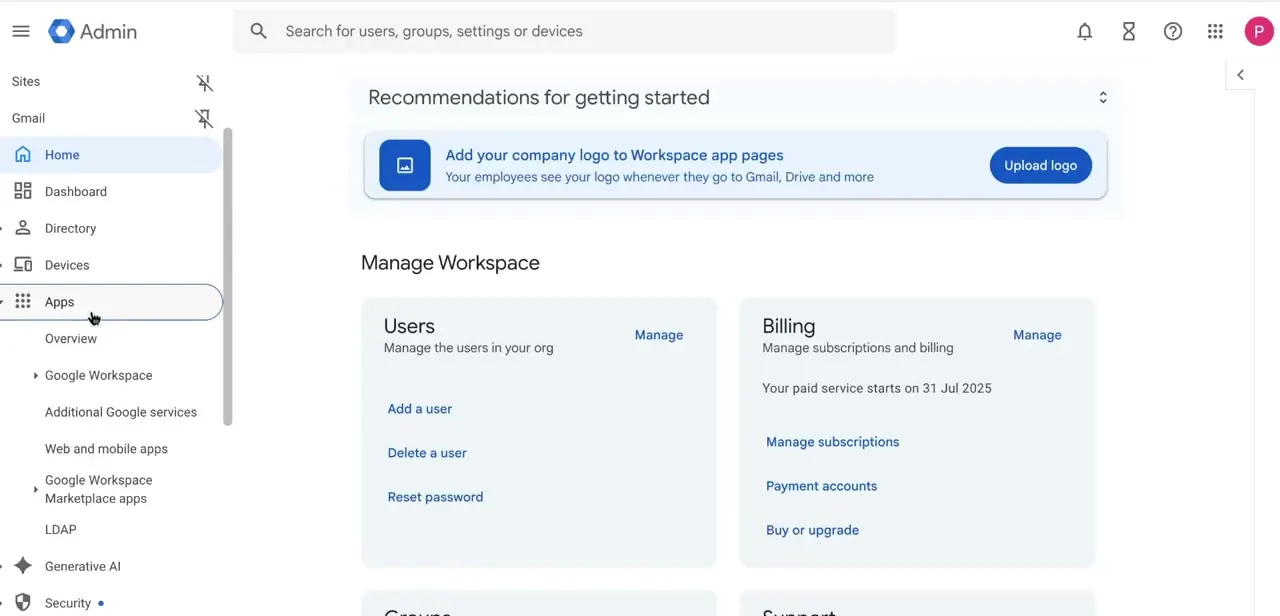
From admin.google.com, the Home dashboard gives an overview of your organization: Users, Billing, and setup recommendations. The mapping tool used here sits under Apps, then Google Workspace, then Gmail, then Routing. That last click matters: Routing is a different page from Default routing, and the recipient address map setting only appears on the Routing page.
03Add an email forwarding mapping
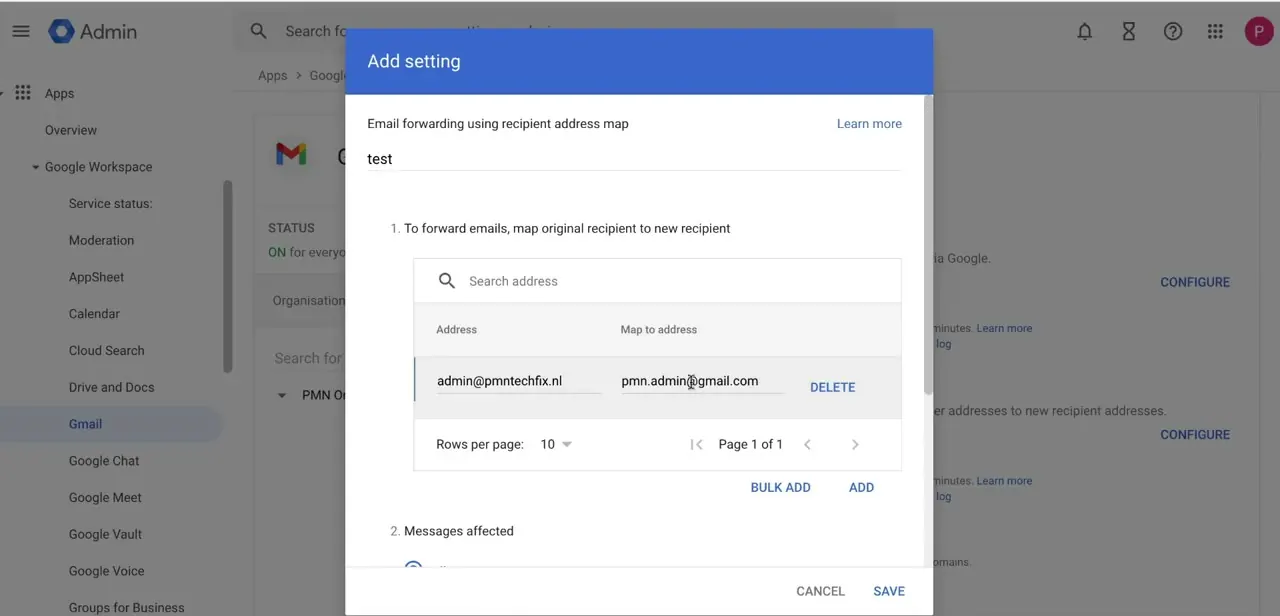
On the Routing page, scroll to Email forwarding using recipient address map and click Add setting (or Configure, then Add another rule, if one already exists). The dialog builds an actual mapping: an Address field for the original recipient and a Map to address field for where that mail should go.
In practice this looks like mapping something such as admin@yourdomain.com to a personal address like yourname@gmail.com. You can add more rows for multiple domain addresses, up to 5,000 mapped addresses total across all rules on the account.
04Choose which messages get forwarded and how
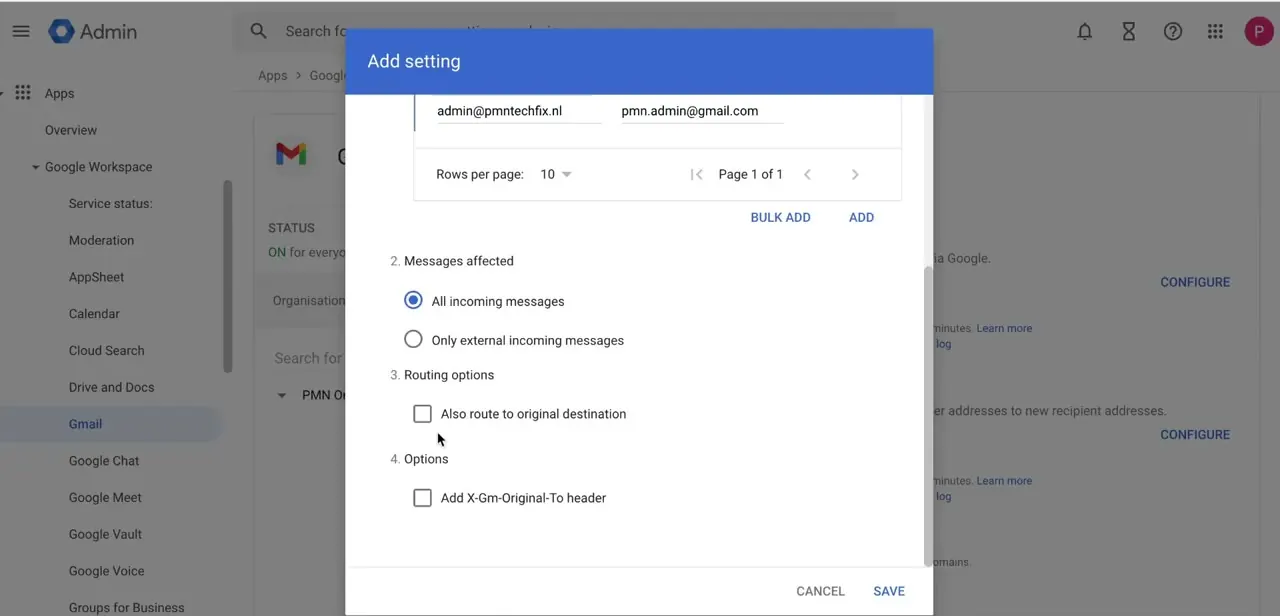
Further down the same dialog, under Messages affected, choose between All incoming messages or Only external incoming messages; the second is useful if you only care about mail from outside your organization and want internal traffic to stay in the original inbox. Under Routing options, checking Also route to original destination keeps a copy in the Workspace mailbox alongside the forwarded copy. There's also an option to add an X-Gm-Original-To header, which keeps the original recipient address in the forwarded message's headers, useful if one personal inbox receives mail forwarded from several domain addresses.
05Save it, knowing it applies to the whole domain
Click Save once the mapping and routing choices are set. Unlike many Admin Console settings, this one has no organizational-unit picker: Google's own documentation states that the recipient address map can only be configured at the top-level organization and applies to every organization under it.
If you need forwarding scoped to just one team or user, set it up from that person's own Gmail settings instead, or look at a different routing rule that does support OU scoping. Changes here typically take effect within a few minutes, though Google notes it can take up to 24 hours.
06Turn on POP or IMAP if you want full syncing
Forwarding only sends new incoming mail from that point forward; it won't pull in existing messages or keep folders and labels in sync. For the personal Gmail account to mirror the Workspace mailbox more fully, enable POP or IMAP access on the Workspace account and add it as a linked account in the personal Gmail's settings instead of relying on forwarding alone. It's more setup, but it's the difference between a one-way trickle of new mail and something closer to a synced inbox.
| Method | Who sets it up | Scope | Needs the user to do anything? |
|---|---|---|---|
| Gmail's own Forwarding and POP/IMAP setting | The mailbox owner | One mailbox | Yes, configured inside that Gmail account |
| Admin Console recipient address map | A super admin | The whole domain (top-level org only) | No, set centrally |
When it doesn't work
The setting applied to the whole domain instead of just one team
Why: Email forwarding using recipient address map has no organizational-unit picker; Google's documentation confirms it can only be configured at the top-level org.
Fix: For anything narrower than the whole domain, use the mailbox owner's own Gmail forwarding setting instead.
Adding more mappings gets rejected
Why: The account has hit the 5,000-address ceiling across all recipient address map rules combined.
Fix: Consolidate or remove mappings you no longer need, or split the forwarding logic across a different routing mechanism.
The mapping was saved but mail isn't forwarding yet
Why: Admin Console changes here can take up to 24 hours to fully propagate, even though most apply within minutes.
Fix: Wait and retest before assuming the mapping is broken; check the Address and Map to address fields for a typo in the meantime.
Frequently asked questions
Do I need admin access to forward my own Workspace email?
No. Individual users can set up forwarding themselves from their own Gmail settings without admin permissions. The Admin Console method here is for setting it up centrally for someone else.
Can I limit the Admin Console forwarding rule to one team or organizational unit?
No. Email forwarding using recipient address map can only be configured at the top-level organization, and it applies to the whole domain. Use the mailbox owner's own Gmail settings for anything narrower.
Will forwarded emails still show my business domain when I reply?
With the right reply-to and send-as configuration, you can keep your business address on outgoing replies sent from the personal Gmail account.
Can an admin block users from setting up their own forwarding?
Yes. Admins can restrict or disable auto-forwarding domain-wide as a security measure, which overrides a user's personal settings.
How many addresses can one recipient address map handle?
Up to 5,000 mapped addresses total, whether that's one rule with 5,000 rows or many smaller rules that add up to the same limit.
What's the difference between forwarding and enabling POP/IMAP?
Forwarding only sends new mail as it arrives. POP or IMAP access syncs the mailbox more fully, including existing messages, which is closer to a mirrored inbox.
Sources and last check
Click path and screens come from a recorded walkthrough. The navigation (Gmail > Routing, not Default routing), the 5,000-address limit, the up-to-24-hour propagation, and the org-unit scope were checked against Google's own Workspace Admin Help in September 2026. That check corrected a real error in the previous version, which told readers to scope the rule to a specific organizational unit; the setting only exists at the top level and cannot be scoped that way.
About the author

Impran M N
I've been hooked on technology for as long as I can remember — especially the new tools and AI apps that seem to land every other week. Easy Tech Tuts is where I write up whatever I've just worked out: I do the task in the real product, record the screen, and turn it into the guide I wish I'd found first.



