 Easy Tech Tuts
How to Fix 'Domain Already in Use Error in Google Workspace 2026 Easily
By Impran M NLast checked against official docs
The 'domain already in use' error in Google Workspace almost always means the domain is still tied to a previous Google account, blocking your new setup. This walkthrough covers the exact error message, the Google Admin Help page that lists possible causes, and the domain recovery form itself, including TXT record verification through a DNS provider. It's based on a real fix done through Squarespace's DNS settings, but the same steps apply to most hosting providers.
Before you start
- Access to the DNS settings for the domain in question, through your registrar or host, needed for TXT record verification if none of Google's other listed causes apply.
01See where the error appears
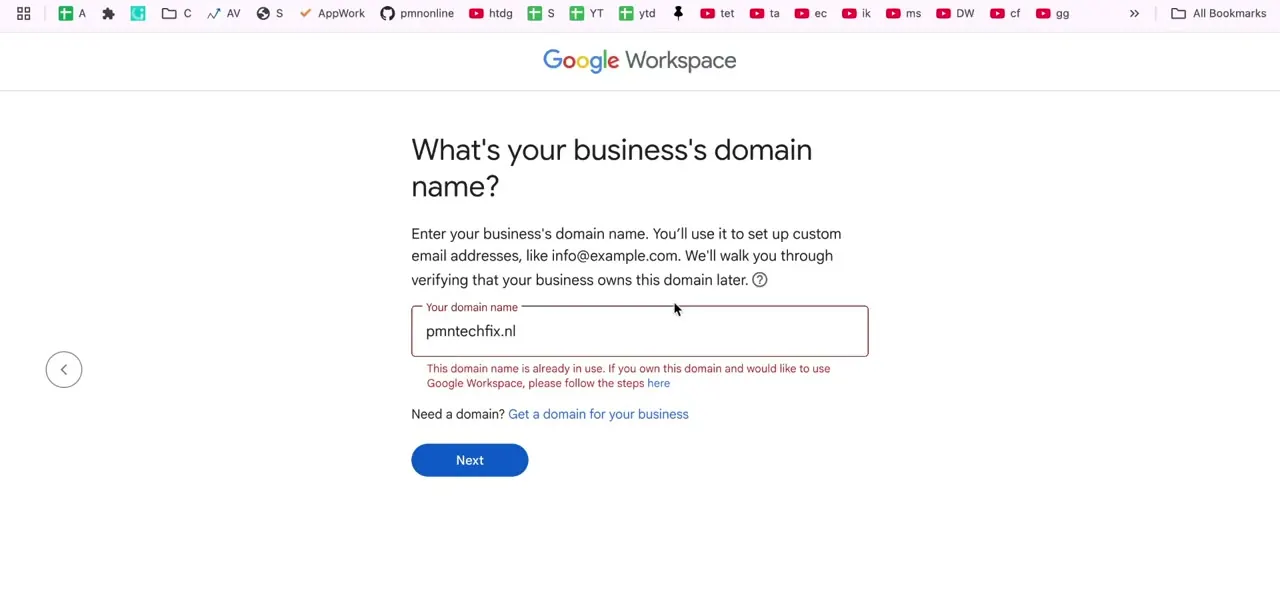
When you enter your business's domain name during Google Workspace signup, the field turns red and shows: "This domain name is already in use. If you own this domain and would like to use Google Workspace, please follow the steps here." This confirms the issue is specific to that domain, not anything wrong with your signup details, and the built-in "here" link is the fastest way into Google's own troubleshooting page.
02Check Google's listed reasons first
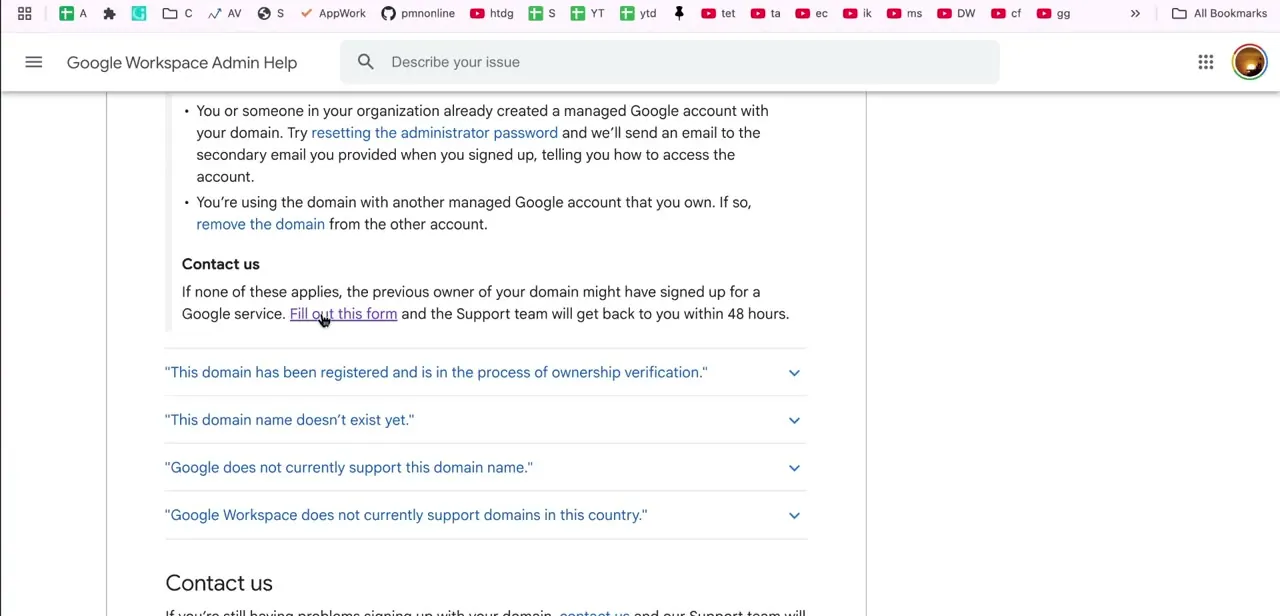
Google's Admin Help page lists three explanations, in this order. First, and easy to miss: you or someone else recently removed this exact domain from another managed Google account.
Google holds a domain back from reuse for 24 hours, or 7 days if that account came through a reseller, and this needs nothing more than waiting it out; no form required. Second, you or someone in your organization already created a managed account with this domain, fixed by resetting the administrator password.
Third, the domain is attached to another Google account you own, fixed by removing it from that account. Work through all three before doing anything else, since the first two are faster than the recovery form. If none apply, the page points to Fill out this form so the Support team can look into it, with a reply promised within 48 hours.
03Fill out the domain recovery form
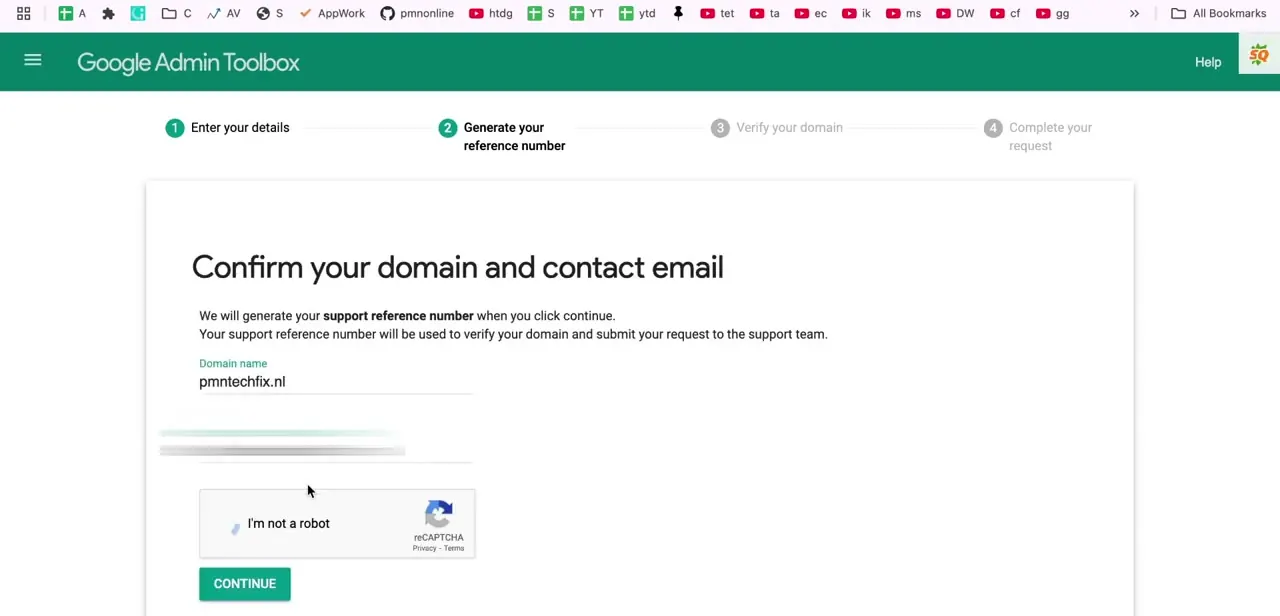
The form runs through four stages: entering your details, generating a support reference number, verifying your domain, and completing the request. On the second stage it asks you to confirm your domain name and contact email, then generates the reference number once you pass a reCAPTCHA check. This reference number is what ties your verification steps back to your specific request, so keep the tab open through the rest of the process.
04Choose the TXT record verification method
When the form asks how you'd like to verify ownership, pick the TXT record option over CNAME. It's a single record you add and remove without touching any existing DNS entries, which makes it faster to set up and safer to reverse than juggling a CNAME record.
Copy the destination target value the tool generates. You'll paste it into your DNS provider next.
05Add the TXT record in your DNS settings
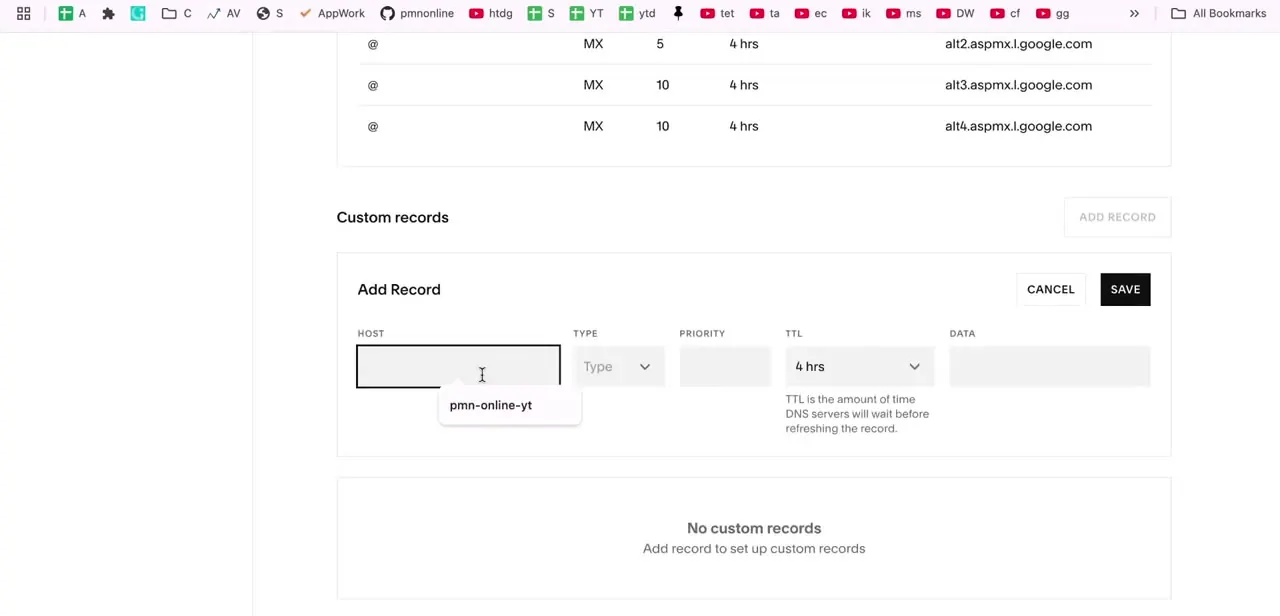
Log into your domain registrar or hosting provider (in this case, Squarespace's Domains section) and open the DNS or Custom records area. Add a new record, paste the value Google gave you into the Data field, leave the TTL at its default, and save. If you're not on Squarespace, search "how to add a TXT record in [your provider]" since the exact menu names shift between hosts, but the record itself works the same everywhere.
06Recheck, submit, and know what happens next
Return to the Google recovery tab and click Check Again. DNS changes can take anywhere from a few minutes to a few hours to propagate, so if it doesn't verify immediately, wait and retry instead of assuming something's wrong.
Once verification passes, click Submit Request; you'll get an on-screen confirmation and a follow-up email at the contact address you provided, typically within 48 hours. In most cases, this error happens because the domain is still linked to an old, often abandoned Google Workspace account, not because someone is actively squatting on it.
If you genuinely believe another party owns and is using the domain, the form has a separate option to have Google contact them instead of freeing it up for you directly. Pick that path if you're not certain the domain is yours to claim.
When it doesn't work
The error keeps showing right after removing the domain from an old Workspace account
Why: Google holds a domain back from reuse for 24 hours after removal, or 7 days if the old account came through a reseller. This is stated directly on Google's Admin Help page as the first possible cause, separate from the recovery form process.
Fix: Wait out the hold period and try signup again. No form or DNS verification is needed for this specific cause.
The TXT record was added, but Check Again still fails
Why: DNS changes propagate on their own schedule, anywhere from a few minutes to a few hours depending on the provider and the record's TTL.
Fix: Wait and retry instead of editing the record again. Retyping it usually just resets the propagation clock.
Submitted the recovery form, but no confirmation email arrived
Why: The email went to the contact address entered on the form, which may not be the same inbox used to sign in, or it landed in spam.
Fix: Check spam in the inbox entered on the form, and check back after 48 hours before resubmitting a second request.
Frequently asked questions
Why does Google Workspace say this domain is already in use?
Most often because the domain is still linked to a previous Google Workspace or Google account, even an inactive one. It can also mean the domain was only just removed from another managed account and needs 24 hours (7 days via a reseller) before Google will let it be reused.
Should I use a TXT record or CNAME to verify my domain?
TXT record verification is generally easier and faster to set up in DNS settings than a CNAME record, and it's the method Google's own recovery form offers.
What if I don't own the domain that's flagged as already in use?
The recovery form has an option for Google to contact the current owner instead, if you suspect someone else genuinely controls the domain, instead of submitting a recovery request yourself.
How long does domain verification take after adding the TXT record?
It can take a few tries of clicking Check Again, since DNS changes sometimes take minutes to hours to propagate depending on your provider.
What happens after I submit the domain recovery request?
You'll see a confirmation screen right away, and Google sends a follow-up email to the contact address you entered, typically within 48 hours.
I just removed this domain from an old account. Do I really need the recovery form?
Not necessarily. Google's Admin Help page lists this as a separate, faster case: removing a domain triggers a 24-hour hold before it can be reused elsewhere, or 7 days if the account came through a reseller. Wait that out first before going through the form.
Sources and last check
Click path and screens come from a recorded walkthrough using Squarespace's DNS settings; the four-stage recovery form and the 48-hour response promise match Google's current Admin Help page exactly. One addition came from checking that page directly in September 2026: it currently lists a third possible cause, ahead of the two shown in the recorded screenshot, for a domain recently removed from another managed account, held back from reuse for 24 hours (7 days via a reseller) with no form needed. Whether that cause is new since the recording or was simply scrolled past in the screenshot isn't something this check can determine, but it's real and worth checking first, so it's included here.
About the author

Impran M N
I've been hooked on technology for as long as I can remember — especially the new tools and AI apps that seem to land every other week. Easy Tech Tuts is where I write up whatever I've just worked out: I do the task in the real product, record the screen, and turn it into the guide I wish I'd found first.



