 Easy Tech Tuts
How to Export Google Workspace Data 2026 Easily
By Impran M NLast checked against official docs
Whether you're switching accounts, backing up company data, or preparing to offboard a user, exporting Google Workspace data is something every admin eventually needs to do. This guide covers the paths available: an individual exporting their own Gmail, Drive, and Calendar data through Google Takeout, and an admin pulling data across the whole organization with the tool built for that, Google's Data Export tool, which is a different feature from Google Vault. It closes with the practical choices around export format, destination, and what to check before you delete anyone's account.
Before you start
- For a full organization export: a Google Workspace or Cloud Identity super administrator account that's at least 30 days old, with 2-Step Verification turned on
01Export your own data with Google Takeout
Any user can go to Google Takeout and select exactly which services to include. Gmail, Drive, Calendar, Photos, and dozens of others are each listed individually with a checkbox, so you're not forced to download everything if you only need one or two services.
Takeout packages the result into downloadable archive files and can deliver them straight to a linked cloud storage account instead of your local device if the file size is large. On a Workspace account, what shows up in that checklist isn't entirely up to the user. Admins control per-service Takeout availability from Data > Data import & export > Google Takeout in the Admin Console, and a service an admin has blocked simply doesn't appear as an option, with no error message explaining why.
02Know which admin tool you actually need
Google Workspace has two separate tools for admin-level data access, and they solve different problems. The Data Export tool is what exports a full copy of the organization's data for backup or migration purposes.
Google Vault is an eDiscovery and legal-hold tool: it exports only what matches a search you run inside a Vault "matter," it requires a Vault license (included in some Workspace editions, an add-on in others), and completed exports are deleted from Vault after 15 days. For a straightforward org-wide backup, the Data Export tool is the right one; reach for Vault when the goal is preserving and producing specific data for a legal or compliance case.
03Check Google Vault, if legal hold or targeted search is the goal
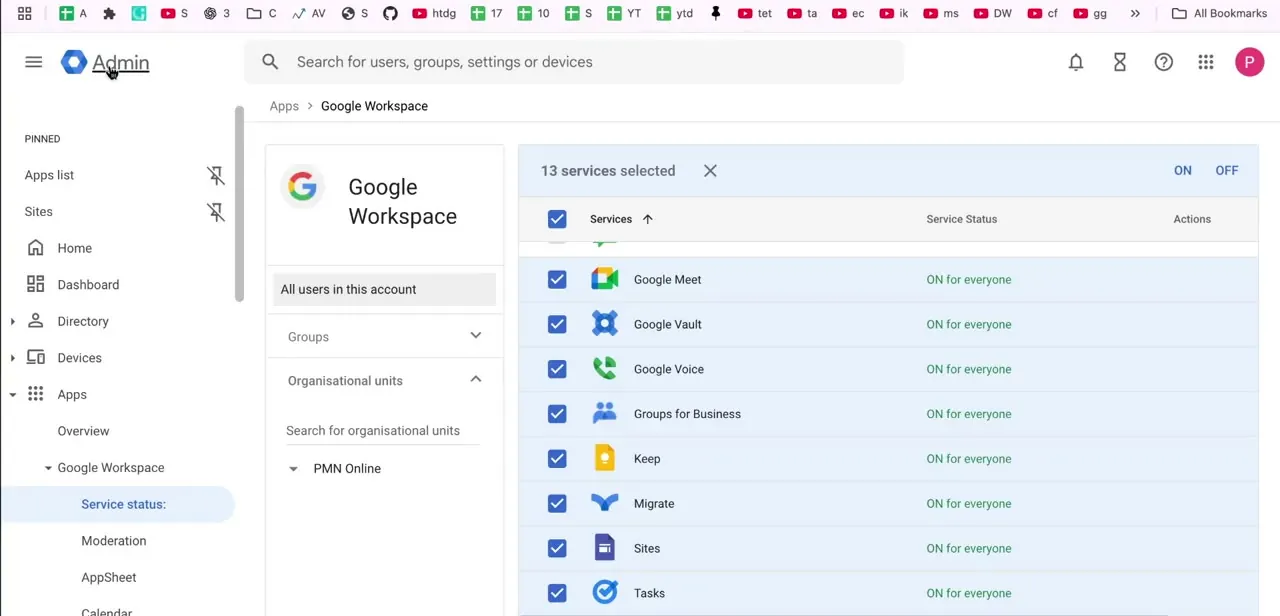
Vault is one of the core services listed and toggled from the Admin Console's app service status screen, alongside Meet, Groups, Keep, and Sites. If you do need Vault, retention and hold policies live there, and any export still has to go through a search inside a matter; it captures whatever that search matches, not automatically everything for every user.
04Run a full organization export with the Data Export tool
For an actual backup of everyone's data, go to Data > Data import & export > Data export in the Admin Console and click Set up new export. This is what pulls data for the entire organization at once, including customer-owned content like shared drives and admin quarantine messages, instead of relying on each employee to run their own Takeout.
The export isn't instant: Google makes it available no earlier than 48 hours after you start it, typically around 72 hours, and up to 14 days for a large organization. Every super admin gets a notification email when the export starts and again when it's ready. Organizations with FedRAMP Authorization or more than 1,000 users need to contact Google Workspace support before using this tool at all.
05Remember what these exports bundle together
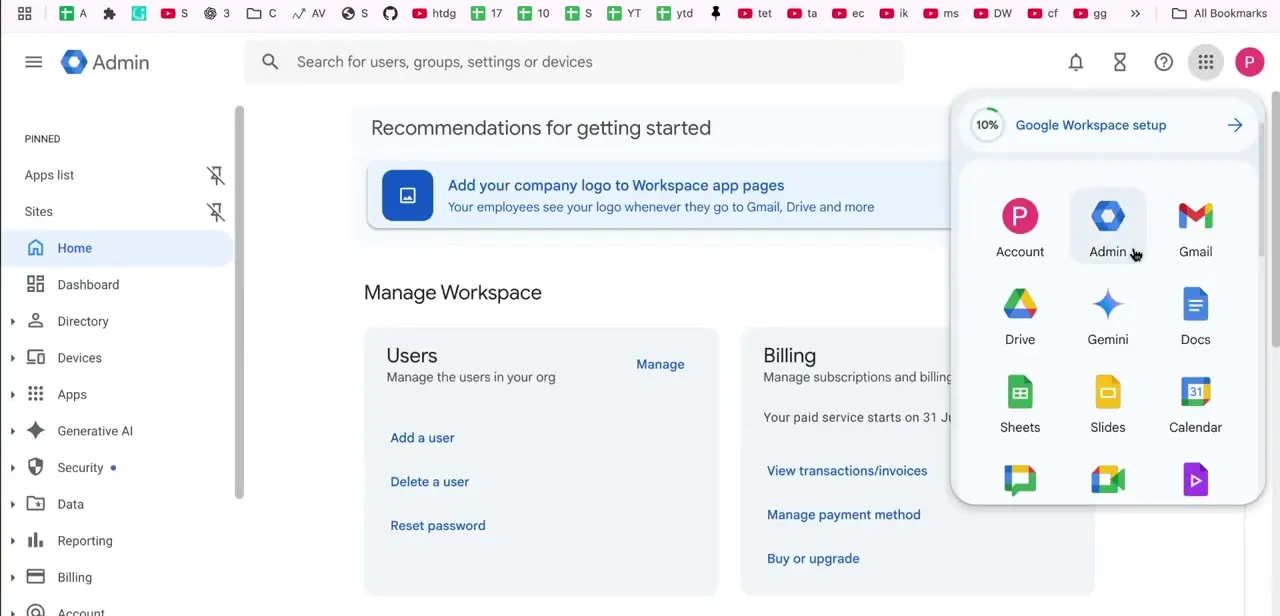
The services a Takeout, Vault, or Data Export pull map directly to the core Workspace apps: Drive, Gmail, and Calendar chief among them, plus whatever else is active on the account. Knowing this up front helps you scope the export correctly instead of guessing. If all you need is someone's calendar history, there's no reason to also pull years of Drive files into the same archive.
06Handle shared drive files separately
Shared drive content behaves differently from a personal My Drive, since ownership belongs to the shared drive itself, not any one user. Before offboarding someone who manages or heavily uses a shared drive, confirm their files there are captured by the export and that drive membership is reassigned so the shared drive doesn't lose its last manager when the account is deleted.
07Choose a destination and format, then verify before deleting anyone
Google Takeout offers two archive formats, zip (opens on almost any computer) or tgz (may need extra software on Windows), with a maximum size per archive you set yourself; anything larger than that gets split across multiple archives. Delivery options include an emailed download link, or upload straight to Google Drive, Dropbox, Microsoft OneDrive, or Box.
The one non-negotiable step, regardless of which tool produced the export: open and spot-check it before deleting or offboarding the account it came from. An export that silently failed or missed a service is much easier to fix while the original account still exists than after.
| Data Export tool | Google Vault | |
|---|---|---|
| Best for | Full organization backup or migration | eDiscovery, legal hold, targeted retrieval |
| Scope | All data, org-wide, in one export | Only data matching a search you run |
| Cost | No extra cost | Requires a Vault license (included in some editions, add-on in others) |
| Turnaround | 48 hours minimum, typically ~72 hours, up to 14 days | Depends on search size; export expires 15 days after completion |
| Access requirement | Super admin account, 30+ days old, 2SV enabled | Vault license plus Manage Matters/Searches/Exports privileges |
Both are Admin Console tools under Data > Data import & export, distinct from the self-service Google Takeout a user runs on their own account.
When it doesn't work
A service is missing from a user's Google Takeout options
Why: Workspace admins can allow or block Takeout on a per-service basis from Data > Data import & export > Google Takeout. A blocked service simply doesn't appear, with no error shown to the user.
Fix: Check that admin setting and enable the service there if it should be available.
The Data Export tool won't start, or Google asks to contact support first
Why: Organizations with FedRAMP Authorization or more than 1,000 users are required to contact Google Workspace support before using the Data Export tool.
Fix: Reach out to Google Workspace support to arrange the export instead of running it directly.
A completed Vault export can no longer be found
Why: Vault automatically deletes completed exports 15 days after they finish, to limit how long that data sits exported.
Fix: Re-run the search and export in Vault; there's no way to recover a deleted export after the 15-day window.
Frequently asked questions
Can I export just one user's Gmail and Drive data?
Yes. Google Takeout lets an individual user select and export their own Gmail, Drive, Calendar, and other Workspace data without any admin involvement, as long as an admin hasn't blocked that service for Takeout.
What's the difference between the Data Export tool and Google Vault?
The Data Export tool pulls a full copy of the organization's data for backup or migration. Google Vault only exports what matches a search you run inside a Vault matter, is built for eDiscovery and legal hold, requires a Vault license, and deletes its exports after 15 days.
How do I back up data for every user in my organization?
Use the Data Export tool at Data > Data import & export > Data export in the Admin Console. It requires a super admin account at least 30 days old with 2-Step Verification enabled, and the export becomes available 48 hours to 14 days after you start it.
Should I export a user's data before offboarding them?
Yes, and just as important, verify the export actually completed and includes everything expected before deleting the account. Fixing a missed export is far harder afterward.
Can I export shared drive files as well as personal ones?
Yes, but shared drive content is owned by the shared drive, not any individual, so confirm it's captured separately and that drive membership is reassigned before offboarding a manager.
How long does a full organization export take?
Google makes the Data Export available no earlier than 48 hours after you start it, typically around 72 hours, and up to 14 days for a large organization.
Sources and last check
Screens for the Vault service-status toggle and the apps switcher come from a walkthrough recorded in 2026. The Data Export tool, its requirements and timeline, the distinction from Google Vault, the per-service Takeout admin control, and Takeout's format and delivery options were all checked against Google's official Workspace Admin Help and Account Help documentation in September 2026. That check corrected the previous version of this guide, which described Google Vault as the org-wide backup tool; Google's documentation describes Vault as a search-based eDiscovery and legal-hold tool, distinct from the Data Export tool built for full organizational backups.
About the author

Impran M N
I've been hooked on technology for as long as I can remember — especially the new tools and AI apps that seem to land every other week. Easy Tech Tuts is where I write up whatever I've just worked out: I do the task in the real product, record the screen, and turn it into the guide I wish I'd found first.



