 Easy Tech Tuts
How to Enable Two Step Verification in Google Workspace, Enforce to all users Easily 2026
By Impran M NLast checked against official docs
A stolen password is enough to compromise a Google Workspace account unless there's a second check a stolen password alone can't satisfy. Two-step verification (2SV) adds that check, confirming identity through a phone prompt, code or security key on top of the password, and an admin can turn it on for the whole organization from one settings page. This guide covers where that page lives, the difference between allowing 2SV and enforcing it, and a documented staged-rollout method that avoids locking people out mid-workday.
Before you start
- A Google Workspace account with Super Admin or delegated admin rights that include Security privileges
- Familiarity with your organization's org unit structure, since enforcement is applied per unit, not per person
01Sign in to your admin account
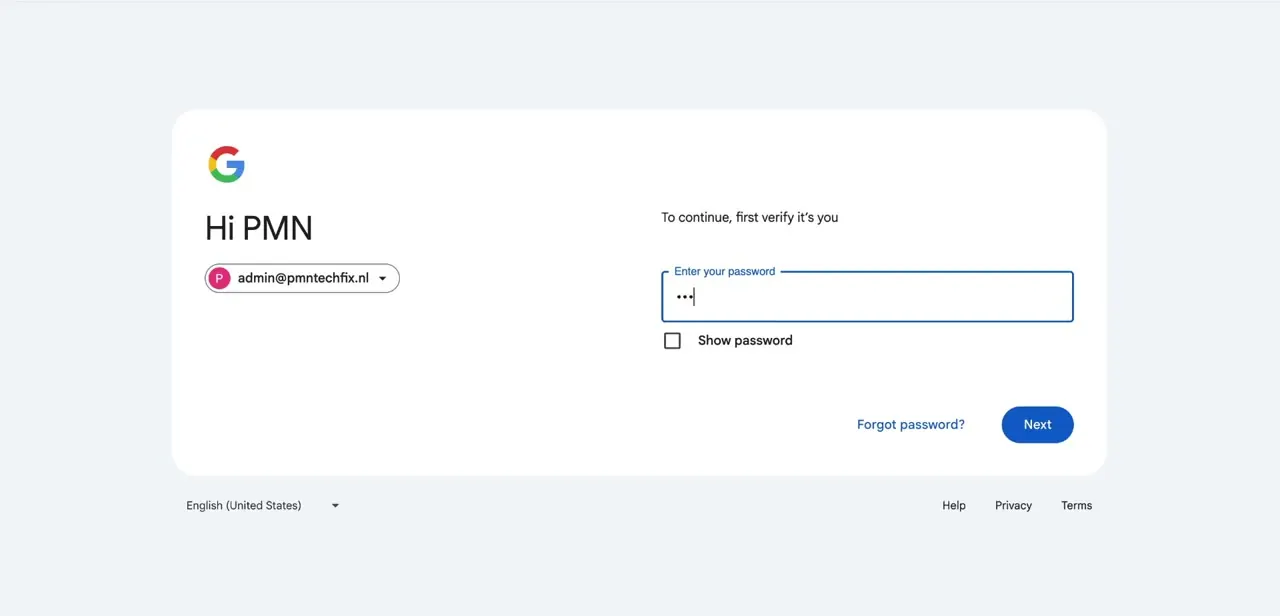
Two-step verification policy lives at the organization level, so the Security section only appears once you're signed in with an account that holds admin rights. Google's sign-in flow asks for your password on its own screen. Do this from a trusted device: the change you're about to make affects every user in the domain.
02Open the 2-Step Verification settings
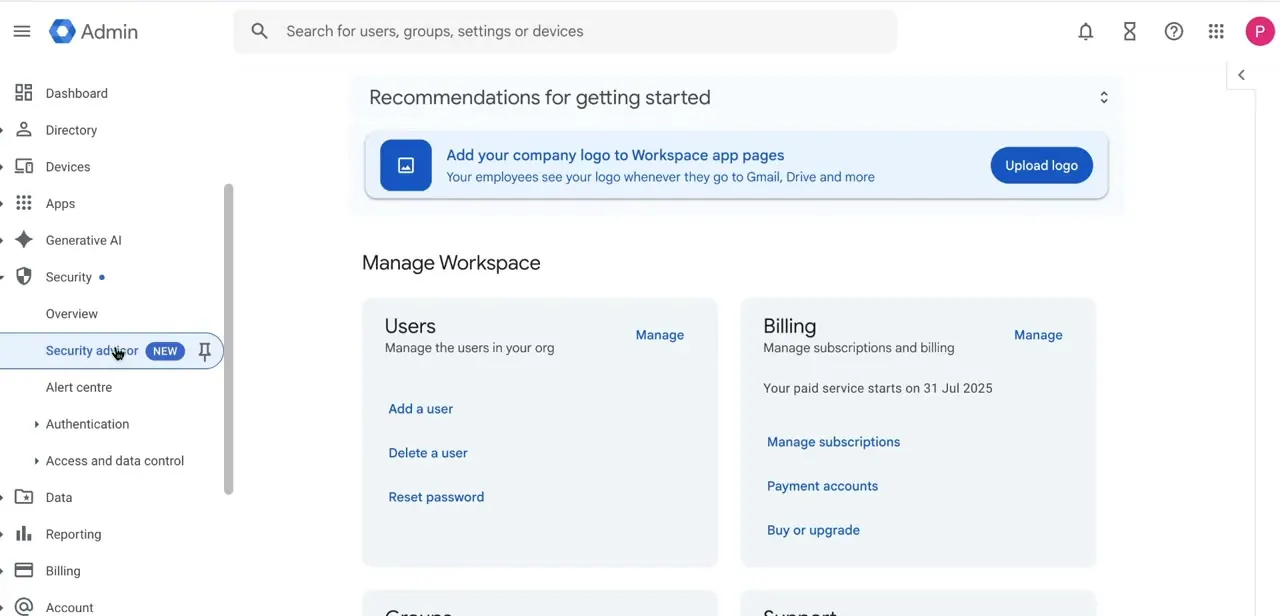
From the Admin Console's left-hand menu, expand Security, then Authentication. Two-step verification sits inside that submenu. Security advisor, listed just above it, is worth a glance too, since it often flags accounts without 2SV as a specific risk before you ever reach the enforcement page.
03Allow 2-Step Verification for your organizational unit
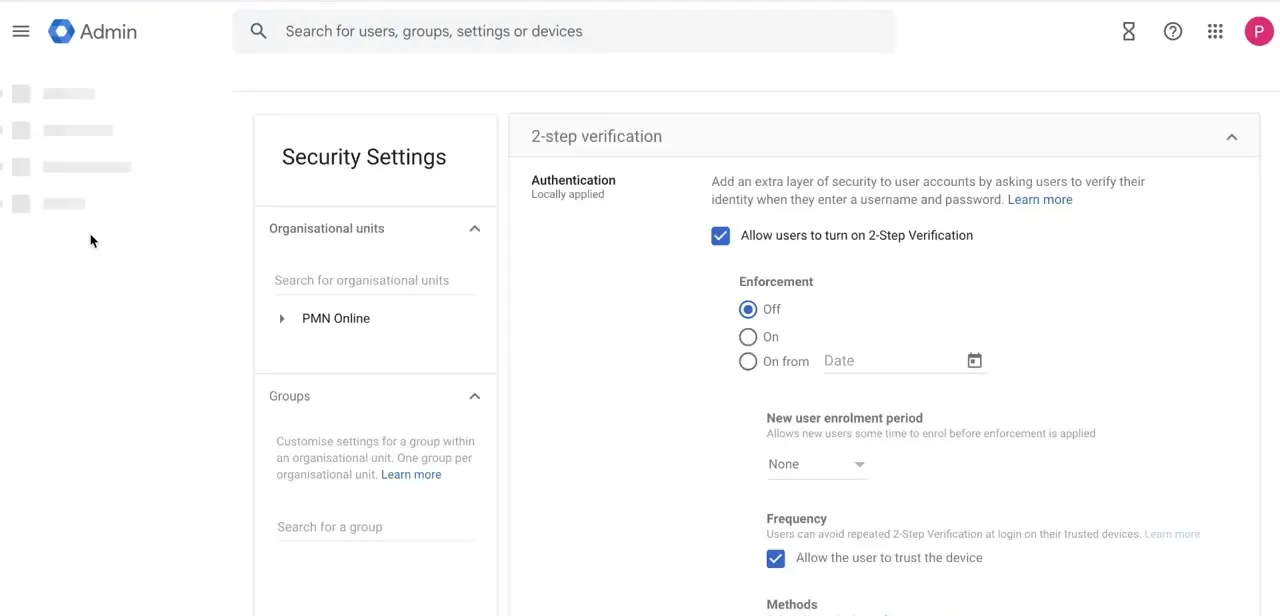
The first checkbox on the settings page, "Allow users to turn on 2-Step Verification," only makes the option available. It doesn't force anyone to use it yet. The setting applies per organizational unit, shown on the left as a tree rooted at your top-level org, so you can switch it on company-wide or trial it in one department first.
04Choose enforcement, enrollment period, and frequency
Below the allow checkbox sits Enforcement, with three choices: Off, which leaves 2SV available to anyone who opts in; On, which requires it from each user's next forced re-authentication; and an option to turn enforcement on from a chosen date, which activates within 24-48 hours of that date and sends sign-in reminders beforehand. For a company-wide rollout, picking a future date is the safer route.
The "New user enrolment period" dropdown, set to None by default, controls how long a newly enforced user can sign in with just a password before being blocked. Google documents a range from one day to six months; None makes enforcement immediate.
In the Frequency section below, "Allow the user to trust the device" lets users skip repeated prompts on devices already verified. Google's own guidance is to leave this on unless your users frequently switch devices, since disabling it means a fresh challenge on every sign-in.
05Prepare for lockouts before your enforcement date
Google's documentation lists three ways users end up locked out: they're moved into an enforcing org unit before enrolling, a policy change raises the requirement (from text codes to security keys, say) after they already enrolled under the old rule, or someone removes their last verification method without adding a replacement. For a staged rollout, Google's documented method is to create a group, add the users who need more time to it, and turn off enforcement for that group while you notify them and track enrollment through the security reports, which can lag up to 48 hours behind.
Once they've enrolled, move them into the enforced unit. If someone gets locked out anyway, the fix isn't on the Authentication page used for org-wide policy.
It's under Directory > Users > the affected person > Security > 2-Step Verification, where an admin can generate a backup verification code for them. Turning 2SV off entirely for that user is possible too, but Google doesn't recommend it, and the option disappears once 2SV is enforced across the organization.
| Setting | What it does |
|---|---|
| Off | 2SV stays available for anyone who wants to opt in voluntarily. |
| On | 2SV becomes required starting the next time each user's device forces re-authentication. |
| Turn on from a date | 2SV becomes required within 24-48 hours of the date you choose, with sign-in reminders sent beforehand. |
Per Google's Deploy 2-Step Verification documentation.
When it doesn't work
A user is locked out right after their organizational unit enforces 2SV
Why: They were moved into the enforcing unit, or hit their enforcement date, without enrolling a verification method first.
Fix: Generate a backup verification code for them from Directory > Users > the affected person > Security > 2-Step Verification, then have them enroll immediately.
The option to turn off 2SV for one user is missing
Why: 2SV is enforced organization-wide, and Google disables the per-user toggle once that's true.
Fix: Use Get Backup Verification Codes instead of trying to disable 2SV. That's Google's supported route for a locked-out user under enforcement.
One department needs more time to enroll before company-wide enforcement kicks in
Why: Enforcement was turned on for the whole top-level org unit at once, with no exemption for anyone.
Fix: Create a group, add the users who need more time, and turn off enforcement for that group specifically, following Google's documented staged-rollout method. Move them into the enforced unit once they've enrolled.
Frequently asked questions
What happens if a user loses their two-step verification device?
An admin can help from Directory > Users > the affected person > Security > 2-Step Verification: generating a backup verification code gets them back in without disabling 2SV. Turning 2SV off for that user is possible but not recommended, and the option disappears once 2SV is enforced for the whole organization.
Can I enforce two-step verification gradually instead of all at once?
Yes, two ways. Turning enforcement on from a future date gives everyone advance notice, and Google's documented approach for a wider rollout is to put users who need more time into a group with enforcement switched off, then move them into the enforced unit once they've enrolled.
Does two-step verification protect all Workspace apps or just Gmail?
It protects the account sign-in itself, so it covers Gmail, Drive, Calendar and every other Workspace service that sign-in unlocks, not one app at a time.
Are backup codes required for two-step verification?
They're not required to turn 2SV on, but Google recommends generating them as a fallback so a user isn't shut out entirely if their phone or security key becomes unavailable.
Can I apply different 2SV rules to different teams?
Yes. The setting applies per organizational unit, so one department can be enforced while another stays optional, using the org unit tree on the left of the settings page.
Where do I manage a single user's 2SV instead of the org-wide policy?
Not on the Security > Authentication > 2-Step Verification page; that page sets policy for everyone. A single user's enrollment and reset options live on that person's own Security tab, under Directory > Users.
Sources and last check
Click path and screens come from a walkthrough recorded in August 2026. The enforcement options, new-user enrollment range, trusted-device guidance and lockout-avoidance steps were re-checked against Google Workspace's official Admin Help in September 2026. That check corrected this guide: resetting or unlocking a single user's 2-Step Verification happens on that user's own Security tab under Directory > Users, not on the Authentication settings page that sets org-wide policy, and the per-user toggle to disable 2SV is unavailable once enforcement is organization-wide.
About the author

Impran M N
I've been hooked on technology for as long as I can remember — especially the new tools and AI apps that seem to land every other week. Easy Tech Tuts is where I write up whatever I've just worked out: I do the task in the real product, record the screen, and turn it into the guide I wish I'd found first.



