 Easy Tech Tuts
How to Delete a User on Google Workspace from Home Page of Admin Console Easily 2026
By Impran M NLast checked against official docs
Whether someone left the company or you're tidying up unused accounts, removing a user from Google Workspace is a task every admin ends up doing sooner or later. The button itself is easy to find once you know where to look, but the screen that follows asks you to make a real decision about what happens to that person's Gmail, Drive files, and Classroom data before the account disappears for good. This guide walks through the Admin Console's Home page shortcut for deleting a user and explains what each option on the confirmation screen does, so you're not guessing at the moment it matters most.
Before you start
- A Google Workspace admin account with the User management privilege
- The email address of a manager or teammate to name as the new owner, if you plan to transfer any of the deleted user's data
01Open the Admin Console and find the Users card
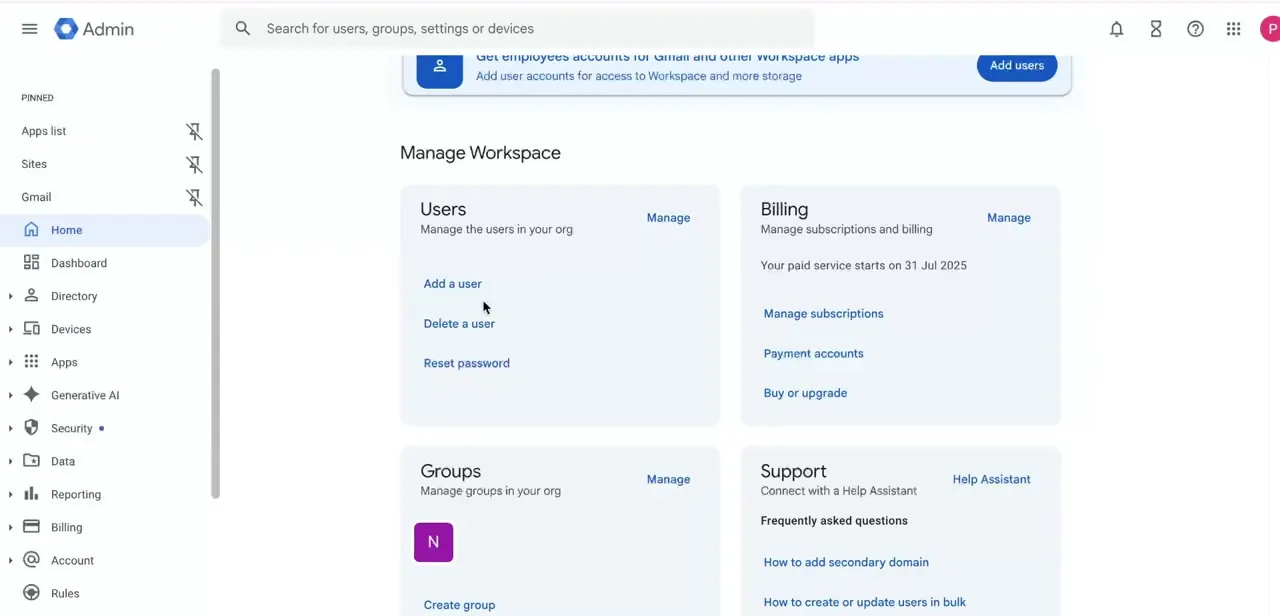
Sign in with an administrator account and land on the Admin Console Home page. Instead of digging through the Directory menu on the left, the Home page itself has a "Manage Workspace" section with a Users card that lists the three most common actions: Add a user, Delete a user, and Reset password. This shortcut is the fastest route in if you already know who you're removing and don't need to browse the full directory first.
02Search for the account you want to remove
Clicking "Delete a user" prompts you to search for the person, either by name or by their Workspace email address. Take a moment here: deletion in Workspace is not instantly reversible once the recovery window closes, so confirm you've selected the exact account before continuing, especially in an organization where similar names are common.
03Review the warning and set data transfer options
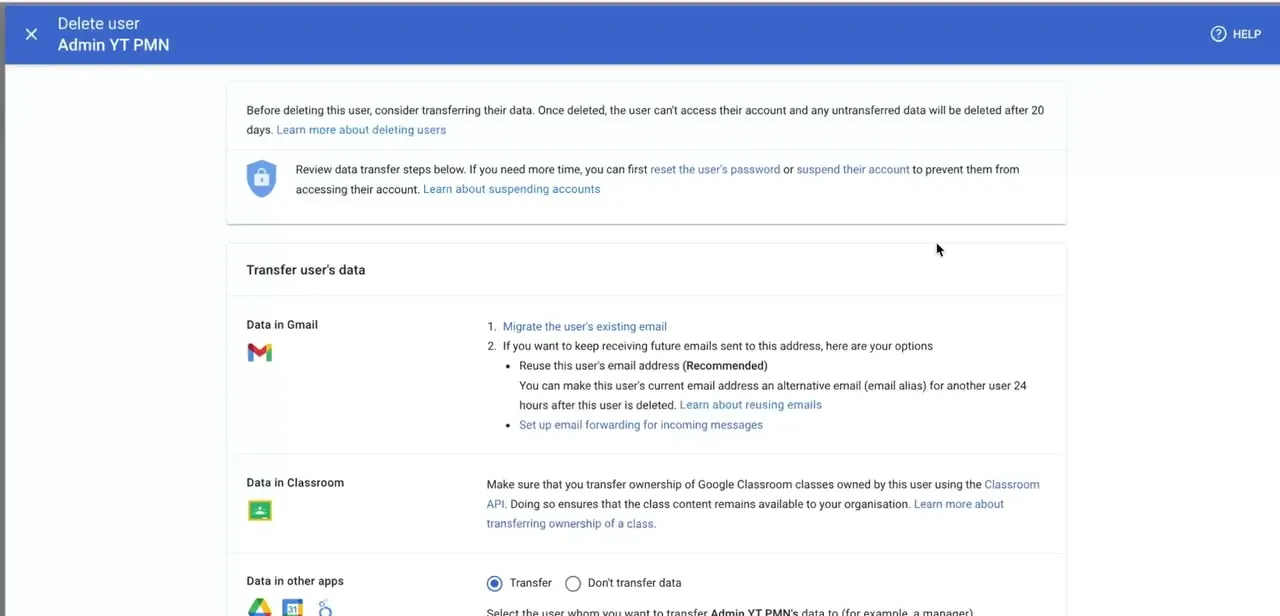
Once you select the user, the Admin Console opens a dedicated "Delete user" screen, and it leads with a warning: once deleted, the user can't access their account, and any data you haven't transferred is permanently removed after 20 days. Below that warning sits a "Transfer user's data" section broken out by service.
Gmail can be migrated to another account or forwarded to one, so future messages sent to the old address still reach someone. Drive and Docs files, and the user's primary calendar, can be transferred to a named person, typically a manager.
Classroom classes the user owned can have ownership handed to another teacher so students don't lose access. Each service has its own Transfer versus Don't transfer choice, and if you're not ready to commit, the same screen links to resetting the password or suspending the account instead, which blocks access without deleting anything.
04Confirm the deletion
With transfer choices made, complete the flow to permanently remove the user from your organization. The account and its license are freed up immediately for reassignment, while any data you chose to transfer starts moving to its new owner in the background instead of disappearing along with the account.
05Verify the account is gone
Head back to Directory > Users and search for the name or email you just deleted. It should no longer appear in the active user list. To confirm a transfer completed, check the destination account's Drive or Gmail instead of the Admin Console: transferred files simply show up as new content owned by whoever you selected.
| Data type | Transfer method | Who can set it |
|---|---|---|
| Gmail | Migrate to another mailbox, or forward new mail | Any admin with User management privilege |
| Drive and Docs | Transfer ownership to a named user | Super admin |
| Primary Calendar | Transfer ownership to a named user | Super admin |
| Classroom classes | Transfer class ownership (Education edition) | Any admin with the appropriate privilege |
Anything not transferred before deletion is permanently removed 20 days after the account is deleted.
When it doesn't work
The "Delete a user" option doesn't appear on the Home page or in the directory
Why: The signed-in admin account doesn't hold the User management privilege, which Google requires for this action.
Fix: Ask a super admin to either perform the deletion or grant the User management privilege to your admin role.
A deleted user needs their account back, but it's been more than 20 days
Why: Google only allows account restoration for up to 20 days after deletion; after that the account and any untransferred data are gone for good.
Fix: There's no way to restore the account. A new account has to be created manually, and anything that wasn't transferred beforehand is unrecoverable.
Transferred Drive or Gmail data hasn't shown up in the new owner's account yet
Why: Data transfers run in the background after you confirm the deletion, not instantly, and large accounts take longer.
Fix: Check the destination account again after some time has passed instead of looking for a status indicator in the Admin Console.
Frequently asked questions
What happens to a deleted user's data in Google Workspace?
Anything you explicitly transfer during the delete flow moves to the account you named. Anything left untransferred is retained for 20 days after deletion and then permanently removed, so review the Gmail, Drive, Calendar, and Classroom transfer options before confirming.
Can I undo a user deletion in Google Workspace?
Google allows account restoration for up to 20 days after deletion, but not indefinitely, so treat the delete action as effectively final and use suspension instead if you're unsure.
Do I need admin permissions to delete a Google Workspace user?
Yes. Only an account with the User management privilege can see the Delete a user option in the Admin Console, and the same privilege determines whether you can manage data transfer for that user.
What's the difference between suspending and deleting a user?
Suspending blocks a user from signing in while keeping their account and data intact and reversible at any time. Deleting removes the account outright and starts the 20-day countdown on any data you didn't transfer, so suspension is the safer first step if you're not certain yet.
Sources and last check
Click path and screens come from a recorded walkthrough. The 20-day retention and restoration window, the per-service transfer options, and the User management privilege requirement were re-checked against Google's official Admin Console Help documentation in September 2026. The primary calendar transfer option, present in Google's documentation but missing from the original draft, has been added; no other factual corrections were needed.
About the author

Impran M N
I've been hooked on technology for as long as I can remember — especially the new tools and AI apps that seem to land every other week. Easy Tech Tuts is where I write up whatever I've just worked out: I do the task in the real product, record the screen, and turn it into the guide I wish I'd found first.



