 Easy Tech Tuts
How to Delegate Access to a Google Workspace Users Email, Give Admin Access of Gmail 2026 Easily
By Impran M NLast checked against official docs
Sharing inbox management with an assistant or team member doesn't have to mean handing over a password. Google Workspace has a built-in mail delegation setting that lets one user manage another's Gmail: reading, sending, and organizing mail, while each person keeps their own separate login.
The setting is off by default at the domain level, so before anyone can delegate access from their own Gmail, an admin has to switch it on for the organization first. This guide covers exactly where that toggle lives in the Admin Console, what the options next to it control, and the limits Google places on how many delegates one mailbox can have.
Before you start
- Super Admin access, or a role carrying the Gmail Settings admin privilege, to change the domain-wide setting
- The delegate must be another user inside the same Google Workspace domain — Gmail delegation does not extend to outside email addresses
01Get to Gmail's settings inside Google Workspace
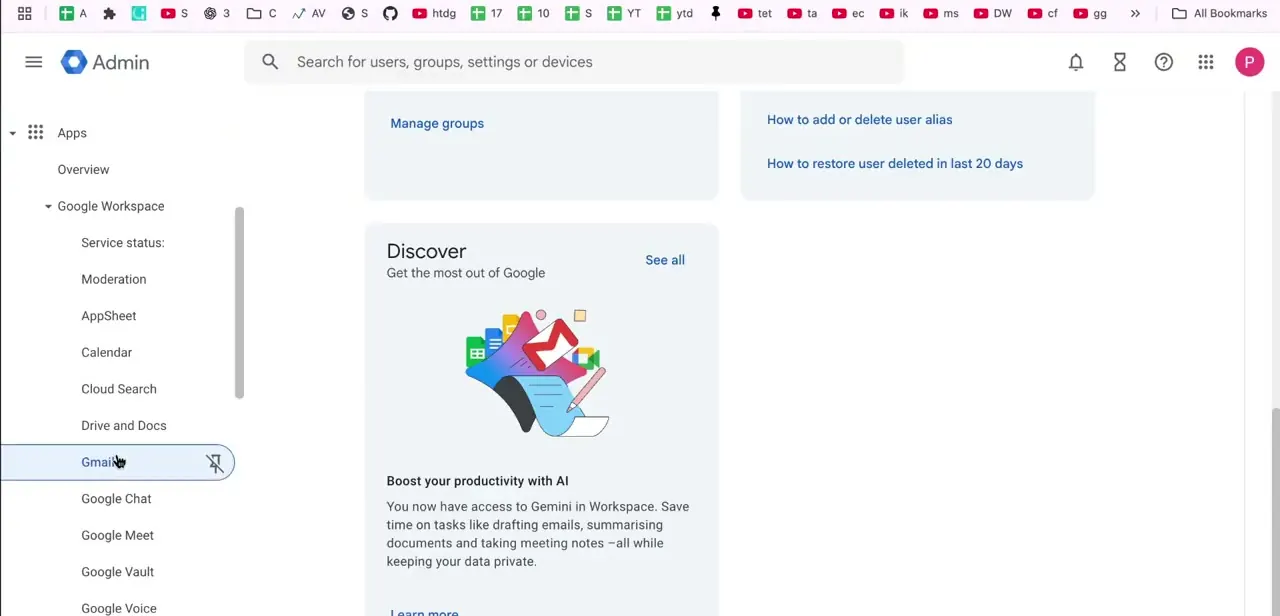
From the Admin Console, open Apps, then Google Workspace, which expands into a full list of Google services: Calendar, Cloud Search, Drive and Docs, Gmail, Google Chat, and more. Click Gmail to reach its settings. Delegation is not under Security or Account, which is where people tend to look first for a permissions setting like this.
02Find the Mail delegation setting
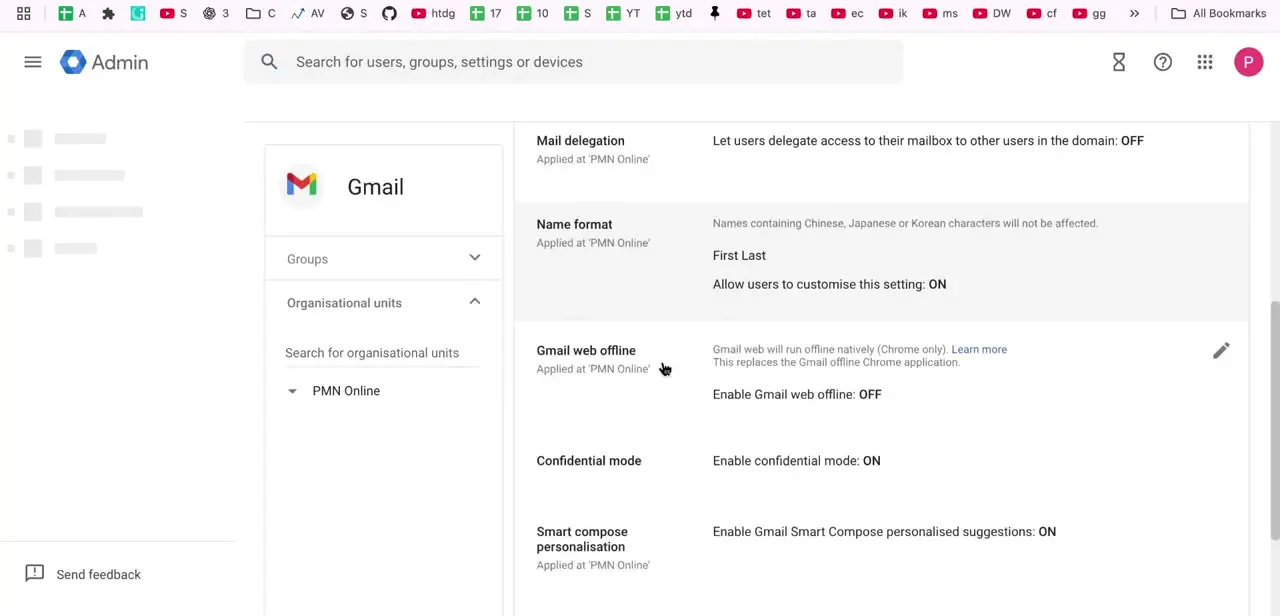
Gmail's User Settings page lists a row of toggles: Mail delegation, Name format, Gmail web offline, Confidential mode, Smart compose personalisation, and others. Mail delegation is described plainly right there: "Let users delegate access to their mailbox to other users in the domain," and by default it shows OFF, applied at whichever organizational unit you're currently viewing. Until it's turned on here, individual users won't have the option to add a delegate from their own Gmail settings at all.
03Turn on delegation and configure what recipients see
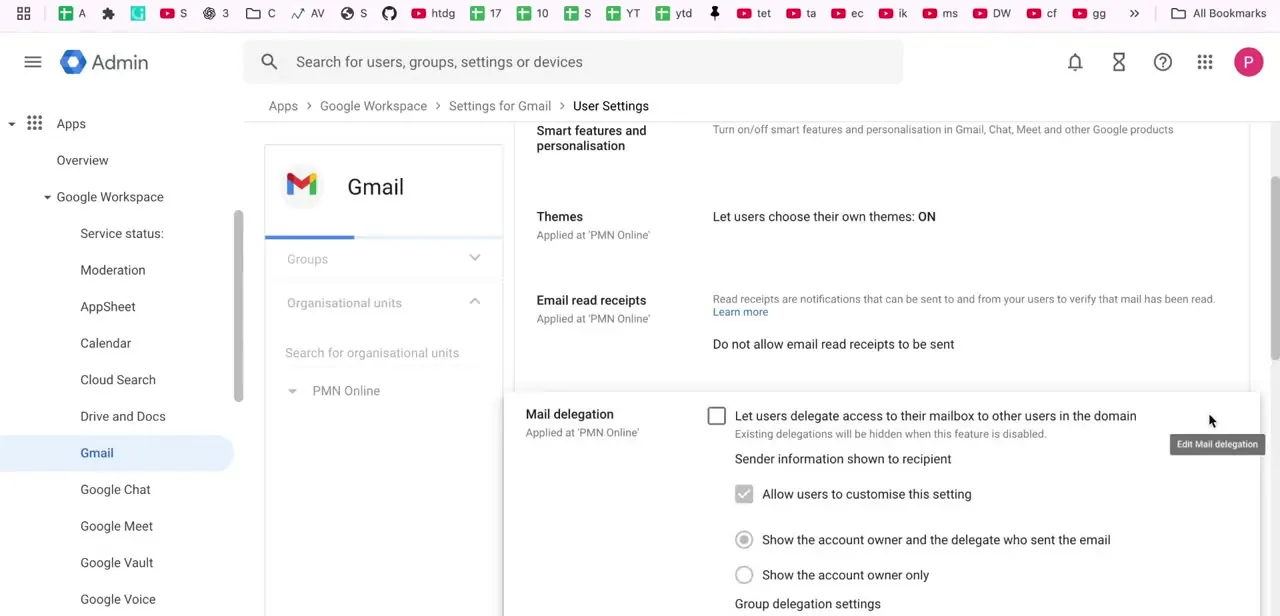
Clicking to edit Mail delegation expands a checkbox: "Let users delegate access to their mailbox to other users in the domain," plus a note that existing delegations are turned off, not deleted, if you disable the feature later. Below that sits the sender information setting, which controls what a recipient sees when a delegate sends mail on someone else's behalf: either the account owner's name and the delegate who actually sent it, or the account owner's name alone.
A separate checkbox lets individual users override that display preference for themselves instead of being locked to the org-wide default. Google Workspace also has a second checkbox here, "Allow users to grant their mailbox access to a Google group," which delegates an entire group at once instead of one person at a time. It only works when the setting is enabled for both the mailbox owner's organizational unit and each group member's unit.
04Apply the change to the right organizational unit
Every setting on this page is scoped to an organizational unit, shown on the left as a tree starting from the top-level domain and branching into any sub-units you've created. Turning on delegation at the top level applies it to everyone.
Turning it on for a specific unit, such as an executive team or a support group, limits it to those accounts. Decide the scope before saving; a domain-wide change affects every mailbox in the organization, and Google notes it can take up to 24 hours to fully propagate, though it's usually faster.
05Let the individual user add their delegate
Once the admin-level toggle is on, each user adds a delegate from inside their own Gmail: under Settings, the Accounts tab (labeled Accounts and Import in some layouts) has a "Grant access to your account" section where they enter the delegate's email address and send the invitation. The delegate gets a confirmation email, valid for a week, and once accepted can read, send, and organize mail from that inbox using their own login.
No password changes hands. Google Workspace mailboxes can carry up to 1,000 delegates, well above what most teams need, but recommends keeping simultaneous access to around 40 people so performance doesn't suffer. A personal @gmail.com account, by comparison, is capped at 10 delegates and never needs this admin step at all, since the toggle only governs Workspace-managed domains.
06Understand what delegation does and doesn't allow
A delegate can act inside the mailbox: draft and send messages, archive, label, and search. Delegation is not the same as admin access to the account.
Delegates can't change the account's password, security settings, or recovery options, and they can't use the owner's Chat, Meet, or Smart Compose. Mail sent on someone's behalf is labeled according to the sender information setting from step three. That distinction matters for the "give admin access" framing some people search for: delegation shares inbox management, not account control.
| Account type | Maximum delegates | Recommended concurrent access |
|---|---|---|
| Personal @gmail.com | 10 | Not specified by Google |
| Google Workspace (admin-enabled) | 1,000 | Around 40 at once |
Figures from Google's own Gmail and Workspace Admin help pages; concurrent-access guidance is a recommendation, not a hard cap.
When it doesn't work
The "Grant access to your account" option doesn't appear in a user's Gmail settings
Why: The admin hasn't enabled Mail delegation for that user's organizational unit yet, or the change hasn't finished propagating.
Fix: Confirm with the admin that the checkbox is saved for the correct OU, then wait up to 24 hours before checking again.
A delegate's email address gets rejected when adding them
Why: Gmail delegation only works between users inside the same Google Workspace domain; it can't be granted to an outside address.
Fix: Use an internal address, or ask an admin about delegating to a Google group if several external-style teams need access.
Delegates report slow or dropped access to a shared mailbox
Why: Google recommends no more than around 40 people accessing one delegated mailbox at the same time; heavier use, including automated tools or browser extensions, can lower that further.
Fix: Reduce how many people or integrations are actively connected to the mailbox at once.
Frequently asked questions
Can I share my Gmail inbox without giving out my password?
Yes. Gmail delegation lets another user manage your inbox in Google Workspace without ever needing your login credentials, once an admin has enabled delegation for your organization.
Who can set up Gmail delegation?
An admin turns on the Mail delegation setting in the Admin Console under Apps > Google Workspace > Gmail > User settings first. After that, individual users add delegates from their own Gmail settings.
What can a delegate actually do in my inbox?
A delegate can read, send, and organize mail, but not change the account's password or security settings, and not use the owner's Chat or Meet. Delegation shares mailbox management, not full account access.
Does this apply to personal Gmail accounts too?
No. Personal @gmail.com accounts can already add up to 10 delegates on their own, with no admin toggle involved. The Admin Console setting in this guide only controls Workspace-managed domains.
How many people can I delegate a Workspace mailbox to?
Up to 1,000 delegates per mailbox, once an admin enables the feature. Google recommends keeping simultaneous access to roughly 40 people so the mailbox doesn't slow down.
How do I remove someone's delegated access?
The account owner can revoke a delegate from the same Accounts settings in Gmail where they were added. An admin can also disable delegation domain-wide, which turns off all existing delegations without deleting them.
Sources and last check
Click path and screens come from the original recording. Menu path, checkbox wording, the sender-information options, and organizational-unit scoping were re-checked against Google Workspace Admin Help and Gmail Help in September 2026 and matched what the article already said. Two things the article previously left out were added after that check: the group-delegation checkbox, and Google's documented delegate limits (1,000 per Workspace mailbox with roughly 40 concurrent recommended, versus 10 for a personal Gmail account, which needs no admin step at all).
About the author

Impran M N
I've been hooked on technology for as long as I can remember — especially the new tools and AI apps that seem to land every other week. Easy Tech Tuts is where I write up whatever I've just worked out: I do the task in the real product, record the screen, and turn it into the guide I wish I'd found first.



