 Easy Tech Tuts
How to Contact Google Workspace Support Fast 2026 Easily
By Impran M NLast checked against official docs
When Gmail, Drive, or another Workspace app breaks for you or your team, knowing the fastest support channel matters more than knowing every channel that exists. Google routes most Workspace support requests through an AI agent first, which can be a shortcut to a fix or an extra hoop before you reach a person, depending on how you phrase your request. This guide covers what that chat flow looks like, how to skip straight to a live agent when the bot can't help, and where phone support and your Customer PIN fit in, since phone access is more restricted than most admins expect.
Before you start
- The Support administrator privilege (or super admin access) on your Google Workspace account, which is required to see "Contact support" in the Help menu
01Open support chat from the Admin Console
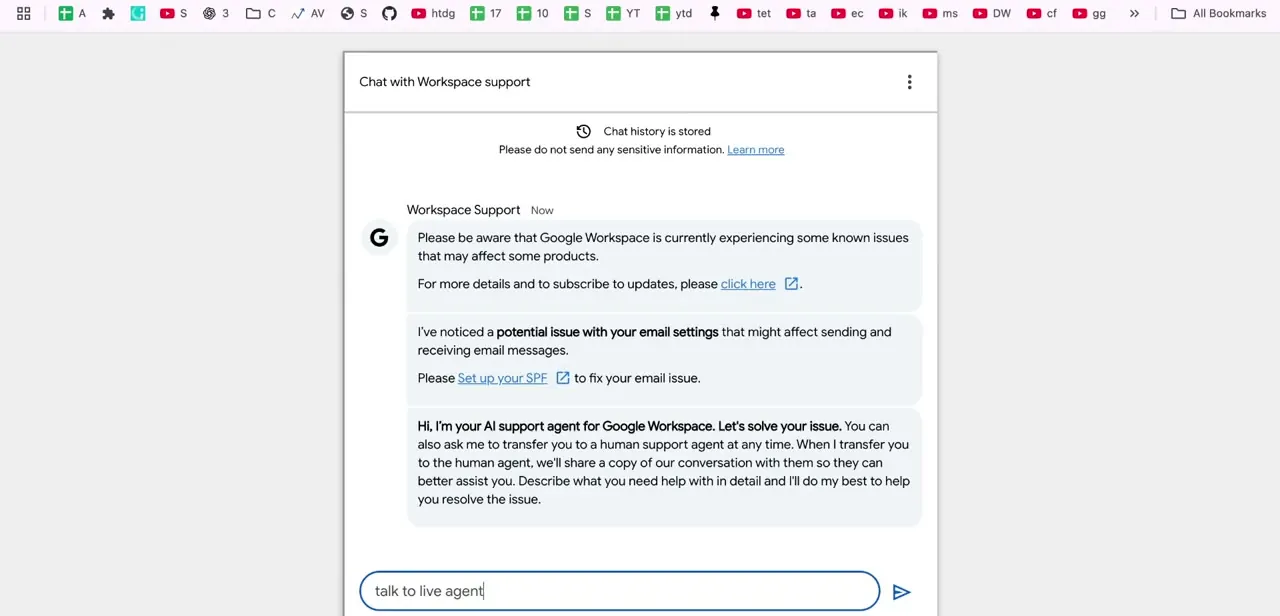
Sign in with an administrator account, then click the Help icon (the question mark) at the top right of the Admin Console. Before you type anything, the chat window may already be surfacing information: known service issues Google is currently tracking, and in one case, a proactive note that your email settings might have an SPF configuration problem worth checking. This first responder is Google's AI support agent, documented under the name Concierge, and it opens by offering to solve the issue directly or connect you to a human on request, carrying your conversation history along so you don't repeat yourself.
02Ask for a live agent and briefly describe your issue
If you already know your issue needs a person, don't work through the bot's suggested articles: type "Contact support" or "talk to live agent" in the chat box. The agent will typically still ask a couple of clarifying questions, like what you're experiencing, what error messages you're seeing, and what you've already tried. A short answer is enough here; something like "issue with billing" is sufficient for it to package up a request and offer the transfer, since the point of the questions is context for whoever picks up next, not a full case write-up.
03Wait in the queue for a live agent
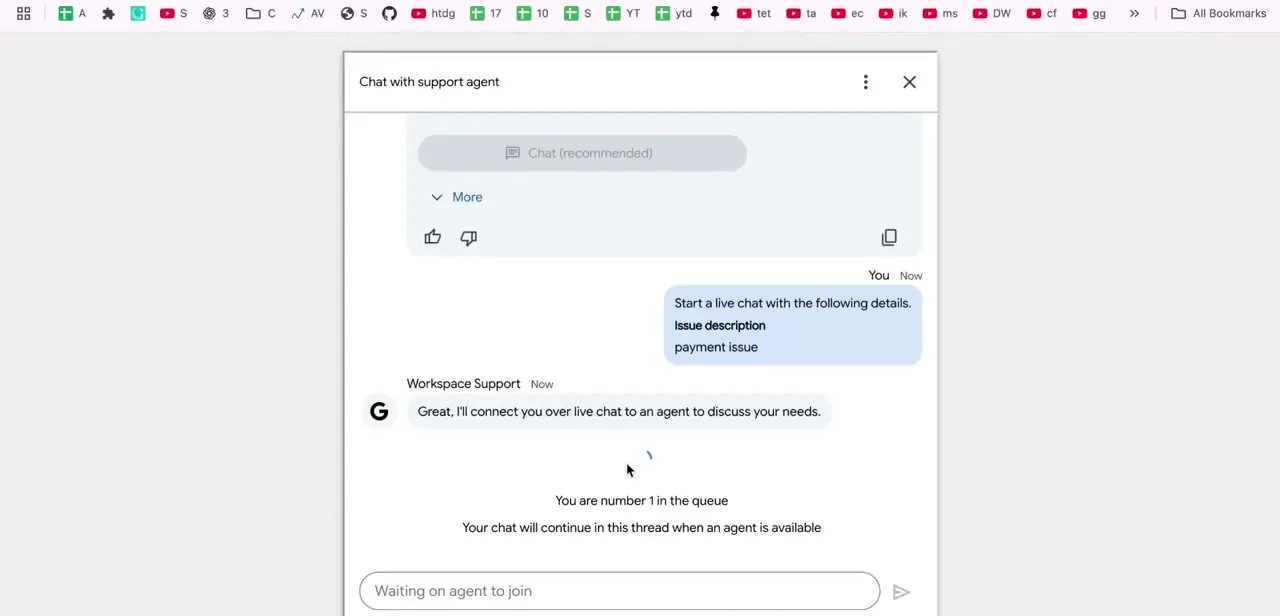
Once the AI agent hands off your conversation, the window switches to "Chat with support agent" and shows your position in the queue, with a note that the chat continues automatically once someone is available. It's a genuine queue, not a fixed wait time, so keeping the tab open is enough; there's no need to keep re-sending your message.
04Continue the conversation with a human agent
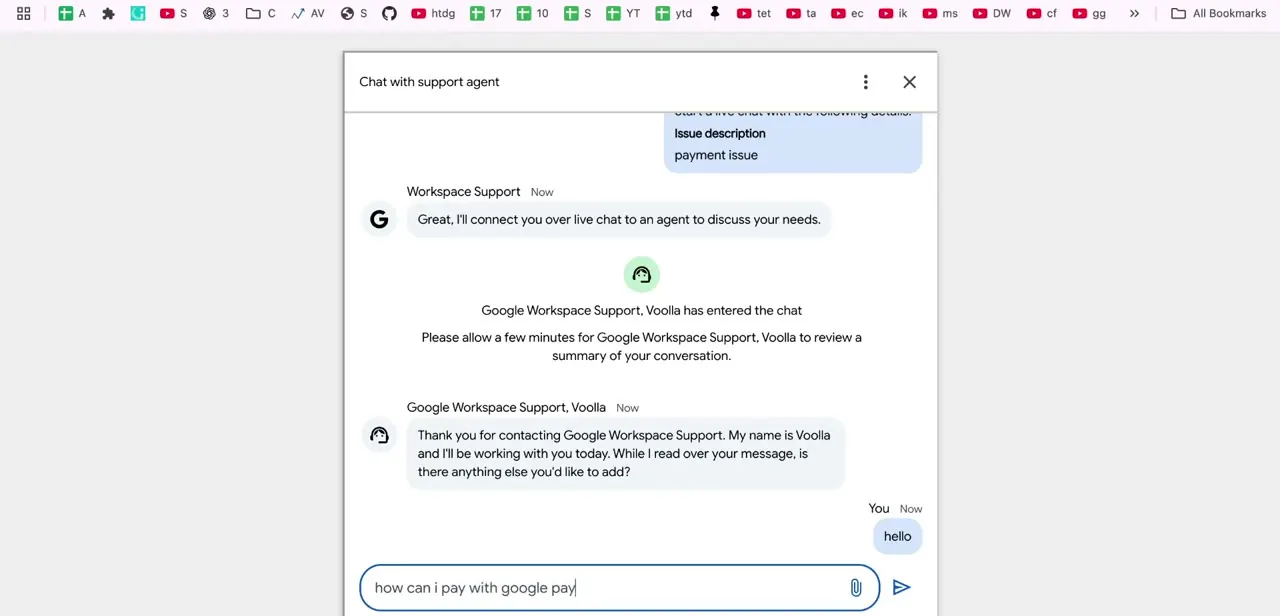
When an agent joins, their name appears in the chat with a short note that they're reviewing a summary of the conversation so far. This is why the context you gave the bot matters: a good human agent picks up from it instead of asking you to start over. From here it runs like a normal support chat, describing the problem in your own words and answering follow-up questions.
05Call phone support if your plan qualifies
Phone support is not open to every paying customer. Google limits it to Premium Support customers and specific Google Workspace for Education editions (Plus and Standard), and the line operates in English only.
If your plan qualifies, get there through the same Help menu: click Contact support, describe the issue, and select Phone. That screen shows your Customer PIN, valid for 60 minutes, which support uses to verify you're an authorized admin before discussing the account. If the PIN expires before you call, go back through the same steps to generate a new one.
06Fall back to the Help Center if you're locked out
If you can't get into your admin account at all, the support chat inside the Admin Console won't help, since you can't reach it. Use Google's account recovery process from the Workspace sign-in page first; regaining access is the prerequisite for every other support channel described here.
When it doesn't work
Phone support isn't available or the option is missing
Why: Phone support is restricted to Premium Support customers and certain Google Workspace for Education editions. A standard Business or Enterprise plan without that add-on doesn't get a working phone option.
Fix: Use chat or email support instead, or ask your Workspace reseller/account team about adding Premium Support if phone access is a real need.
The Customer PIN doesn't work when calling
Why: The PIN is only valid for 60 minutes after it's generated.
Fix: Go back to Help > Contact support > Phone in the Admin Console to generate a fresh PIN, then call right away.
"Contact support" doesn't appear in the Help menu at all
Why: The signed-in account doesn't hold the Support administrator privilege that Google requires to access the support flow.
Fix: Ask a super admin to either handle the request or grant the Support administrator privilege to your role.
Frequently asked questions
Does Google Workspace support start with a bot?
Yes. Chat support opens with Google's AI agent, Concierge, which tries to resolve common issues first. Typing "Contact support" or "talk to live agent" and briefly describing the issue moves the conversation into the queue for a human.
Who can use Google Workspace phone support?
Only Premium Support customers and certain Google Workspace for Education editions (Plus and Standard). It isn't included on a standard Business or Enterprise plan, and the line runs in English only.
What is a Customer PIN and how long does it last?
It verifies you're an authorized admin when you call phone support. Find it under Help > Contact support > Phone in the Admin Console, and use it quickly: it expires 60 minutes after it's generated.
What if I can't log in to my Google Workspace admin account?
Use Google's account recovery process from the sign-in page. You need to regain access to your admin account before you can reach support through the Admin Console's chat or phone options.
Do I need a specific admin role to contact support?
Yes. The Support administrator privilege (included with super admin access) is required to see the Contact support option in the Help menu at all.
Does Google Workspace support cost extra?
Chat and email support are included with any Workspace subscription. Phone support is the exception: it requires the paid Premium Support add-on, or one of the specific Education editions that include it.
Sources and last check
Chat flow and screens come from a recorded walkthrough. Phone support eligibility, PIN behaviour, and admin privilege requirements were re-checked against Google's official Workspace Help documentation in September 2026, which corrected three things this guide previously got wrong: phone support is not available to all paying customers (it's Premium Support customers and certain Education editions only, English only, not a general 24/7 benefit); the Customer PIN is generated through Help > Contact support > Phone, not found sitting in account or billing settings; and the PIN expires after 60 minutes.
About the author

Impran M N
I've been hooked on technology for as long as I can remember — especially the new tools and AI apps that seem to land every other week. Easy Tech Tuts is where I write up whatever I've just worked out: I do the task in the real product, record the screen, and turn it into the guide I wish I'd found first.



