 Easy Tech Tuts
How to Close Google Workspace Account 2026
By Impran M NLast checked against official docs
Closing a Google Workspace account is not one button, and that surprises people who assume cancelling the subscription is the end of it. Google separates the two deliberately: cancelling stops the billing, while deleting the organisation removes the users, the data, and the domain association, and it won't let you do the second until the first has finished.
There's also a waiting period built in, because Google starts deleting your data the moment you cancel and won't close the account until that finishes. That timing is the whole reason to start this at least a week before your renewal date, not the night before. This guide walks the full sequence in the order the Admin console enforces, with the two irreversible moments flagged clearly, plus two requirements Google's own deletion guide lists that are easy to miss because they don't live in the in-app checklist.
Before you start
- Access to a super admin (or domain settings administrator) account on the Workspace domain itself, not a personal Gmail address
- Time to run a full data export and clear out any Google Cloud projects before you cancel anything, since cancelling starts Google's data-deletion clock
01Sign in with an admin account on the Workspace domain
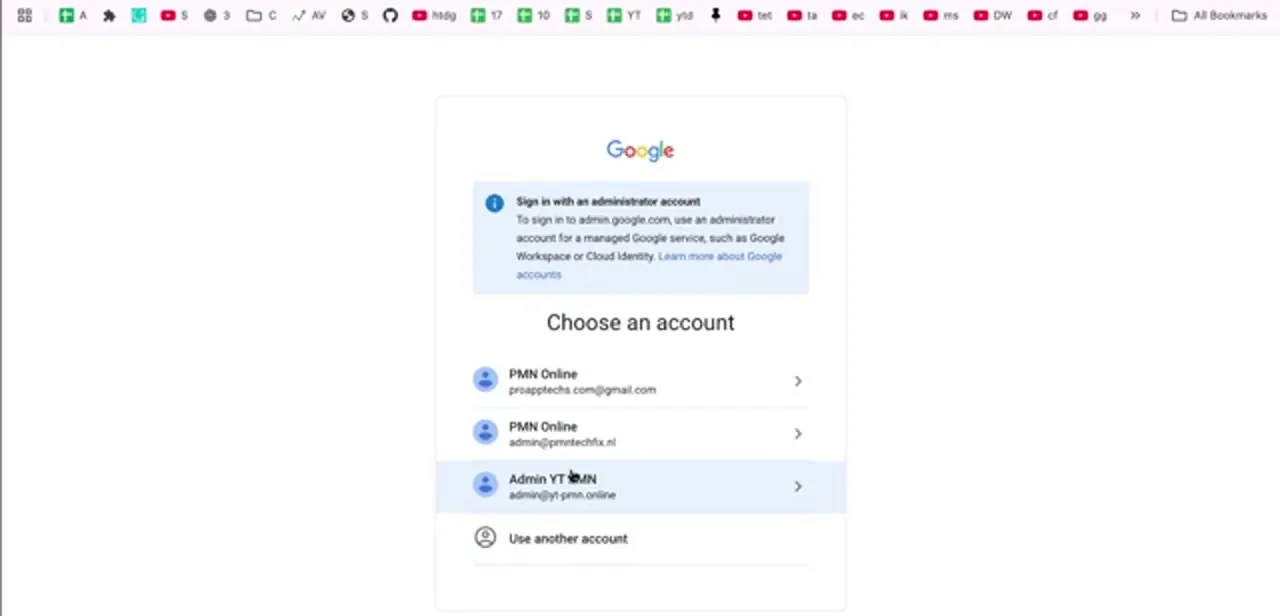
Go to admin.google.com and pick the right identity. A personal Gmail address can't administer a Workspace organisation, and Google says so directly on the sign-in page: you need an administrator account for a managed Google service.
If the account picker shows several identities, choose the one on your Workspace domain, not the gmail.com one. Billing access alone isn't enough, either.
A delegated admin with billing rights can cancel a subscription, but deleting the organisation needs the domain settings administrator privilege specifically, which most people only hold if they're a super admin. Confirm you have that before going further, or you'll find out halfway through.
02Find your way around the Admin console
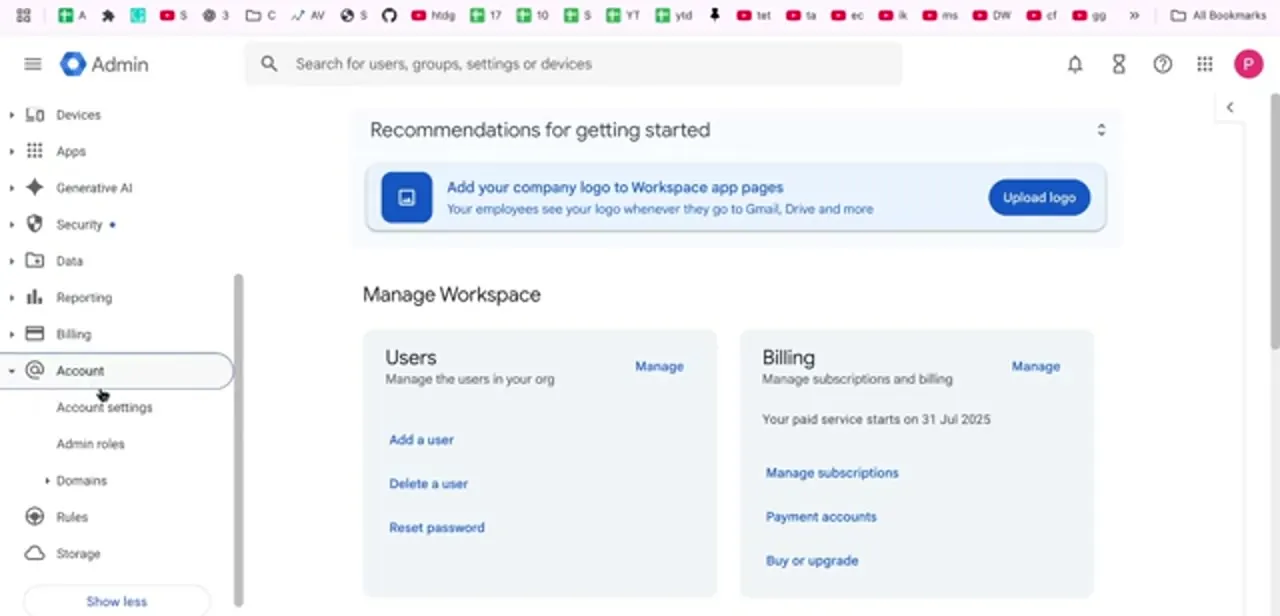
The console home shows a Manage Workspace panel with Users and Billing cards side by side, and the Billing card shows when your paid service starts or renews. Note that date now; it's your deadline.
Everything in this process lives in two places on the left-hand menu: Billing, which holds Subscriptions and Payment accounts, and Account, which holds Account settings. Expand both before going further so you can move between them without hunting. If Billing shows a trial instead of a paid subscription, the same sequence applies, since a trial that isn't cancelled converts to a paid plan on the date shown.
03Export everything you want to keep, and clear out Cloud resources, first
Do this before cancelling anything, since cancellation starts the clock on data deletion. Use the data export tool in Account settings to pull mail, Drive files, contacts, and calendars for every user, and expect it to take days to produce the archive for a large account.
If one user's mailbox is what matters, Google Takeout for that account is faster. Transfer ownership of any shared Drive files to an account you're keeping too, since files owned by a deleted user disappear even if others could see them.
Google's own deletion checklist also expects two things this guide didn't originally cover: saving your billing records (payment receipts and monthly invoices, since you lose access to them after deletion), and removing any Google Cloud projects, folders, or Apps Script projects still attached to the organisation. Both are easy to miss because neither lives in the export tool. Once the export lands, open it and confirm it holds what you expect instead of trusting the completion email alone.
04Open Account settings and find Account management
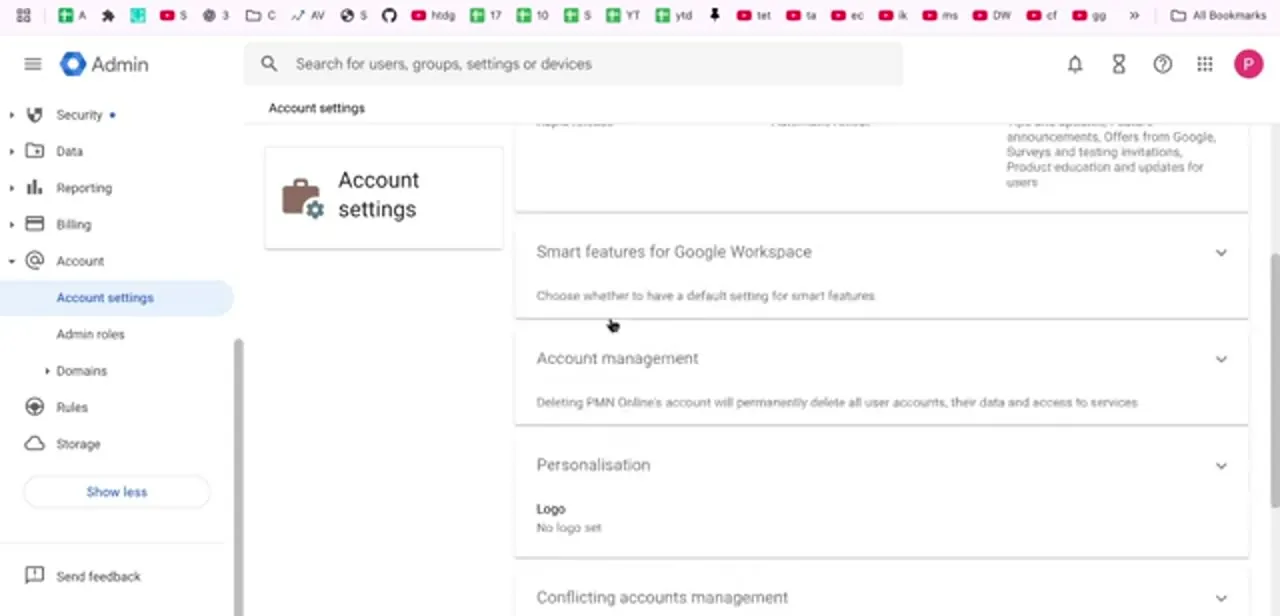
In the left menu, go to Account, then Account settings. Scroll past the personalisation and smart-features panels to the Account management section: an unremarkable collapsed row carrying the plainest warning in the whole console, that deleting the account will permanently delete all user accounts, their data, and their access to services.
Expand it. This section is the actual closure workflow, presented as a numbered checklist of things Google requires you to finish before the delete button becomes usable.
05Clear the required blockers
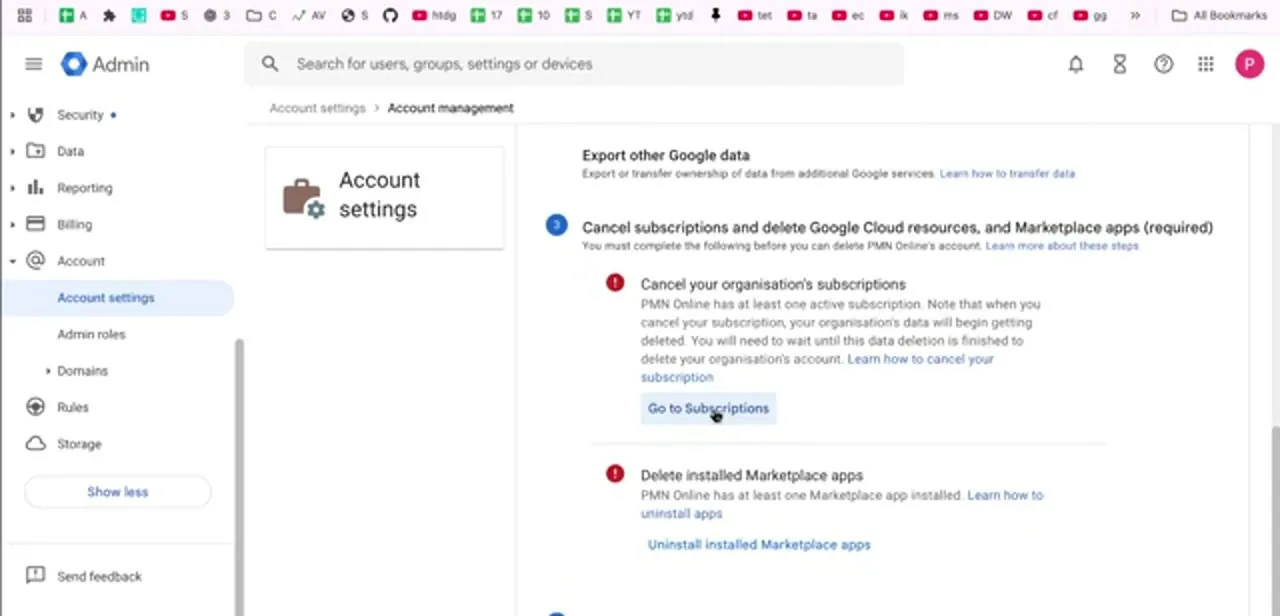
The checklist marks each unfinished item with a red icon and won't let you proceed until every one turns green. Two are near-universal: cancelling your organisation's active subscriptions, and uninstalling any Marketplace apps.
Google spells out the consequence on the subscription item directly: cancelling starts deleting your organisation's data, and you have to wait for that deletion to finish before the account itself can be removed. Each item links straight through to where it's handled ("Go to Subscriptions," "Uninstall installed Marketplace apps"), so use those instead of navigating there yourself and losing your place in the list.
06Cancel every subscription row, not just the main plan
Under Billing, Subscriptions lists every plan on the account with its status, licence count, payment plan, and when payment is due, and there's often more than one row, since archived-user storage and add-ons bill separately from the main plan. Cancel each of them, or the account keeps a live plan and refuses to close.
One exception: Google won't let you cancel the Cloud Identity Free subscription, and that's expected, not a bug. Watch the payment-due column as you go.
A plan showing paid service starting in a few days is one you want cancelled today. Save or screenshot each cancellation confirmation as evidence if a charge appears later.
07Delete the account and confirm nothing is left
Once the checklist is clear and Google's data deletion has finished, return to Account management and complete the deletion. This is permanent: the users, their mail, and their files are gone, and nothing here can be restored.
Before you press it, check three things: that your domain's MX records point elsewhere if you still own the domain, that any third-party service using Workspace for single sign-on has been migrated, and that no automatic payment remains active on the payment account. Google frees the domain for reuse within roughly 24 hours of deletion. Watch your card statement through the date you noted at the start; a closed account should produce no further charge on the next cycle.
| Action | What it does | Can you undo it? |
|---|---|---|
| Cancel a subscription | Stops billing for that plan and starts Google deleting the organisation's data | No, once the deletion window has started |
| Delete the organisation's account | Removes every user, their data, and the domain association entirely | No, this is permanent |
Google requires cancellation to finish, and the resulting data deletion to complete, before Account management will let you delete the organisation itself.
When it doesn't work
The delete option in Account management stays greyed out
Why: One or more required items on the checklist is still red, most often an active subscription, an installed Marketplace app, or a Google Cloud project still attached to the organisation.
Fix: Work down the checklist in Account management using its own "Go to Subscriptions" and "Uninstall installed Marketplace apps" links, and separately delete any Google Cloud projects, folders or Apps Script projects tied to the account.
A billing admin can cancel the subscription but can't delete the account
Why: Deleting the organisation needs the domain settings administrator privilege specifically; billing access alone doesn't include it.
Fix: Sign in with, or ask for, an account that holds super admin or domain settings administrator rights before starting the deletion step.
A charge appears after you thought you'd cancelled everything
Why: Archived-user storage and add-ons often bill as separate subscription rows from the main plan, and it's easy to cancel only the headline one.
Fix: Check every row under Billing, Subscriptions, not just the main plan. Cloud Identity Free is the one exception Google won't let you cancel, and that's expected.
Frequently asked questions
Is cancelling my subscription the same as closing the account?
No. Cancelling stops the billing; closing the account deletes the organisation, its users, and their data. Google requires the cancellation first and won't let you delete the account until the resulting data deletion has finished.
Why won't the Admin console let me delete my account?
Something on the required checklist is still outstanding, most often an active subscription or an installed Marketplace app. Google's own deletion guide also expects any Google Cloud projects or Apps Script projects tied to the organisation to be removed first; that isn't part of the in-app checklist but will still block you if it's missed.
Will I be charged again after I cancel?
Not if the cancellation completes before the payment-due date shown against each subscription. Cancel every subscription row, not just the main plan, and keep the confirmations in case a charge appears anyway. Cloud Identity Free is the one subscription Google won't let you cancel at all, which is normal.
Can I get my data back after closing the account?
Assume not. The console states plainly that deletion permanently removes all user accounts, their data, and their access to services, so run a full data export and transfer ownership of shared files before you start.
Do I need to be a super admin to do this?
You need whichever role holds the domain settings administrator privilege, which is usually a super admin. A delegated admin with only billing rights can cancel subscriptions but can't delete the organisation, and a personal Gmail address can't administer it at all.
How soon can I reuse the domain after deleting the account?
Google's documentation states the domain becomes available for reuse within about 24 hours of deletion completing.
Sources and last check
Click path and screens come from a walkthrough recorded in July 2025. The requirements and sequence were re-checked against Google's own "Delete your organisation's Google Account" and "Cancel a subscription or your account" help pages in September 2026. That check added two steps the original draft missed (saving billing records and removing Google Cloud projects and Apps Script projects before deletion), corrected "super admin" to the more precise domain settings administrator privilege the deletion itself needs, and added the Cloud Identity Free exception and the roughly 24-hour domain-release window, none of which the original draft stated.
About the author

Impran M N
I've been hooked on technology for as long as I can remember — especially the new tools and AI apps that seem to land every other week. Easy Tech Tuts is where I write up whatever I've just worked out: I do the task in the real product, record the screen, and turn it into the guide I wish I'd found first.



