 Easy Tech Tuts
How to Change Name on Google Workspace Account, Change Your Display Name Easily 2026
By Impran M NLast checked against official docs
"Change my name on Google Workspace" can mean three different things, and picking the wrong one is why people make an edit and then find nothing changed in their emails. There's the organization name that identifies the whole Workspace account, the individual user's first and last name in the directory, and the sender name Gmail puts on outgoing mail.
This guide walks through the Admin console path for the organization name, the one that appears on billing, in admin screens and in some sharing prompts, and then explains where the other two live and who is allowed to change them. If you're an admin cleaning up a company rename, start at the top; if you just want your own emails to say something different, skip to the last two steps.
Before you start
- Administrator access to the Google Workspace Admin console; renaming the organization specifically needs the Domain settings admin privilege, not just general admin rights
01Work out which name needs changing
The organization name labels the whole Workspace account. It shows up in the Admin console, on invoices, and in some Google prompts that name the organization a document or account belongs to.
A user's name is the first and last name stored on their directory profile, and it drives what colleagues see in Contacts, Chat, Meet and shared documents. The Gmail sender name is a per-address setting that decides what shows in the From line of an outgoing email.
Only an administrator can change the first two. The third can usually be set by the user, unless the organization has locked it down. Sorting this out first saves time hunting through the wrong menu.
02Open the Admin console and find Account settings
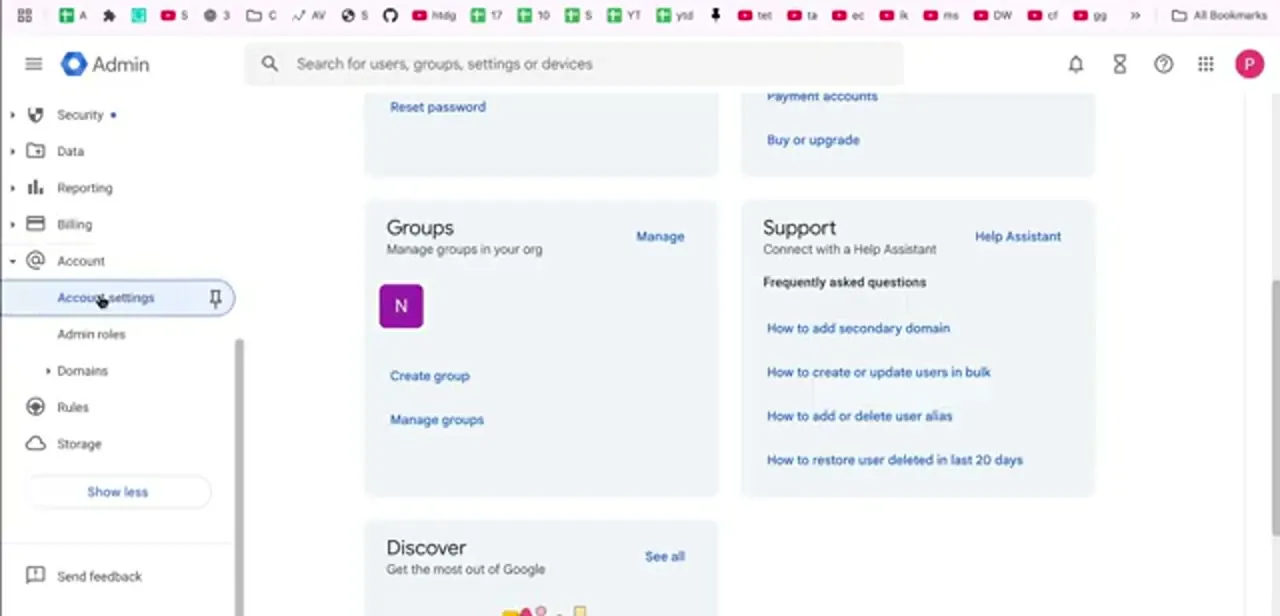
Sign in at admin.google.com with an account that holds administrator rights; a regular user account won't see these menus. In the left navigation, scroll past Directory, Devices, Apps, Security, Data, Reporting and Billing until you reach Account, then expand it.
Account settings, Admin roles and Domains sit underneath. Account settings is the one you want. If the sidebar looks short, use Show more at the bottom to expand it, and pin Account settings if this is somewhere you'll return to often.
03Open the Profile page
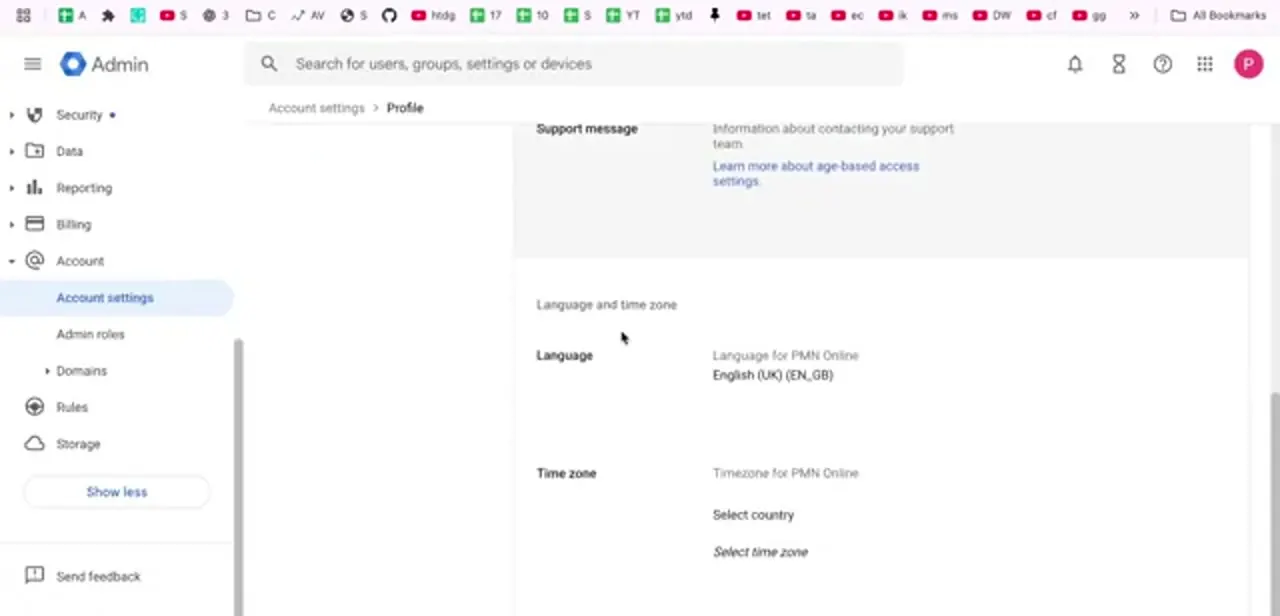
Account settings opens onto a set of cards, and Profile holds the organization's identity. The breadcrumb at the top reads Account settings > Profile, a quick check that you're in the right place.
Next to the name sit the other organization-level fields: the support message shown to users, plus Language and Time zone, which apply account-wide. A Workspace account set up in a hurry often has one of those left on a default that quietly affects calendar invites and report timestamps for everyone, so a quick look while you're here can save a later headache.
04Edit the organization name and save
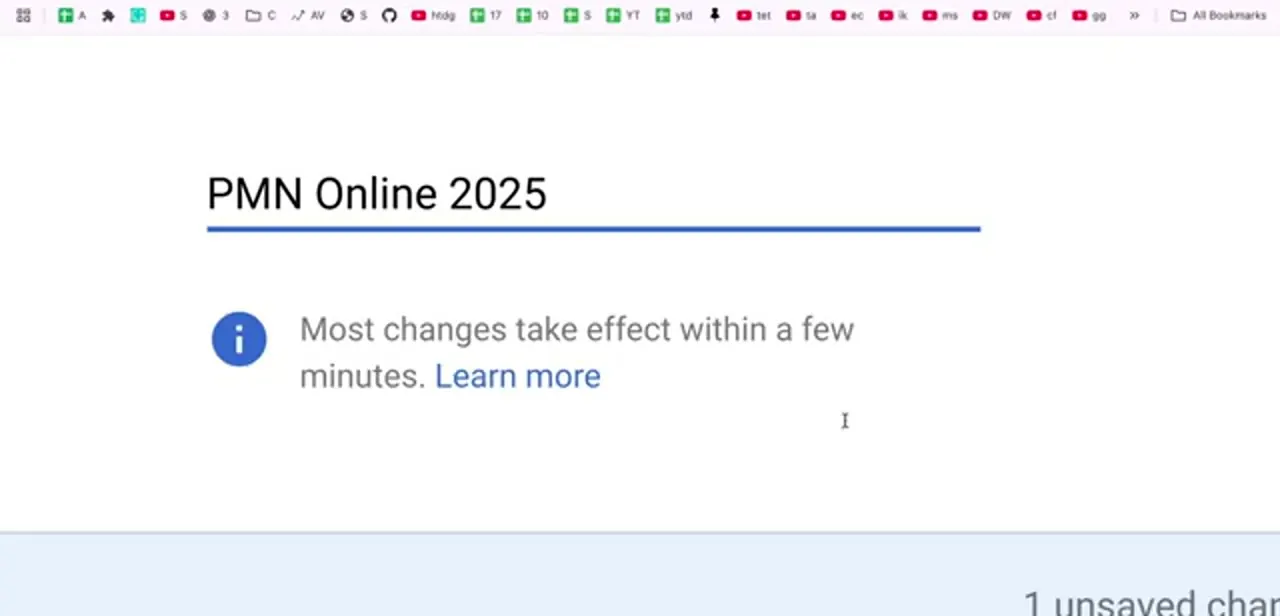
Click the organization name and it becomes an editable text field with the current value selected. Type the new name exactly as you want it capitalized and spaced; Google won't tidy it for you.
Two things appear as soon as you type: a note that most changes take effect within a few minutes, and an unsaved-changes bar at the bottom of the screen with a save action. That bar is easy to miss on a short browser window, and navigating away without it discards the edit.
Changing the organization name specifically needs the Domain settings administrator privilege. An account with only, say, User management rights can open the Profile page but won't be able to save this field. Save, then reload the page to confirm the new name held.
05Rename an individual user in the Directory
Renaming one person is a different job in a different place. From the sidebar, open Directory, then Users, find the person, and open their profile (or use the Rename user action from their row's menu).
The name fields sit at the top and update how they appear to colleagues in Contacts, Chat, Meet and shared file permissions. It doesn't touch their email address: renaming Jane Smith to Jane Okonkwo leaves jane.smith@ working as before.
If the address should change too, add the old one as an alias afterward so nothing sent to it bounces. Google also notes that a user's earlier profile name isn't hidden from others once it's changed, so a rename doesn't quietly erase the old name from every past record.
06Set the Gmail sender name, then give it time
The name recipients see on an email comes from Gmail's own settings, not the directory. In Gmail, open Settings, go to the Accounts tab, and use the edit link beside the address under "Send mail as." Some organizations allow a custom sender name here; others force it to match the directory profile, and the field stays locked if so.
Once any of these edits are saved, give it time. Google's own note says most changes take effect within a few minutes, but full propagation across Gmail, Chat, Meet and the directory can run longer. Signing out and back in, or opening the app in a private window, is the fastest way to tell a genuinely stale name from one that's just cached in your session.
When it doesn't work
The organization name field won't save
Why: The signed-in account doesn't hold the Domain settings administrator privilege, even though it can open the Admin console and the Profile page.
Fix: Ask a super admin to grant Domain settings, or have them make the change instead.
The name changed in the Admin console but Gmail or Chat still shows the old one
Why: Google's own note says most changes take effect within a few minutes, but individual apps and open sessions can cache the previous value longer.
Fix: Sign out and back in, or check in a private window, before assuming the change failed.
A user's own display name doesn't match what the admin set
Why: The organization allows users to edit their own profile name, and Google gives a user's own edit priority over a name an admin sets afterward.
Fix: Turn off self-editing for that organizational unit if names need to be enforced centrally, or accept the user's version.
Frequently asked questions
What's the difference between the organization name and a user's name?
The organization name identifies the whole Workspace account and lives under Account > Account settings > Profile. A user's name lives on their individual profile under Directory > Users and is what colleagues see in Chat, Meet and shared documents.
Do I need a specific admin privilege to rename the organization?
Yes. Even an account with other admin rights needs the Domain settings privilege specifically to save this field; without it, the Profile page opens but the edit won't save.
Does changing a name change the email address?
No. The display name and the email address are separate. Renaming a user leaves their existing address working; changing the address is a separate step, and the old one should be kept as an alias so mail still arrives.
Can I change my own name in Google Workspace?
It depends on your organization. Many admins restrict directory name changes to administrators. Where self-editing is allowed, a user's own change takes priority over a name an admin sets afterward.
Why doesn't my new name show up everywhere right away?
Google notes that most changes take effect within a few minutes, but caches in Gmail, Chat and Meet can hold the old value longer. Sign out and back in, or check in a private window, before assuming the change failed.
Sources and last check
Click path and screens come from a walkthrough recorded in 2025. The required admin privilege, the user-rename flow, and the self-edit priority behavior were re-checked against Google's own Workspace Admin Help articles in September 2026, which corrected the organization-name step from a general 'administrator rights' requirement to the specific Domain settings privilege.
About the author

Impran M N
I've been hooked on technology for as long as I can remember — especially the new tools and AI apps that seem to land every other week. Easy Tech Tuts is where I write up whatever I've just worked out: I do the task in the real product, record the screen, and turn it into the guide I wish I'd found first.



