 Easy Tech Tuts
How to Cancel Google Workspace Domain Alias & Deactivate it easily 2026
By Impran M NLast checked against official docs
A domain alias added by mistake, or left over from a sign-up flow you no longer need, clutters the Domains page and can confuse anyone else managing your Workspace account. This guide walks through where domain aliases live in the Admin Console, how to tell them apart from your primary and secondary domains, and how to deactivate one cleanly without disrupting mail on your real domains.
01Sign in with an admin account
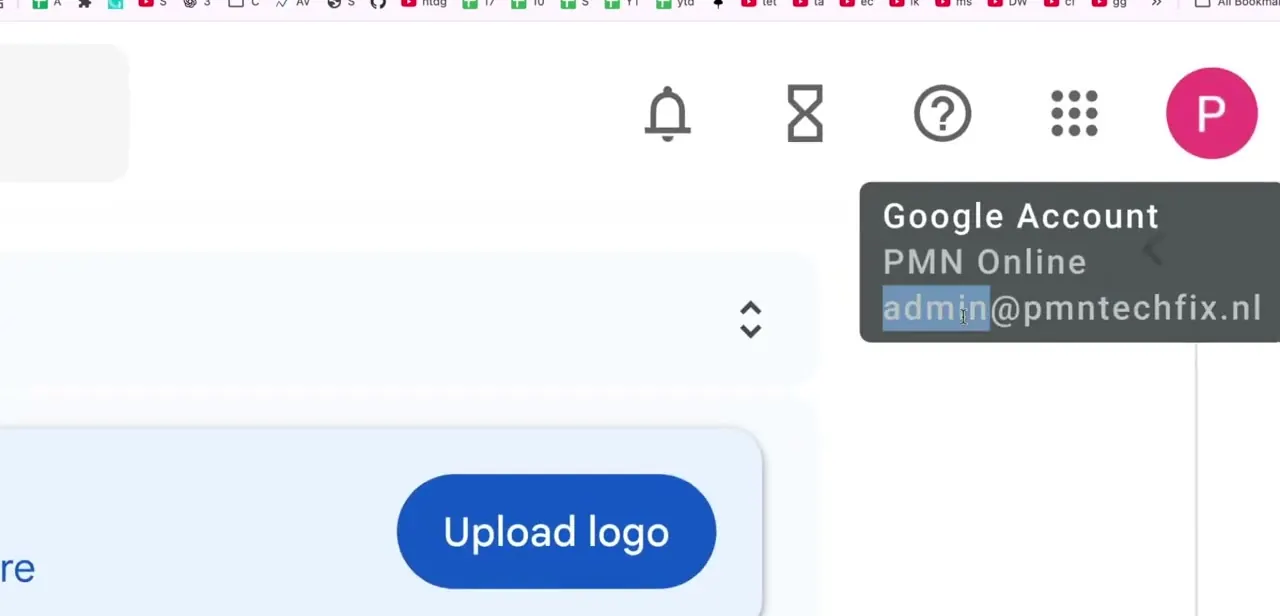
Domain management is an admin-only action, so start by confirming you're signed into the correct Google Account. Click your profile circle in the top right of any Google page and check the account name and address shown, for example admin@yourdomain.com under your organization's name. If you manage more than one Workspace organization, check this carefully: making a domain change on the wrong account is an easy mistake.
02Re-verify your identity if Google asks
Navigating to admin.google.com sometimes triggers an extra identity check, especially after a period of inactivity. Google asks you to re-enter your password to confirm it's really you before letting you into sensitive settings like domain management.
This is expected for an admin-level action, not a sign anything is wrong. Enter your password and continue.
03Open Domains and go to Manage domains
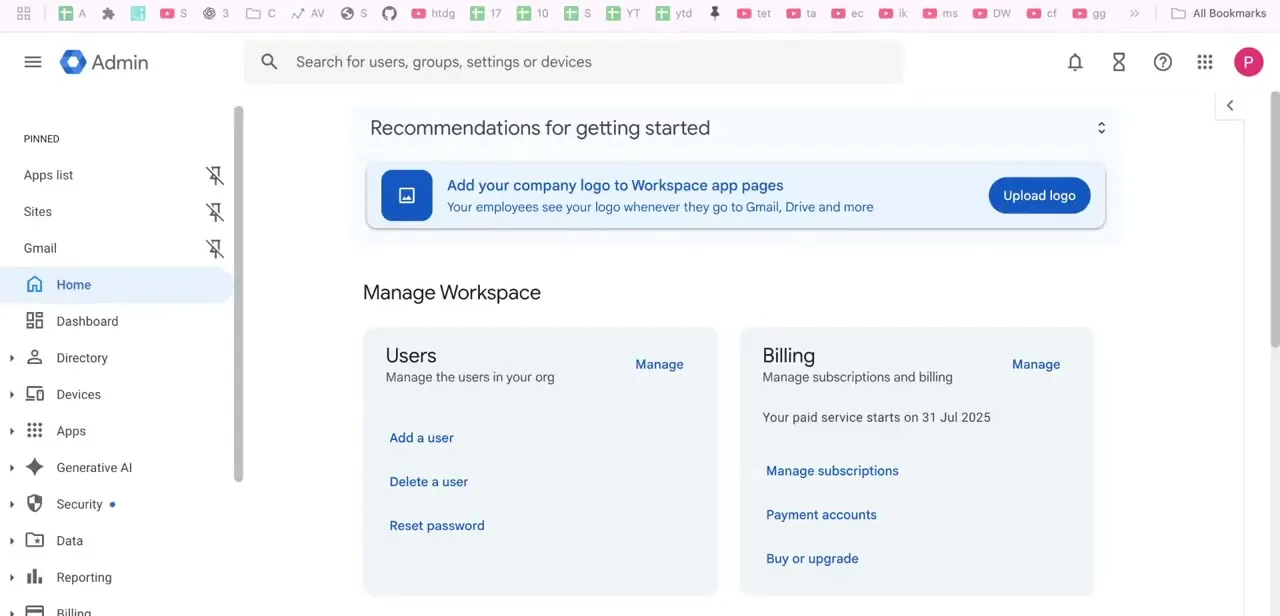
Inside the Admin Console, expand Account in the left menu, then Domains, and select Manage domains. This page lists every domain associated with your Workspace organization in one table, with columns for Domain, Type, Status, and Actions. It's the single place to see your primary domain, any secondary domains, and any domain aliases side by side.
04Identify the alias among your domains, not a domain you want to remove entirely
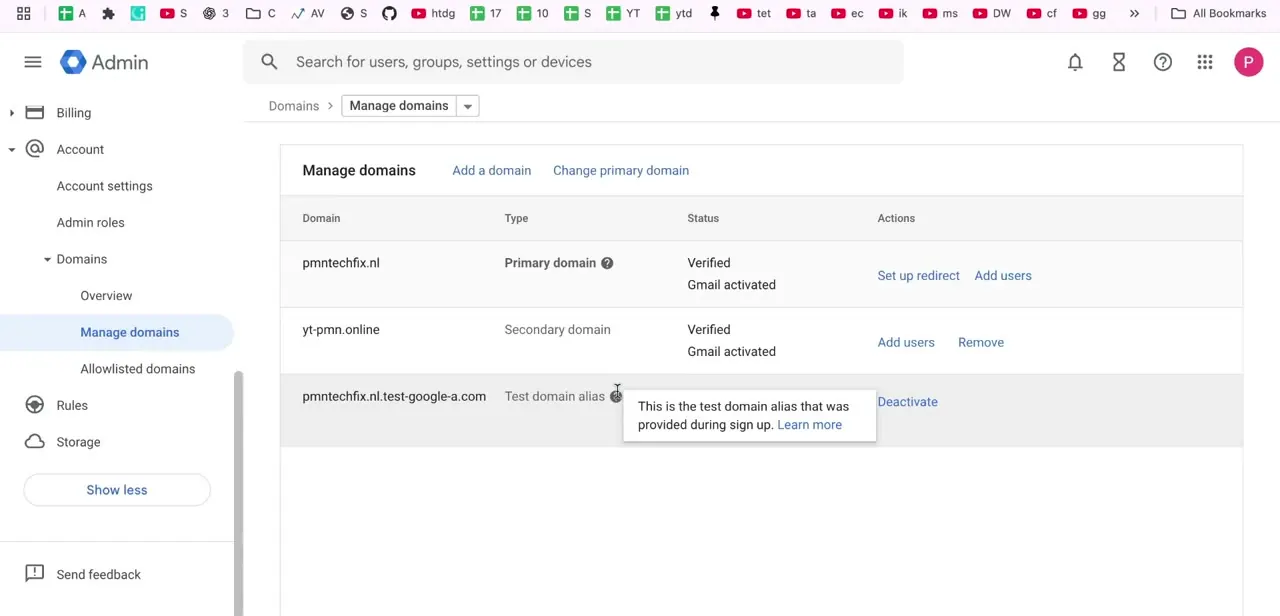
The Manage domains table separates domains by Type: a Primary domain (marked Verified and Gmail activated), Secondary domains that function as fully separate domains with their own users under the same account, and domain aliases such as a test domain alias that Google sets up automatically during sign-up. A tooltip next to an alias entry usually explains what it is.
Only the alias row shows a Deactivate action; primary and secondary domains show different actions like Set up redirect, Add users, or Remove. Deactivating an alias is much lighter than removing a domain outright: fully removing a primary or secondary domain deletes any sites built on it and stops mail for every user on it, and Google requires you to clean up groups, aliases, and renamed users first. Deactivating a plain domain alias touches none of that.
05Deactivate the alias
Click Deactivate next to the alias you want to remove. Because it's a lighter-weight relationship than a full secondary domain, deactivating it doesn't touch your primary domain's mail, users, or verified status; it stops that alias from routing to your account. If the option is greyed out, the alias is usually still referenced somewhere else in your setup, such as an active user alias or a DNS record still pointing at it, and you'll need to clear that dependency first.
06Confirm mail behavior after deactivation
Once an alias is deactivated, mail sent to addresses on that alias domain stops reaching your Workspace account. If the alias was ever shared externally, test this deliberately: send a message to an address on the old alias domain from a separate account and confirm it bounces or goes undelivered, rather than quietly arriving.
07Clean up any leftover DNS records
Deactivating the alias inside Workspace doesn't remove DNS records at your domain registrar automatically. Go back to wherever that domain's DNS is managed and delete or update any MX, TXT, or CNAME records that were pointing traffic or verification at Google for that alias, so nothing is left half-configured. The Admin Console won't flag this step for you, and leaving stale DNS records behind is the most common cause of confusion the next time someone looks at that domain's setup.
When it doesn't work
The Deactivate option is greyed out for my domain alias
Why: The alias still has an active dependency, such as a user alias built on it or a DNS record still pointing at it.
Fix: Clear those references first, then try deactivating again.
I clicked Remove instead of Deactivate and now I'm worried about the whole domain
Why: Primary and secondary domains carry a full Remove action that deletes any sites on that domain and stops mail for every user on it, unlike an alias's Deactivate action.
Fix: Google requires clearing groups, aliases, and renamed users before a domain removal completes, so a single accidental click won't finish the process on its own. Check the domain's Status column in Manage domains before proceeding further, and contact Google Workspace support if you're unsure what state it's in.
Mail sent to the old alias address still seems to be arriving
Why: Either the deactivation didn't fully propagate yet, or the sender's message went to a different address that only looks similar.
Fix: Wait a short while and re-test from a separate account, double-checking the exact address you're sending to.
Frequently asked questions
What happens to emails sent to the alias after it's removed?
Once deactivated, the alias domain no longer routes mail to your Workspace account, so any emails sent there afterward won't be delivered. Test this with a message from an outside account if the alias was ever shared publicly.
Why is the Deactivate option greyed out for my domain alias?
This usually means the alias still has an active dependency, such as a user alias built on it or a DNS record still pointing at it. Clear those references first, then try deactivating again.
Do I need to update DNS records after removing an alias?
Yes. Deactivating an alias in the Admin Console's Manage domains page doesn't remove DNS records at your registrar; you need to delete or update those separately to fully disconnect the domain.
Is deactivating a domain alias the same as removing a domain?
No, and the two are different in scope. Removing a primary or secondary domain deletes any sites built on it and stops mail for every user there, and Google requires cleaning up groups, aliases, and renamed users first. Deactivating a plain domain alias is much lighter: it only stops that alias from routing to your account.
What's the difference between a secondary domain and a domain alias?
A secondary domain is a fully separate, verified domain with its own users, and it shows actions like Set up redirect or Add users. A domain alias is a lighter relationship, often created automatically during sign-up, that simply routes to your existing account and can be deactivated on its own.
Sources and last check
The sign-in and Manage domains click path come from a recorded walkthrough. The menu path and the distinction between deactivating an alias and fully removing a domain were checked against Google's official domain-management documentation in September 2026; that check added the warning about full domain removal, which the original draft didn't cover.
About the author

Impran M N
I've been hooked on technology for as long as I can remember — especially the new tools and AI apps that seem to land every other week. Easy Tech Tuts is where I write up whatever I've just worked out: I do the task in the real product, record the screen, and turn it into the guide I wish I'd found first.



