 Easy Tech Tuts
How to Assign Tasks in Google Workspace Using Google Chat 2026 Easily
By Impran M NLast checked against official docs
Switching between a chat window and a separate task manager slows a team down and buries action items in message threads nobody rereads. Google Workspace solves this by building task assignment into Chat spaces, so a task created in a conversation shows up with an owner, a status, and a due date without anyone leaving the chat.
This guide walks through opening a Chat space, finding the Tasks tab that most people never notice, and assigning work so it's tracked instead of just mentioned. It works the same whether you're in the standalone Chat app or the Chat panel inside Gmail.
Before you start
- The Tasks tab turned on for your organization. If a space doesn't show it, a Google Workspace admin needs to enable the feature; there's no per-user setting for it.
- A named Chat space with the teammate already added as a member. Space tasks are assigned to individual members, not to a direct message thread.
01Get to Google Chat from your Workspace apps
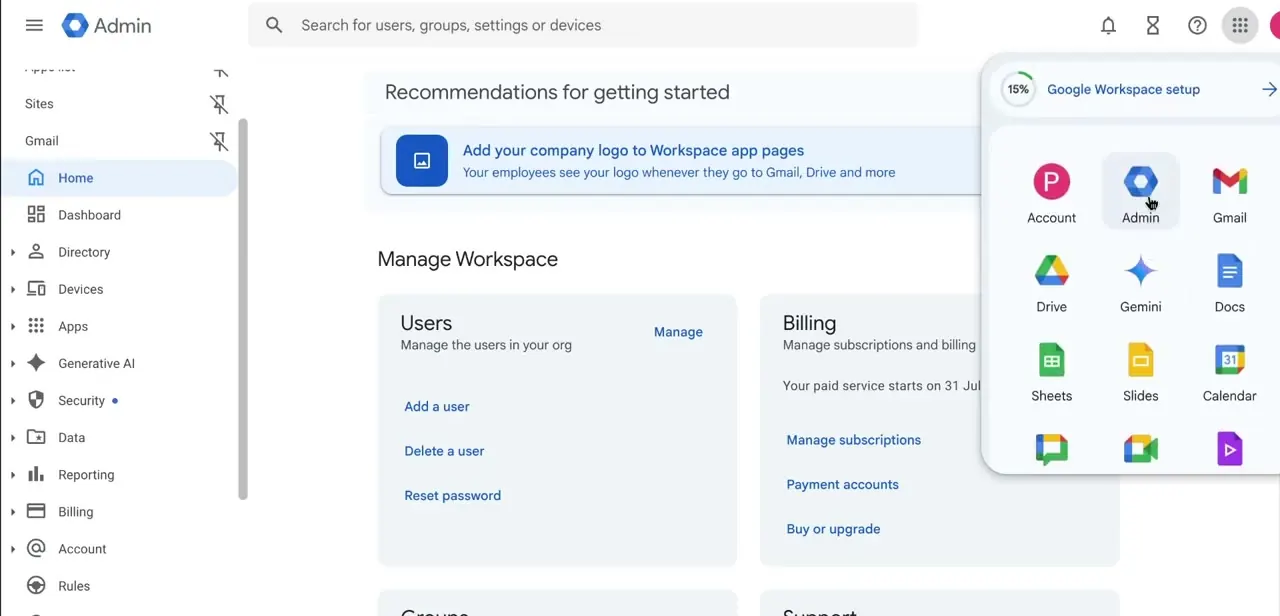
If you're already in the Google Admin console or another Workspace app, the fastest route into Chat is the app grid in the top-right corner: click it and choose Chat alongside Gmail, Drive, and Calendar. Regular users can also just go to chat.google.com or open the Chat icon inside Gmail's left sidebar. Either path lands you in the same interface, so use whichever is fewer clicks from where you already are.
02Open the space where the task belongs
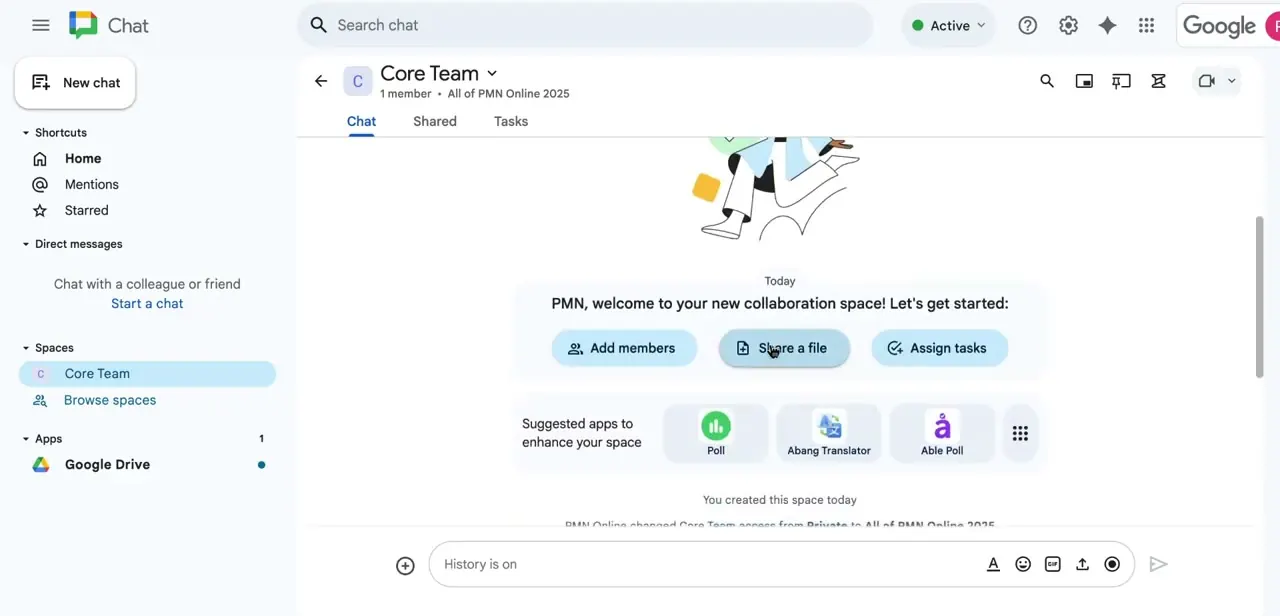
Tasks in Chat live inside a space, not a one-off direct message. Open (or create) the team or project space your group already uses.
A brand-new space shows a welcome prompt with quick-start buttons for Add members, Share a file, and Assign tasks; that Assign tasks button is a shortcut into the flow this guide covers. On an established space you'll skip the welcome card and go straight to the Tasks tab described next.
03Switch to the Tasks tab
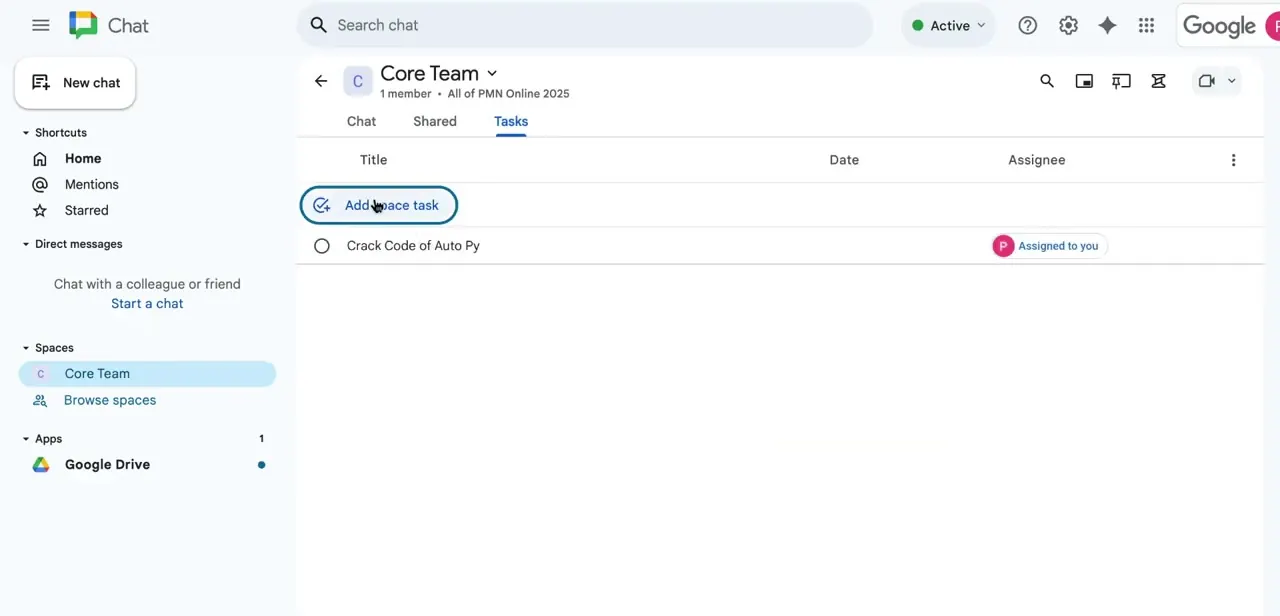
Every space has a Tasks tab next to Chat and Shared at the top of the window. It's easy to miss since it looks like just another tab, not a project tracker.
Click it and you'll see a table with Title, Date, and Assignee as columns, plus any tasks already there. This view is shared by everyone in the space, so a task added here is visible to the whole team immediately, not just the person who created it.
04Create the task and set a due date
Click Add a space task, type a specific title ("follow up" gets ignored, "Send Q3 report draft to client" doesn't), and set a due date from the Date column so the deadline is visible without anyone having to ask. This isn't the same thing as the Add to tasks option on a message's three-dot menu: that shortcut files a personal task in your own Google Tasks list, not a shared task you can assign to a teammate. Anything meant for someone else needs to go through this Tasks tab.
05Assign it to the right person
Click the Assignee column and pick a member of the space. The task then appears both in the shared Tasks tab and in that person's personal Google Tasks list, so they see it outside of Chat too. A task tagged "Assigned to you" is the confirmation you're looking for: it means the task is tracked against a specific person, not floating as an unassigned to-do everyone assumes someone else will handle.
06Track progress without leaving the conversation
As work gets done, whoever owns the task checks it off directly in the Tasks tab, and that status is visible to the whole space in real time. Instead of a manager pinging "any update on this?" in the thread, anyone can glance at the Tasks tab and see what's open, what's assigned to whom, and what's already checked off, in the same window where the work was discussed.
When it doesn't work
There's no Tasks tab in a space
Why: The feature is switched off for the organization. Google's own help page for this says a Workspace admin needs to turn it on.
Fix: Ask a Workspace admin to enable Tasks in Chat; there's no way to turn it on yourself as a regular user.
Typing "@" plus a task-sounding phrase in a message doesn't create anything
Why: Chat doesn't turn @ mentions into tasks. The @ smart chip is for tagging a person or inserting things like a file or date, not for task creation.
Fix: Use the three-dot menu on the message and choose Add to tasks for a personal task, or add it directly in the space's Tasks tab if someone else needs to own it.
The person a task was assigned to has left the space
Why: Nothing removes or reassigns the task automatically.
Fix: Google's documentation confirms the task stays in both the space's Tasks tab and that person's personal task list after they leave, so check for orphaned tasks and reassign them by hand.
Frequently asked questions
Do I need a specific Google Workspace plan to assign tasks in Chat?
Google doesn't publish a specific plan list for this one. The real gate is an admin setting: if a space doesn't show a Tasks tab, a Workspace administrator needs to turn the feature on for the organization.
Can I assign tasks in Google Chat from the Gmail interface too?
Yes. Chat is built into Gmail, so you can open a space and use its Tasks tab from either the Gmail sidebar or the standalone Chat app.
Do tasks assigned in a Chat space work the same as a direct message?
No. The Tasks tab and the shared task list are features of named spaces, not one-on-one direct messages. Use a team or project space if you want a shared, trackable task list.
Will the assigned person get a notification?
Yes. Google's documentation states a notification appears in the space whenever a task is created or updated, and an assigned task also shows up in that person's personal Google Tasks list.
Can I create a task straight from a chat message?
Sort of. A message's three-dot menu has an Add to tasks option, but it files a personal task for you, not one assigned to someone else. To assign work to a teammate, add it in the space's Tasks tab instead.
What happens to a task if the assigned person leaves the space?
It stays. Google's Workspace Learning Center confirms the task remains in both the space and that person's personal task list even after they leave, so check ownership on tasks tied to people who've since left.
Sources and last check
Click path and screens come from a walkthrough recorded in 2026 and match the Tasks tab, its Title/Date/Assignee columns, and the space quick-start buttons shown on screen. Re-checked against Google's official Chat Help and Workspace Learning Center documentation in September 2026, which corrected this guide's earlier claim that typing an @ mention creates an assignable task: Google Chat has no such shortcut. The actual message-level option, Add to tasks, only creates a personal task, not one you can assign to a teammate.
About the author

Impran M N
I've been hooked on technology for as long as I can remember — especially the new tools and AI apps that seem to land every other week. Easy Tech Tuts is where I write up whatever I've just worked out: I do the task in the real product, record the screen, and turn it into the guide I wish I'd found first.



