 Easy Tech Tuts
How to Archive User Google Workspace Easily 2026
By Impran M NLast checked against official docs
When someone leaves the company, deleting their Google Workspace account can feel too final: what if legal needs an old email thread six months from now? Archiving is the middle ground Google built for exactly this case.
The account can no longer sign in, but its Gmail, Drive, and Calendar data stays in place, and the license costs less than a full seat. This guide follows the process in the Admin console, including the prompt Google shows before you confirm and the exact savings figure it displays.
Archiving isn't available on every plan, and unarchiving later takes one more step than most admins expect. Both are covered below.
Before you start
- A Google Workspace edition that supports archiving: Business Starter, Standard, or Plus; Enterprise Standard or Plus; or an Education edition. Some legacy and Frontline plans don't include an Archived User license.
- Super admin or user-management admin privileges in the Admin console.
01Get to the Admin console
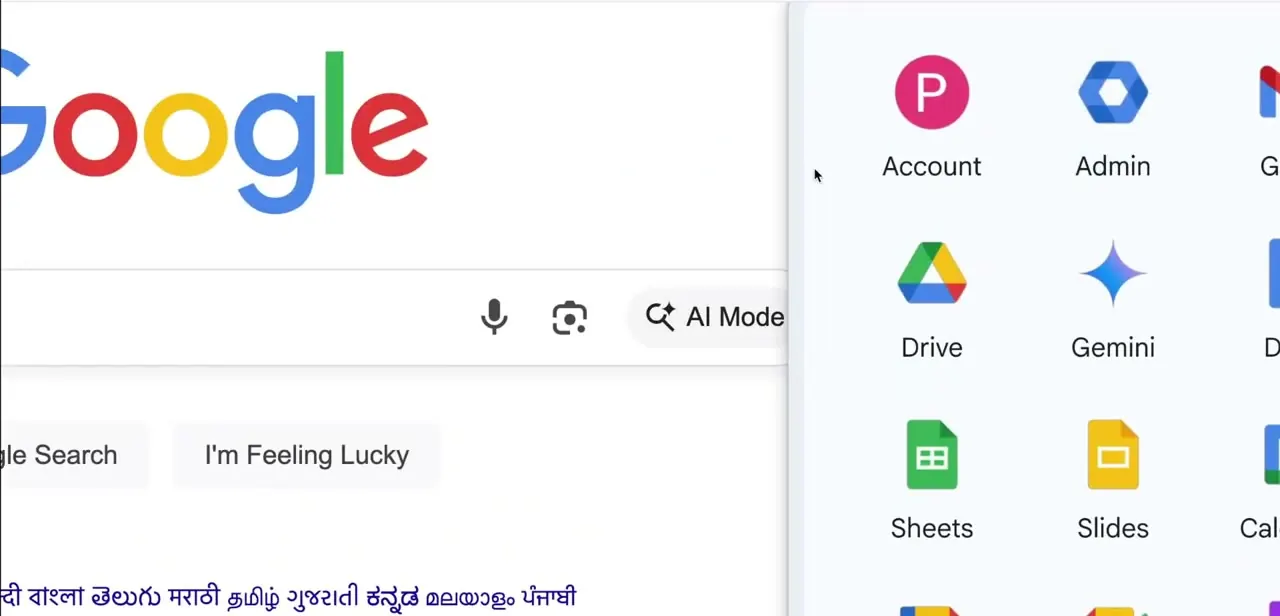
As a Workspace admin, the fastest route in is the app grid in the top right of any Google page. Click it and Admin sits next to Account, Drive, and Gemini in the grid of app icons.
This works from Google Search, Gmail, or anywhere else you're signed in, so there's no separate URL to remember. Clicking Admin opens the console's Directory section, where Users is the first item in the left-hand menu.
02Select the user and open More
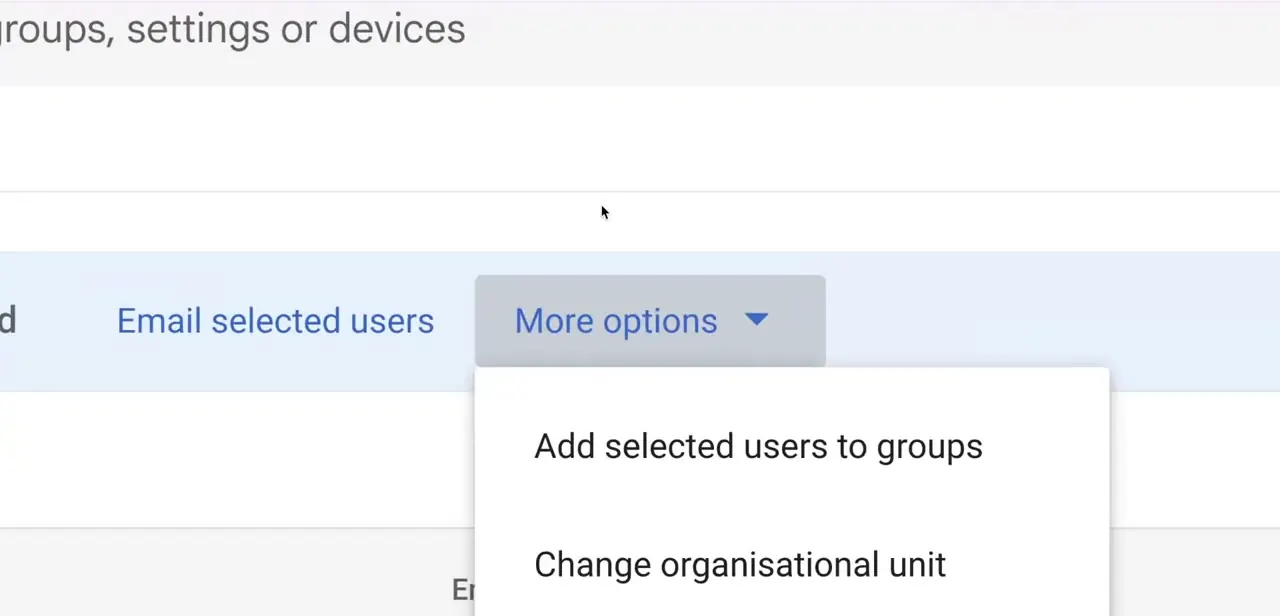
In Directory → Users, check the box next to the account you want to archive instead of clicking into their profile page. Selecting a user brings up a toolbar with actions such as emailing the selected users, plus a More options menu where bulk actions live: adding users to groups, changing their organizational unit, and the delete/archive action all sit here instead of being spread across separate pages. The pattern is the same whether you're handling one departing employee or a batch of them.
03Choose archive and confirm
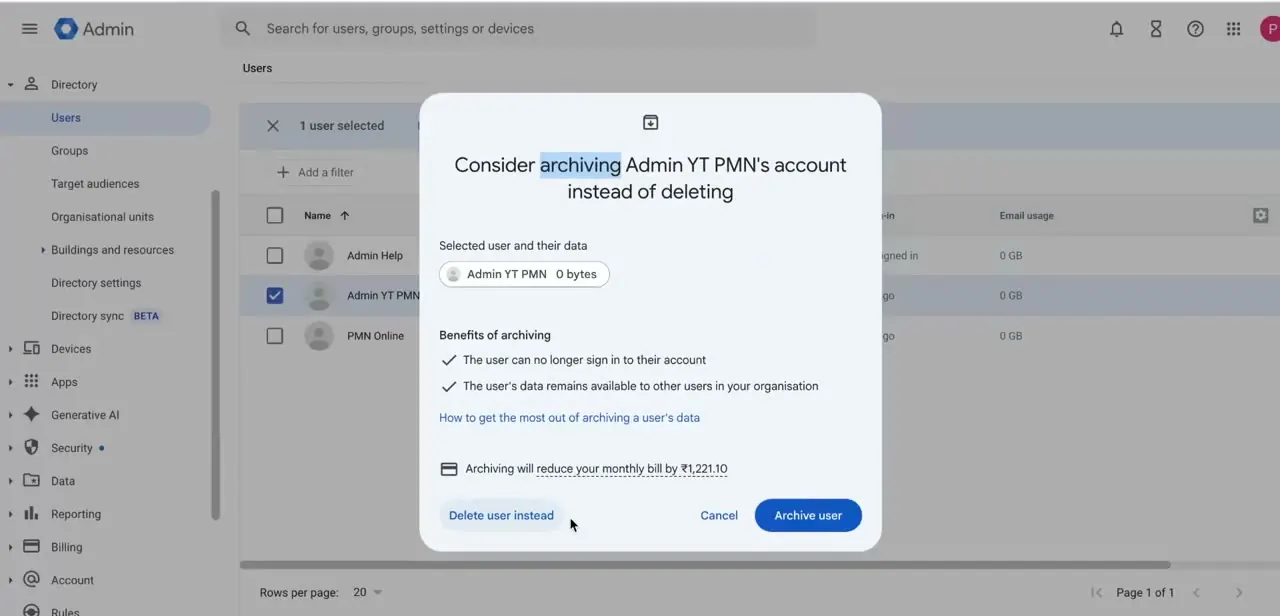
Trigger the delete action on the user and Google Workspace interrupts with a dialog titled "Consider archiving [name]'s account instead of deleting." The Benefits of archiving section lays out the tradeoff: the user can no longer sign in, and their data stays available to other users in your organization. Below that, the dialog states a concrete number: in this example, archiving would cut the monthly bill by ₹1,221.10, so the cost difference is clear before you decide.
The dialog gives three buttons: Delete user instead, Cancel, and Archive user. Clicking Archive user converts the account immediately, with no confirmation email and no delay.
The person loses sign-in access right away while their mailbox and files stay put. Check the selected account carefully before confirming; converting the wrong one means redoing the process to restore them.
04Know what admins can still do with archived data
Once archived, the account's Gmail and Drive content stays searchable, but only through Google Vault, and only if your edition includes a Vault license. There's no separate general admin-search path for archived mail: without Vault, an admin can see that the account is archived but can't open its old messages or files.
This is the real point of archiving over deletion. Legal holds and compliance requests don't disappear just because someone left the company, and Vault lets you pull an old thread or file months later without keeping a full-price license running the whole time.
05Reverse it later if the person returns
Archiving isn't permanent. If someone comes back, or you simply decide the account needs to be active again, the same Users page lets you select the archived account and choose Unarchive user.
That restores the ability to sign in, but it doesn't hand back a license automatically. Google's documentation is explicit that you still have to assign a Google Workspace license to the account afterward before the person can use Gmail, Drive, or Calendar again.
When it doesn't work
A user was unarchived but still can't use Gmail or Drive
Why: Unarchiving only restores the ability to sign in. It doesn't assign a Google Workspace license, and without one, Gmail, Drive, and Calendar stay unusable.
Fix: Go to the user's account after unarchiving and assign a license manually, either from their profile or from Billing > Subscriptions.
There's no Archive user option for a particular account
Why: The Workspace edition doesn't support archiving, or there's no available Archived User license to convert into.
Fix: Confirm the edition supports archiving (Business Starter/Standard/Plus, Enterprise Standard/Plus, or a supporting Education edition) and check Billing for available Archived User licenses.
An admin can't open an archived user's old emails
Why: Archived mail and Drive content is reachable through Google Vault, not a generic search tool, and Vault requires its own license.
Fix: Use Google Vault to search and export the archived account's Gmail and Drive data. If the edition has no Vault license, that content isn't accessible until one is added.
Frequently asked questions
What's the difference between archiving and suspending a user?
Suspending blocks sign-in but keeps billing at the full license rate. Archiving is built specifically to cut that cost while still keeping the mailbox and files in place long-term.
Can I still read an archived user's old emails?
Only through Google Vault, and only if your edition includes a Vault license. Without Vault, an admin can see that an account is archived but can't open its Gmail or Drive content.
Does archiving delete the user's Drive files?
No. Archiving keeps the Drive files and Gmail data in place; nothing is removed.
How much does archiving cost compared to deleting a user?
Deleting a user removes the license charge entirely. Archiving keeps a reduced Archived User fee instead of a full seat, and the exact saving is shown in the archive dialog before you confirm.
Does unarchiving restore the user's license automatically?
No. Unarchiving restores the ability to sign in, but Google requires an admin to assign a Google Workspace license to the account separately afterward.
Is archiving available on every Google Workspace plan?
No. It's supported on Business Starter, Standard, and Plus; Enterprise Standard and Plus; and several Education editions. Some legacy and Frontline plans don't include an Archived User license option.
Sources and last check
Click path, dialog wording, and the ₹1,221.10 savings figure come from a recorded walkthrough. Supported editions, the Vault requirement for reading archived mail, and the unarchive/license step were re-checked against Google Workspace's official Admin Help in September 2026. That check corrected two claims this guide previously made: that archived mail was reachable through a generic admin search (it requires a Vault license), and that unarchiving alone restores a license (it doesn't; a license still has to be assigned manually).
About the author

Impran M N
I've been hooked on technology for as long as I can remember — especially the new tools and AI apps that seem to land every other week. Easy Tech Tuts is where I write up whatever I've just worked out: I do the task in the real product, record the screen, and turn it into the guide I wish I'd found first.



