 Easy Tech Tuts
How to Add Multiple Domains in Google Workspace for Free & Easily 2026
By Impran M NLast checked against official docs
If your business runs more than one brand, storefront, or side project, you don't need a separate Workspace subscription for each one. Google lets you attach extra domains to a single account without a per-domain fee, as long as you understand which of the three domain types you actually need and where each one hits a real limit. This guide walks through where that setting lives in the Admin Console, how a secondary domain differs from an alias in ways that matter after setup (not just at setup), and what to check with DNS and Gmail activation so mail actually arrives.
01Open the Admin Console from your Google account
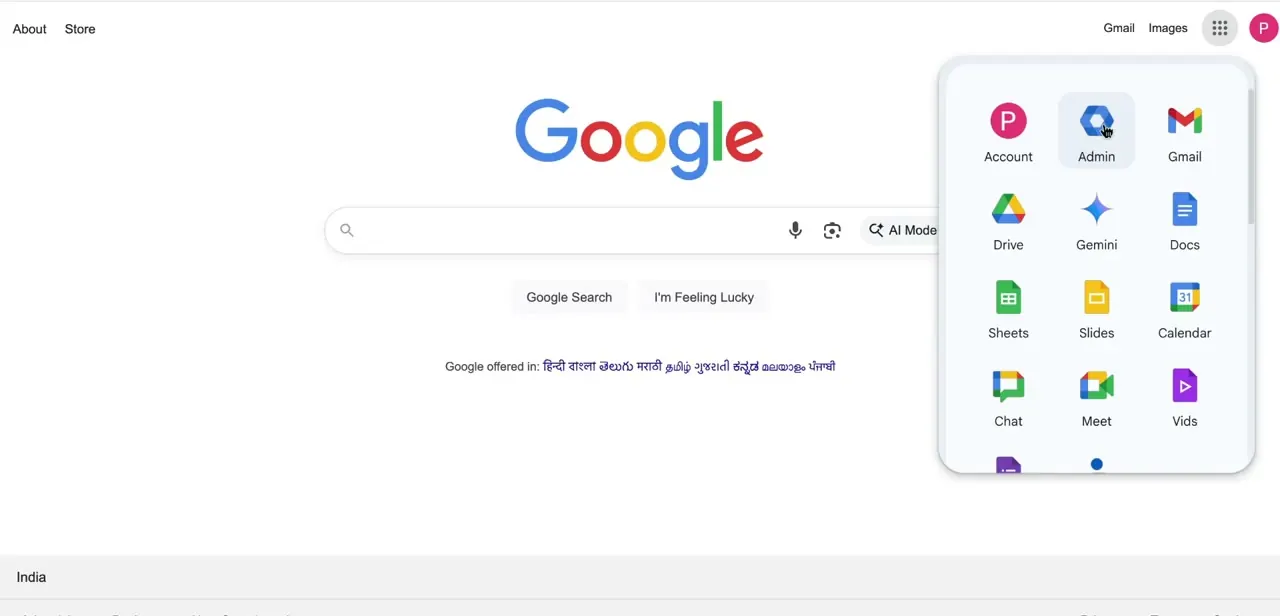
You don't need a bookmark for this — from any signed-in Google page, click the grid of apps in the top-right corner and look for the Admin icon among Gmail, Drive, and Calendar. It only appears for accounts with admin privileges on a Workspace organization, so if you don't see it, you're signed into the wrong account or don't have admin rights yet. Clicking it drops you into the console where domain management, users, and billing all live.
02Find Domains in the left-hand menu
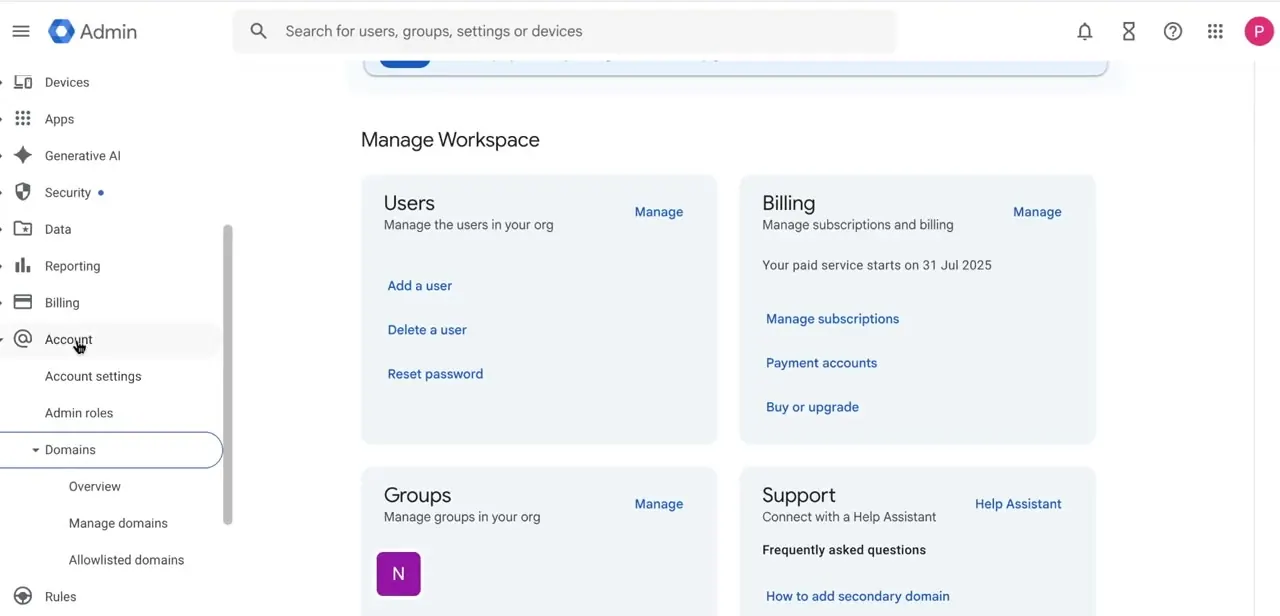
Inside the Admin Console, open Account in the left sidebar and expand Domains underneath it. This reveals three sub-items: Overview, Manage domains, and Allowlisted domains.
Manage domains is where you'll spend the next several minutes — it lists every domain currently attached to your organization and is also where the "Add a domain" button lives. Overview is worth a glance too, since it summarizes verification status for each domain.
03Know the difference before you click Add
Google Workspace recognizes three kinds of domains, and picking the wrong one causes real problems later, not just extra clicks. Your primary domain is the one you signed up with.
A secondary domain is a fully separate domain that can have its own users signing in with their own address on it — useful when you run distinct brands or absorbed a separate company. A domain alias mirrors your primary domain's settings and just adds an extra address for existing users; it's the simpler option when user@brandtwo.com just needs to reach the same inbox as user@brandone.com.
One constraint that decides this for you in some cases: the Admin Console can only add an alias to your primary domain — aliasing a secondary domain isn't available in the console UI at all, only through Google's Directory API. And a user can never sign in with an alias address, only with their primary or secondary-domain one; the alias only ever works for sending and receiving mail. Google doesn't support converting a domain from one type to the other once it's attached, so this choice sticks.
04Add and verify the new domain
From Manage domains, add the domain name and choose whether it's a secondary domain or an alias. Google will ask you to prove ownership, typically by adding a TXT record through your domain registrar's DNS settings — the same verification method used for Search Console.
This can take anywhere from a few minutes to a few hours depending on your registrar's DNS propagation, so check back instead of repeating the process if it doesn't verify right away. One thing worth knowing in advance: if you're re-adding a domain you recently removed from this account, Google makes you wait up to 24 hours before it will accept it again.
05Point MX records and activate Gmail for the domain
Verification alone doesn't route email. Each domain you add — secondary or alias — needs its own MX records pointed at Google's mail servers, and back in Manage domains you still need to select the domain and click Activate Gmail before it starts handling mail at all. If you're migrating a domain that previously used a different email provider, plan for a short overlap window and confirm the old MX records are fully replaced, not just supplemented, to avoid split delivery.
06Create addresses across your domains
Once a domain is verified, activated, and routed, existing users can be given an additional address on it from their user profile in the Admin Console, and new users can be created directly under whichever domain fits their role. This is how you end up with user@domain1.com and user@domain2.com both delivering to the same person on an alias, or entirely separate users per brand if you went the secondary-domain route instead — remembering that only secondary-domain users can actually sign in with that domain's address.
07Set routing and know what can't be split by domain
If several domains route to shared inboxes, set clear signature and reply-from defaults so replies go out from the address a customer actually emailed. Beyond that, a few things in Workspace apply org-wide no matter how many domains you run: you can specify only one logo across all your domains, Drive sharing settings can't be restricted by domain, and policies aren't set per domain either — organizational units are the actual tool for keeping settings distinct between brands, so lean on those instead of expecting per-domain branding or policy controls that don't exist.
| Domain alias | Secondary domain | |
|---|---|---|
| Users | Same users as your primary domain | Can have its own, separate users |
| Sign-in | Can't sign in with the alias address | Users sign in with their own address on it |
| Where you can add it | Primary domain only, in the Admin Console (Directory API needed for a secondary domain's alias) | Any Workspace account |
| Typical use | Same team, extra brand addresses | Separate team or an acquired company |
Workspace and Cloud Identity Premium accounts can hold up to 600 domains total — one primary plus up to 599 secondary domains and aliases combined, with a maximum of 20 of those as aliases. Google Workspace for Nonprofits is capped much lower, at 5 domains total (one primary, four secondary).
When it doesn't work
The Admin Console won't let you add an alias to a secondary domain
Why: This isn't a bug. The console UI only supports adding a domain alias to your primary domain — aliasing a secondary domain requires Google's Directory API.
Fix: Either add the alias to your primary domain instead, or treat this as a developer task via the Directory API if it genuinely needs to sit on the secondary domain.
A user can't sign in with their new alias-domain email address
Why: Expected behavior. Alias addresses work for sending and receiving mail, but Google only accepts sign-in with a user's primary or secondary-domain address.
Fix: Have the user sign in with their primary address; mail sent to the alias address still lands in the same inbox regardless.
DNS shows the domain as verified, but mail to it still isn't arriving
Why: Verification only confirms ownership. MX records still need to point at Google's mail servers, and the domain still needs Gmail activated for it under Manage domains.
Fix: Check MX records against Google's current values, then go to Manage domains, select the domain, and click Activate Gmail if it hasn't been already.
Frequently asked questions
Does adding a second domain to Google Workspace cost extra?
No, not by itself. You're billed per user license, not per domain — a domain alias adds no new users, and a secondary domain's users cost the same as any user on your plan.
What's the real difference between a secondary domain and a domain alias?
A secondary domain has its own users who sign in with an address on that domain. A domain alias mirrors your primary domain's users and only adds them an extra address; nobody can sign in with an alias address.
Do I need to verify each domain, and does that finish the setup?
Yes, verification (usually a DNS TXT record) is required for every domain, but it only confirms ownership. Mail still needs MX records pointed at Google and Gmail activated for that domain before anything is delivered.
How many domains can one Workspace account have?
Up to 600 total on standard Workspace or Cloud Identity Premium plans — one primary plus up to 599 secondary domains and aliases, with a cap of 20 aliases. Workspace for Nonprofits is limited to 5 domains total.
Can each domain have its own logo or policies?
No. Only one logo applies across all your domains, and policies aren't set per domain — organizational units are the tool for keeping settings distinct between brands instead.
Sources and last check
Click path and screens come from an existing walkthrough recording; the Account → Domains → Manage domains navigation it shows matches Google's own current documentation. Domain-type behavior, the 600-domain and 20-alias caps, the nonprofit 5-domain limit, the alias-to-primary-only restriction, the sign-in restriction on alias addresses, and the Activate Gmail step were checked against Google Workspace's official Admin Help pages in September 2026. None of those constraints were in the article before this pass; the MX-record step also didn't previously mention that Gmail still needs activating for a domain after DNS verifies.
About the author

Impran M N
I've been hooked on technology for as long as I can remember — especially the new tools and AI apps that seem to land every other week. Easy Tech Tuts is where I write up whatever I've just worked out: I do the task in the real product, record the screen, and turn it into the guide I wish I'd found first.



