 Easy Tech Tuts
How to Add Domains in Allowlist in Google Workspace 2026 Easily
By Impran M NLast checked against official docs
"Allowlisted domains" in the Google Workspace admin console sounds like a spam fix, and the name invites that reading, but it isn't one. It's a collaboration setting: it names external organizations your users are allowed to share Drive files with, chat with, and join Classroom classes from, and it only works if the other organization is itself running Google Workspace.
If a partner's email is landing in your spam folder, this screen won't touch that — Gmail's spam filtering runs on a separate, IP-based setting. This guide covers what Allowlisted domains actually controls, where it lives in the admin console, and how to add a domain correctly.
Before you start
- Admin rights on the Google Workspace account
- Confirmation that the domain you're adding is itself a verified Google Workspace domain — the feature won't extend collaboration to a domain that isn't
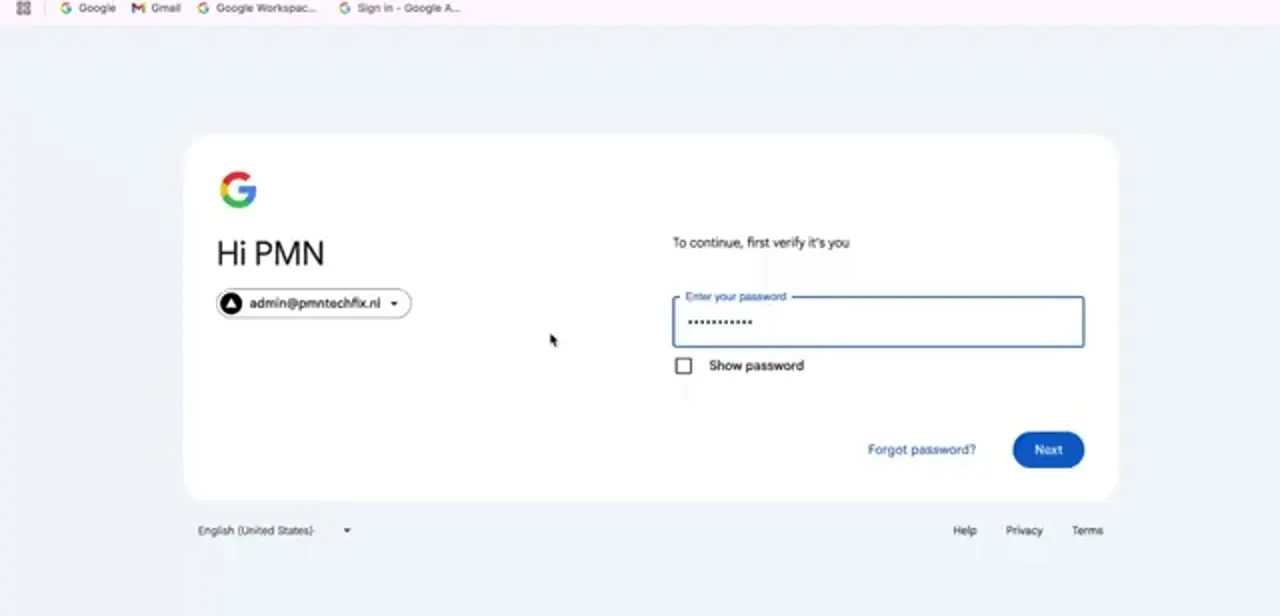
01Sign in with your admin account
This is an organization-wide setting, so it can only be changed by someone with admin rights on the Workspace account, not a regular user login. Sign in with the admin credentials for the domain you manage. If you're already signed into a personal Google account in the same browser, switch accounts first rather than layering the admin session on top.
02Open the Admin console
Click the grid icon in the top right of any Google page to open the apps menu, then look for Admin — it's separate from everyday apps like Gmail and Drive and only appears for accounts with admin privileges. If you don't see it, the signed-in account doesn't have admin access.
03Go to Account, then Domains, then Allowlisted domains
Inside the Admin console, open Menu, then Account, then Domains, then Allowlisted domains. It isn't filed under Security, and it isn't near Gmail's spam settings — it lives with the rest of the account's domain management.
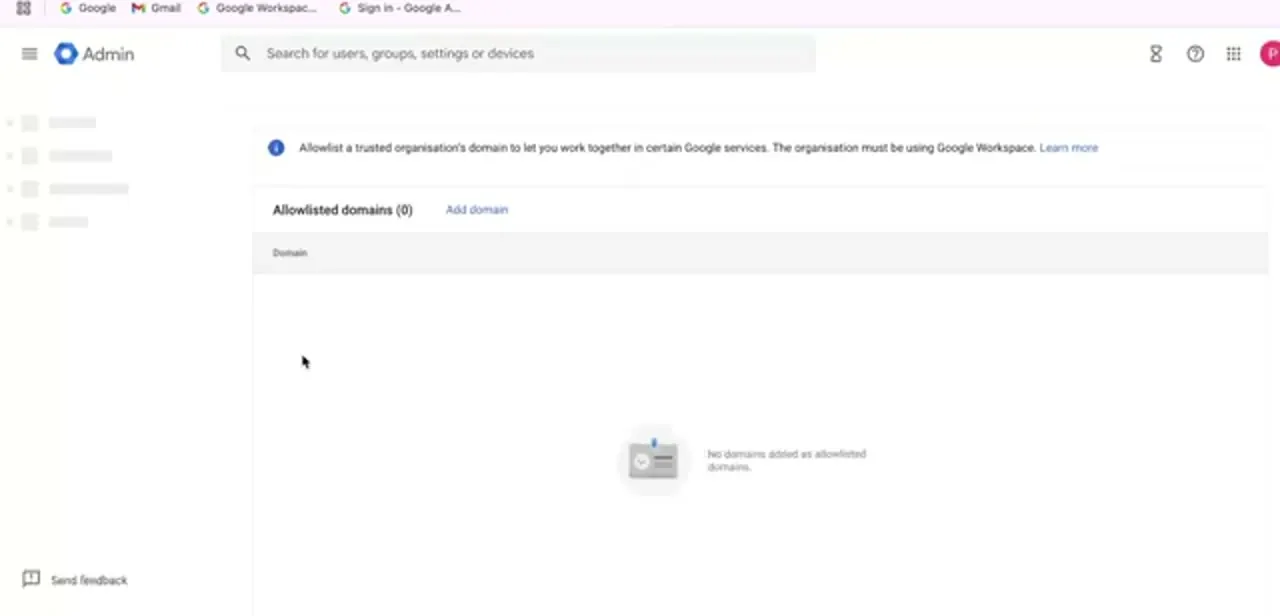
The page explains its actual scope: allowlisting a domain here lets your organization share Drive files, chat, and collaborate in Classroom with users at that domain. It says nothing about spam or mail delivery.
04Add the domain
Click Add domain and type the exact domain name of the organization you want to trust — no "www," no email address, just the domain itself. Google requires the domain to already run Google Workspace and be domain-verified; entering a domain that doesn't meet that bar won't extend any real trust, whatever the field itself accepts.
Note too that a domain's subdomains and aliases aren't automatically included, so add each one you actually need. Save the entry, and it takes effect immediately.
05Verify the domain was added
Return to the allowlist page and confirm the domain appears with the count updated from zero. To confirm it's actually working, test the thing it affects: have someone at that domain try sharing a Drive file with your organization, or joining a Classroom class, and confirm it goes through without the usual external-domain warning.
06Review the list periodically
An allowlist is only as safe as the domains on it. Revisit it every few months, remove entries for partnerships that have ended, and keep it limited to organizations you actively work with. Every domain here has an expanded ability to share and collaborate with your users, so a stale entry is a real exposure, not just clutter.
| Allowlisted domains | Gmail email allowlist | |
|---|---|---|
| What it affects | Drive sharing, Chat, and Classroom with another organization | Whether Gmail skips spam checks on mail from specific IP addresses |
| Where it lives | Admin console > Account > Domains > Allowlisted domains | Admin console > Apps > Google Workspace > Gmail > Spam, Phishing and Malware |
| What you enter | A domain name | One or more IP addresses, typically paired with an inbound mail gateway |
| Does the target need Workspace? | Yes, and it must be domain-verified | No, any sending IP can be listed |
Both are called an "allowlist" in Google's own interface, which is the main reason people land on the wrong one. They solve unrelated problems.
When it doesn't work
A partner's email still lands in spam after adding their domain here
Why: Allowlisted domains has no effect on Gmail's spam filtering. It only governs Drive, Chat, and Classroom sharing with the listed organization.
Fix: For a mail delivery problem, the usual fix is on the sender's side — correct SPF, DKIM, and DMARC records. Gmail's own email allowlist is IP-address based and built for inbound mail gateways, not general domain trust; it's a different setting entirely.
A domain won't add, or added but nothing changes for that organization
Why: The domain isn't itself running Google Workspace, or hasn't completed domain verification. Google's allowlist requires both.
Fix: Confirm with the partner organization that they're on Google Workspace and their domain is verified before adding it here.
A subdomain of an allowlisted domain isn't getting the same trust
Why: Subdomains and domain aliases aren't automatically included when you allowlist a parent domain.
Fix: Add the specific subdomain as its own entry if collaboration needs to extend to it.
Frequently asked questions
What does Allowlisted domains actually do?
It names external Google Workspace organizations your users can share Drive files with, chat with, and collaborate with in Classroom. It's a collaboration-trust setting, not an email or spam control.
Will this stop a trusted vendor's email from being marked as spam?
No. This list has no effect on Gmail's spam filtering. Spam classification is handled separately, and the fix for a legitimate sender landing in spam is usually on their end — correcting their domain's SPF, DKIM, and DMARC records.
Does the domain I'm allowlisting need to use Google Workspace too?
Yes. Google requires the domain to be running Google Workspace and to be domain-verified before allowlisting has any effect.
Is this an organization-wide setting?
Yes. Once added, it applies across the whole Workspace account, not to a single user's inbox or a single team's Drive.
Can allowlisting a domain create a security risk?
Yes, if misused. Every domain on the list gets an expanded ability to share and collaborate with your organization, so only add domains you actively work with, and review the list periodically.
Sources and last check
Click path and screens come from a walkthrough recorded in 2025. Re-checked against Google Workspace's official Help Center in September 2026, which corrected a fundamental error in the previous version of this guide: it had described Allowlisted domains as an email spam fix, when Google documents it as a Drive/Chat/Classroom collaboration setting that requires the target domain to itself run Google Workspace. The location (Account > Domains, not Security) and the subdomain caveat were also corrected against the same source.
About the author

Impran M N
I've been hooked on technology for as long as I can remember — especially the new tools and AI apps that seem to land every other week. Easy Tech Tuts is where I write up whatever I've just worked out: I do the task in the real product, record the screen, and turn it into the guide I wish I'd found first.



