 Easy Tech Tuts
How to Add Bulk Users in Google Workspace 2026 Easily
By Impran M NLast checked against official docs
Adding accounts one at a time in the Admin Console is fine for a single new hire, but it falls apart the moment you're onboarding a whole department or migrating a company onto Workspace. Google's answer is a CSV-based bulk upload built into the admin console, no third-party tool required. This guide covers signing in as a super admin, finding the right corner of the console, filling out the CSV with the columns Google's documentation requires, and confirming the import landed before you tell anyone their account is ready.
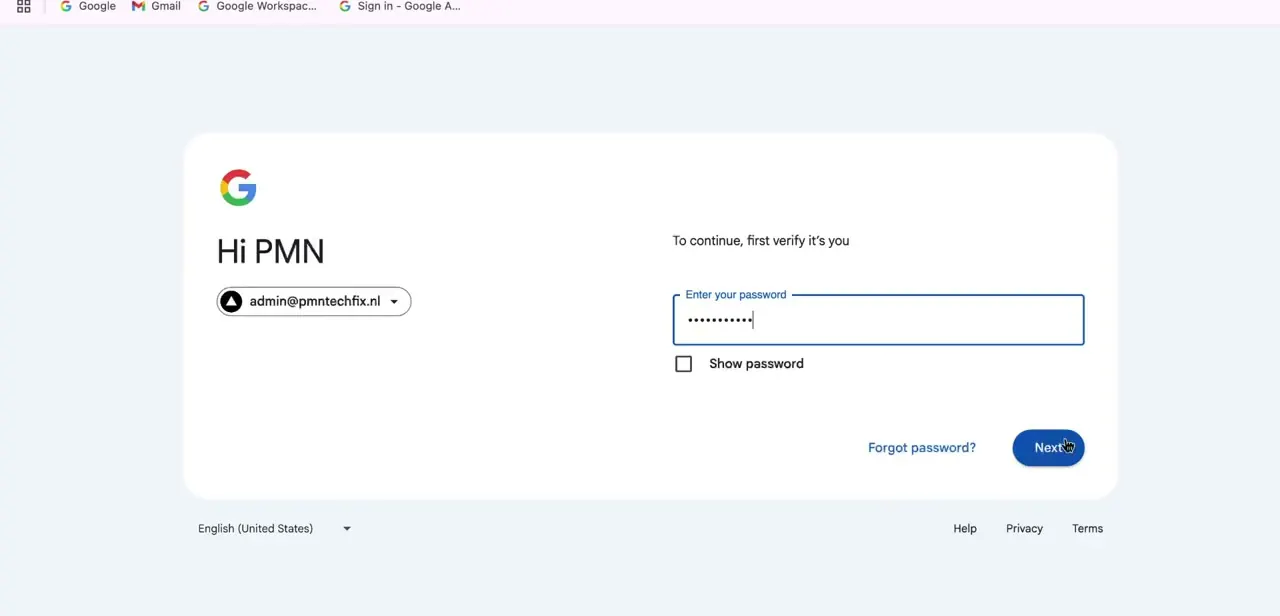
01Sign in with a super admin account
Bulk operations sit behind admin permissions, so the first step is signing in with an account that has super admin rights on the domain, not a regular user login. Google may add a verification step depending on your domain's security settings. If you're managing the account for a client or employer, use the actual admin address (something like admin@yourdomain.com) instead of a personal Gmail; a standard account won't show the admin console option at all.
02Go to Directory, Users, then Bulk update users
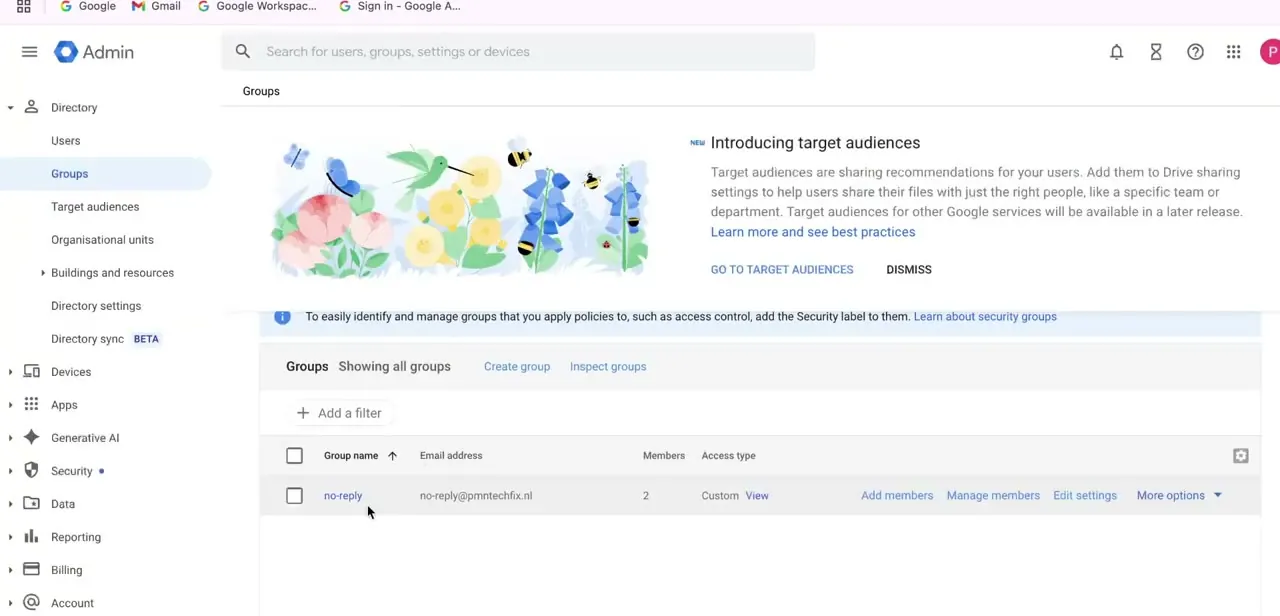
Once you're in, the console opens with a left sidebar organized into Directory, Devices, Apps, Security, and more. Directory is where Users, Groups, and Organizational units all live.
Open Users, and you'll find a Bulk update users button at the top of the page, the actual entry point for this whole process. Groups sits right next to Users in the same sidebar and supports a similar-looking bulk-CSV workflow for group membership, so confirm you're under Users specifically before you start, especially if your organization also manages mailing groups through the same console.
03Download the template and fill in the required columns
Google's Admin Help lists five required columns: First Name, Last Name, Email Address, Password, and Org Unit Path. Download the template from the Bulk update users panel so the headers are already correct instead of typing them yourself.
First and last name can each run up to 60 characters, passwords need at least 8, and Org Unit Path takes / for the top-level unit or /DepartmentName for a specific one. Optional columns cover things like recovery email and employee ID.
Save the file as a plain CSV, not an Excel workbook, or the upload gets rejected outright. There's a ceiling too: Google caps a single file at 35MB and 150,000 rows, dropping to 200 rows if that same file also assigns new licenses.
04Attach and upload the CSV
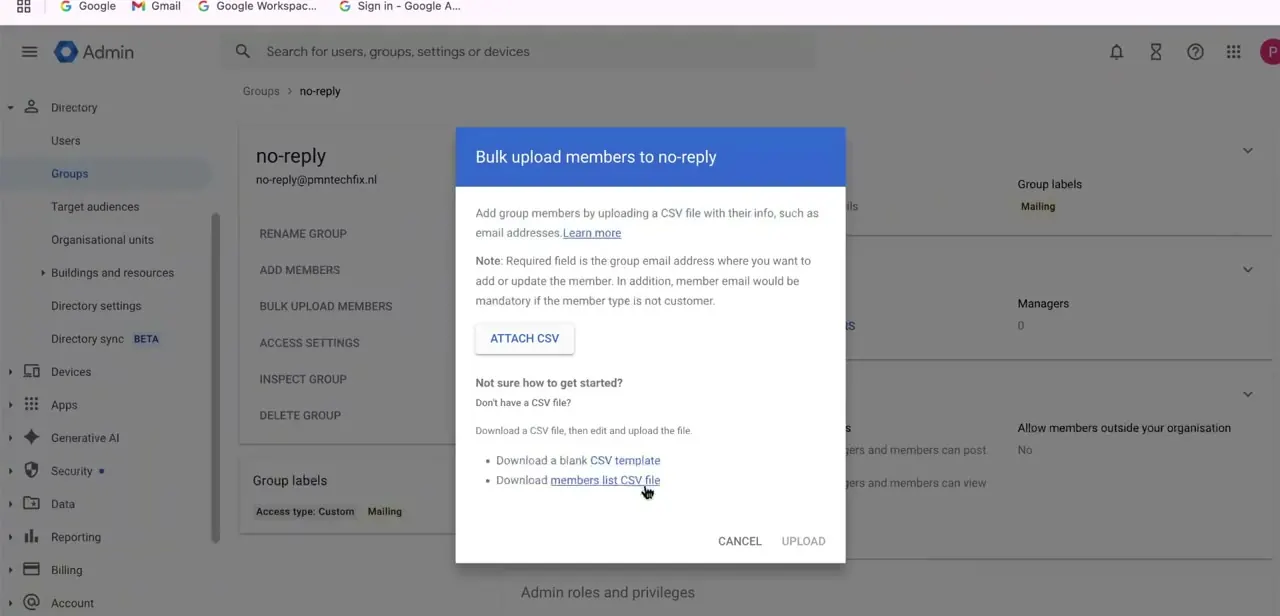
Back in the admin console, open the bulk upload dialog. It offers an option to attach your completed CSV directly, plus links to download a fresh template or a sample file if you want to double-check the format first.
Click Attach CSV, select your finished file, and hit Upload. Google Workspace processes every row in the background and flags which ones succeeded and which failed instead of aborting the whole batch over one bad entry. The same attach-review-upload structure shows up whether you're bulk-adding standalone user accounts or, as pictured here, bulk-adding members to an existing group, so the mechanics carry over even though the destination list differs.
05Check the Tasks list and fix anything that failed
Your Tasks list opens automatically once the upload starts and tracks progress from there. When it finishes, Google emails a report and, if any rows failed, makes a downloadable error log available from the same Tasks entry; common causes are a duplicate username, a missing required column, or an invalid character.
Fix just those rows in your CSV and re-upload a smaller file instead of redoing the whole batch. Open a couple of the new accounts too, and confirm the organizational unit and any group memberships landed where expected; a wrong OU early on means the wrong policies and app access apply silently.
| Column | Required? | Notes |
|---|---|---|
| First Name | Yes | Up to 60 characters |
| Last Name | Yes | Up to 60 characters |
| Email Address | Yes | username@yourdomain.com; this is the field Google requires, not a separate username column |
| Password | Yes | At least 8 characters; use **** to leave an existing user's password unchanged on an update |
| Org Unit Path | Yes | / for the top-level org unit, or /DepartmentName for a specific one |
| Change Password at Next Sign-In | No | Set to TRUE to force a password reset on first login |
| New Primary Email, New Status, New Licenses | No | Update-only columns; not used when creating new accounts |
Column names and requirements from Google Workspace Admin Help, checked September 2026.
When it doesn't work
The upload is rejected before it even starts
Why: The file isn't a plain CSV, often it was saved as an Excel workbook, or it exceeds the 35MB or 150,000-row ceiling Google documents for this feature.
Fix: Re-save the file as CSV, and split it into smaller batches if it's over the row or size limit.
Some rows import, others don't
Why: A per-row problem: a duplicate username, a missing required column such as Org Unit Path, or an invalid character in a name.
Fix: Open the downloadable error log from the Tasks list, fix only the flagged rows, and re-upload just those.
An existing user's password changed when you only meant to update their org unit
Why: The Password column was left blank or filled with a new value instead of Google's placeholder for leaving it unchanged.
Fix: Enter **** in the Password column for any row where the password shouldn't be touched.
Frequently asked questions
What columns does the CSV need?
Five required columns: First Name, Last Name, Email Address, Password, and Org Unit Path. Google's own template ships with all five headers already in place.
Is there a limit to how many users I can add in one CSV upload?
Yes. Up to 150,000 rows per file, or 200 rows if that same upload also assigns new licenses, and the file itself is capped at 35MB.
Does the file have to be a plain CSV?
Yes. Saving it as an Excel workbook instead makes the Admin Console reject the upload outright.
What happens if a row in my CSV has an error?
The Admin Console flags it in a downloadable error log from your Tasks list, and emails a report once processing finishes, so you can correct and re-upload just the failed rows instead of redoing the whole file.
Do bulk-added users need to change their password on first login?
You can require a password reset on first sign-in as part of the CSV import, which is standard practice so new hires never end up on a password an admin chose for them.
Can I use bulk import to update existing users instead of just adding new ones?
Yes. The same tool updates certain fields on existing accounts, not only new ones. Put **** in the Password column for any row where you don't want to change that user's password.
Sources and last check
Click path and screens come from a recorded walkthrough. The Bulk update users entry point, the five required CSV columns, the 35MB and 150,000-row limits, and the Tasks-list error log were re-checked against Google Workspace's official Admin Help article on CSV user uploads in September 2026. The original draft listed only four columns and called Org Unit Path optional; the documentation lists it as required.
About the author

Impran M N
I've been hooked on technology for as long as I can remember — especially the new tools and AI apps that seem to land every other week. Easy Tech Tuts is where I write up whatever I've just worked out: I do the task in the real product, record the screen, and turn it into the guide I wish I'd found first.



