 Easy Tech Tuts
How to Access Google Workspace Admin Console 2026 Easily
By Impran M NLast checked against official docs
Most failures to reach the Google Workspace Admin Console trace back to one thing: being signed into the wrong Google account. Google lets several accounts stay signed in on the same device, and only the one holding admin rights on your Workspace domain will open the console. This guide covers picking the right account from the switcher, confirming you've landed in the actual Admin console and not a regular Gmail view, and finding where the important settings sit in the sidebar.
Before you start
- A Google Workspace account on your organization's domain — a personal @gmail.com account can never open the Admin console
- Admin or Super Admin rights already granted to that account by whoever manages your organization's Workspace
01Check which Google account you're signed in as
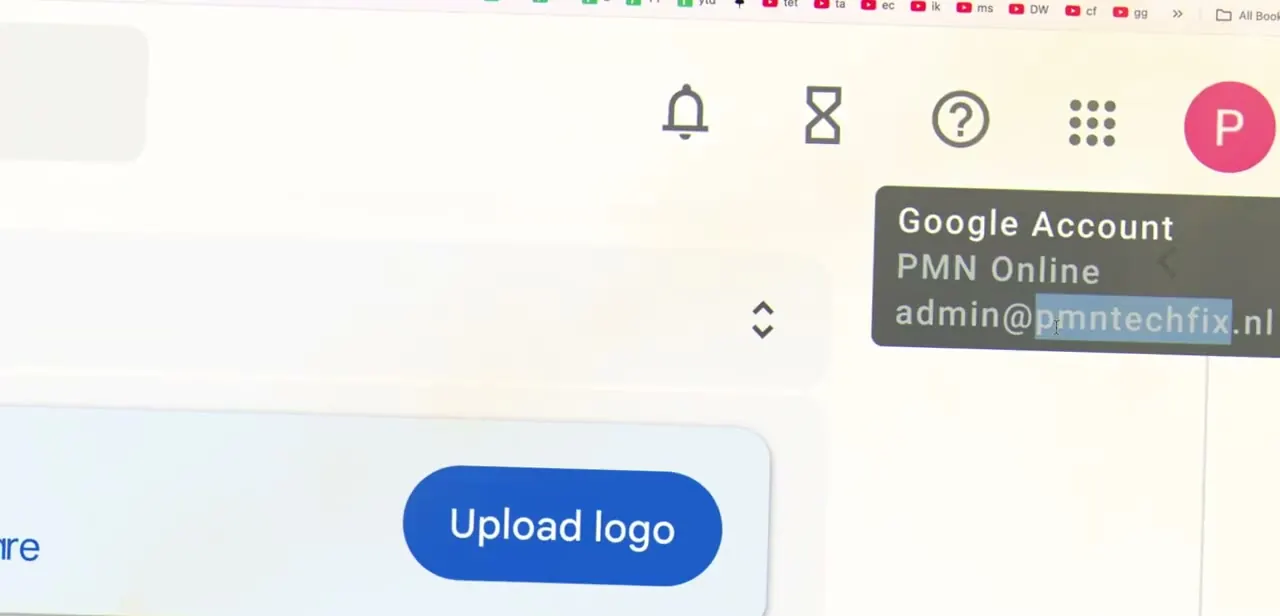
Before anything else, click your profile circle in the top-right corner of any Google page. This opens the account switcher, showing the Google Account details for whichever profile is active.
In this case that's "PMN Online" with the address admin@pmntechfix.nl. If you manage multiple Workspace domains, or also keep a personal Gmail account signed in on the same browser, this is the step people skip. It's also why admin.google.com can seem to "not work": nothing is broken, the wrong person is just signed in.
02Pick the admin account if you have several
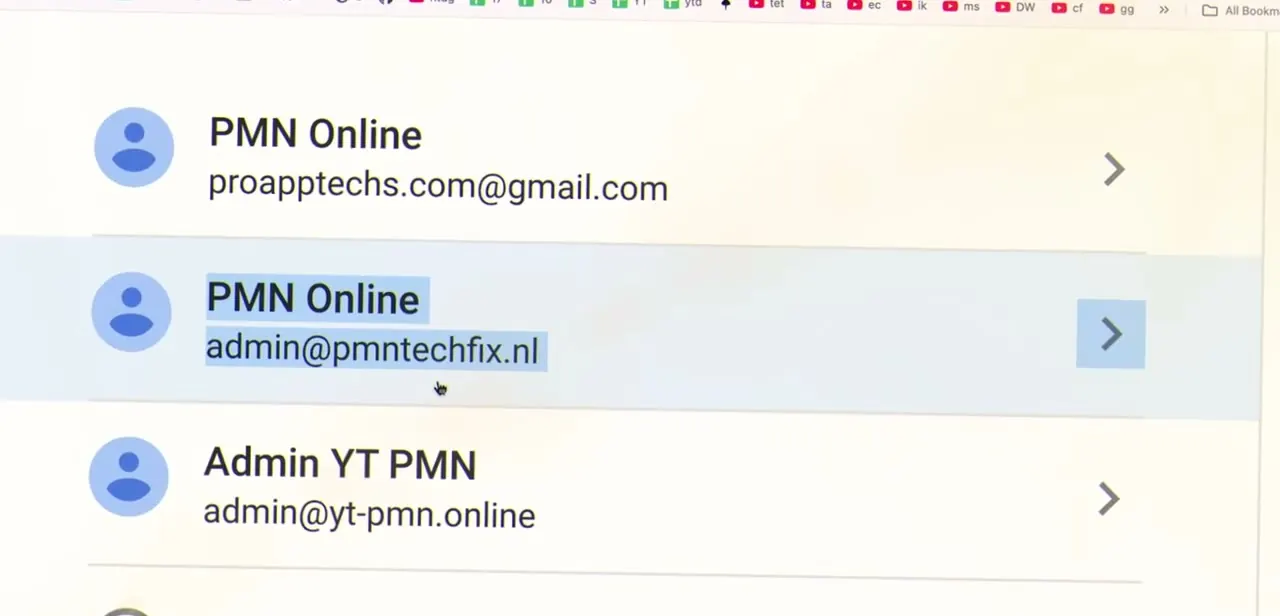
If more than one Google account is signed in on your device, the switcher lists all of them. In this example that's one row for "PMN Online" at proapptechs.com@gmail.com, another "PMN Online" at admin@pmntechfix.nl, and a third labeled "Admin YT PMN" on a different domain entirely.
Only the account tied to your Workspace domain as an admin opens the console properly, so pick that one specifically instead of whichever account happens to be active by default. One tell: a genuine Workspace admin address never ends in @gmail.com, so you can rule out most accounts on sight.
03Go to admin.google.com
With the right account active, go straight to admin.google.com instead of hunting for the Admin console inside Gmail's app switcher. It's a separate application with its own address, not a tab inside Gmail.
If your account has admin rights, this opens the Admin console Home dashboard directly. If it doesn't, you land on an access-denied screen instead.
04Get oriented in the sidebar
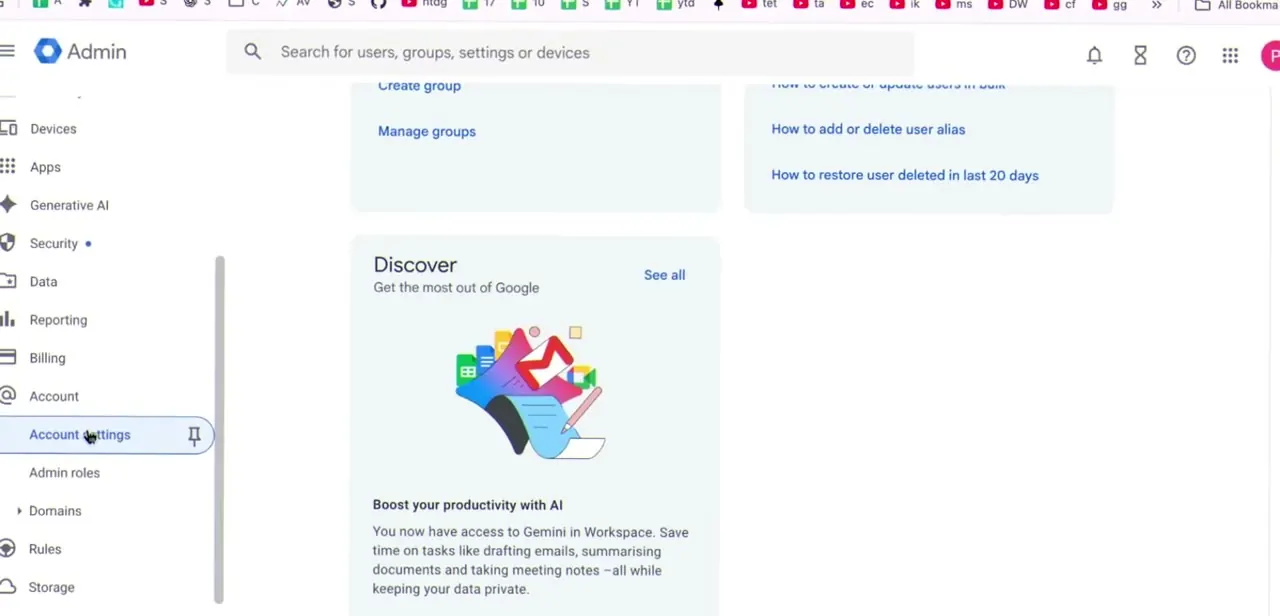
The Admin console's left sidebar holds every setting, organized into sections: Directory, Devices, Apps, Generative AI, Security, Data, Reporting, Billing, and Account. Account itself expands into Account settings, Admin roles, Domains, Rules, and Storage. Domain settings live there, not under Apps or Directory, which is the more obvious first guess.
05Confirm your permission level
If you're signed into the right account but parts of the sidebar look greyed out or missing, you probably hold a limited admin role instead of full Super Admin access. Account > Admin roles itself needs Super Admin privileges just to open, so a limited admin often can't check their own assignment there.
The reliable way to confirm your role is to ask whoever holds Super Admin access to look you up under Directory > Users, where each person's profile has an "Admin roles and privileges" section listing exactly what they can touch. Security and Billing settings especially tend to be restricted to Super Admins only.
06Troubleshoot if you still can't get in
If admin.google.com won't load correctly even with the right account picked, try an incognito window or a different browser to rule out a cached session or an extension getting in the way. If sign-in itself fails, check the exact email address for typos: Workspace addresses on custom domains are easier to mistype than a standard @gmail.com one, and the sign-in page has its own "Forgot email?" link for exactly this.
Google also signs admins out of the console automatically after an hour of use to keep the organization secure, so a sudden prompt to sign in again mid-session is expected behavior, not a fault. If no admin account exists anywhere in your organization, recovering access means filing Google's Admin console login issues form to verify domain ownership, not anything fixable from the login screen.
Frequently asked questions
Why can't I access the Admin Console even though I'm signed into Google?
Almost always because you're signed into the wrong account, or a different Google account than the one you expect is active. Click your profile circle to open the account switcher and select the specific account with admin rights on your Workspace domain — it will not end in @gmail.com.
How do I find out if I'm a Super Admin?
You likely can't check this yourself: Account > Admin roles requires Super Admin access to even open. Ask your organization's existing Super Admin to look up your account under Directory > Users, where your profile lists your assigned admin roles and privileges.
What should I do if I've lost admin access entirely?
If the last known admin has left the organization and no one else has access, Google's route back in is the Admin console login issues form, which verifies domain ownership rather than resetting a password.
Why did I get signed out of the Admin console after only a short time?
That's expected. Google requires admins to re-authenticate to the Admin console after each hour of use as a security measure, separate from how long your regular Google session stays signed in.
Sources and last check
Screens and the account-switcher walkthrough come from a recorded session. The sign-in path, the @gmail.com distinction, the hourly re-authentication requirement, and the admin-roles guidance were checked against Google's official Workspace Help documentation in September 2026. That check corrected the original claim that a limited admin can view their own role under Account > Admin roles — that page itself needs Super Admin access, so the practical path is asking a Super Admin to check your profile under Directory > Users instead.
About the author

Impran M N
I've been hooked on technology for as long as I can remember — especially the new tools and AI apps that seem to land every other week. Easy Tech Tuts is where I write up whatever I've just worked out: I do the task in the real product, record the screen, and turn it into the guide I wish I'd found first.



