 Easy Tech Tuts
FIX: You cant Change the Profile Picture for This Account in Google Workspace & Change Picture 2026
By Impran M NLast checked against official docs
Seeing a message that blocks you from changing your Google Workspace profile picture is a common frustration, and it's almost never a bug on your end. It's an organization-level policy your admin controls. This guide covers recognizing that message for what it is, exactly where the setting lives in the Admin console, and a couple of things that still cause it to look broken after the policy has been switched on.
Before you start
- A Google Workspace Admin console role that can edit Directory settings (Super Admin, or a custom role with that privilege) — only needed if you're the one making the fix, not the person hitting the block
01Recognize the "managed by your organisation" message
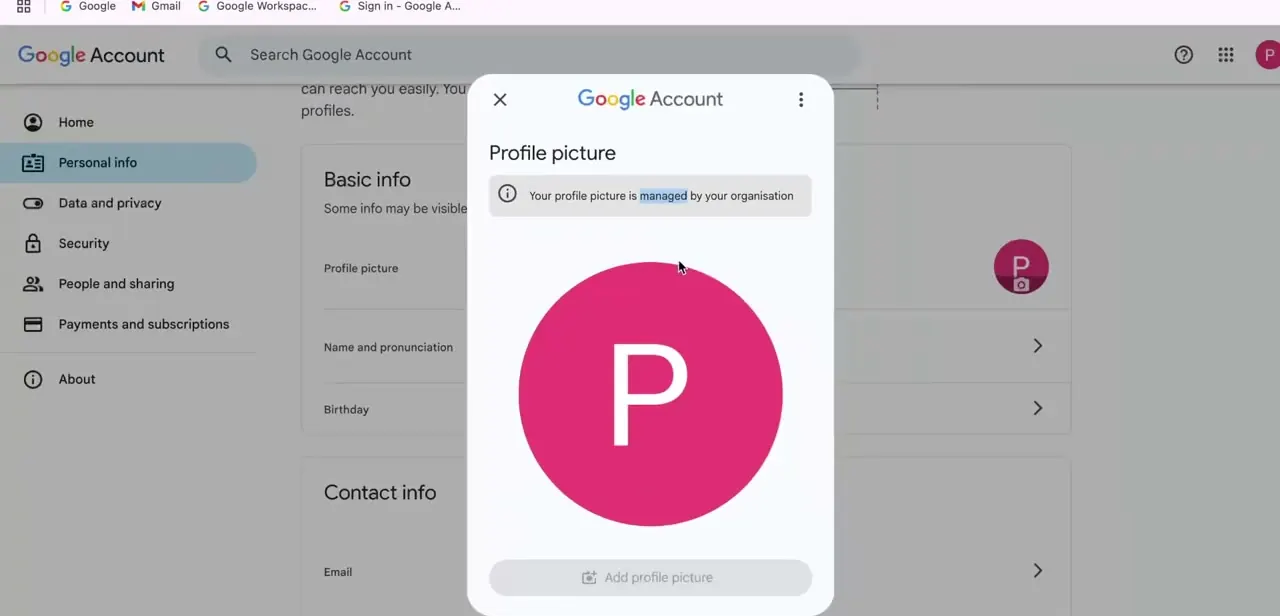
Open your Google Account, go to Personal info, and click Profile picture. If your organization restricts this, a notice appears directly under the Profile picture heading reading "Your profile picture is managed by your organisation," and the Add profile picture button below it is greyed out and unclickable. That confirms the block is deliberate policy, not a failed upload or a temporary glitch, which saves time troubleshooting a browser or connection when the actual fix lives somewhere else.
02Get into the Admin console
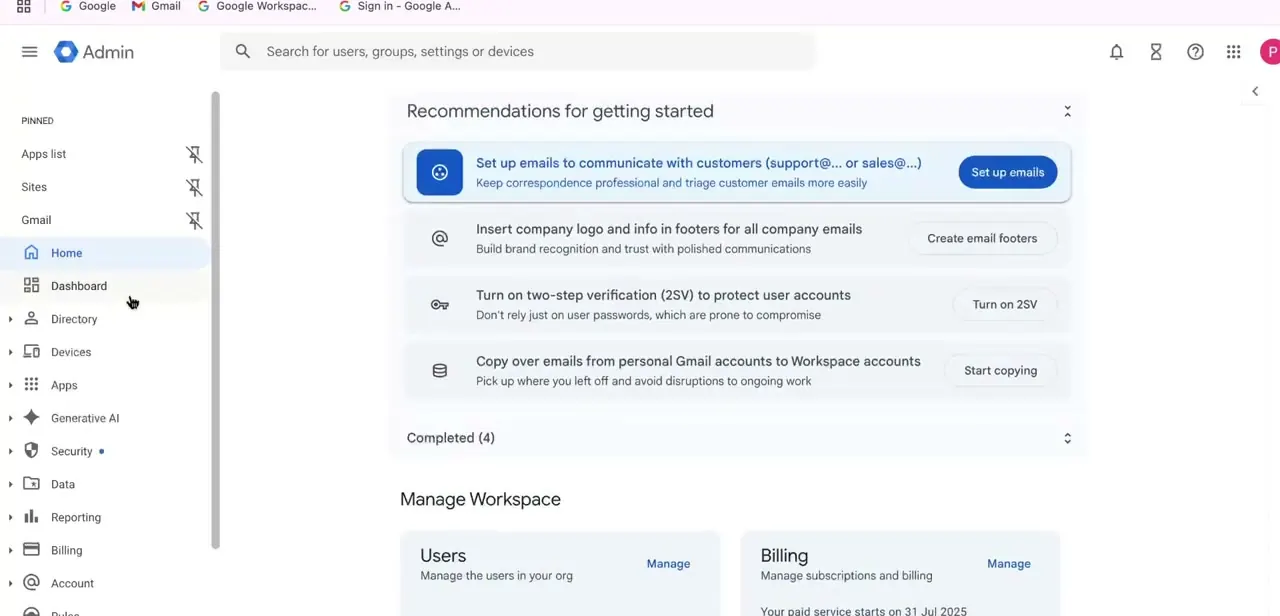
This setting only changes from the Google Workspace Admin console, not from any individual user's account settings, so if you're not an admin, this is the point where you request access or hand the next steps to whoever manages the organization's Workspace. The Admin console's home screen shows a Recommendations panel and quick links to Users, Billing, and other org-wide settings, confirming you're in the right place before moving on.
03Open Directory settings
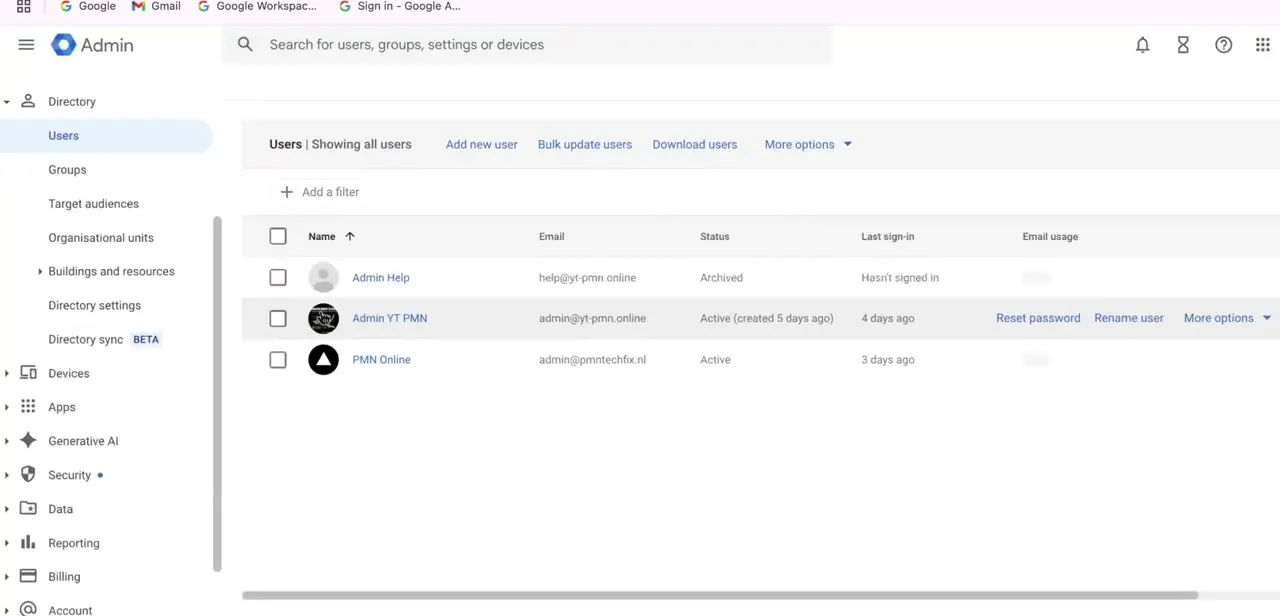
In the left menu, Directory expands into Users, Groups, Target audiences, Organisational units, Directory settings, and Directory sync. The profile-photo toggle lives under Directory settings, in a section called Profile editing — not on the Users list itself, though Google also exposes the same panel from there through Users' "More options" menu (Allow users to edit profile) if that's the screen you're already on. Either entry point opens the same settings.
04Check the Profile editing section
Inside Directory settings, Profile editing lists checkboxes for what users can change about their own profile — name, photo, gender, pronouns, birthday, work location. If Photo is unchecked, every affected user sees exactly the "managed by your organisation" message from step one, no matter what they try.
Checking it and saving restores the ability to upload a photo; it doesn't set one retroactively, so each user still uploads their own image afterward. Two things worth knowing before you flip it.
The setting can be scoped to a specific organizational unit instead of the whole company, so if only some users are affected, check the OU they're in rather than assuming a single org-wide toggle covers everyone. And if an admin has directly set a user's photo, that admin-set photo overrides whatever the user uploads afterward, even once editing is allowed again.
05Have the user re-upload their photo
Once Profile editing allows photo changes again, go back to Google Account → Personal info → Profile picture and the Add profile picture button should be active. Upload the new image and save. Google's own documentation puts propagation at up to 24 hours, typically faster, so a picture that hasn't updated after a few minutes usually isn't stuck; it's still working through the system.
06If you're not the admin, know what to ask for
Without Admin console access, there's no browser fix or app reinstall that helps here — the block lives entirely on the organization side. Ask the Workspace admin specifically to check the Photo box under Directory settings → Profile editing for your organizational unit; a pointer to the exact setting gets resolved faster than a vague "can I change my picture" request.
When it doesn't work
Photo editing was turned on, but the user still can't set their own picture
Why: An admin previously set that user's photo directly, and an admin-set photo overrides whatever the user tries to upload, even after Profile editing allows it.
Fix: Have the admin remove or replace the photo they set for that user (Directory → Users → select the user → profile photo), then have the user upload again.
The setting was changed, but some users are still blocked
Why: Profile editing can be scoped to a specific organizational unit rather than applied company-wide, so a change at one level doesn't override a more restrictive setting on a different OU.
Fix: Check which organizational unit the affected users belong to and confirm the Photo checkbox is enabled there specifically.
It's been a while and the Admin console still shows the picture as managed
Why: Google's documentation states changes can take up to 24 hours to fully propagate, even though they usually apply sooner.
Fix: Wait rather than repeating the toggle change, and have the user hard-refresh the Google Account profile page after some time has passed.
Frequently asked questions
Why can't I change my profile picture in Google Workspace?
Almost always an admin policy under Directory settings → Profile editing that restricts users from editing their profile photo, either organization-wide or for a specific organizational unit.
Can only admins fix the profile picture restriction?
Yes — if the restriction is set at the organization or OU level, only someone with Admin console access to Directory settings can change it. Individual users can't override it from their own account.
I turned on photo editing, but a user still can't set their own picture. Why?
Check whether an admin already set a photo for that user directly. An admin-set photo overrides a user's own upload even once editing is allowed, so it needs to be removed or replaced first.
How long does the change take to apply?
Google's documentation puts it at up to 24 hours, though it typically happens faster. A picture that hasn't updated a few minutes after saving isn't necessarily stuck.
Where exactly does an admin change this setting?
Admin console → Directory → Directory settings → Profile editing, then the Photo checkbox. The same panel is also reachable from Directory → Users via the "More options" menu → Allow users to edit profile.
Sources and last check
Click path and screens come from a walkthrough of the Admin console's home, Directory, and Users screens. The exact Profile editing location, the up-to-24-hour propagation window, the admin-set-photo override, and the organizational-unit scoping were checked against Google's own Workspace Admin Help article in September 2026; the propagation timing and the admin-override behavior were added, since the previous version of this guide didn't cover either.
About the author

Impran M N
I've been hooked on technology for as long as I can remember — especially the new tools and AI apps that seem to land every other week. Easy Tech Tuts is where I write up whatever I've just worked out: I do the task in the real product, record the screen, and turn it into the guide I wish I'd found first.



