 Easy Tech Tuts
Fix & Change Google Workspace Logo to Your Company's Custom, Logo is Not Showing on Google Workspace
By Impran M NLast checked against official docs
A company logo is one of the few branding touches Google Workspace exposes across Gmail and its other apps, so it's frustrating when an upload just doesn't take. The setting itself sits a few clicks deep in Account settings, not somewhere obvious like a branding menu, and Google is stricter about file size and dimensions than most people expect. This guide covers the click path, the exact format and size Google requires, and the two ordinary reasons a logo looks like it hasn't changed: it hasn't finished rolling out yet, or you're checking somewhere it was never going to show.
Before you start
- An admin account with the Domain settings privilege on your Workspace domain
- A logo image close to 320x132 pixels, saved as JPEG, PNG, or a non-animated GIF
01Sign in with an account that has Domain settings rights
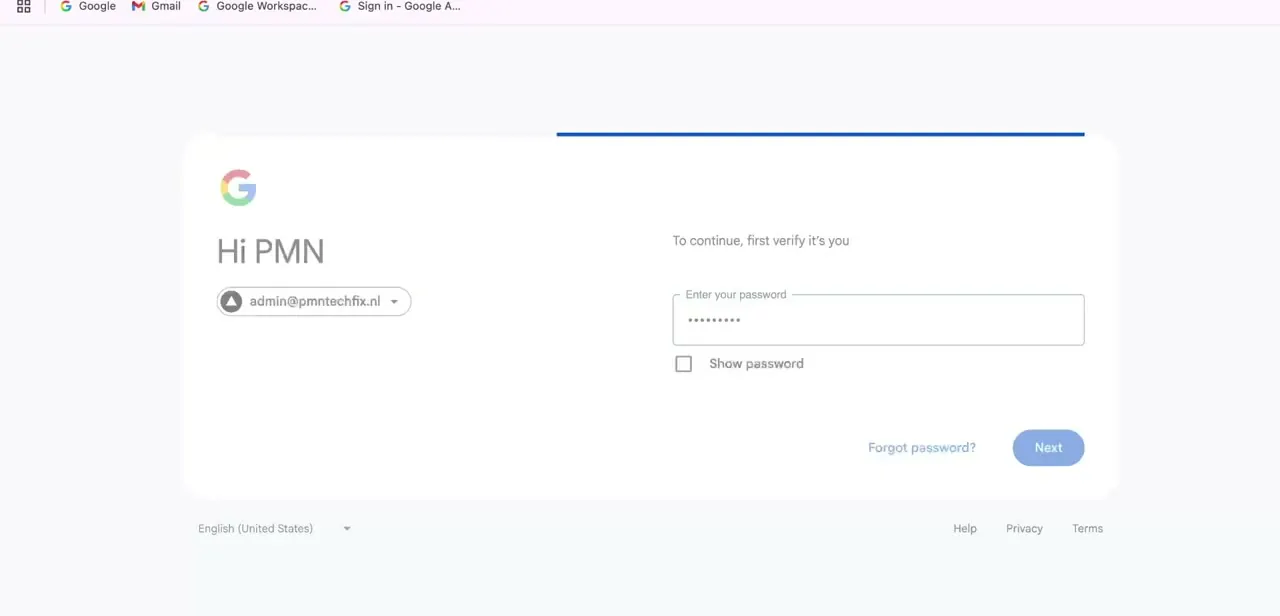
Changing the organization-wide logo needs the Domain settings admin privilege specifically, not just any admin role, so sign in at admin.google.com with an account that has it. If you land on a password re-verification screen showing your admin address, that's normal; Google re-confirms identity before letting you into account-level settings. A super admin has this by default, but a custom admin role that leaves Domain settings off won't show the logo option at all, even though the rest of the console looks the same.
02Open Account settings
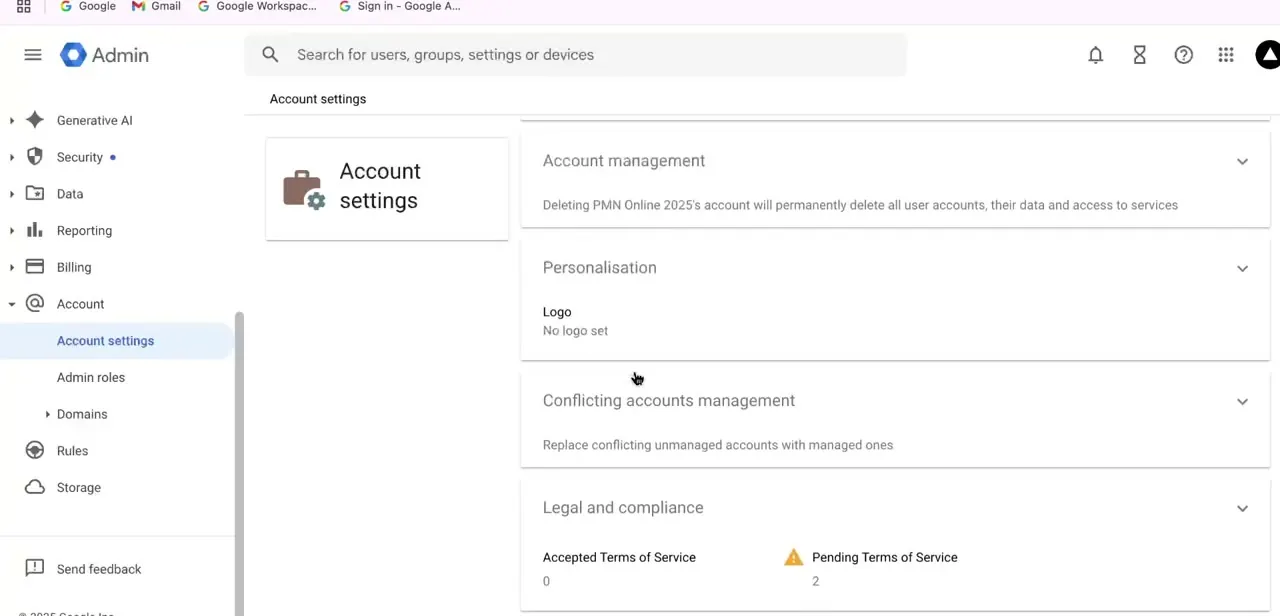
Inside the Admin console, expand Account in the left sidebar and click Account settings. This section covers the organization as a whole: account management, personalisation, conflicting accounts, and legal and compliance. It's a different area from Apps or Security, which is where people often look first for anything branding-related.
03Find Personalisation and confirm the upload saved
Scroll down Account settings to Personalisation, which shows a Logo field. If an earlier upload silently failed, it shows up here: the field reads "No logo set" even if you're sure you uploaded something. That confirms the problem is the save itself, not a display delay somewhere else in Workspace.
04Upload a logo in the format and size Google requires
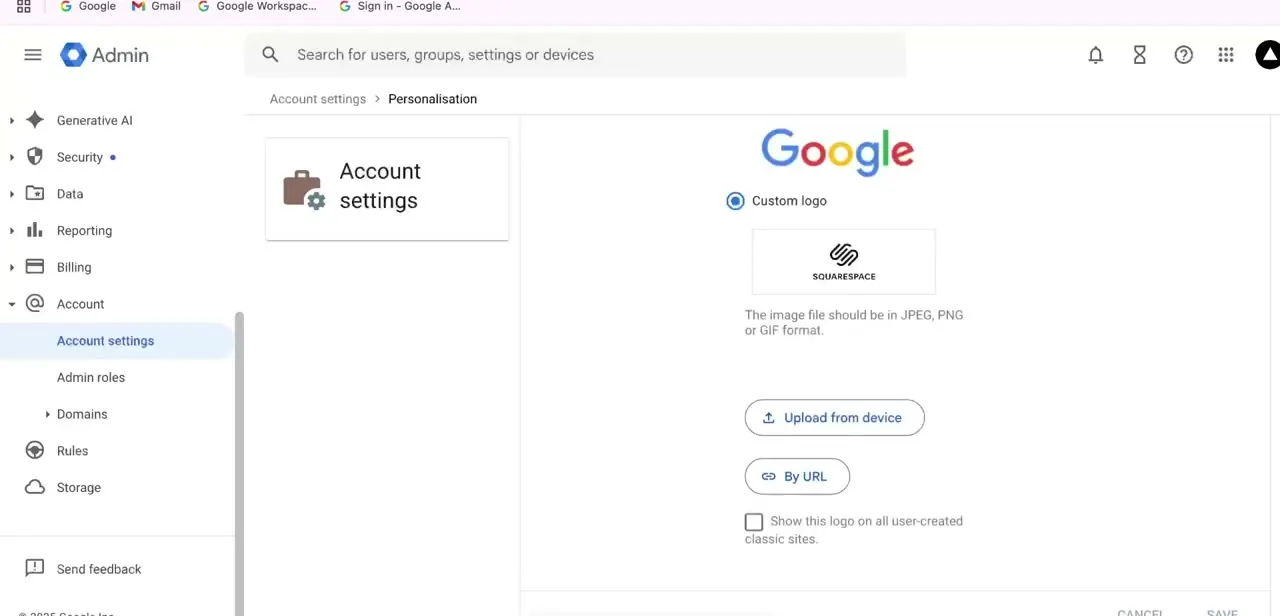
Click into Personalisation, choose Custom logo, then Upload from device or By URL. Google accepts JPEG, PNG, or GIF, but not an animated GIF; that uploads without an error and then just never displays properly.
Google also recommends the image be close to 320x132 pixels, and a logo cropped to a very different aspect ratio ends up stretched or squeezed instead of resized cleanly. If you're replacing an existing logo, the current image shows in the preview box so you can confirm you're overwriting the right one before saving.
05Save, then give it time
Click Save. Google's documentation states a new logo can take up to four days to appear everywhere, well past the few minutes most people wait before assuming it failed.
Two more things catch people out: Safari doesn't support the upload at all, so use Chrome, and the logo never appears on mobile devices no matter how long you wait. If a colleague says it's missing on their phone, that's expected, not a bug.
When it doesn't work
The upload seems to go through but the logo never shows
Why: Google's documentation states it can take up to four days for a new logo to appear across Workspace, well past the few minutes most people wait before assuming it failed.
Fix: Give it up to four days, and re-check in Chrome; Safari doesn't support the upload.
The logo looks stretched or oddly cropped
Why: The image isn't close to Google's recommended 320x132 pixel size, so it gets resized unevenly to fit.
Fix: Re-export the logo at or near 320x132 pixels and upload it again.
A teammate says the logo isn't showing on their phone
Why: Google Workspace doesn't display the custom logo on mobile devices at all. That's expected behavior, not a failed rollout.
Fix: Check on desktop web instead; there's nothing to fix on mobile.
Personalisation doesn't show a logo option, or the field won't respond
Why: The signed-in account doesn't have the Domain settings privilege, which this setting requires specifically.
Fix: Sign in with a super admin account, or have one grant Domain settings on your custom admin role.
Frequently asked questions
Why isn't my custom logo showing up in Google Workspace?
Two likely causes: the upload never actually saved (check Account settings, then Personalisation, for "No logo set"), or it saved fine and you just haven't waited long enough. Google's own documentation says allow up to four days.
What image format and size does Google require?
JPEG, PNG, or GIF, but not an animated GIF. Google recommends the image be close to 320x132 pixels; anything far off that ratio gets resized unevenly.
Why hasn't my logo changed days after I saved it?
That's within Google's stated window; changes can take up to four days to appear everywhere. If it's been longer, confirm you're checking in Chrome and not Safari.
Why can't a teammate see the logo on their phone?
It's expected. Google Workspace doesn't show the custom logo on mobile devices at all, regardless of how the desktop version looks.
Do all users see the same logo?
Yes. Once an admin sets it in Account settings, the logo applies organization-wide and looks the same for everyone on desktop.
Do I need admin access to change the logo?
Yes, and specifically the Domain settings privilege. A general admin role that doesn't include it won't show the logo option.
Sources and last check
Click path and screens come from a recorded walkthrough. Format, size, propagation time, and the Domain settings privilege requirement were checked against Google's official Workspace Help documentation in September 2026. That check corrected the propagation estimate this guide previously gave (minutes to hours) to Google's stated up-to-four-days window, and added the 320x132px sizing, the Safari limitation, and the fact that the logo never shows on mobile, none of which the earlier version mentioned.
About the author

Impran M N
I've been hooked on technology for as long as I can remember — especially the new tools and AI apps that seem to land every other week. Easy Tech Tuts is where I write up whatever I've just worked out: I do the task in the real product, record the screen, and turn it into the guide I wish I'd found first.



