Easy Tech Tuts
How to Set Up an Email Campaign in GoHighLevel Easily 2026
By Impran M NLast checked against official docs
In GoHighLevel (HighLevel), an email campaign is a single designed email sent to a chosen group of contacts, either now or at a scheduled time. It lives under Marketing, then Emails, then Campaigns.
The design part is quick, especially with the Email AI panel. Where people get stuck is at the end: the send screen wants a sender name, a sender email, a verified domain and a subject line, and a brand-new sub-account can only send a limited number of emails a day. This guide follows the flow from the Emails tab to a sent or scheduled campaign, with a test send in between.
Before you start
- A HighLevel sub-account with Email Marketing enabled
- Contacts already in the sub-account, ideally grouped into a smart list for this send
- A sending domain set up under your email settings if you plan to send more than the shared-domain daily cap
01Open Marketing, then Emails
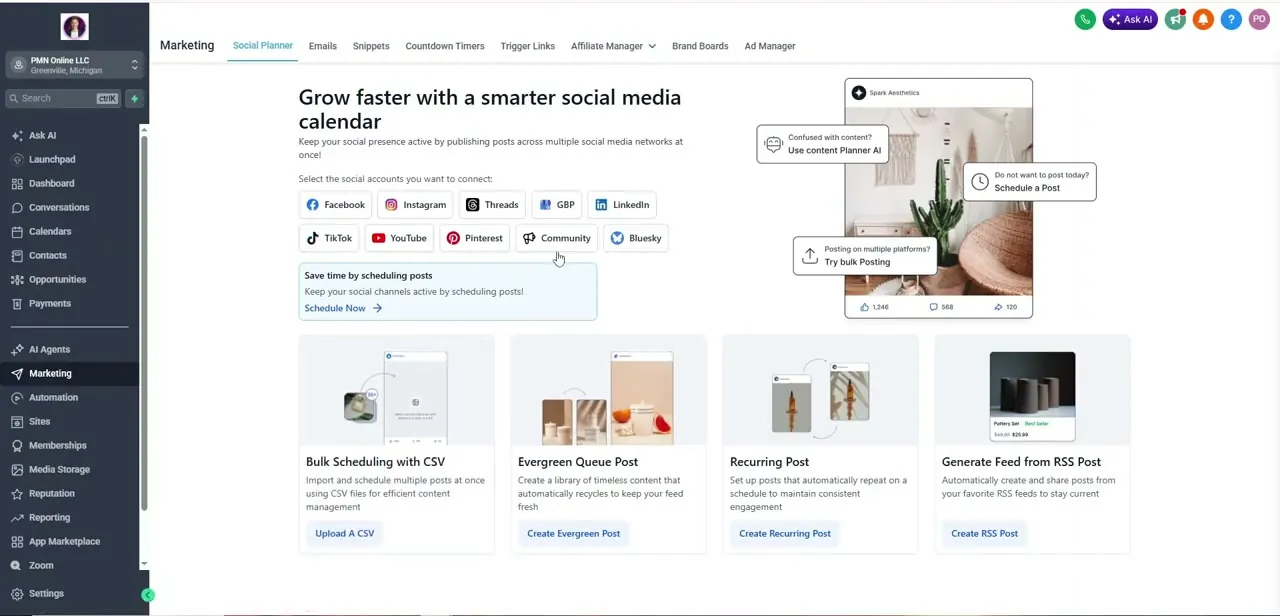
Click Marketing in the left sidebar. A row of tabs appears along the top: Social Planner, Emails, Snippets, Countdown Timers, Trigger Links and more. Social Planner opens by default, so click Emails before you do anything else.
02Go to Campaigns and click New
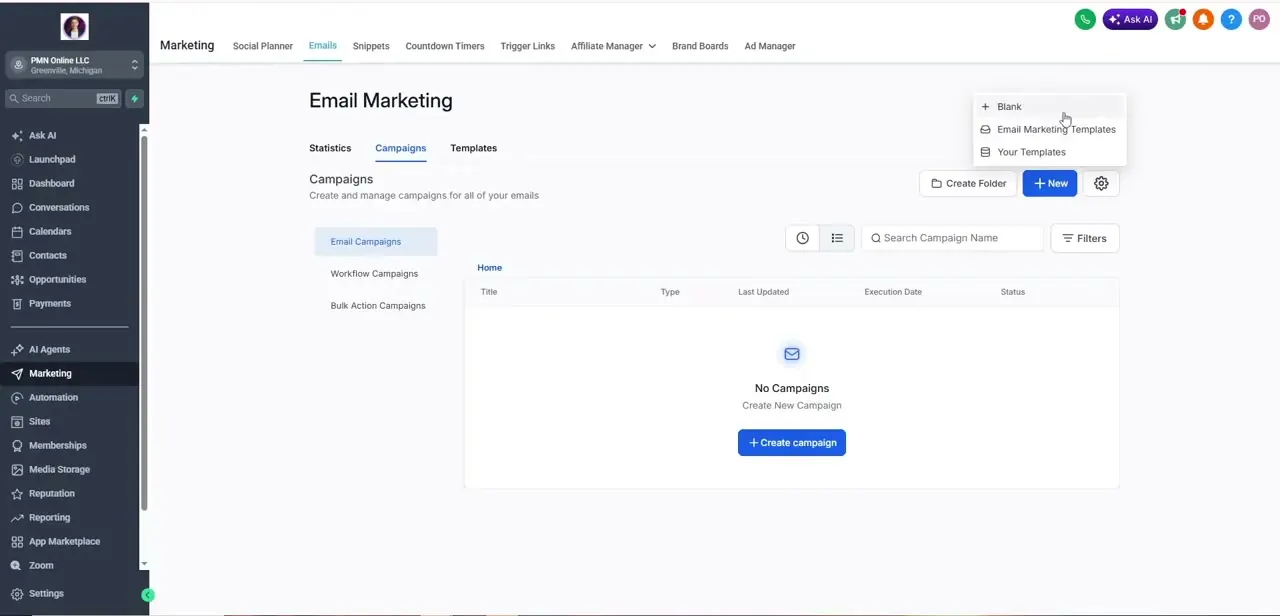
Emails has three sub-tabs: Statistics, Campaigns and Templates. Open Campaigns.
The left rail splits sends into Email Campaigns, Workflow Campaigns and Bulk Action Campaigns; the one you're building belongs under Email Campaigns. A new account shows "No Campaigns" here.
Click +New. The dropdown offers Blank, Email Marketing Templates and Your Templates.
Choose Blank to design from nothing, or a template if you want a finished layout to edit. If you already built and saved a template, you can also start from the Templates tab: open the three-dot menu on that template and choose Create Campaign.
03Design the email, with or without Email AI
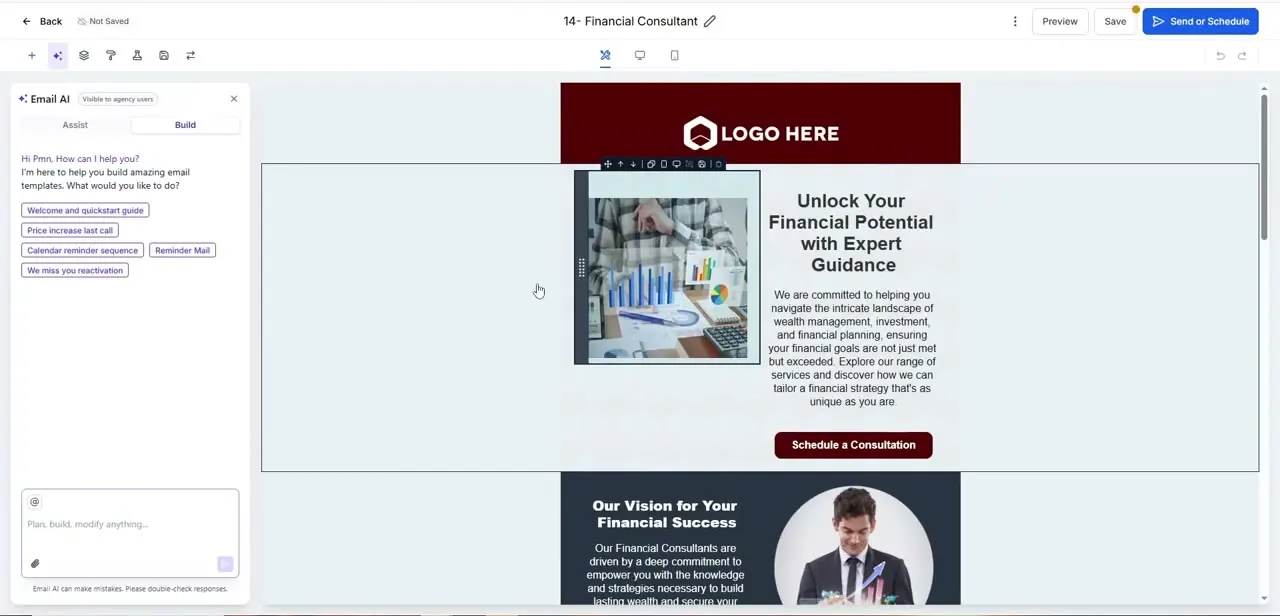
The builder stacks content blocks (header, image, text, buttons) on a canvas you edit in place. The template in the recording, "14 - Financial Consultant", has a LOGO HERE header, a hero image with a headline and a Schedule a Consultation button, and supporting sections below.
Email AI sits in a panel on the left with Assist and Build modes. It offers starter prompts such as "Welcome and quickstart guide" and "We miss you reactivation", and you can type plain instructions like "shorten the hero section" to change the draft.
HighLevel's help centre describes Email AI as a beta that uses your Brand Board's colours and fonts. It can also recreate a layout from a reference image or URL.
If the panel isn't there, it may need switching on under Settings, then Labs. Whatever it produces, replace any sample images and check every link target before sending. Click Preview (next to Save) to check the desktop and mobile layouts.
04Send yourself a test email
Before anything goes to real contacts, open the three-dot menu in the builder and choose Test Email. Fill in the sender details and your own address, then click Send Test Email.
Open it on your phone as well as your computer. Broken merge fields and oversized images show up here, not in Preview.
05Click Send or Schedule and fill in the send details
Click Send or Schedule in the top right. The form asks for: - Sender name and sender email - The sending domain, which must be verified - Subject line - Recipients, usually a smart list or segment - Additional settings: link tracking, UTM tracking and tags You can attach files up to 10 MB.
Send delivers straight away. Schedule asks for a date and time; the time uses the sub-account's time zone, not your computer's.
For a large list, the batch (drip) option spreads the send out so it doesn't hit inboxes all at once. The review screen then shows a checklist of required fields and custom-field errors.
Fix anything it flags and click Confirm & Send. A scheduled campaign can be rescheduled up to one hour before it goes out. Once it runs, its status changes from Sending to Sent.
When it doesn't work
Only part of the list received the campaign on a new sub-account
Why: Sub-accounts sending through HighLevel's shared domains start on a ramp-up schedule: 1,000 emails a day at the first stage, rising automatically through stages to 25,000 as bounce, delivery and complaint rates stay healthy. Trial agencies are held at 500 a day.
Fix: Use the batch option to spread large sends across days, or set up a dedicated sending domain, which is not subject to the shared-domain ramp-up.
Recipients see a different sender address from the one I entered
Why: The campaign went out through a HighLevel shared domain using a public address such as Gmail. In that case HighLevel adjusts the sender email behind the scenes to meet compliance requirements.
Fix: Add your own sending subdomain and verify its DNS records (propagation can take up to 24 hours), then send from an address on that domain.
There's no Email AI panel in the builder
Why: Email AI is still a beta and is switched on through Labs.
Fix: Go to Settings, then Labs, and enable it. Your user also needs Email Marketing access.
Frequently asked questions
What's the difference between Email Campaigns, Workflow Campaigns and Bulk Action Campaigns?
They group sends by how they were triggered. Email Campaigns are one-off sends built in the Campaigns area, Workflow Campaigns are emails sent by an automation, and Bulk Action Campaigns are emails sent to a selection of contacts through a bulk action.
Do I need my own domain to send campaigns?
Not strictly. HighLevel can send through its shared domains, but new sub-accounts on shared domains are capped per day, and a dedicated sending domain gives you your own sender reputation and better deliverability.
Can I change a scheduled campaign?
Yes, up to one hour before its scheduled send time.
Can I attach a file to a campaign email?
Yes, up to 10 MB using Attach Files in the send settings. For anything large, a link to a hosted file is kinder to recipients' inboxes.
Sources and last check
The Marketing, Emails and Campaigns screens, the +New options and the Email AI panel come from the original screen recording. The send and schedule fields, test-email route, attachment limit, reschedule window, review checklist, Email AI requirements, shared-domain behaviour and sub-account daily sending stages were re-checked against HighLevel's support portal in September 2026. That check replaced a generic contact-list step with the fields the send screen really requires and added the sending caps the earlier version didn't mention.
- HighLevel Support: How to send or schedule an email campaign (official)
- HighLevel Support: Getting started, launch an email campaign (official)
- HighLevel Support: Improved email campaign flow and campaign summary page (official)
- HighLevel Support: Email AI (Beta 2.0) (official)
- HighLevel Support: LC Email sub-account ramp-up and smart sending (official)
- HighLevel Support: How sender domains work in LC Email campaigns (official)
About the author

Impran M N
I've been hooked on technology for as long as I can remember — especially the new tools and AI apps that seem to land every other week. Easy Tech Tuts is where I write up whatever I've just worked out: I do the task in the real product, record the screen, and turn it into the guide I wish I'd found first.