Easy Tech Tuts
How to Transfer Domain from GoDaddy to Namecheap Easily 2026
By Impran M NLast checked against official docs
Moving a domain from GoDaddy to Namecheap can make sense for better pricing, cleaner privacy protection, or having everything under one registrar. The process is a short checklist, not anything technical.
Where people get stuck is the two things GoDaddy quietly requires before it will hand over an authorization code: the domain has to be unlocked, and any privacy or protection plan has to be switched off. Skip either one and the transfer gets declined with no clear reason why. This guide follows the actual screens on both sides: GoDaddy's transfer-out checklist and Namecheap's transfer intake, plus the DNS detail that decides whether your site stays up during the move.
Before you start
- The domain registered at GoDaddy for at least 60 days, with no registration, transfer, or registrant contact-info change inside that window (120 days if the domain was part of a bundle)
- Access to the administrative contact email on the domain, since that's where GoDaddy sends the authorization code
- Any GoDaddy Domain Privacy or Domain Protection plan ready to be turned off before you request the code
- A Namecheap account to receive the domain
01Open the transfer checklist in GoDaddy
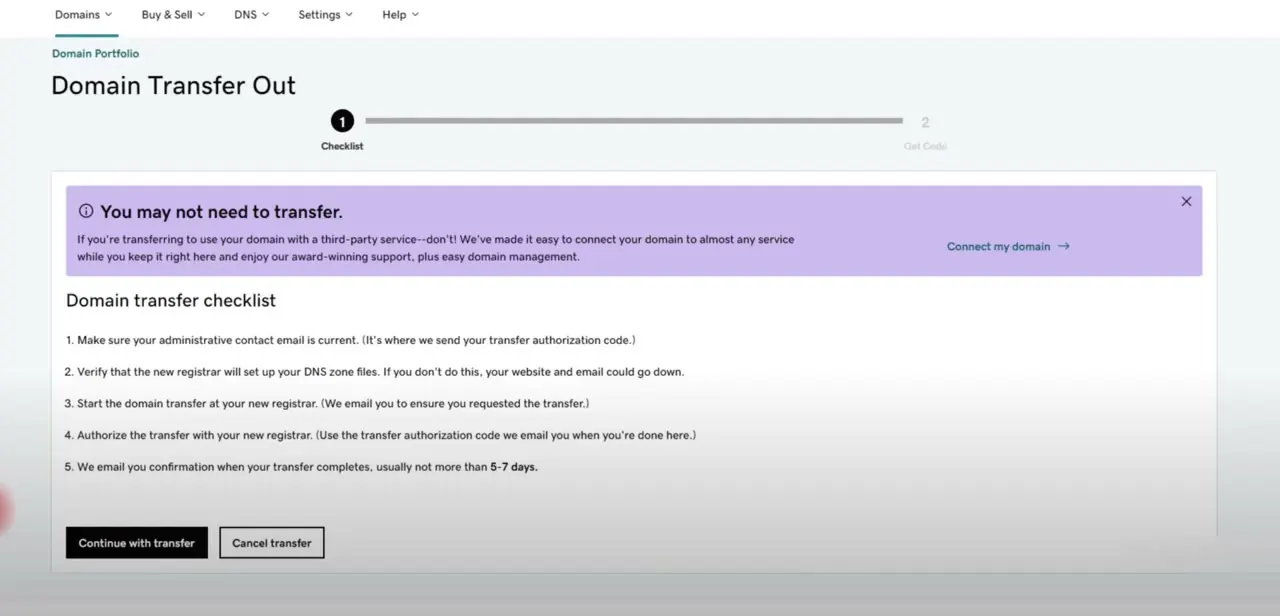
Log in to GoDaddy and go to Domains > Domain Portfolio, then find the domain and choose Transfer to Another Registrar under the Transfer section. GoDaddy shows a banner first suggesting you may not need a full transfer if you're only trying to connect the domain to a third-party service; that's a different, simpler process. If you genuinely want to move the domain's registration, dismiss the banner and read the checklist: confirm your administrative contact email is current since it's where the authorization code gets sent, verify the new registrar will set up DNS, start the transfer at the new registrar, authorize it with the code, and expect confirmation within 5-7 days.
02Unlock the domain and turn off privacy protection
Two settings have to be off before GoDaddy will release a code. First, the registrar lock: open the domain's settings page and, under Transfer, switch the lock toggle from On to Off.
GoDaddy notes this can take up to 90 minutes to take effect, so don't expect Namecheap to see it as unlocked right away. Second, privacy.
GoDaddy's own transfer policy declines requests outright while Domain Privacy or a paid Protection Plan is active. If you have a paid plan, downgrade it to Basic Privacy Protection first; then, in the domain's Overview tab, find Domain Privacy and switch it to Off. Neither step has anything to do with the checklist screen itself, which is why it's easy to skip both and only discover the problem when the transfer bounces.
03Get the authorization code
Back on the checklist screen, click Continue with transfer. If Domain Protection is on your account, you'll need to verify your identity with a code sent by SMS, from an authenticator app, or a one-time password emailed to your GoDaddy account.
Once through that, select "Click here to see Authorization Code" and copy it. GoDaddy also sends the same code to the administrative contact email on the domain, so it's there if you need it again.
04Find the domain in your Namecheap account
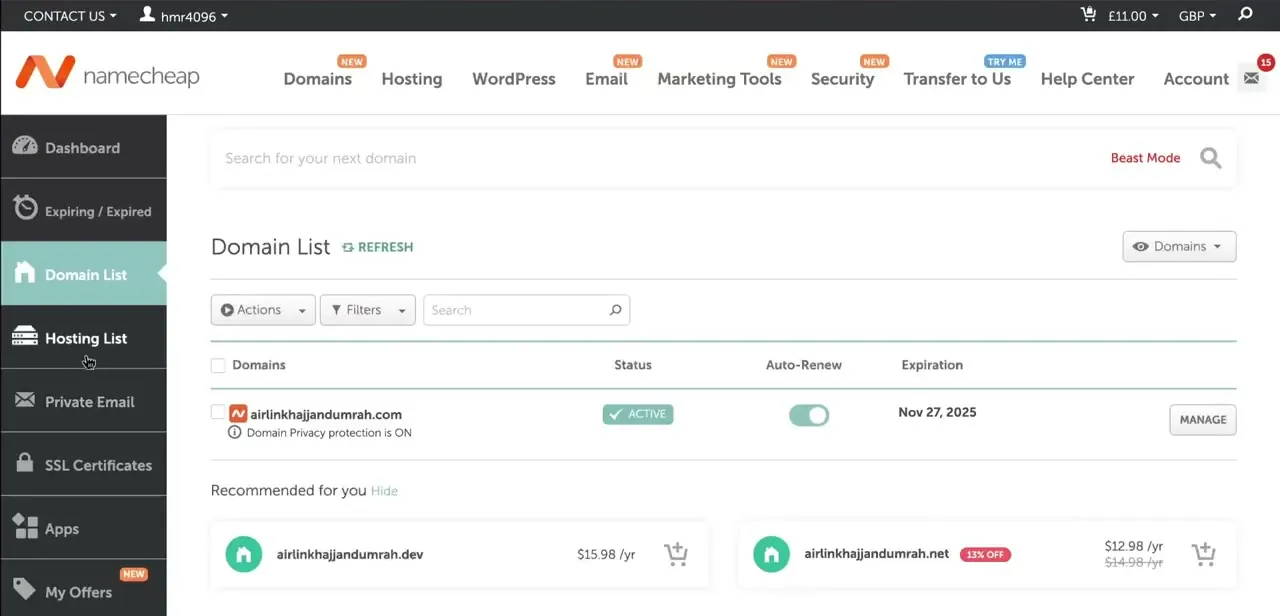
Log in to Namecheap and go to Domain List from the left sidebar, which shows every domain already in your account along with its status, auto-renew setting, and expiration date. This is also where the transferred domain lands once the process completes.
05Enter the domain and the authorization code
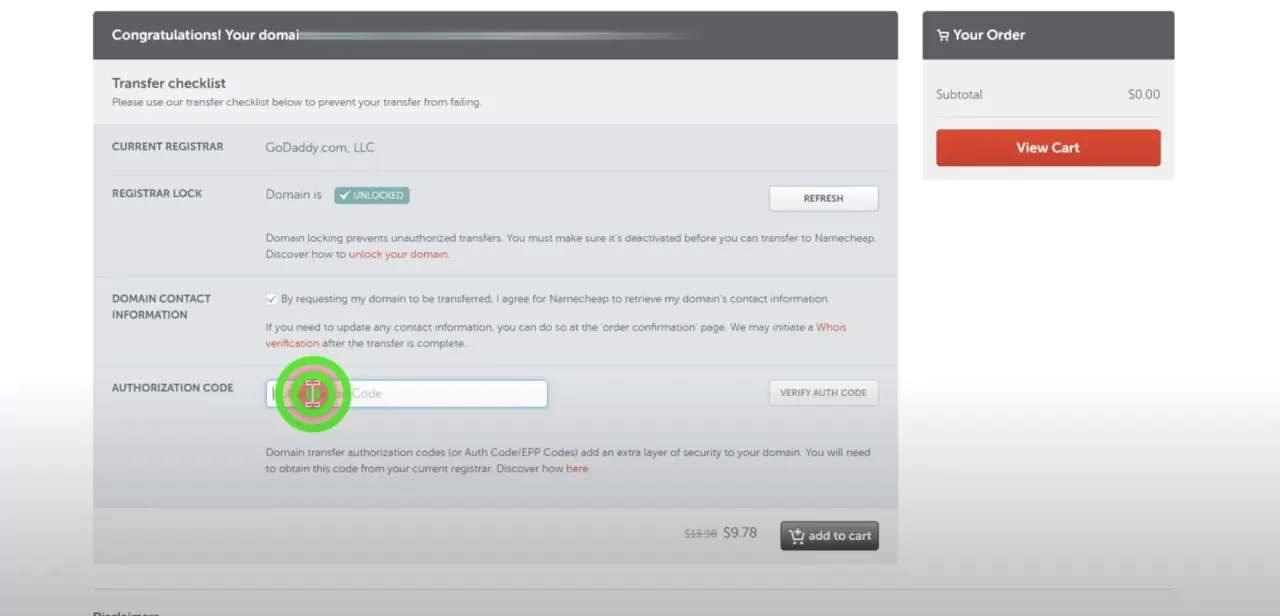
Start a new transfer through Namecheap's Transfer to Us flow and enter the domain name. Namecheap's transfer checklist confirms the current registrar (GoDaddy.com, LLC in this case) and shows the registrar lock status.
It needs to read Unlocked here, matching the step you completed earlier on GoDaddy's side; there's a Refresh button if it still shows locked while GoDaddy's change catches up. Paste the authorization code into the Authorization Code field and click Verify Auth Code before moving on.
06Add the transfer to your cart and confirm the order
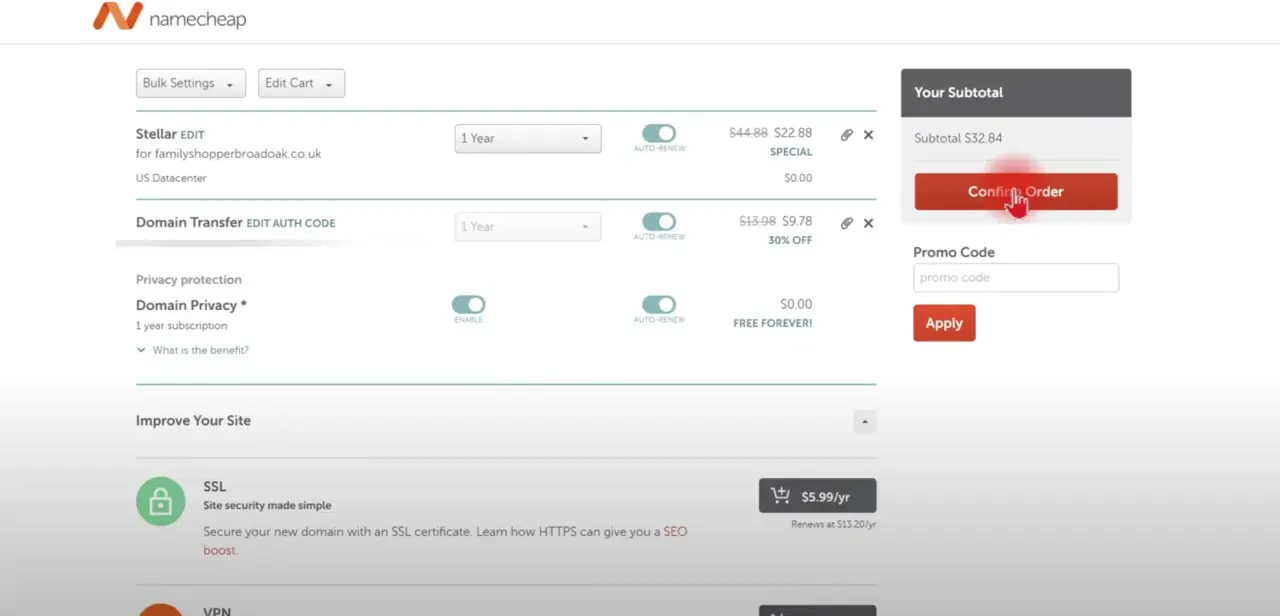
Once the auth code verifies, add the domain transfer to your cart alongside anything else you want. Free WHOIS privacy is included by default, and you'll see optional add-ons like SSL certificates you can skip if you don't need them.
Review the subtotal, apply a promo code if you have one, and click Confirm Order. Nothing moves on Namecheap's end until this order is placed.
07Approve the transfer by email and wait it out
After confirming the order, watch your inbox for a confirmation email; Namecheap sends this to verify you requested the transfer, and GoDaddy may send its own notice too, since both registrars want confirmation before a domain changes hands. You can speed things up from GoDaddy's side: under Domains, open the Transfer area, select Transfers Out, choose the domain, and select Approve Transfer.
GoDaddy processes an approved transfer within about 15 minutes instead of the full window. Otherwise, check the transfer status inside Namecheap's Domain List. Most transfers complete within the 5-7 day window both registrars quote, though ICANN's mandatory hold period means it's rarely faster than about 5 days even when everything else goes smoothly.
When it doesn't work
GoDaddy declines the transfer request or Namecheap's auth code check fails
Why: GoDaddy's transfer policy blocks the request while Domain Privacy or a paid Protection Plan is still active on the domain.
Fix: Downgrade any paid Protection Plan to Basic Privacy Protection, then switch Domain Privacy off from the domain's Overview tab, before requesting the code.
Namecheap's checklist still shows the domain as Locked after you switched it off
Why: GoDaddy's own unlock toggle can take up to 90 minutes to take effect.
Fix: Wait, then click Refresh on Namecheap's transfer checklist instead of re-toggling the lock.
GoDaddy won't unlock the domain or the transfer is rejected as ineligible
Why: The domain is inside a 60-day lock after new registration, a previous transfer, or a change to registrant contact details (120 days if it was part of a bundle).
Fix: Wait out the lock window. If the domain shouldn't be locked and the transfer is urgent, GoDaddy's Review 60 team (review60@godaddy.com) can review and remove it.
The site or email stops working right after the transfer completes
Why: The domain was using GoDaddy's default nameservers, which stop answering once the transfer finishes.
Fix: Point the domain to Namecheap's nameservers (or your host's) before or immediately after the transfer. Domains already on custom or hosting DNS aren't affected, since those settings carry over unchanged.
Frequently asked questions
Do I need to unlock my domain before transferring?
Yes. GoDaddy locks domains by default to prevent unauthorized transfers, and Namecheap's checklist checks the lock status and won't proceed until it reads Unlocked. The unlock itself can take up to 90 minutes to show up on Namecheap's side.
What is an EPP/Auth code, and how do I get it?
It's a security code from your current registrar that proves domain ownership. On GoDaddy, it's revealed on the Transfer to Another Registrar screen after you click Continue with transfer, and GoDaddy also emails a copy to the domain's administrative contact address.
Does GoDaddy's privacy protection stop the transfer?
Yes, if it's still active. GoDaddy's policy is to decline transfer requests while Domain Privacy or a paid Protection Plan is on, so both need to be turned off before you request the auth code.
How long does a domain transfer take?
Both registrars quote 5-7 days for the full process. Approving the transfer from GoDaddy's side (Transfers Out > Approve Transfer) speeds up GoDaddy's half to around 15 minutes, though ICANN's hold period still keeps the total close to 5 days at minimum.
Will my website go down during the transfer?
It depends on the nameservers. If the domain already points to custom or hosting DNS, those settings carry over and nothing changes. If it's still using GoDaddy's default nameservers, they stop responding once the transfer completes, and you'll see downtime until you point the domain to Namecheap's DNS.
What if my domain isn't eligible for transfer yet?
GoDaddy blocks transfers within 60 days of new registration, a previous transfer, or a registrant contact-info change (120 days for domains registered as part of a bundle). Wait out the window, or contact GoDaddy's Review 60 team if you believe the lock shouldn't apply.
What if GoDaddy shows a banner saying I don't need to transfer?
That banner refers to connecting your domain to a third-party service, which is a separate, simpler DNS change. If your goal is moving the domain's registration to Namecheap, dismiss it and continue with the transfer checklist.
Sources and last check
Click path and screens come from a recorded walkthrough. The on-screen GoDaddy checklist text was checked directly against its screenshot. The lock, privacy-protection, 60/120-day eligibility, unlock-delay, and nameserver-downtime details were re-checked against GoDaddy's and Namecheap's official support documentation in September 2026, which added the missing privacy-protection requirement and corrected this guide's earlier claim that the transfer never causes downtime.
About the author

Impran M N
I've been hooked on technology for as long as I can remember — especially the new tools and AI apps that seem to land every other week. Easy Tech Tuts is where I write up whatever I've just worked out: I do the task in the real product, record the screen, and turn it into the guide I wish I'd found first.