Easy Tech Tuts
How to Connect Godaddy Domain to Gohighlevel 2026 Easily
By Impran M NLast checked against official docs
If you're building funnels, websites, or automations in GoHighLevel but bought your domain through GoDaddy, the two platforms need to be introduced through DNS before anything goes live. That means taking the exact record values GoHighLevel generates for your domain and typing them into GoDaddy's DNS editor, then waiting for GHL to confirm the connection and issue SSL. A mistyped value, or a record added under the wrong host, is the most common reason a funnel domain sits stuck on "not connected." This guide walks the process screen by screen, from your GoDaddy dashboard through to a verified, secure domain in GoHighLevel.
01Start from your GoDaddy account
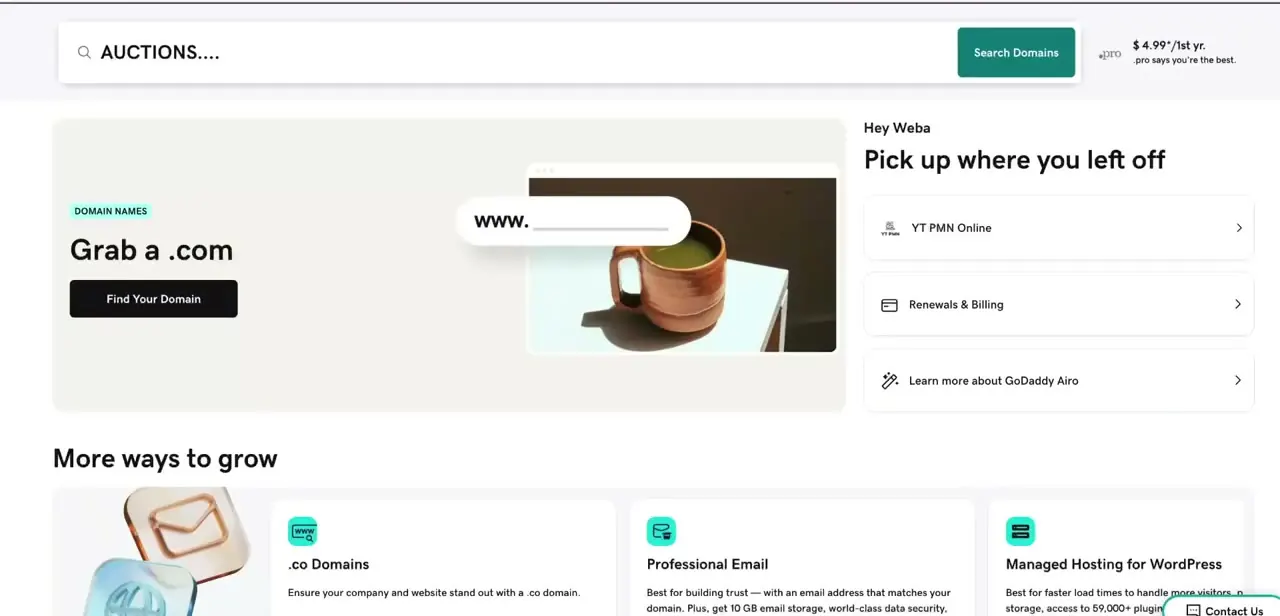
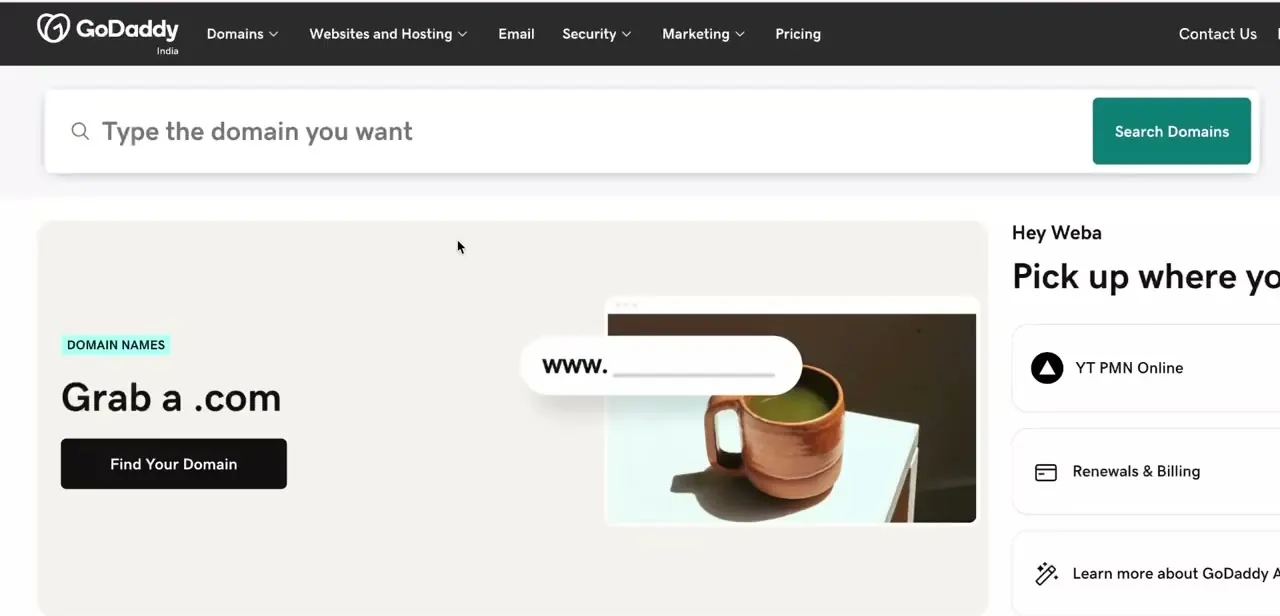
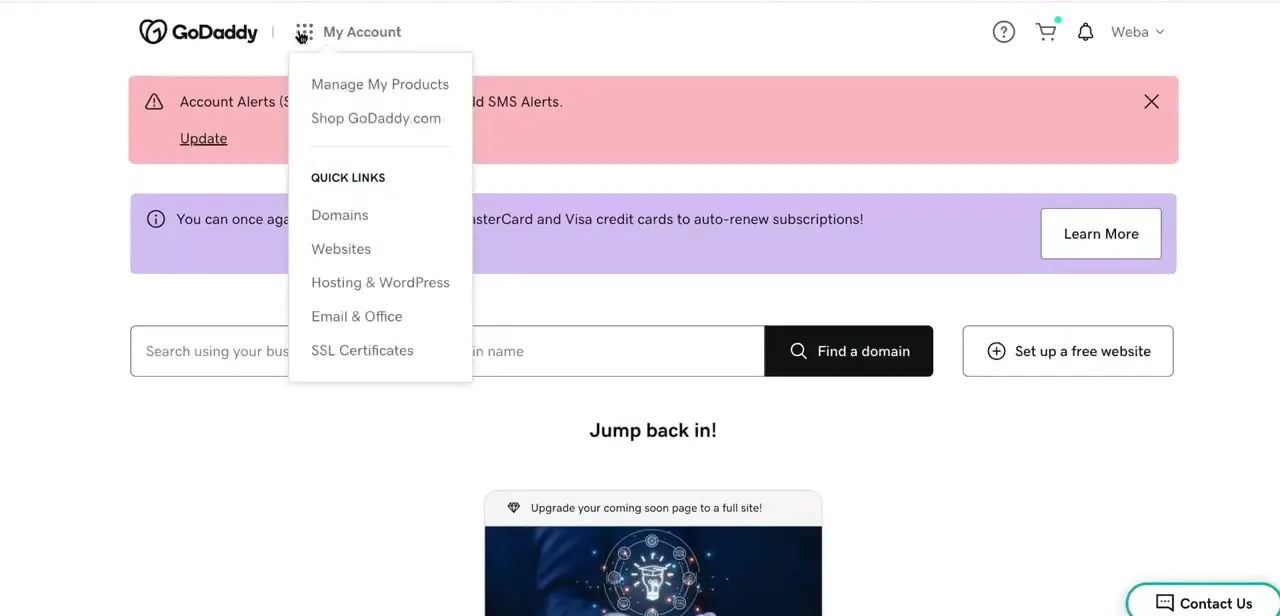
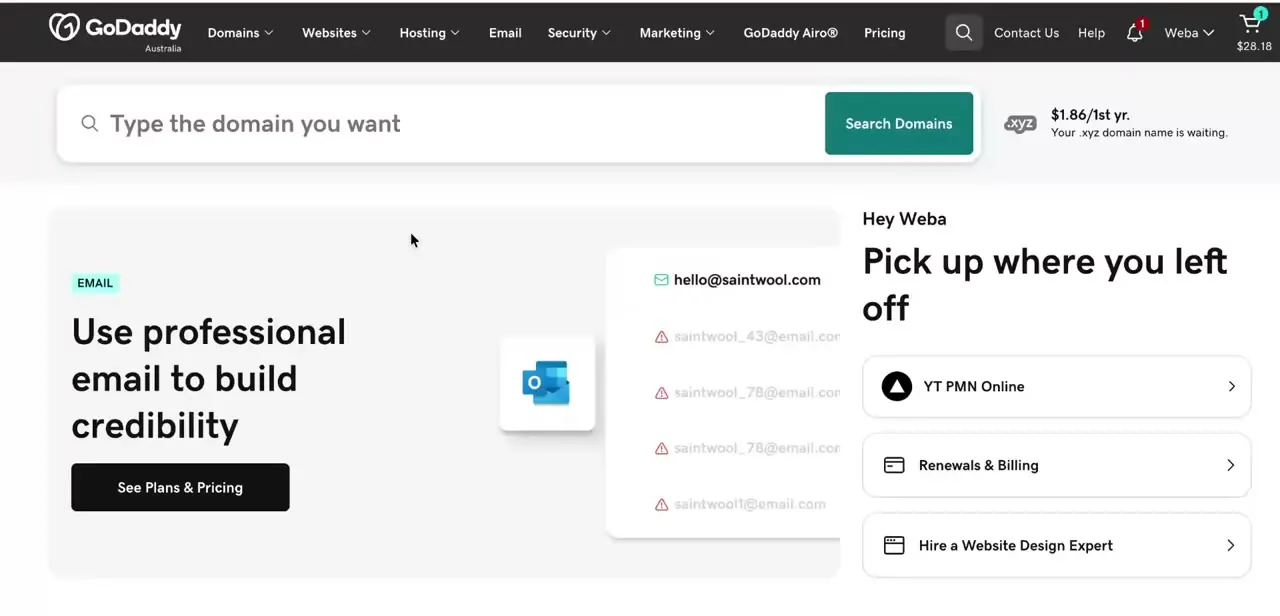
Log in to GoDaddy and land on the account dashboard, with quick links to Domains, Websites, Hosting, and Email. None of the marketing tiles here matter for this task; the piece you need is a few clicks away, under your domain's DNS management screen. If you manage more than one GoDaddy account, confirm you're logged into the one that owns this domain, since DNS changes saved on the wrong account won't do anything for your GoHighLevel site.
02Open the right sub-account in GoHighLevel
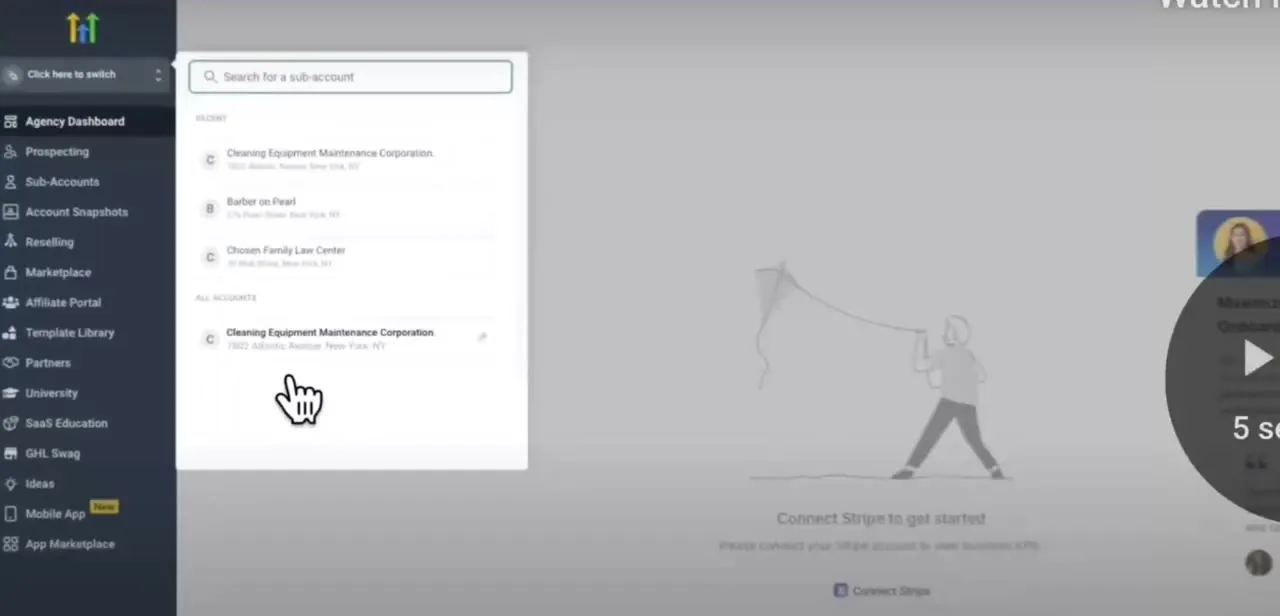
GoHighLevel is agency software, so if you manage multiple client accounts, the first step inside GHL is picking the correct sub-account, the one whose domain settings you're about to edit. The account switcher lists your recent sub-accounts along with a search box, since agencies running dozens of client accounts can't scroll to find the right one. Get this wrong and the DNS records you add will point at the wrong site, so double-check the business name before moving into Settings.
03Add the domain and copy GoHighLevel's DNS values
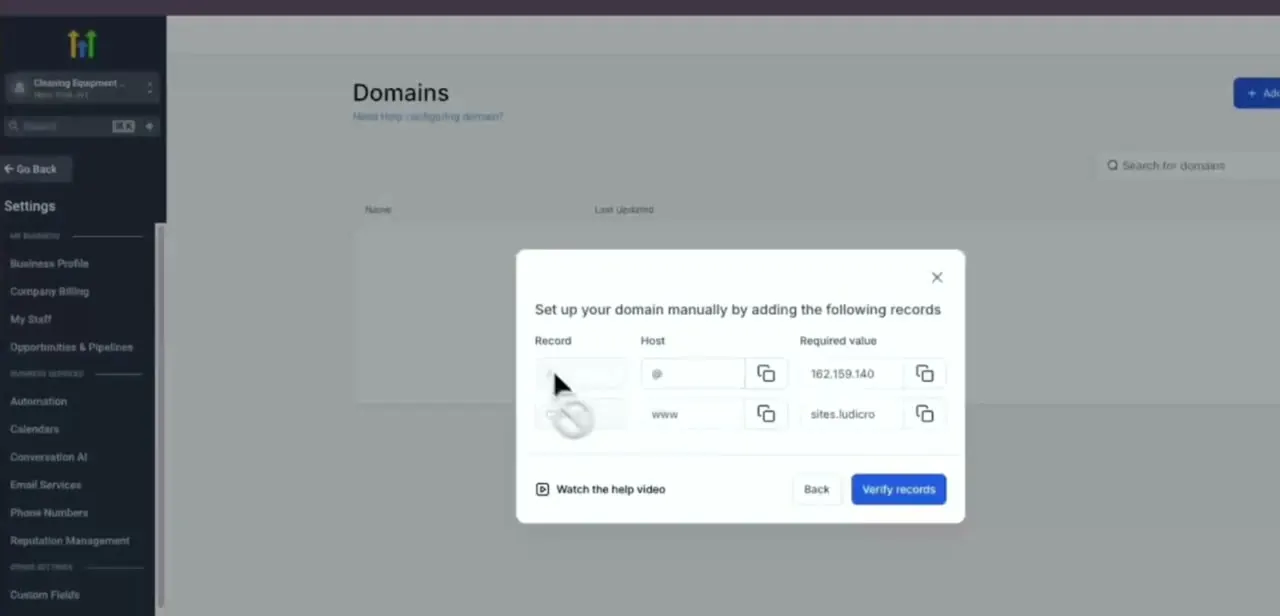
Inside the sub-account, go to Settings and add your GoDaddy domain under the domain settings for your site or funnel. GoHighLevel responds with a "Set up your domain manually" panel listing the exact records it needs: an A record on the root host (@) pointing to an IP address, and a CNAME on the www host pointing to a GHL-managed hostname.
GoHighLevel's own setup documentation shows these as 162.159.140.166 for the A record and sites.ludicrous.cloud for the CNAME, but always copy the exact values your own panel displays using the copy icons next to each field, since GoHighLevel can change the underlying infrastructure. Leave this panel open, or copy both values somewhere handy, since you'll need them in the next step.
04Enter the A record in GoDaddy's DNS editor
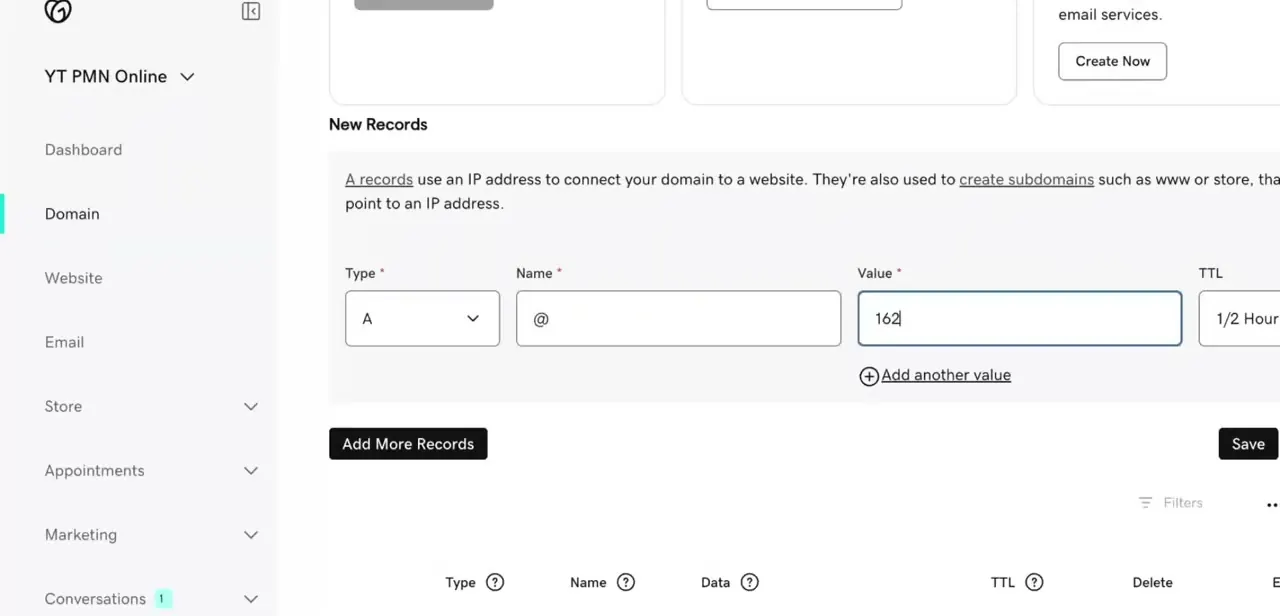
Back in GoDaddy, open the domain's DNS management page and add a new record. Set the Type to A, the Name to @ (the root domain), and paste the IP address GoHighLevel gave you into Value.
Leave TTL on its default (typically 1/2 Hour) for a normal setup; lower it to 5 minutes only if you're troubleshooting and want changes to take effect faster. Save this record, then repeat for the CNAME: Type CNAME, Name www, Value the GHL hostname from the previous step. These two records are what point your domain at GoHighLevel's servers.
05Verify the connection in GoHighLevel
Once both records are saved in GoDaddy, return to the same panel in GoHighLevel and click Verify records. DNS changes don't apply instantly; propagation typically finishes within minutes but can take up to 24 to 48 hours depending on your TTL setting, and GHL's verification will simply retry and fail until the records are visible from its side. If verification doesn't succeed right away, wait and try again instead of re-adding the records, since duplicate entries on the same host are a common self-inflicted problem here.
06Fix a stuck "domain not connected" error
If GoHighLevel still shows the domain as unconnected after propagation should have finished, go through the values again: check that the A record's Name is exactly @ and not a typo like www or blank, confirm the CNAME's target host matches what GHL displayed character for character, and make sure no leftover A or CNAME record from a previous host is still active on the same name. GoHighLevel's documentation also notes that a domain or subdomain can only be pointed at one platform at a time, so if it's still parked, forwarded, or connected to a website builder elsewhere, that will block verification too. Once the records are clean and verification succeeds, GoHighLevel issues SSL automatically, and your funnel or website is live on your own domain.
| Type | Name/Host | Typical value | Purpose |
|---|---|---|---|
| A | @ | 162.159.140.166 | Points your root domain at GoHighLevel's servers |
| CNAME | www | sites.ludicrous.cloud | Points the www version at the same platform |
Confirm both against the exact values your own GoHighLevel domain panel shows before saving them in GoDaddy; GoHighLevel can change the underlying IP or hostname.
When it doesn't work
Verification keeps failing well after DNS should have propagated
Why: A duplicate or leftover A/CNAME record on the same host from a previous setup is conflicting with the new one.
Fix: Open GoDaddy's DNS management page and remove any other A or CNAME record using the same @ or www host before re-verifying.
The domain won't verify even though the records look right
Why: The domain is still parked, forwarded, or connected to another website builder. GoHighLevel documents that one domain or subdomain can only be pointed at one platform at a time.
Fix: Turn off any domain forwarding or parking page in GoDaddy and disconnect the domain from any other site builder before verifying in GHL.
Verification is slow to reflect a DNS fix
Why: A high TTL value on the existing record means resolvers cache the old answer for longer.
Fix: Lower the TTL to around 5 minutes on the record while troubleshooting, then verify again once that shorter TTL has had time to take effect.
The A record or CNAME was added under the wrong sub-account or GoDaddy account
Why: Multiple client sub-accounts in GoHighLevel, or multiple GoDaddy accounts, made it easy to edit the wrong one.
Fix: Confirm the business name in GHL's sub-account switcher and the domain owner in GoDaddy before touching any DNS record.
Frequently asked questions
How long does it take for the domain to connect after updating DNS?
Often within minutes, but propagation can take up to 24 to 48 hours depending on the record's TTL. Retry verification after a while instead of re-adding the records.
Why does GoHighLevel say my domain is not connected?
Usually because the DNS records in GoDaddy don't yet match what GoHighLevel expects, propagation hasn't finished, there's a leftover conflicting record on the same host, or the domain is still parked or forwarded elsewhere.
Do I get SSL automatically after connecting my domain?
Yes. Once the domain connection is verified inside GoHighLevel, SSL is issued automatically, with no separate certificate step.
Can the same domain point at two things at once, like a GoDaddy site and a GoHighLevel funnel?
No. GoHighLevel's own documentation states a domain or subdomain can only be used with one platform at a time, so anything else it's currently connected to needs to be disconnected first.
What if I manage the domain on a different GoDaddy account than my GHL sub-account?
Log into the GoDaddy account that owns the domain before editing DNS, and the correct GoHighLevel sub-account before adding it. Records saved on the wrong account won't affect the live site.
Sources and last check
Click paths and screens come from a walkthrough recorded in 2025, and the A/CNAME values visible in the domain-setup screenshot were cross-checked against HighLevel's own support articles in September 2026, which list the same IP (162.159.140.166) and hostname (sites.ludicrous.cloud). The one-platform-per-domain restriction, the 24-48 hour propagation window, and the TTL troubleshooting tip were added from that same documentation; the article's earlier advice never conflicted with it, but the source lets the guide state these details with a citation instead of as a general assumption.
About the author

Impran M N
I've been hooked on technology for as long as I can remember — especially the new tools and AI apps that seem to land every other week. Easy Tech Tuts is where I write up whatever I've just worked out: I do the task in the real product, record the screen, and turn it into the guide I wish I'd found first.