Easy Tech Tuts
How to Connect Godaddy Domain to Netlify Easily 2026
By Impran M NLast checked against official docs
If your domain is registered at GoDaddy and your site is deployed on Netlify, the cleanest way to connect them is to hand DNS management over to Netlify entirely instead of editing individual records one at a time. Netlify's onboarding wizard walks you through choosing the domain, generating the DNS records it needs, and activating Netlify DNS, but the piece that makes it live happens back at GoDaddy, where you point the domain's nameservers at Netlify instead of GoDaddy's own. This guide follows that flow screen by screen, including the step most tutorials skip: what happens to your email if the domain currently sends or receives it through GoDaddy.
Before you start
- A domain registered at GoDaddy, with the site already deployed on Netlify
- A record of any DNS entries you currently rely on, especially MX records for email, since switching nameservers hands all DNS for the domain to Netlify at once, not just the web-hosting parts
01Start the domain setup inside Netlify
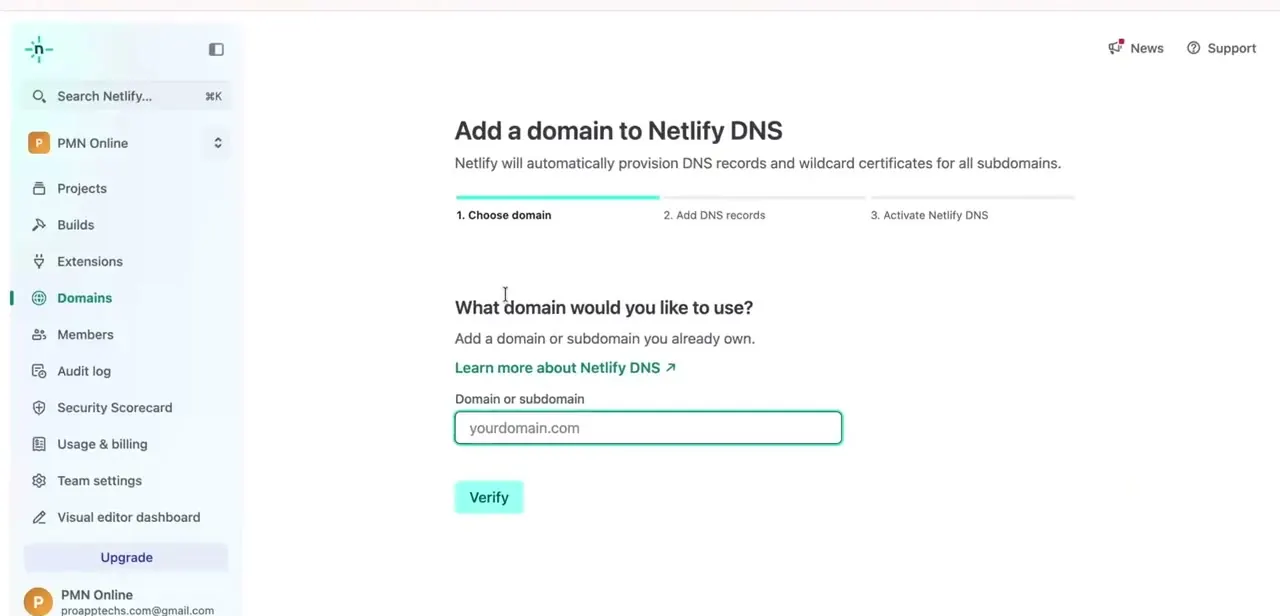
From your Netlify team dashboard, open Domains and choose to add a domain to Netlify DNS. The wizard lays out three stages up front: Choose domain, Add DNS records, and Activate Netlify DNS, so you always know where you are in the process. Type the domain you registered at GoDaddy into the "Domain or subdomain" field and click Verify; Netlify checks that the domain exists and isn't already managed somewhere else before letting you continue.
02Find the domain in your GoDaddy account
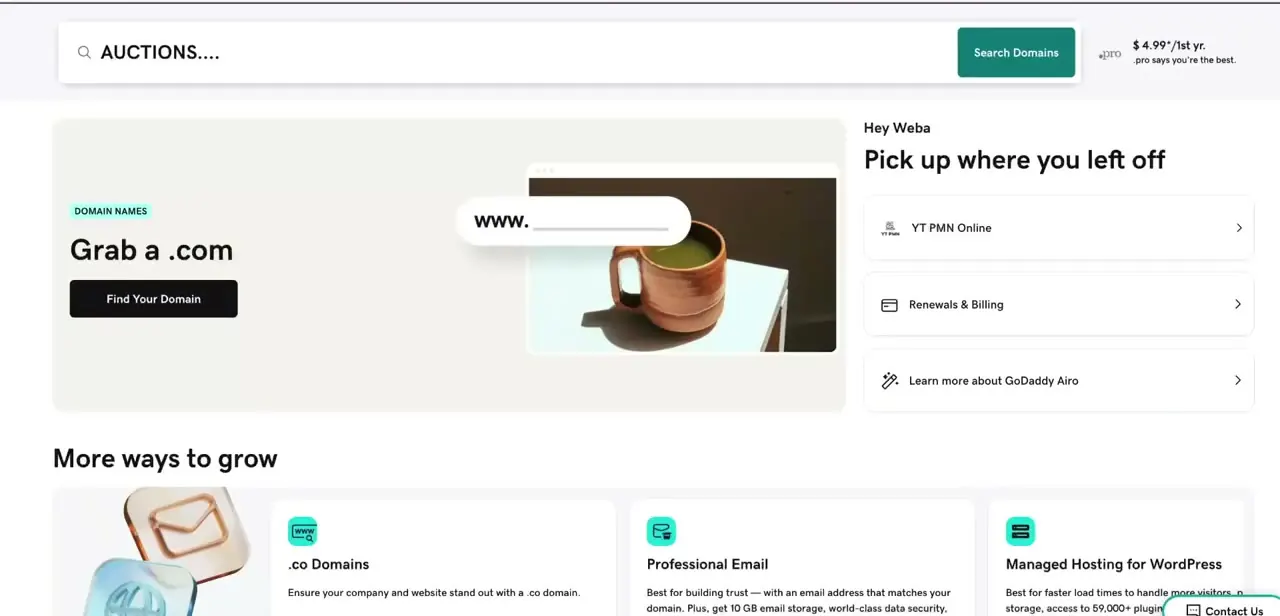
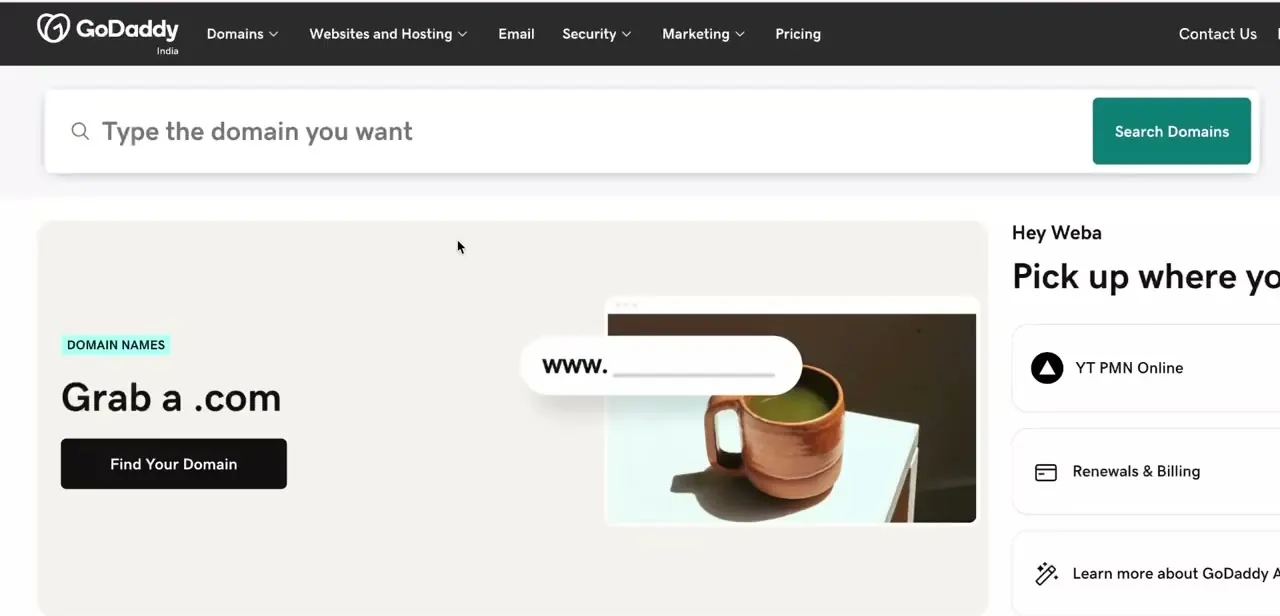
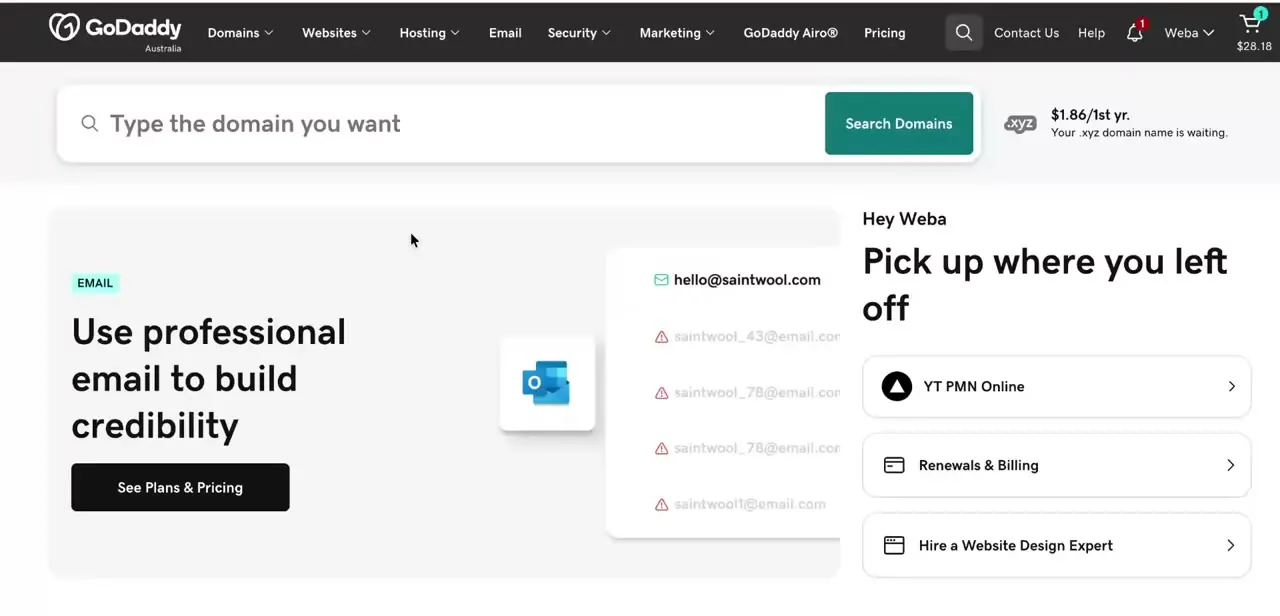
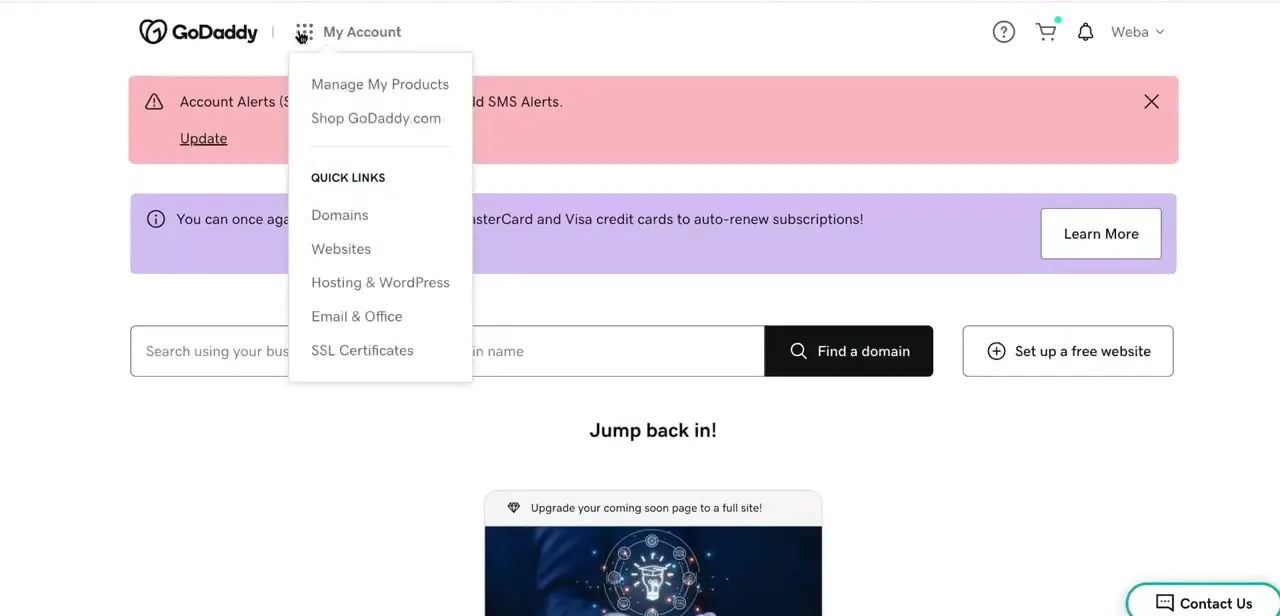
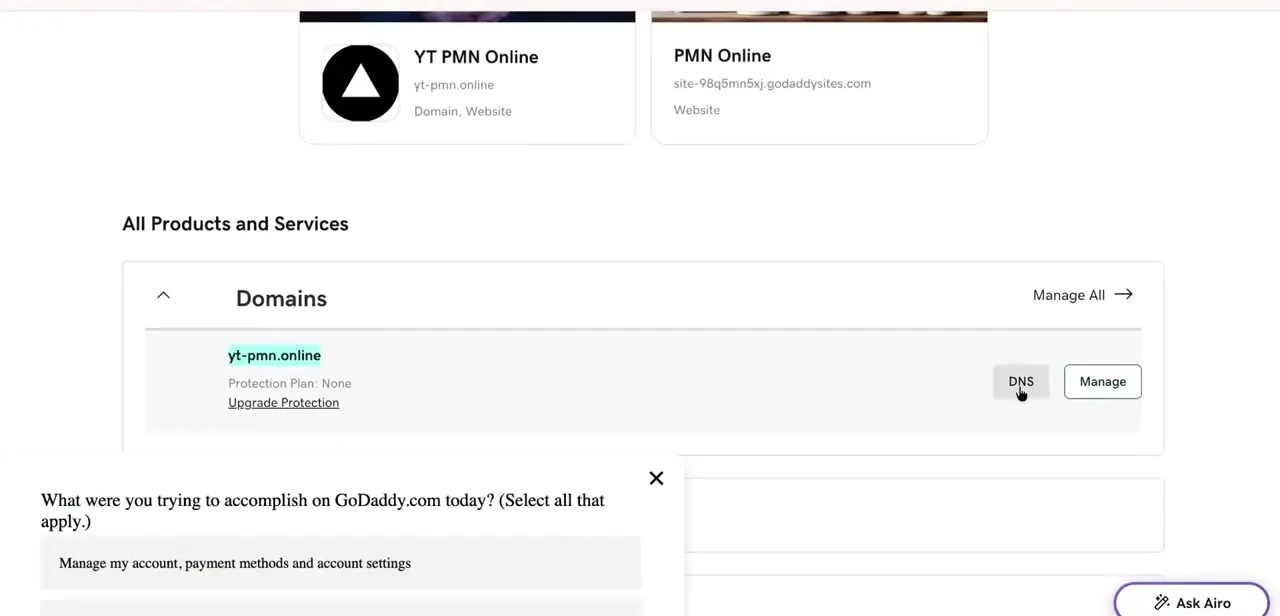
Switch to GoDaddy and open your account overview, where each domain and website you own is listed as its own card with quick DNS and Manage buttons. Locate the domain you just added in Netlify; in a multi-domain account it's easy to click into the wrong one, so match the exact domain name before continuing. While you're here, open DNS Management and note down any records that aren't just for the website itself, particularly MX records if the domain sends or receives email through GoDaddy.
03Recreate any records you need before switching nameservers
Netlify's own setup guide is direct about this: if you have existing records on GoDaddy, such as MX records for email, copy them into Netlify DNS before you switch nameservers. Netlify becomes authoritative for the entire domain the moment the switch takes effect, and it has no way to know about a mail server GoDaddy was routing for you unless you add that record yourself. Skipping this step is the most common reason email quietly stops arriving a day or two after a domain move.
04Switch the domain's nameservers to Netlify
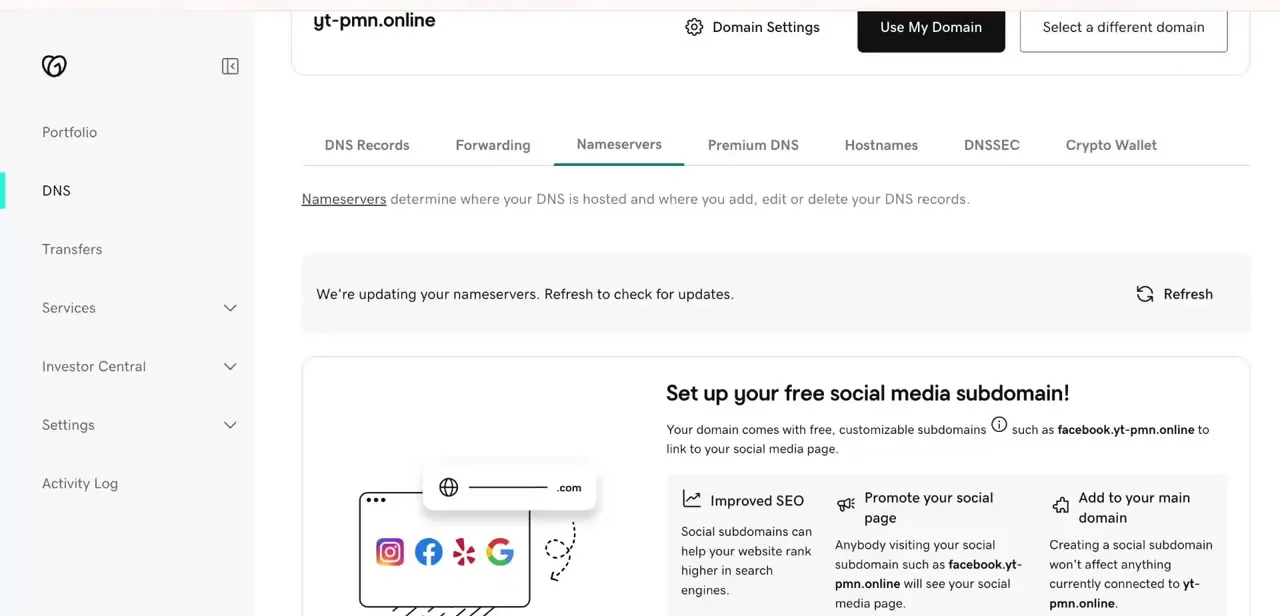
Inside DNS Management, go to the Nameservers tab, not DNS Records; this is the key difference from editing individual CNAME and A records yourself. Choose to use custom nameservers and enter the four Netlify provided during setup.
Once you save, GoDaddy shows a status message confirming it's updating your nameservers. It isn't instant: GoDaddy has to register the new nameserver assignment with the domain's registry record before Netlify can start answering DNS queries for it.
05Wait out the propagation window
Nameserver changes propagate more slowly than a single DNS record edit, since every resolver on the internet has to notice the domain now points to an entirely different set of nameservers, not just a changed value. Netlify's documentation puts this at up to a day, though it's often quicker. Refreshing GoDaddy's status message repeatedly won't speed it up; it's a genuine waiting game at this stage.
06Activate Netlify DNS and confirm your site is live
Back in Netlify, the wizard's third stage, Activate Netlify DNS, becomes available once it detects the nameservers have switched over. Netlify then provisions DNS records and an SSL certificate for the domain automatically.
That automatic coverage extends to preview and branch-deploy subdomains, but a standalone production subdomain you want pointed elsewhere, like docs.yourdomain.com, needs its own delegation step; it doesn't inherit SSL just because the apex domain has it. Once activation completes, load your domain in a browser to confirm it's serving your Netlify site instead of a GoDaddy parking page.
When it doesn't work
The domain still shows as unverified in Netlify well after propagation should have finished.
Why: A page refresh right after saving the nameserver change can make it look like nothing changed, even though it did. It's also possible the custom nameservers were entered but never saved.
Fix: Go back to GoDaddy's Nameservers tab and confirm it lists Netlify's four nameservers, not GoDaddy's defaults, before assuming something else is wrong.
Email stopped arriving a day or two after the domain move.
Why: Netlify DNS took over every DNS record for the domain, including MX records. If those weren't recreated in Netlify DNS before or shortly after the nameserver switch, mail that used to route through GoDaddy has nowhere to go.
Fix: Add matching MX (and any related SPF or TXT) records inside Netlify's DNS panel for the domain, copying the exact values GoDaddy had before the switch.
A subdomain like docs.yourdomain.com isn't showing as secured after the main domain went live.
Why: Netlify DNS automatically provisions SSL for the domain itself and for preview or branch-deploy subdomains, but a standalone production subdomain isn't covered by that automatic step.
Fix: Set it up explicitly through Netlify's subdomain delegation settings rather than assuming it carried over from the apex domain.
Frequently asked questions
Do I need to change my domain registrar to use Netlify?
No. You can keep the domain registered at GoDaddy and point its nameservers at Netlify, which lets Netlify manage DNS for the domain without transferring the registration itself.
How long does the nameserver change take to work?
Netlify's own documentation says up to a day, though it's often faster, because a nameserver change has to propagate across every DNS resolver that has the domain cached, not just update one record.
Will switching to Netlify DNS break my email?
It will, if the domain currently uses GoDaddy for email and you don't recreate the MX records in Netlify DNS. Netlify becomes authoritative for the whole domain once the switch takes effect, so any record it doesn't have gets dropped.
What DNS records do I need to update at GoDaddy?
With the Netlify DNS approach, you don't edit individual CNAME or A records at GoDaddy at all. You switch the domain's Nameservers tab to Netlify's nameservers, and Netlify provisions the actual DNS records on its side.
Does subdomain SSL happen automatically once the main domain is live?
Only for preview and branch-deploy subdomains. A standalone production subdomain you point somewhere specific needs its own delegation step in Netlify.
Why does my domain still show a GoDaddy parking page after I switched nameservers?
Either the switch hasn't propagated yet, or the nameserver change didn't save. Recheck the Nameservers tab in GoDaddy to confirm it lists Netlify's nameservers before assuming something else is wrong.
Sources and last check
Click path and screens come from a recorded walkthrough of the Netlify and GoDaddy dashboards. Re-checked against Netlify's official documentation in September 2026, which added a real gap the original draft missed entirely: Netlify's own setup guide warns that existing DNS records, MX records for email above all, need to be copied into Netlify DNS before the nameserver switch, or they're silently dropped. The original draft's claim that SSL provisions automatically "including for any subdomains" was also too broad; Netlify's docs confirm automatic coverage for the domain and for preview/branch-deploy subdomains, but not for a standalone production subdomain, which needs its own delegation step. The propagation estimate was tightened to Netlify's own "up to a day" figure.
About the author

Impran M N
I've been hooked on technology for as long as I can remember — especially the new tools and AI apps that seem to land every other week. Easy Tech Tuts is where I write up whatever I've just worked out: I do the task in the real product, record the screen, and turn it into the guide I wish I'd found first.