Easy Tech Tuts
How to Edit Your GoDaddy Website for Beginners with AI 2026 Easily
By Impran M NLast checked against official docs
GoDaddy bundles an AI assistant called Airo with every new domain bought through GoDaddy, and it does a lot of the setup work: writing copy, picking a layout, and previewing the result before anything goes live. This guide is for beginners who want fast, polished edits to a personal blog or small business site without touching code. You'll sign in, let Airo build a Coming Soon page around your domain and business type, and preview it on mobile before publishing.
Before you start
- A domain purchased through GoDaddy. Airo currently ships with new GoDaddy domain purchases, not as a separate add-on.
01Start from the GoDaddy homepage
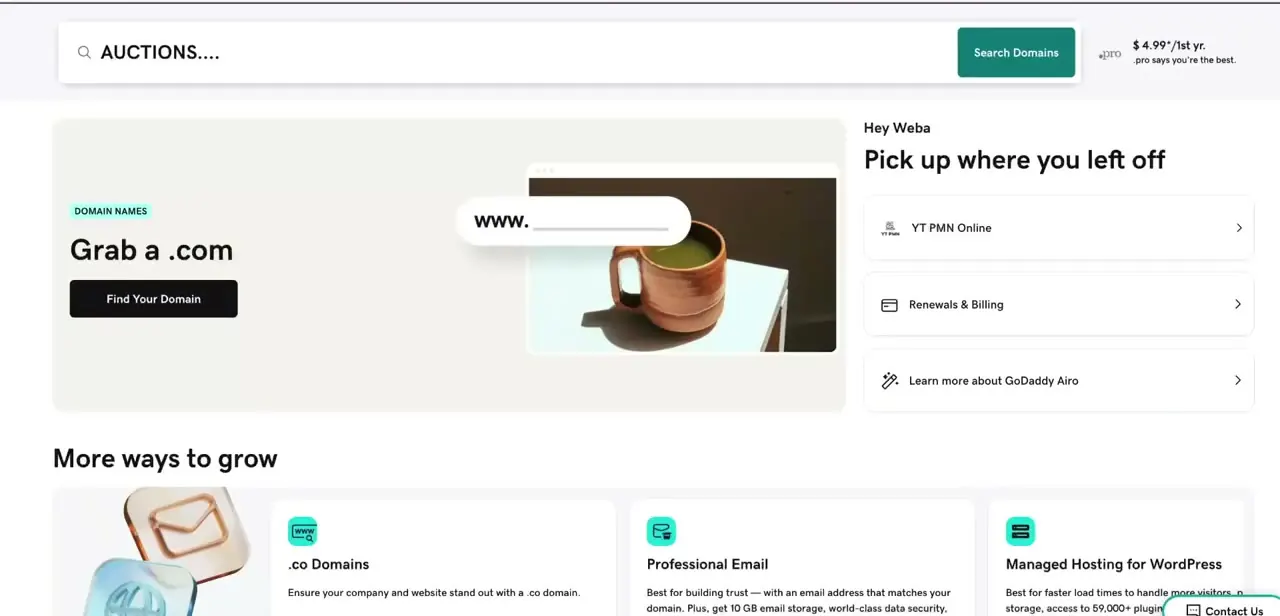
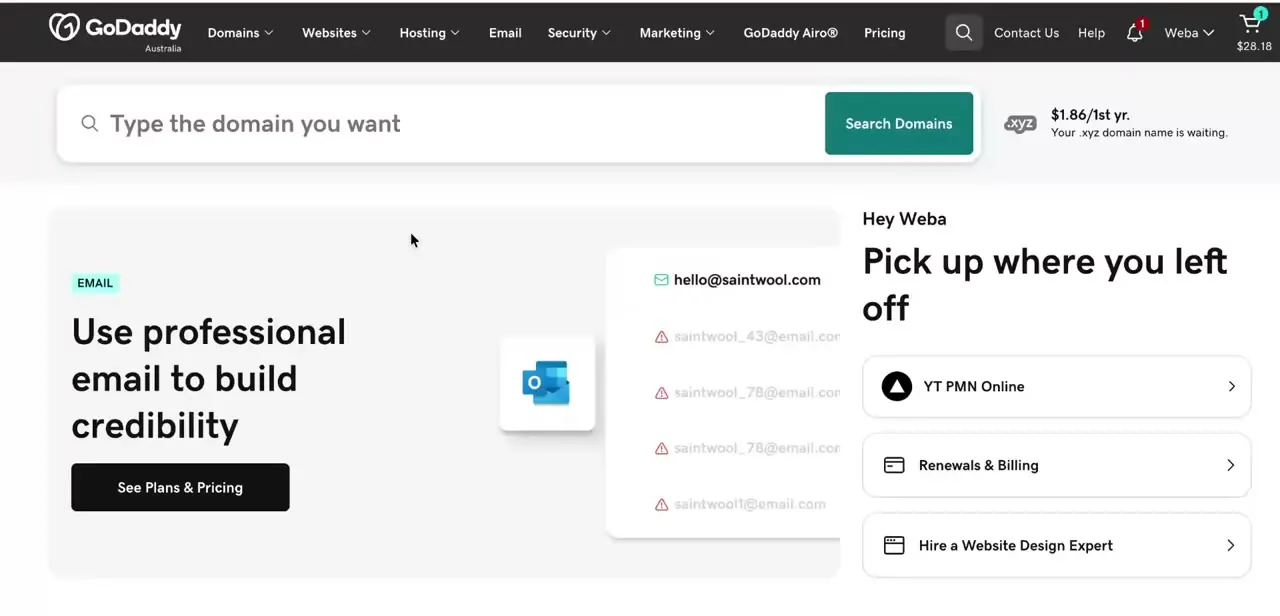
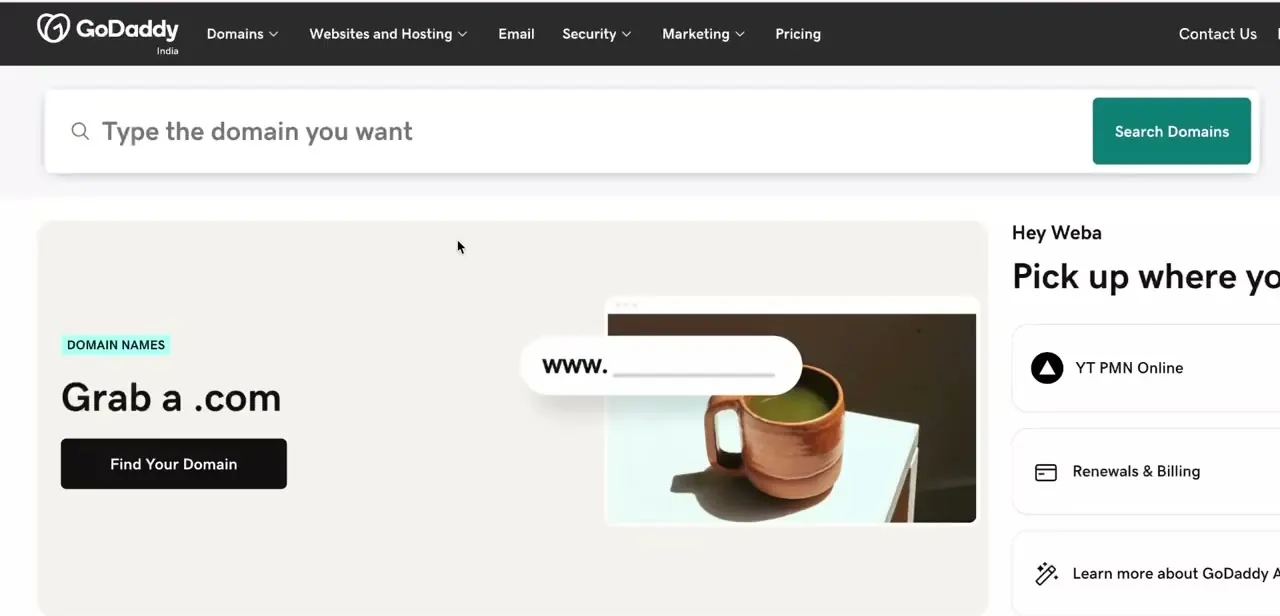
GoDaddy's homepage puts domain search front and center, with a "Grab a .com" panel and a personalized "Pick up where you left off" sidebar for returning users, showing shortcuts to an existing site, renewals and billing, and product tips. If you already own a domain and a site, that returning-user panel is the fastest way back into your project instead of navigating the full menu.
02Sign in to your account
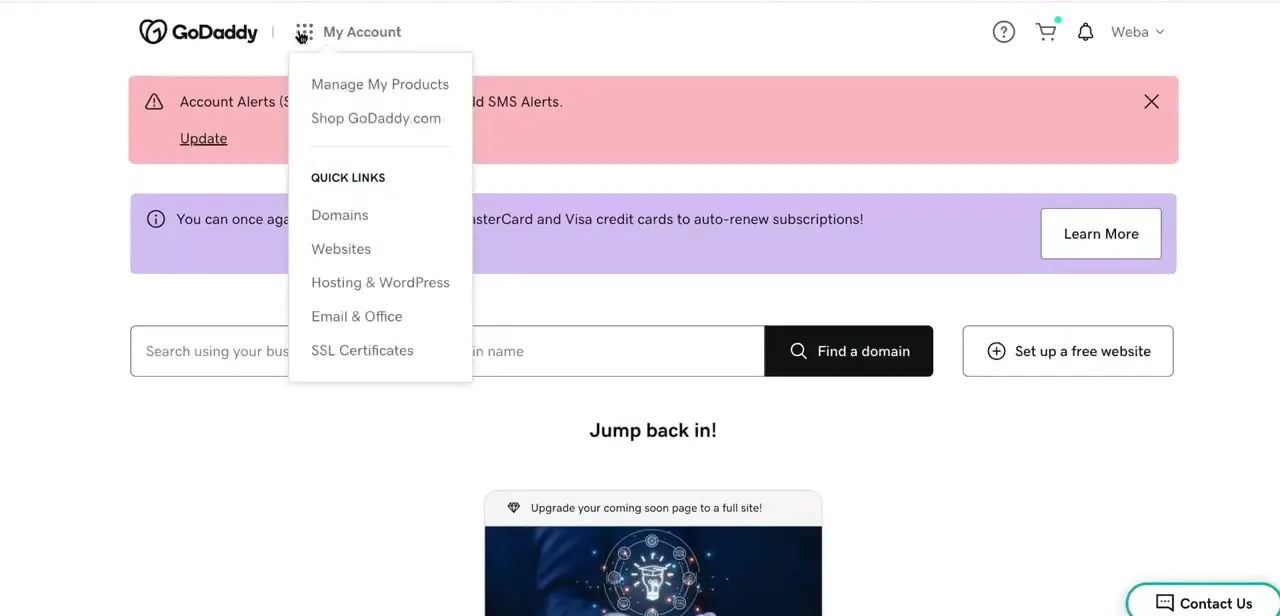
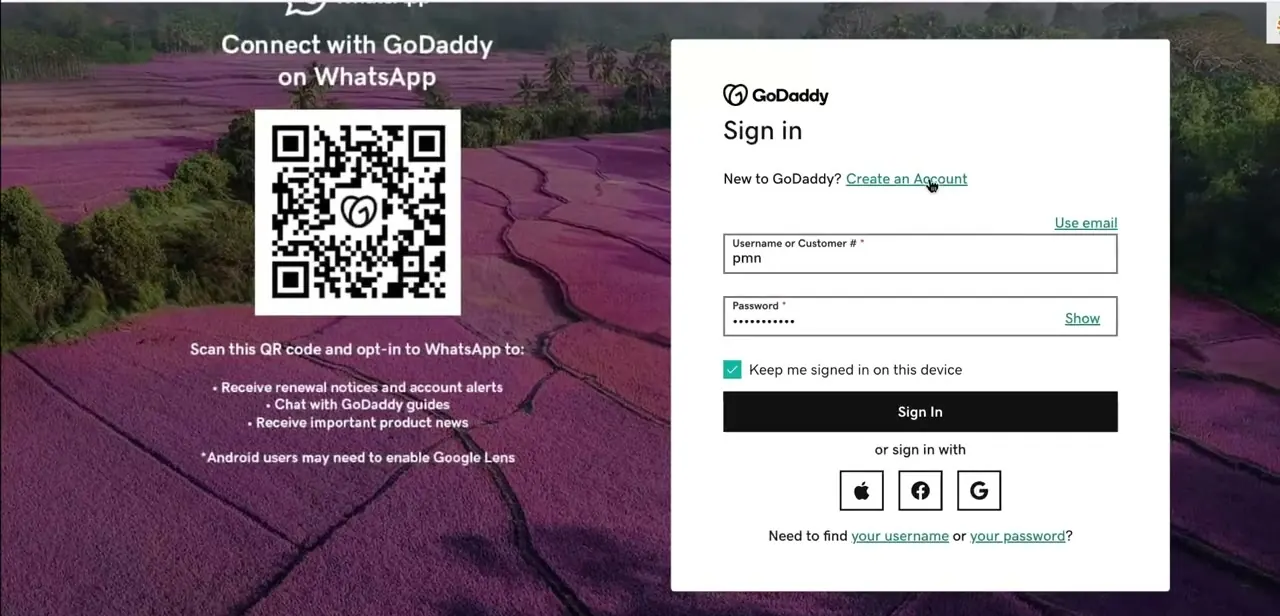
Enter your username or customer number and password, or use Apple, Facebook, or Google to sign in instead. Checking "Keep me signed in on this device" saves re-entering credentials each session, useful if you're the one regularly editing the site. Once signed in, GoDaddy routes you to the dashboard where your domains and sites live.
03Let Airo build a page from your domain
Open your site's editor, and GoDaddy's AI, branded Airo, offers to build your Coming Soon page automatically. Per GoDaddy's own help documentation, this is the entry point for Airo: publish a Coming Soon page first, then expand into a full site when you're ready.
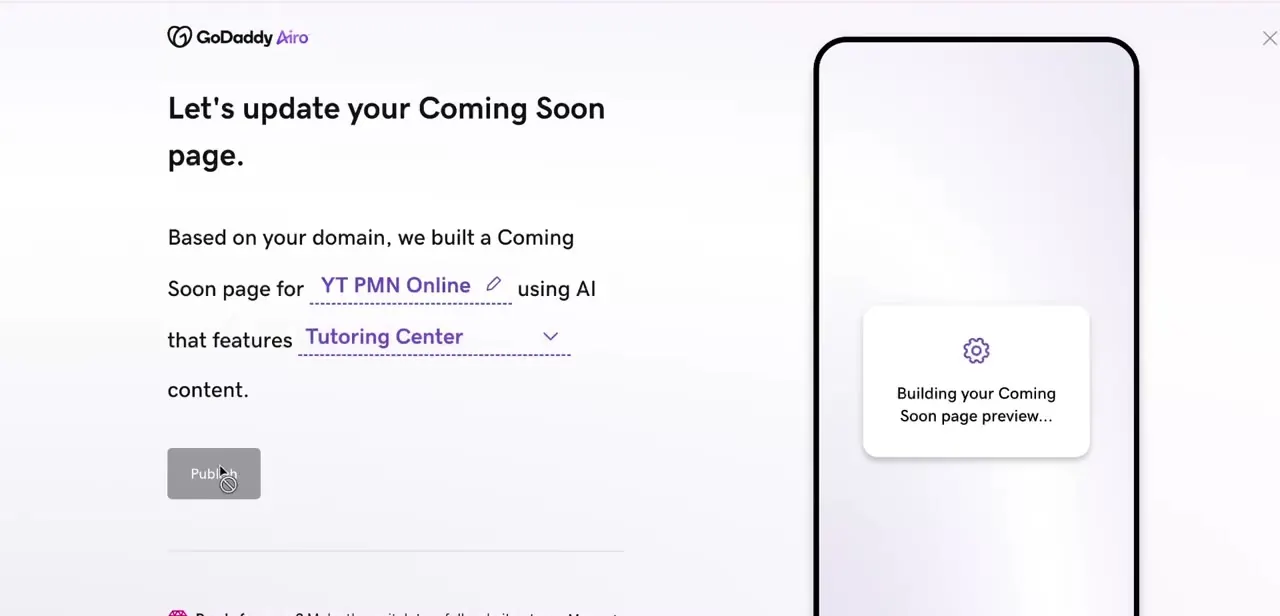
Airo reads your domain name and a business category you confirm or edit, in this case "YT PMN Online" paired with a "Tutoring Center" category, and generates matching page content before you write anything yourself. Editable fields are underlined so you can correct the business name or category if Airo guessed wrong, then click Publish to build the preview.
04Review the AI-generated preview
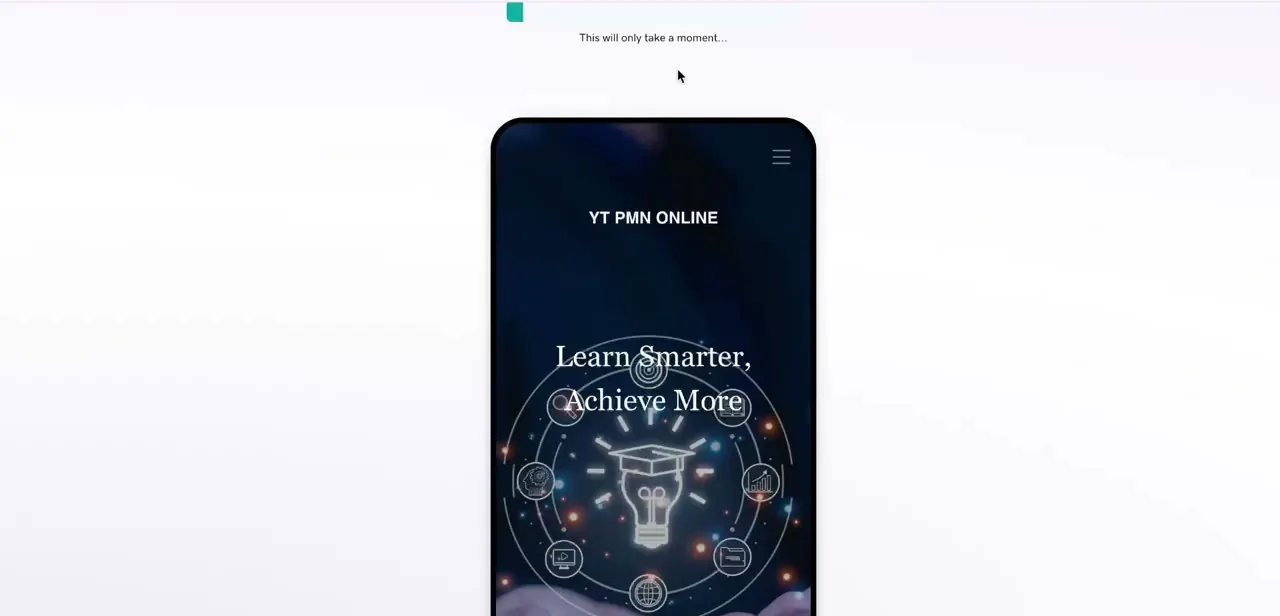
Airo renders the finished page inside a phone mockup so you can judge it the way a mobile visitor would: headline, background imagery, and icon set generated together as a set, not pieced together by hand. In the example here, Airo produced a dark hero section with the headline "Learn Smarter, Achieve More" and a ring of icons matching the tutoring theme it picked up from the business category. This is where you decide whether the first pass is close enough to keep editing, or different enough to regenerate.
05Edit text and sections you want to change
Anything Airo generates (headline, subhead, section copy) stays editable the normal way: click into the text and type over it, or ask Airo to rewrite a specific block if you want another AI pass instead of writing it yourself. GoDaddy's own guidance treats this as the point: you have full control to edit any part of it, the same as you would without AI. Swapping in your own voice for the headline and opening paragraph usually pays off even when the rest of the AI copy stays as it is.
06Publish once you're happy with the result
When the page reads the way you want, publish it from the same editor. Because Airo builds and previews before publishing, you're looking at the layout visitors will see, not a rough draft, so this is the point to double-check business details, contact info, and any placeholder text left in a generated section.
When it doesn't work
Airo doesn't show up anywhere in the dashboard
Why: GoDaddy is still rolling Airo out region by region, and as of its own documentation it currently supports English only.
Fix: Check back later, or build the site manually with a standard template in the meantime; nothing about editing without Airo is disabled.
Unsure whether using Airo will lock the site into an upgrade
Why: Confusion between the free Airo assistant bundled with a domain purchase and GoDaddy's separate, paid Airo AI Builder product, which is a different tool aimed at building custom apps and uses its own AI-credit plans.
Fix: The Coming Soon and website-editing workflow in this guide is the free, domain-bundled Airo. No upgrade is required to use it.
Frequently asked questions
Do I need coding skills to use GoDaddy's AI editing tools?
No. Airo is built into the website builder so beginners can generate and edit pages without touching code.
Can GoDaddy's AI write all my website content for me?
It generates a full first draft of text, headlines, and layout from your domain and business type, but most site owners still review and adjust the wording to match their own voice.
Do I need a paid GoDaddy plan to use Airo?
No. GoDaddy's documentation lists the Coming Soon and website-building version of Airo covered here as included with every new domain purchased through GoDaddy. A separate product, Airo AI Builder, does have its own paid plans, but it's a different tool for building custom apps.
Can I undo changes made with GoDaddy's AI tools?
Yes. Edit or replace any AI-generated text or section the same way you'd edit content manually, and nothing publishes until you click Publish.
Can I skip the AI and build the site myself?
Yes. GoDaddy's help documentation confirms this is optional: decline the Coming Soon prompt and build with templates as usual. If you change your mind, Airo stays available from the dashboard.
Is Airo available outside English?
Not yet, per GoDaddy's own help pages, which currently list it as English-only while the rollout continues.
Sources and last check
Click path and screens come from a recorded walkthrough. Re-checked against GoDaddy's own Airo help documentation in September 2026, which confirmed the Coming Soon page terminology and full editability of AI output, and which corrected an earlier vague claim that Airo access depends on "which builder plan" a site uses: the free Airo covered here ships with any new GoDaddy domain purchase, separate from GoDaddy's paid Airo AI Builder product.
About the author

Impran M N
I've been hooked on technology for as long as I can remember — especially the new tools and AI apps that seem to land every other week. Easy Tech Tuts is where I write up whatever I've just worked out: I do the task in the real product, record the screen, and turn it into the guide I wish I'd found first.