Easy Tech Tuts
How to Solve Domain is Locked at the Current Registrar Error: Godaddy to Hostinger Domain Transfer
By Impran M NLast checked against official docs
The "Domain is locked at the current registrar" error shows up the moment you try to move a domain from GoDaddy to Hostinger before GoDaddy's own lock has been switched off. It looks alarming the first time you see it, but it's really Hostinger telling you which of three requirements hasn't been met yet. This guide walks through Hostinger's transfer checklist, where to find and change the lock setting on the GoDaddy side, and how to get the authorization code the transfer actually needs, including a detail both companies' own support pages are clear about but that trips people up anyway: GoDaddy shows you that code, it doesn't just email it.
Before you start
- The domain must be at least 60 days past its initial registration or last transfer
- Access to the GoDaddy account the domain is registered under, since only that account can unlock it and release the code
01Start the transfer from Hostinger's Domains menu
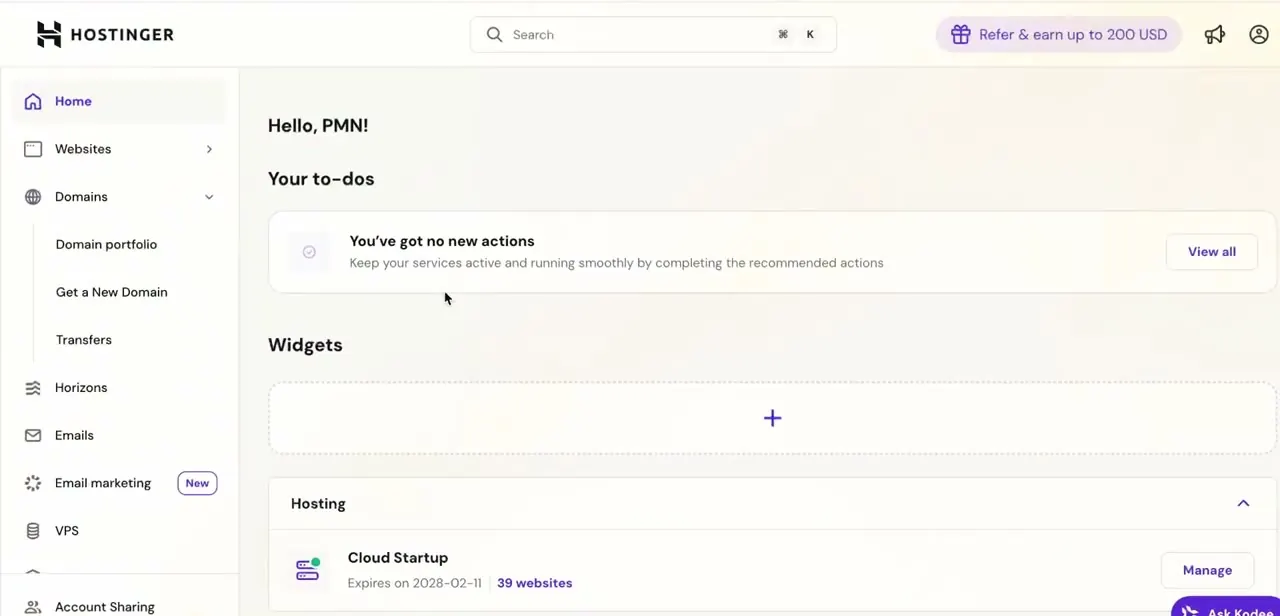
In hPanel, open Domains in the left sidebar and expand it to reveal Domain portfolio, Get a New Domain, and Transfers. Click Transfers: this is the page that both starts a new incoming transfer and shows you exactly what's blocking one, before you even enter a domain.
02Read the three transfer requirements
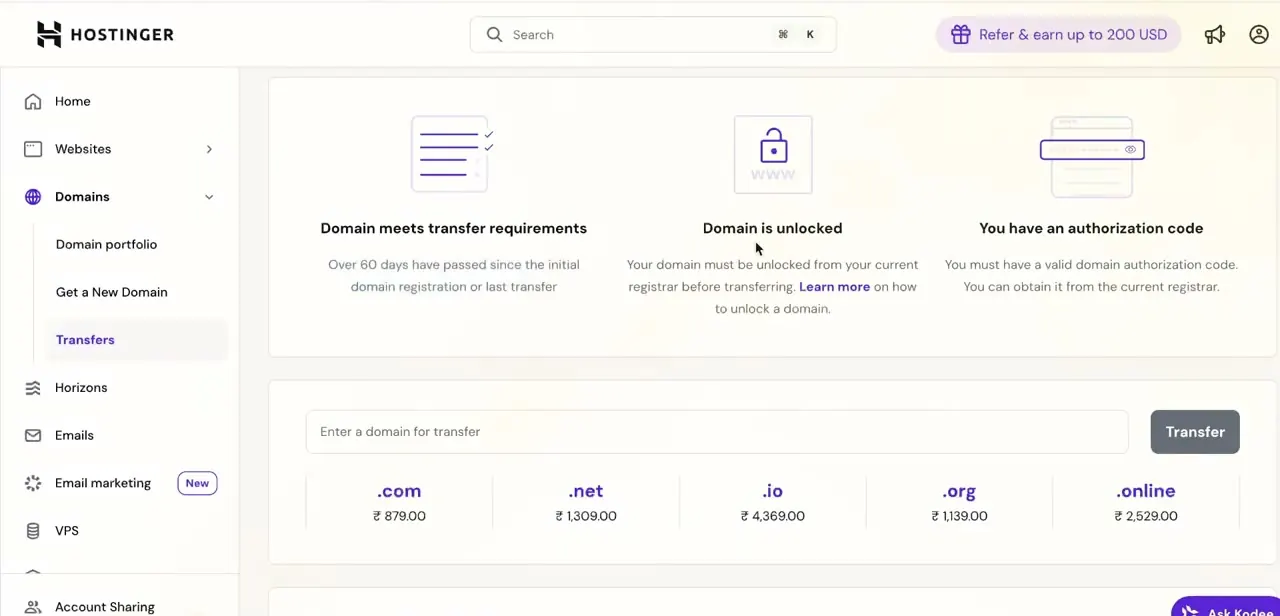
The Transfers page lays out what Hostinger checks before it accepts an incoming domain: that at least 60 days have passed since the domain's initial registration or last transfer, that the domain is unlocked at its current registrar, and that you have a valid authorization code. The lock error means specifically the middle one, "Domain is unlocked," hasn't been satisfied yet, and Hostinger links directly to instructions for unlocking it from your current registrar.
03Find the domain lock setting in GoDaddy
Log in to GoDaddy and open the Domain Portfolio. Select the domain's three-dot menu and choose Turn Lock Off.
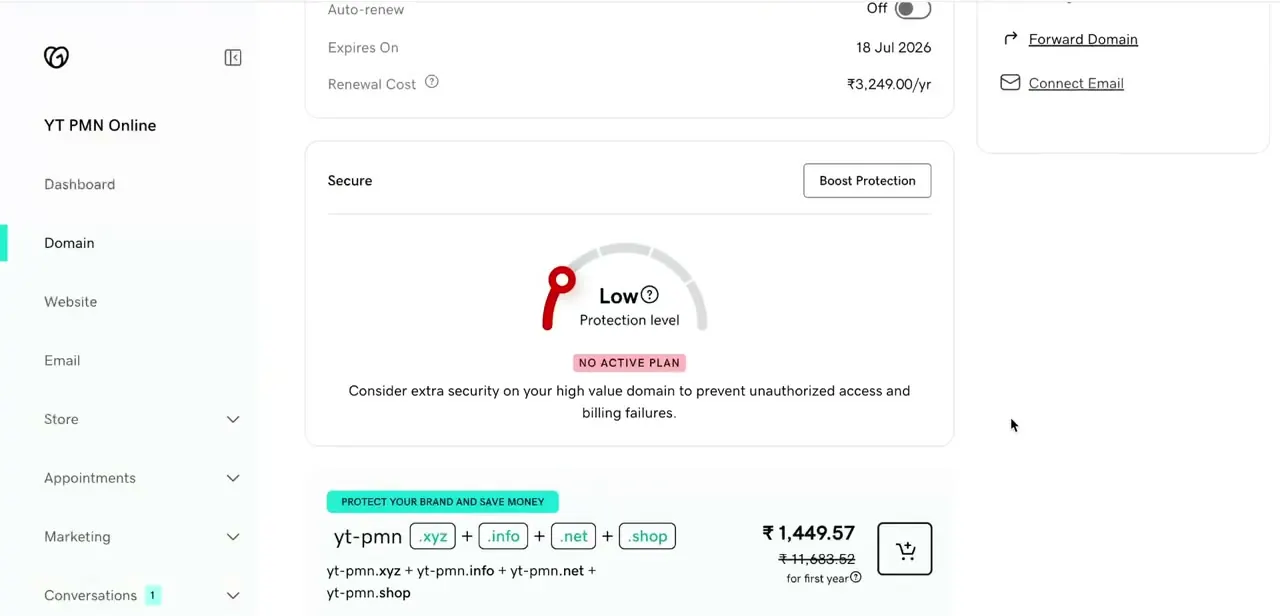
You'll also see details like its expiry date, auto-renew status, and renewal cost on the domain's own page, with a Secure section showing its current protection level; the lock toggle sits alongside those. GoDaddy locks domains by default specifically to prevent unauthorized transfers, so needing to switch it off here is expected, not a sign anything is wrong with the domain.
04Get the EPP code and turn off domain privacy in the same GoDaddy screen
With the domain unlocked, open the domain's Domain Settings in GoDaddy and look under Additional Settings for Transfer domain away from GoDaddy. Selecting it, then Click here to see Authorization Code, displays the EPP code directly on screen, where you can copy it.
GoDaddy also sends the same code to the account's registered email as a backup, so check there if the on-screen step doesn't work, but the code isn't email-only the way some guides describe it. While you're in Domain Settings, disable domain privacy protection if it's turned on. Hostinger's own transfer guide flags this as something to do at this point, not just a fix for later, since privacy protection can stop the transfer confirmation from reaching the domain's actual contact address.
05Return to Hostinger and submit the transfer
Back on Hostinger's Transfers page, enter the domain and select Transfer domain to Hostinger. With the lock off and the EPP code in hand, the three requirements should now show as met, and Hostinger will guide you through entering the authorization code and confirming the move. The transfer itself isn't instant; expect it to take several days to fully complete on the registry side, but the lock error specifically should no longer block you from starting it.
When it doesn't work
The lock error still shows after switching Turn Lock Off in GoDaddy
Why: The domain is inside the 60-day window since its last registration or transfer, when GoDaddy won't allow unlocking regardless of the toggle.
Fix: Check the domain's registration or last-transfer date against the 60-day requirement on Hostinger's Transfers page before assuming the unlock itself failed.
The EPP code doesn't arrive by email and the on-screen copy didn't get saved
Why: GoDaddy shows the code once on screen when you select Click here to see Authorization Code; if you didn't copy it then and the email hasn't landed, there's nothing further to wait for.
Fix: Go back through Domain Settings > Additional Settings > Transfer domain away from GoDaddy and generate the on-screen code again, checking spam for the backup email.
Hostinger never sends a transfer confirmation to approve
Why: Domain privacy protection was still enabled on the GoDaddy side, so the confirmation email went to a masked address instead of the real contact.
Fix: Turn off domain privacy in GoDaddy's Domain Settings, then restart the transfer from Hostinger's Transfers page.
Frequently asked questions
Why does GoDaddy show a domain lock error during transfer?
Domain locking is a default security feature that prevents unauthorized transfers, and it must be manually disabled in the domain's GoDaddy settings, via Turn Lock Off in the domain's three-dot menu, before a transfer to another registrar can proceed.
Does disabling domain lock make my domain less secure?
Temporarily, yes, since it removes a layer of protection against unauthorized transfers. It's best to complete the transfer soon after unlocking instead of leaving it unlocked indefinitely.
Where do I get the authorization code from GoDaddy?
From the domain's Additional Settings, under Transfer domain away from GoDaddy. Selecting Click here to see Authorization Code shows it directly on screen, and GoDaddy also emails the same code to the account's registered address as a backup.
What if the transfer still fails after unlocking?
Check that the EPP code is correct and current, that domain privacy is off, and that the domain meets Hostinger's 60-day minimum since registration or last transfer. These are the other common blockers on the Transfers requirements list.
Do I need to disable domain privacy every time I transfer away from GoDaddy?
If it's enabled, yes. Hostinger's own transfer guide has you turn it off at the same point you get the EPP code, since an active privacy service can keep the transfer confirmation email from reaching the domain's real contact address.
Sources and last check
Click path and hPanel screens come from a recorded GoDaddy-to-Hostinger transfer. The EPP-code and domain-privacy steps were re-checked against Hostinger's own transfer and EPP-code support pages in September 2026, which corrected this guide's earlier claim that GoDaddy only emails the code: GoDaddy displays it on screen and emails it as a backup, and disabling domain privacy is meant to happen alongside that step, not only if the transfer later stalls.
About the author

Impran M N
I've been hooked on technology for as long as I can remember — especially the new tools and AI apps that seem to land every other week. Easy Tech Tuts is where I write up whatever I've just worked out: I do the task in the real product, record the screen, and turn it into the guide I wish I'd found first.