Easy Tech Tuts
How to Connect Godaddy Domain to Namecheap Hosting on Easywp for Free Easily 2026
By Impran M NLast checked against official docs
You don't need to transfer a domain away from GoDaddy just to host it on Namecheap's EasyWP platform. You can keep the domain registered where it is and simply point its DNS at your new hosting. This guide follows the actual screens involved: picking an EasyWP plan, finding the DNS settings inside GoDaddy, and entering the values that make your domain resolve to the new host instead of GoDaddy's own parking page.
Before you start
- Admin access to the GoDaddy account that owns the domain, with permission to edit its DNS records
- A Namecheap account to sign up for EasyWP hosting (this guide creates the plan as part of the walkthrough)
01Log in to your GoDaddy account
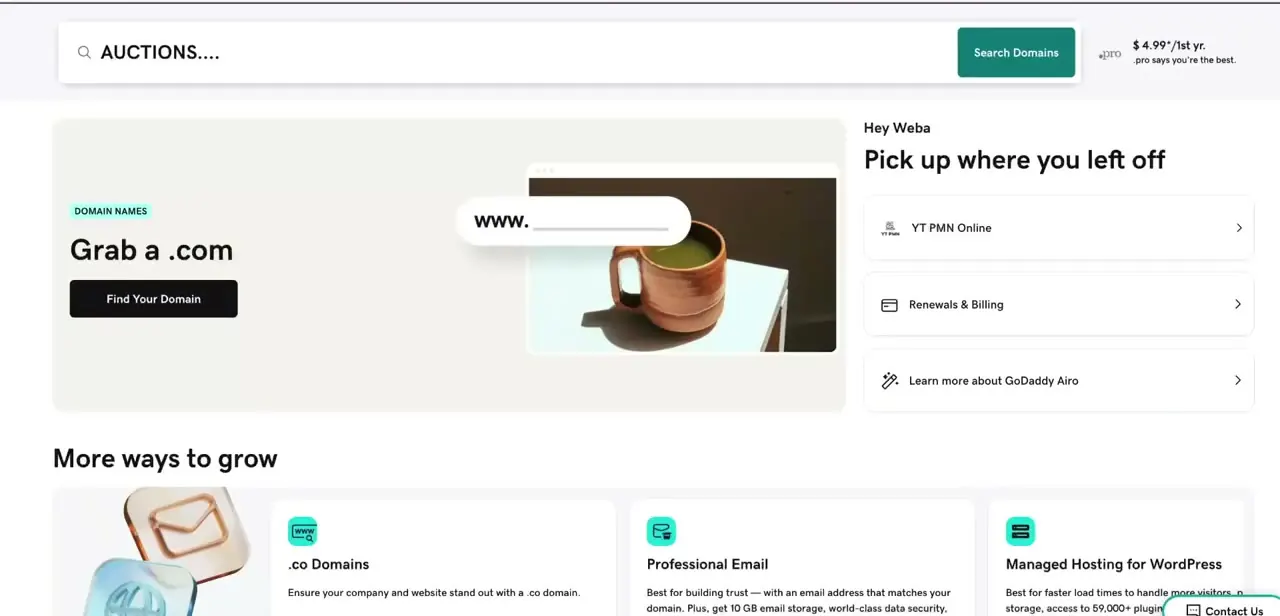
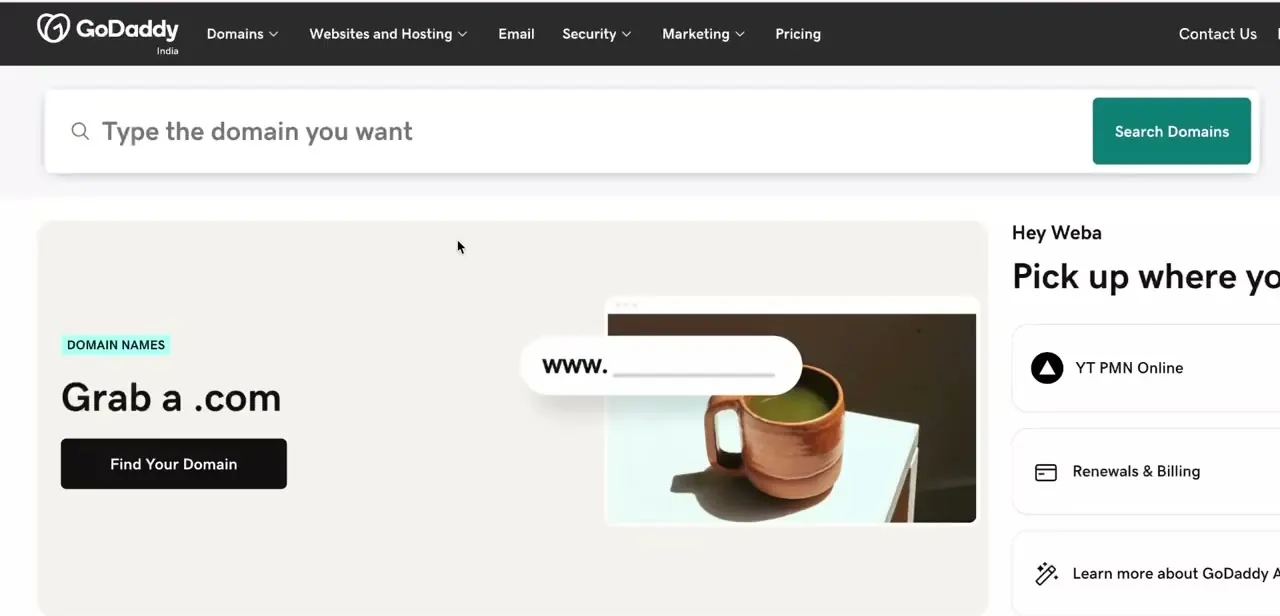
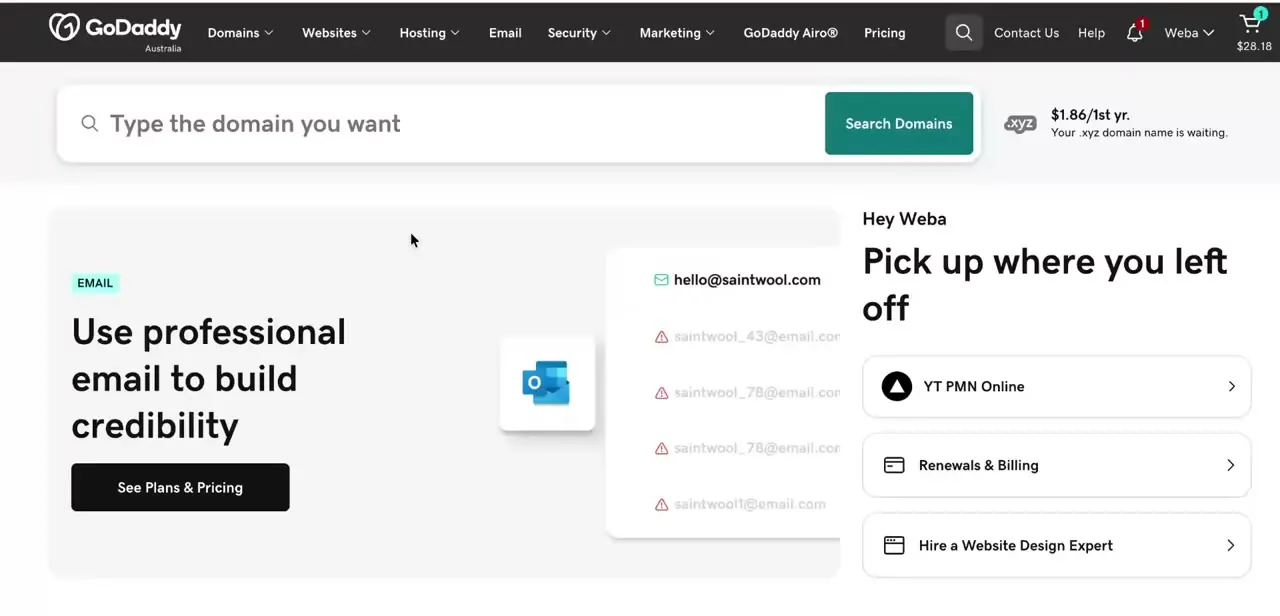
Sign in at GoDaddy and land on your account dashboard, which greets you by name and surfaces shortcuts like Renewals & Billing and any domains or products you manage. You don't need to touch anything here yet. This is just confirmation you're logged into the account that owns the domain you're about to repoint, which matters if you manage multiple GoDaddy logins for different projects.
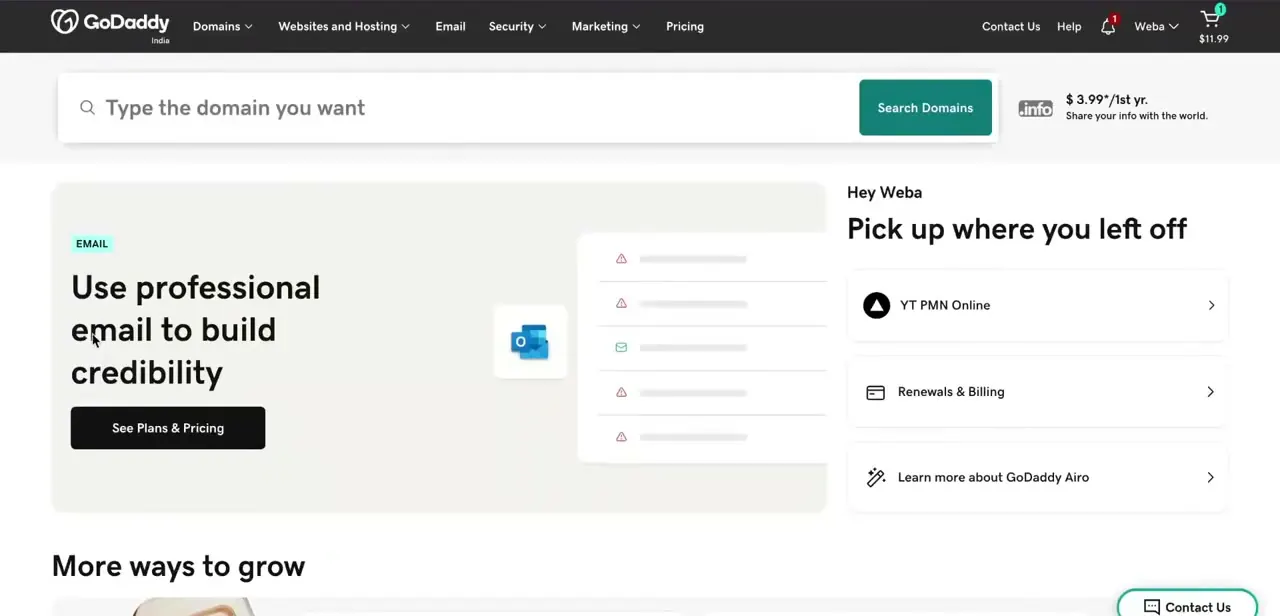
02Choose an EasyWP hosting plan on Namecheap
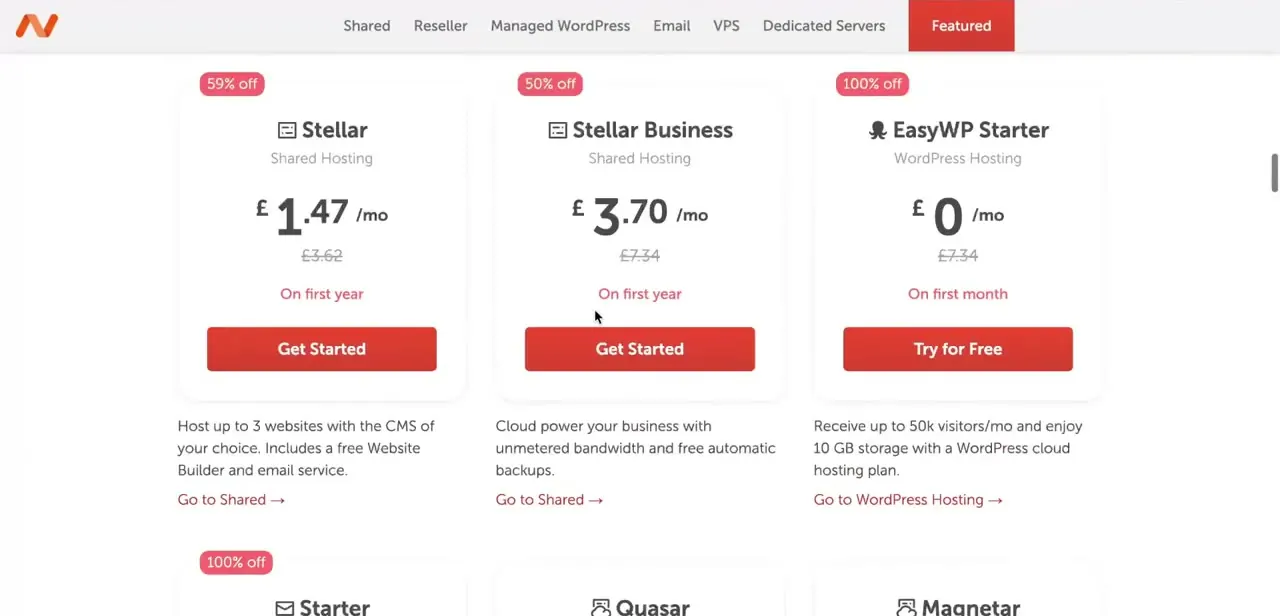
Before you can point anything at EasyWP, you need a live plan. Namecheap's hosting page lists several tiers side by side: Stellar and Stellar Business shared hosting, and EasyWP Starter, a WordPress cloud plan with a 50,000 monthly visitor allowance and 10GB storage.
The Starter plan on Monthly billing carries a 30-day free trial with no card required, limited to one trial per household; after that it renews at its regular rate. Click Try for Free on EasyWP Starter (or whichever tier fits your traffic) and complete signup. You'll need this plan active before GoDaddy's DNS settings have anywhere real to point to.
03Get the connection details from EasyWP
Once your EasyWP site is created, its setup summary shows the site's default address, its subscription tier, and the starting theme. From here, use EasyWP's domain settings to switch to your GoDaddy domain; it will show you which DNS record to add and its value.
That value is specific to your site (EasyWP hands each account a unique address, not the same one every guide can print), so copy it from your own dashboard rather than reusing a value from somewhere else. A typo here is the single most common reason a domain 'connects' but the site never loads.

04Open your domain's DNS settings in GoDaddy
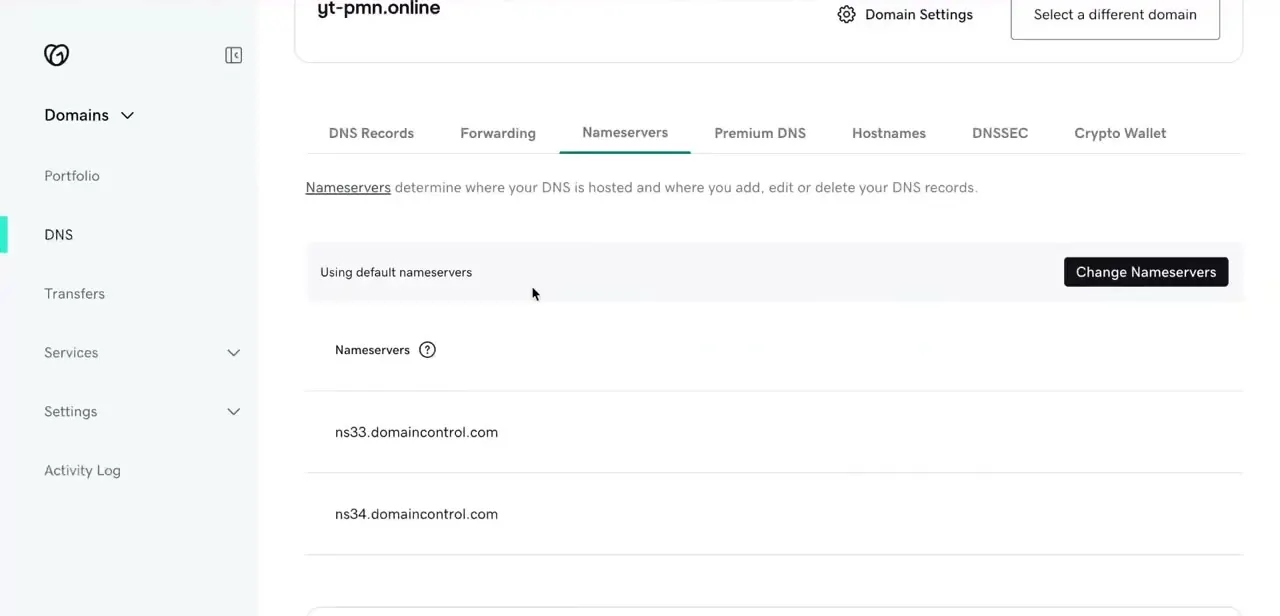
Back in GoDaddy, go to Domains > DNS for the domain you're connecting. You'll land on a page with tabs for DNS Records, Forwarding, Nameservers, Premium DNS, Hostnames, DNSSEC, and Crypto Wallet.
The Nameservers tab shows whether you're 'Using default nameservers,' GoDaddy's own, like ns33.domaincontrol.com and ns34.domaincontrol.com. For this method you're staying on GoDaddy's nameservers and just editing DNS Records, not changing nameservers wholesale, so click over to the DNS Records tab instead of Change Nameservers.
05Add records for both the root domain and www
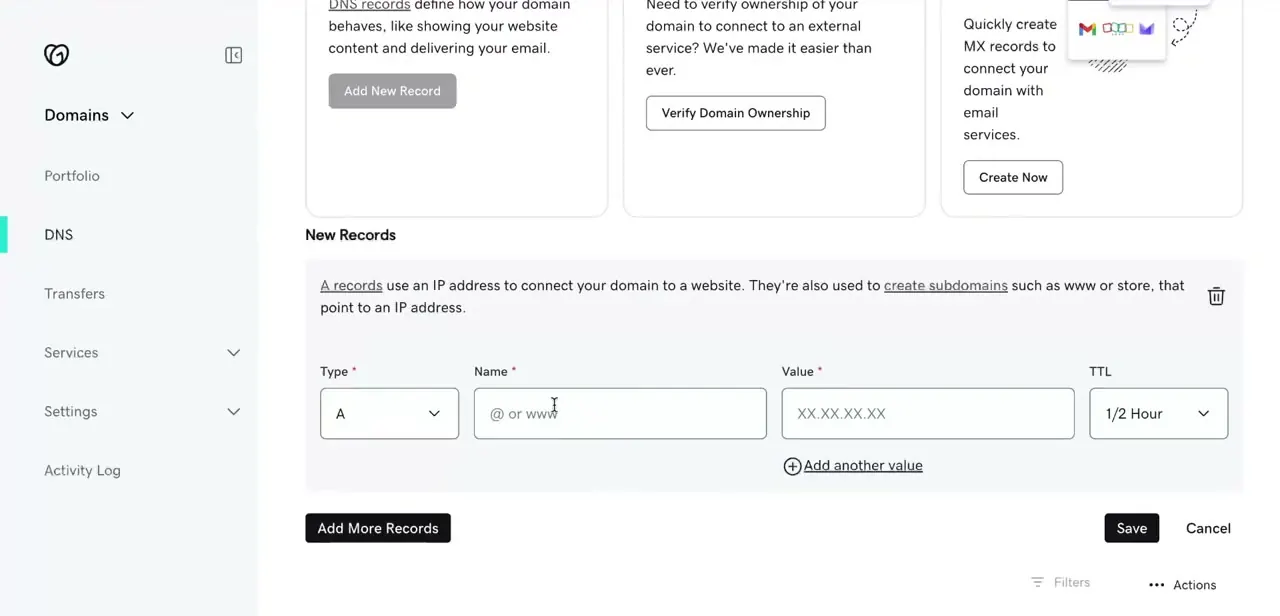
On the DNS Records tab, click Add New Record. GoDaddy's own form hints at what's needed: the Name field takes '@ or www', meaning you'll likely add this twice.
Set Type to A, Name to @ for the root domain, and paste the IP address EasyWP gave you into Value. Then repeat for Name www, using whatever EasyWP's own screen showed for that host (often a second A record, sometimes a CNAME, depending on your setup).
Namecheap's own instructions for connecting a third-party domain describe exactly this: an A record for the bare domain plus a matching record for www, since GoDaddy's standard record types don't include the ALIAS/ANAME type EasyWP prefers. Leave TTL at its default of half an hour unless you're actively testing and want caches to refresh faster.
06Save, wait for propagation, and verify
Click Save once the records are filled in. DNS propagation isn't instant; it can take anywhere from a few minutes to around 24-48 hours to fully reach every network, though most visitors typically see the change within a couple of hours.
Avoid making further DNS edits during this window, since repeated changes can restart the caching clock in some locations. Once you believe propagation has had time to settle, load your domain in a private or incognito window to avoid a cached copy of the old GoDaddy parking page.
Check both the bare domain and the www version; if only one loads, the other's record is likely still missing or mistyped. If neither resolves after a day, double-check each record's Value field against the exact value EasyWP gave you.
When it doesn't work
The bare domain loads the site but www doesn't, or the other way around
Why: Only one of the two records, @ or www, was created. GoDaddy treats them as separate entries, and EasyWP needs a value for both if both versions of the domain should work.
Fix: Add the missing record using the matching value from EasyWP's own domain-connection screen for that host.
There's no ALIAS or ANAME option in GoDaddy's Add New Record form
Why: EasyWP's preferred method for third-party domains uses an ALIAS record, but GoDaddy's standard DNS Records tab only exposes types like A, CNAME, MX, and TXT.
Fix: Use the documented fallback instead: an A record for the root domain plus a second record for www, both using the values EasyWP's dashboard provides.
The site still shows GoDaddy's parking page after 48 hours
Why: Almost always a mistyped IP address or hostname in the Value field, less often propagation genuinely still in progress.
Fix: Compare the Value field character by character against what EasyWP's dashboard shows, then recheck in a private browser window.
Frequently asked questions
Do I need to transfer my domain from GoDaddy to connect it to EasyWP?
No. You can keep the domain registered at GoDaddy and point its DNS records to Namecheap's EasyWP hosting instead.
Is this connection method really free?
Editing DNS records at GoDaddy costs nothing extra. EasyWP itself offers a 30-day free trial on the Monthly Starter plan, no card required and one trial per household, then renews at its normal rate afterward.
How long before my site is live on the new hosting?
It depends on DNS propagation, which can take anywhere from a few minutes to around a day or two depending on your domain, DNS provider, and location.
Should I change nameservers instead of just editing DNS records?
Not for this method. Changing nameservers hands full DNS control to the new host; editing DNS Records keeps GoDaddy's nameservers in place while pointing the site itself at EasyWP, which is simpler if you still manage email or other records through GoDaddy.
Why do I need a record for both my domain and www?
GoDaddy doesn't support the ALIAS record type EasyWP prefers for third-party domains, so each host needs its own record: one for the root domain (@) and one for www. Skipping one leaves that version of the address unresolved.
Will my email still work after changing DNS?
It depends on whether your email uses MX records tied to the same domain. Editing only the A records for @ and www generally leaves MX records untouched, but check them before making changes to avoid disrupting existing email.
Sources and last check
Click path and screens come from a recorded walkthrough. EasyWP's third-party domain connection method, GoDaddy's supported DNS record types, and the EasyWP Starter trial terms were checked in September 2026 against Namecheap's official support pages. That check added a correction the original draft skipped: connecting a GoDaddy-registered domain needs separate records for the root domain and www, since GoDaddy doesn't expose the ALIAS record type EasyWP prefers, and the offer is a 30-day free trial on Monthly billing rather than simply 'free for a month'.
About the author

Impran M N
I've been hooked on technology for as long as I can remember — especially the new tools and AI apps that seem to land every other week. Easy Tech Tuts is where I write up whatever I've just worked out: I do the task in the real product, record the screen, and turn it into the guide I wish I'd found first.