Easy Tech Tuts
How to Change Language in GoDaddy Website, Emails, Domains to English & Other Easily 2026
By Impran M NLast checked against official docs
GoDaddy sometimes defaults new accounts to a language based on your location or the browser you signed up with, which can make the dashboard feel unfamiliar even though nothing about your domain or hosting has changed. The language setting isn't buried in a profile menu the way most account preferences are; it's a small selector in the site footer, easy to miss and easy to find once you know where to look. This guide covers that switch, plus the separate setting that controls the language of GoDaddy's automated emails, since the two aren't tied together.
01Sign in to your GoDaddy account
Go to godaddy.com and sign in with your username or customer number and password. You can also sign in with Apple, Facebook, or Google if your account is linked that way. Signing in first matters because the language selector applies to the account you're logged into, not just the page you happen to be viewing.
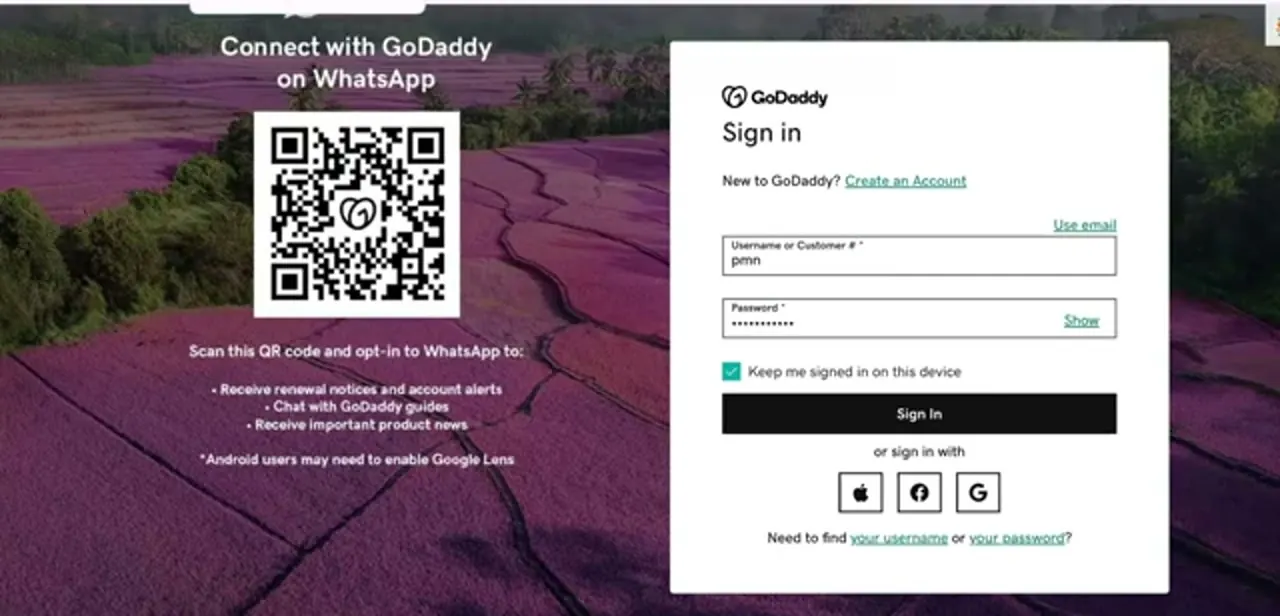
02Open the language selector in the site footer
Scroll to the bottom of any godaddy.com page and look for the current country and language pairing, shown as something like "United States - English." Click it to open a list of supported country and language combinations, then pick the one you want. GoDaddy updates the account and product interfaces to match as soon as you select it, without a separate save step.
03Land on the My Account dashboard
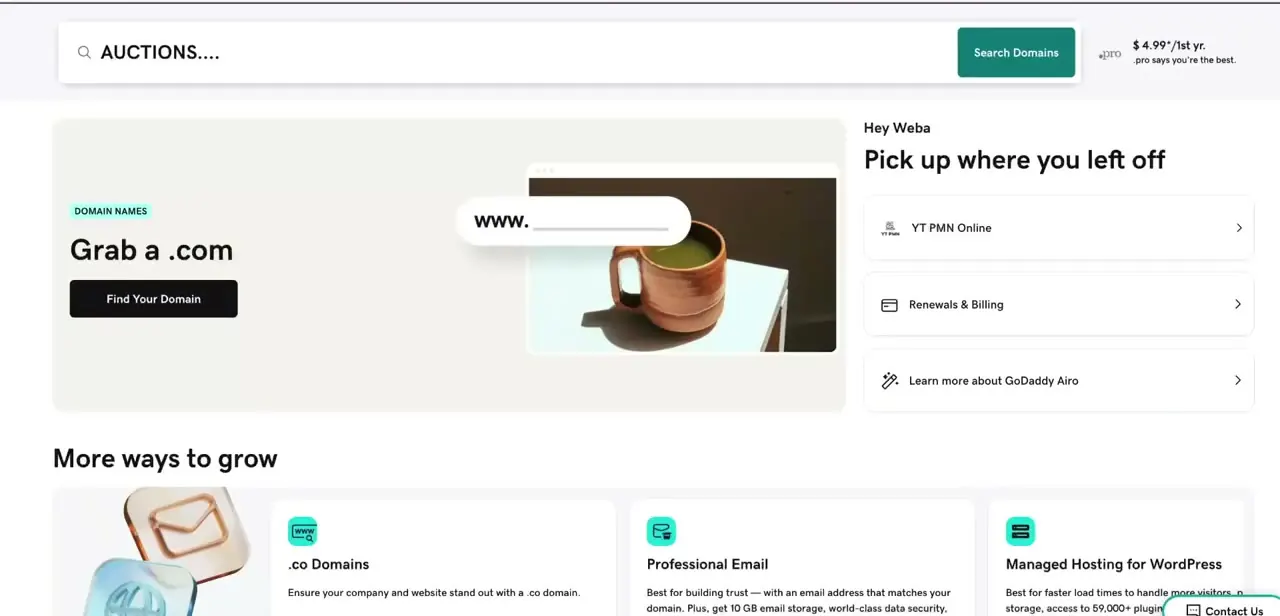
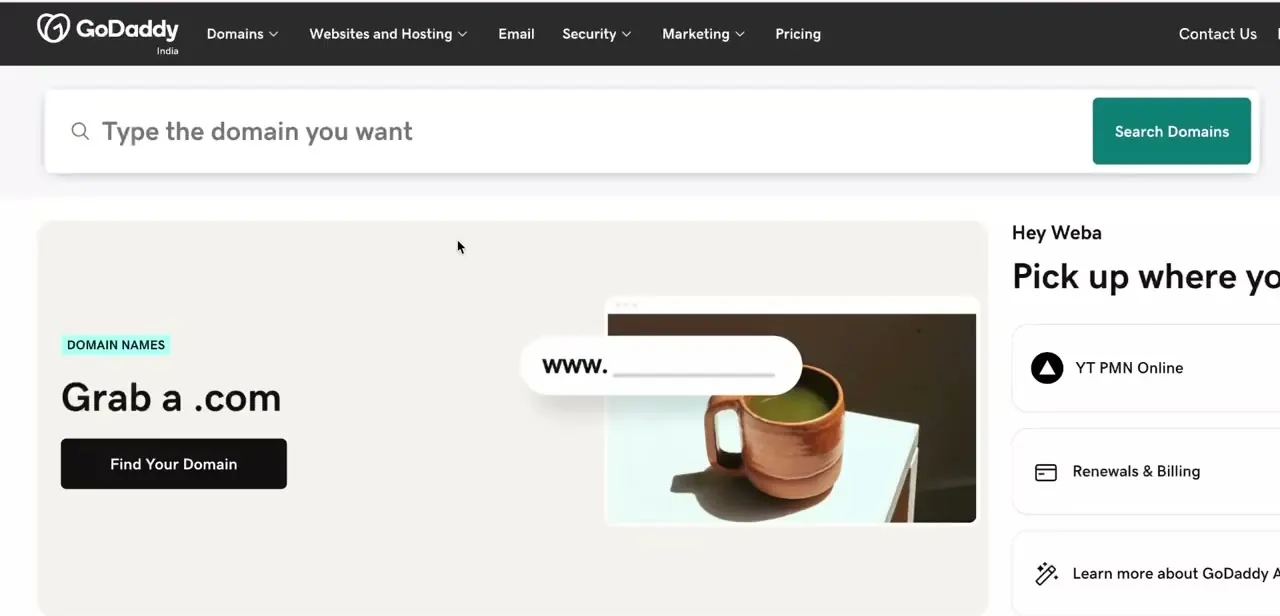
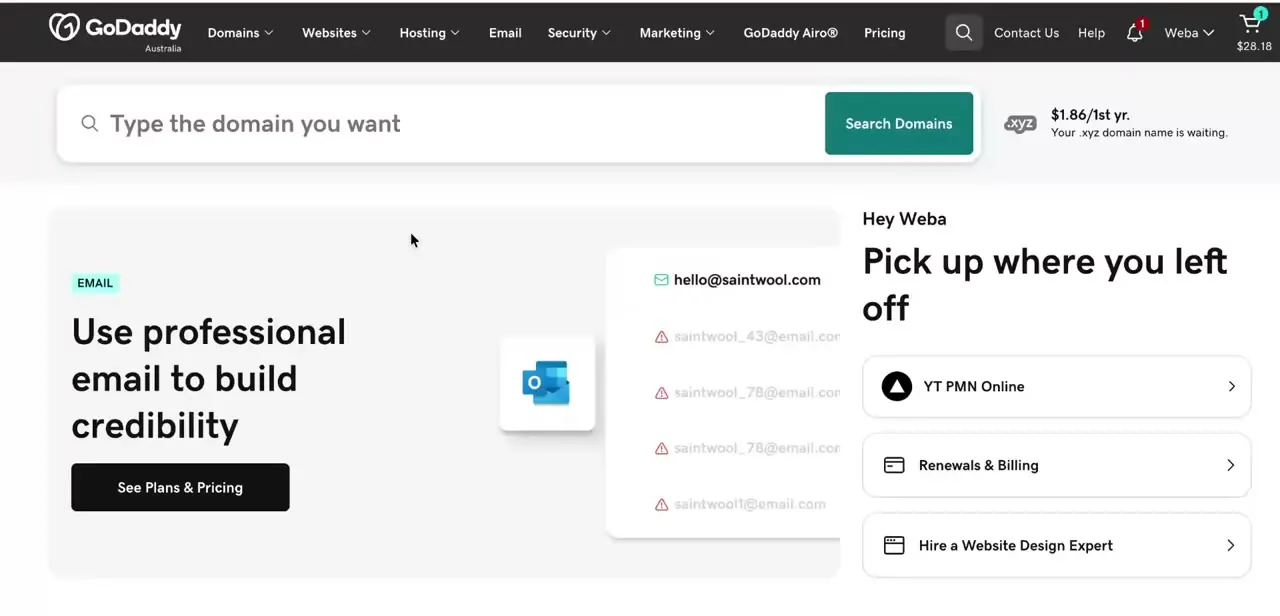
After the switch, sign back in if prompted and you'll arrive at My Account, GoDaddy's hub for domains, hosting, email, and billing, now displayed in the language you chose. Any banners about SMS alerts or payment methods you see here are unrelated to language; they're separate account notices.
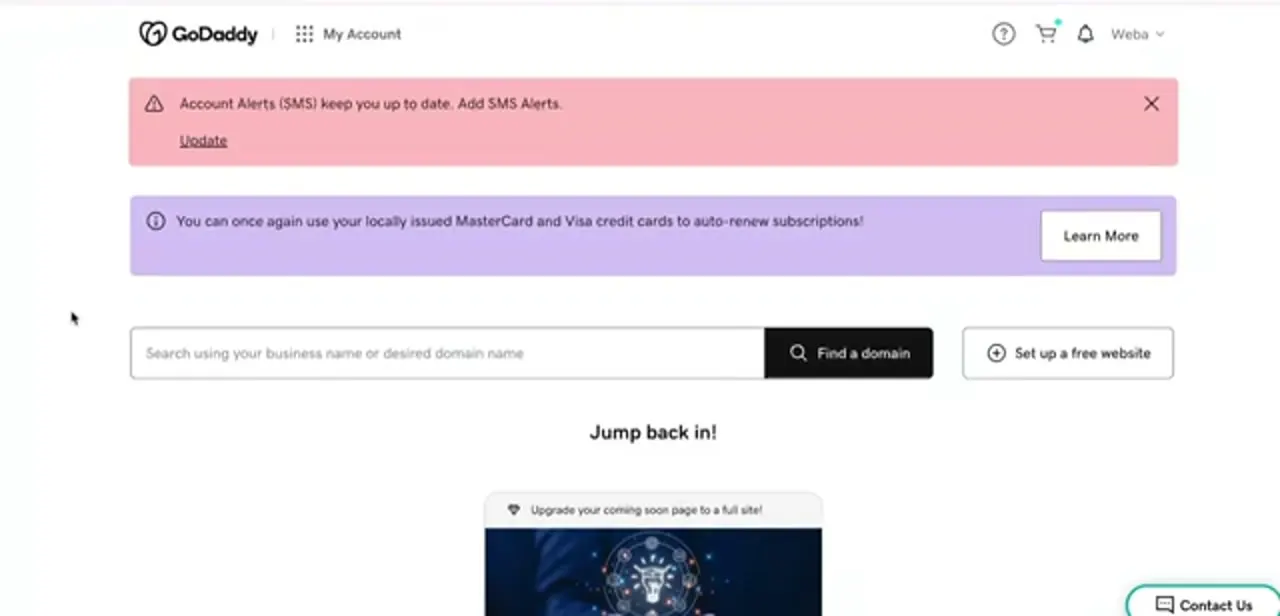
04Set a separate language for GoDaddy's emails
The dashboard language and the language of GoDaddy's automated emails aren't controlled by the same toggle. To change what renewal reminders, security notices, and domain expiration emails arrive in, go to your Contact Preferences page, select Language from the list, choose your country and language, and save. Watch the next automated email to confirm it landed in the language you picked.
05Verify billing and account details display correctly
Head back into Billing under My Account and confirm invoices, payment method labels, and renewal terms now display in your chosen language. This matters most if you're managing the account for a client or team in a different region, since you want what they see on an invoice to match the dashboard, not a mix of both.
Frequently asked questions
Where exactly is the GoDaddy language setting?
In the footer of any godaddy.com page. Click the country and language pairing shown there (for example "United States - English") and choose a different one from the list. It applies immediately to your signed-in account.
Will changing my GoDaddy language affect my domain settings?
No. Changing the display language only changes how information is presented to you. It doesn't alter DNS records, nameservers, or any other domain configuration.
Does changing my dashboard language also change the emails GoDaddy sends me?
No, those are separate settings. Set the email language on your Contact Preferences page, under Language, independently of the footer selector.
Does this change affect emails sent to my customers?
No. This setting controls your own account and dashboard language. It doesn't change the language of any store, site, or emails you send to your own customers.
Why would my account default to a different language?
GoDaddy often sets an initial language based on your location or browser settings at signup, which is why it can show a language you didn't explicitly choose.
Sources and last check
Sign-in and dashboard screens come from a walkthrough recorded in July 2025. The location of the language setting was re-checked against GoDaddy's Help Center in September 2026: it previously described the setting as living under an account-menu profile or preferences tab. It's a country-and-language selector in the site footer, applied instantly with no separate save step, which this version now reflects. The separate email-language control on the Contact Preferences page was confirmed the same way.
About the author

Impran M N
I've been hooked on technology for as long as I can remember — especially the new tools and AI apps that seem to land every other week. Easy Tech Tuts is where I write up whatever I've just worked out: I do the task in the real product, record the screen, and turn it into the guide I wish I'd found first.