Easy Tech Tuts
How to Cancel Domain and Get Refund From Godaddy 2026 Easily
By Impran M NLast checked against official docs
Buying a domain by mistake, or realizing you no longer need one, is common enough that GoDaddy has a defined refund process for it, but the process only works if you check the right terms first. Domain name purchases don't follow GoDaddy's general refund schedule; they have their own, shorter one, and it varies by TLD.
Leave auto-renewal on while you sort out the cancellation, and you can get charged again before anything is resolved. This guide walks through checking the refund window that actually applies to domains, turning off auto-renewal, deleting the domain, and requesting the refund itself through GoDaddy's live chat support, using the same domain portfolio and chat screens you'll see in your own account.
Before you start
- Access to the GoDaddy account that owns the domain; cancellation and refund requests need to come from the account holder
01Find the domain in your account
Log in to GoDaddy and open your Domain Portfolio, then select the specific domain you want to cancel. This opens the domain's own settings page, which is also where you'll do most of the rest of the work in this guide: renewal settings, DNS, and the delete option for that one domain all live here rather than in a general account menu.
02Check the refund window that actually applies to domains
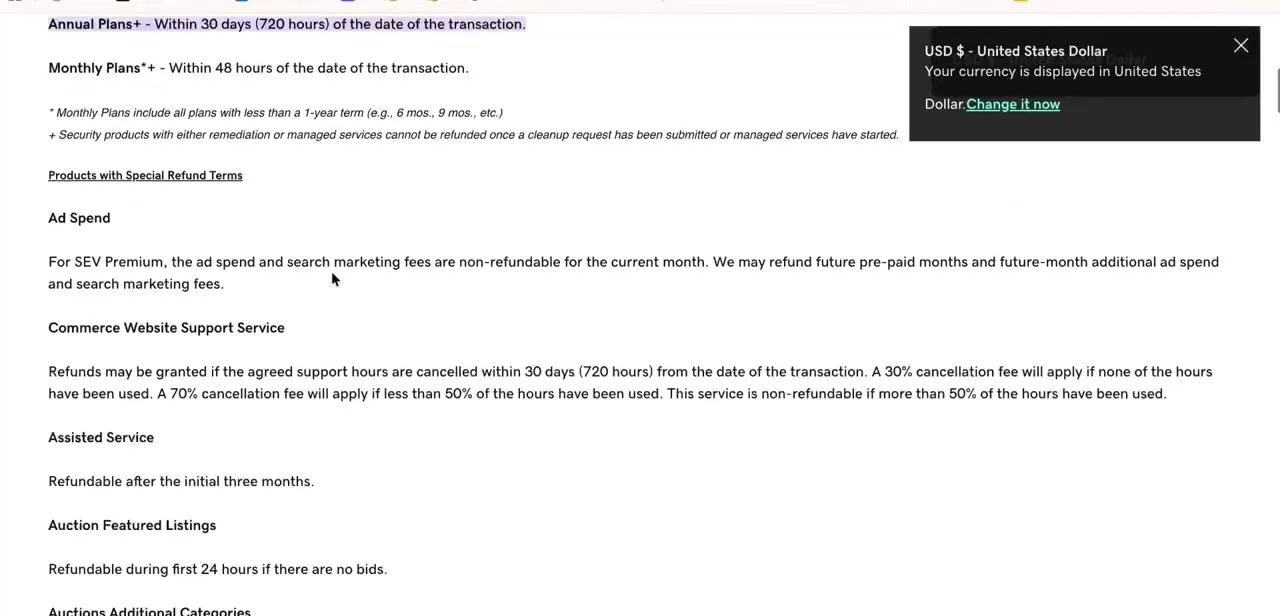
GoDaddy's refund policy page opens with Standard Refund Terms of 30 days (720 hours) for annual plans and 48 hours for monthly plans. That chart is for GoDaddy's products generally; domain name registrations and renewals have their own, separate section further down the same page, and it's far stricter: 5 days (120 hours) for a new registration or a manual renewal, 45 days (1,080 hours) for a one-year auto-renewal, and 5 days again for a multi-year auto-renewal.
On top of that, GoDaddy lists a long set of specific TLDs (.de, .eu, .fr, .nl, .ru, .pl, .co.za, and more) as fully non-refundable regardless of timing, and premium domain names are excluded entirely. Scroll to the "Domain Name Registrations/Renewals" heading on the refund policy page and find your exact TLD before you assume a window applies. A refund must also be requested before you close your GoDaddy account; closing the account first forfeits eligibility even inside an otherwise valid window.
03Turn off auto-renewal on the domain
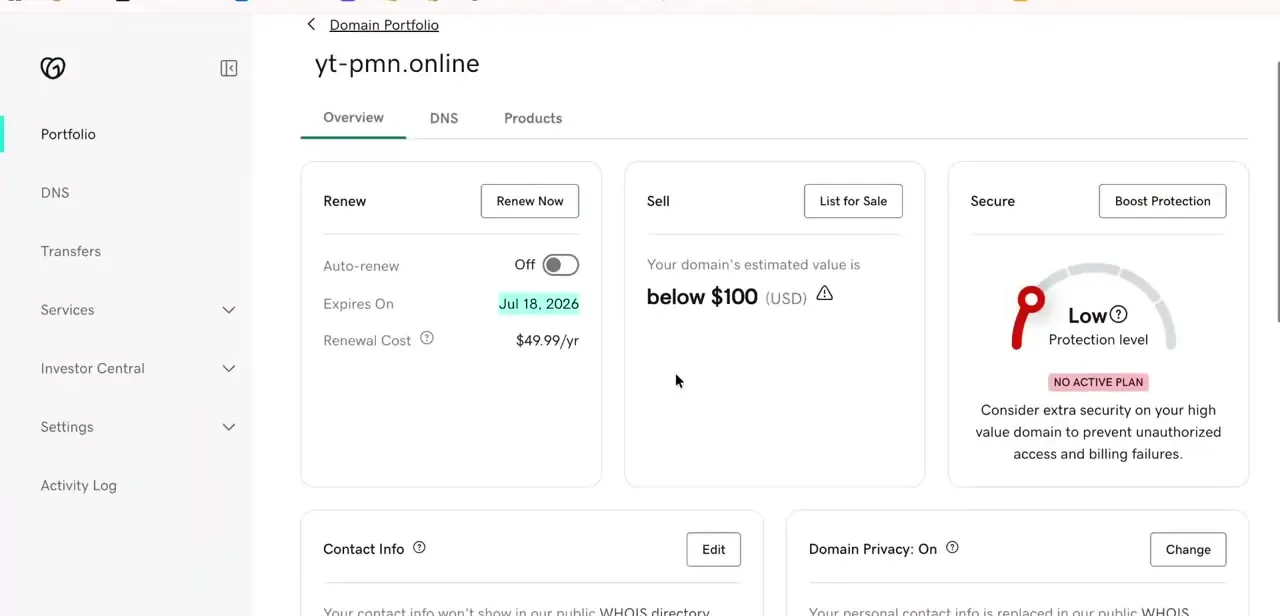
On the domain's Overview tab, the Renew panel shows the Auto-renew toggle along with the expiration date and renewal cost. Switch auto-renewal off here regardless of whether you're also deleting the domain or requesting a refund; it's the one setting that stops a surprise charge from hitting your card while everything else is still in progress. This is a per-domain setting, so if you're cleaning up more than one unwanted domain, repeat this on each one.
04Delete the domain to cancel it
GoDaddy's cancellation mechanism is a Delete Domain option, not a separate "cancel" flow: from the domain's Settings page, open the Advanced section and select Delete Domain, then check the box confirming you consent to delete the selected domain and continue. If the domain has Domain Protection with two-step verification enabled for less than 24 hours, GoDaddy emails a one-time code to confirm the deletion; otherwise it uses your existing 2SV method.
Deleting stops the domain and anything connected to it (a site, email) from working, so disconnect or move those first if you still need them. If you delete by mistake, GoDaddy lets you recover the domain at no extra fee within 120 hours; after that the registry may hold it briefly before releasing it for anyone to re-register.
05Request the refund through live chat
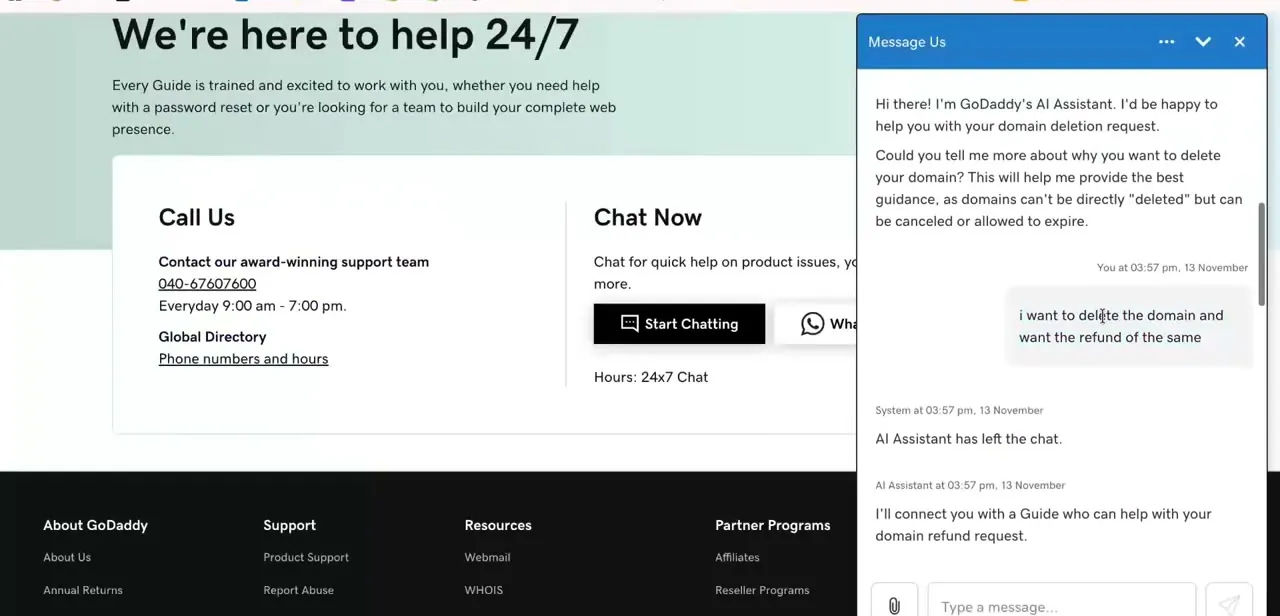
Deleting a domain doesn't automatically issue a refund. GoDaddy's Help Center has a Chat Now option that opens an AI assistant first, which asks what you need before connecting you to a human Guide.
Stating your request plainly, for example that you want a refund for the domain you just deleted, moves things along fastest, since the assistant mainly routes you to the right person rather than resolving the refund itself. Once it hands off, a Guide picks up the same conversation thread and can check eligibility and process the actual refund.
06Confirm the outcome after you submit the request
Once a Guide takes over, they'll confirm whether your purchase falls inside its actual refund window (the domain-specific one, not the general 30-day chart) and process it if it does. Refund timing back to your original payment method can still take several business days even after approval, so don't expect it to reflect immediately. Watch your email for GoDaddy's confirmation of both the deletion and the refund, and check the domain's status in your portfolio afterward to make sure it's gone rather than just flagged for review.
| Purchase type | Refund window |
|---|---|
| New registration | 5 days (120 hours) |
| Auto-renewal, one-year term | 45 days (1,080 hours) |
| Auto-renewal, multi-year term | 5 days (120 hours) |
| Manual renewal | 5 days (120 hours) |
Applies to standard TLDs only. Several country-code TLDs (.de, .eu, .fr, .nl, .ru, .pl, .co.za, and others) are fully non-refundable, and a handful of others use their own windows. Premium domain names and redemption fees are never refundable. Check GoDaddy's refund policy page for your exact TLD.
When it doesn't work
A refund request was denied even though it looked like it should qualify within 30 days
Why: Domain purchases don't follow GoDaddy's general 30-day/48-hour terms. Domains use their own schedule: 5 days for a new registration or manual renewal, 45 days only for a one-year auto-renewal, and many country-code TLDs are excluded from refunds altogether.
Fix: Check the Domain Name Registrations/Renewals section of GoDaddy's refund policy for your exact TLD and purchase type before assuming the general window applies.
The domain was deleted by mistake
Why: Delete Domain is the actual cancellation action in GoDaddy, so it takes effect right away rather than asking for a second confirmation later.
Fix: Recover it within 120 hours at no extra fee through the same Domain Portfolio. After that window, the registry may release it for anyone to re-register.
No refund arrived even though the request was inside the window
Why: The domain may be a premium domain name, a redemption fee, or one of the TLDs GoDaddy lists as fully non-refundable, or the GoDaddy account was closed before the refund was requested.
Fix: Confirm the TLD and product type against GoDaddy's refund policy page, and always request the refund before closing the account; closing it first forfeits eligibility.
Frequently asked questions
Is every domain purchase on GoDaddy refundable?
No. Domains follow their own refund schedule, separate from GoDaddy's general 30-day/48-hour terms: 5 days for a new registration or manual renewal, 45 days for a one-year auto-renewal, and a long list of country-code TLDs are non-refundable no matter when you ask. Premium domain names are never refundable.
How long do I have to request a refund on a new domain?
5 days (120 hours) from the transaction for a new registration or a manual renewal. A one-year auto-renewal charge gets a longer 45-day window; a multi-year auto-renewal is back to 5 days.
How do I stop GoDaddy from renewing a domain I don't want?
Open the domain in your Domain Portfolio and switch off Auto-renew on its Overview tab. Do this in addition to deleting the domain, since the two are separate settings.
Can I delete a GoDaddy domain outright?
Yes. From the domain's Settings page, open Advanced and select Delete Domain. It's reversible: GoDaddy lets you recover a domain deleted by mistake within 120 hours at no extra fee.
Who do I contact for a GoDaddy refund?
Use GoDaddy's Help Center Chat Now option. It opens with an AI assistant that asks what you need, then hands you off to a human support Guide who can check eligibility and process the refund.
How long does a GoDaddy refund take to process?
Even after a Guide approves it, a refund can take several business days to reflect on your original payment method. Ask support for the expected timeline when you submit the request.
Sources and last check
Refund windows and the deletion flow were checked in September 2026 directly against GoDaddy's official refund policy page and its 'Delete my domain' help article. That check corrected two errors in the original draft: it applied GoDaddy's general 30-day/48-hour terms to domain purchases, when domains actually follow a separate, stricter schedule (5 days for new registrations and manual renewals, 45 days only for one-year auto-renewals, and many TLDs excluded entirely); and it claimed GoDaddy has no delete option, when Domain Settings > Advanced > Delete Domain is the real cancellation mechanism, reversible for 120 hours.
About the author

Impran M N
I've been hooked on technology for as long as I can remember — especially the new tools and AI apps that seem to land every other week. Easy Tech Tuts is where I write up whatever I've just worked out: I do the task in the real product, record the screen, and turn it into the guide I wish I'd found first.