Easy Tech Tuts
How to Add Logo to Godaddy Website Easily 2026
By Impran M NLast checked against official docs
Adding a logo is one of the first branding steps for a new GoDaddy site, and GoDaddy puts the entry point somewhere easier to find than you'd expect: a dedicated link sitting right under your site's name on the dashboard, not buried inside a design menu. This guide covers that shortcut, uploading a logo that won't come out blurry or boxed in, and where to go afterward to fine-tune how it sits in your header.
01Get to your site from My Account
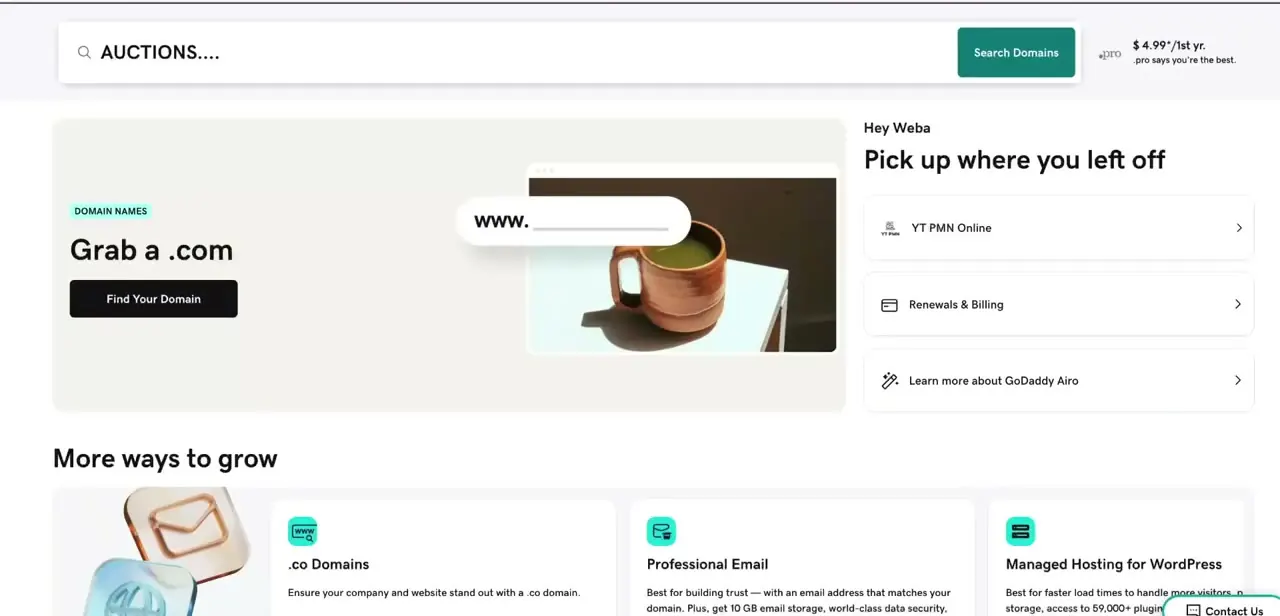
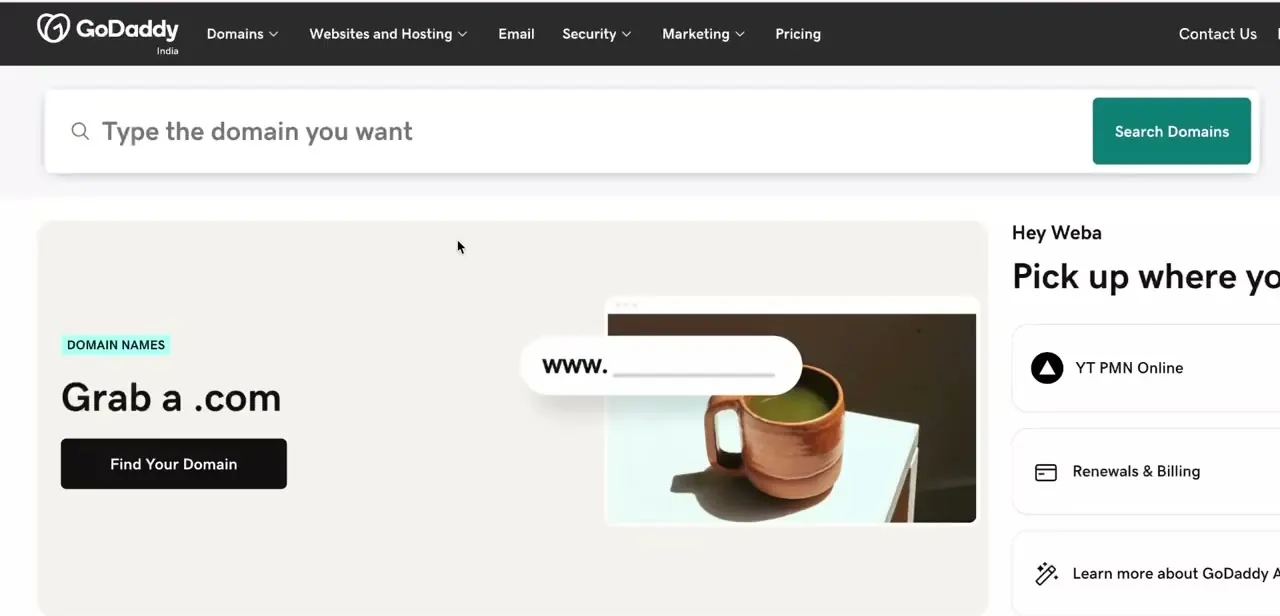
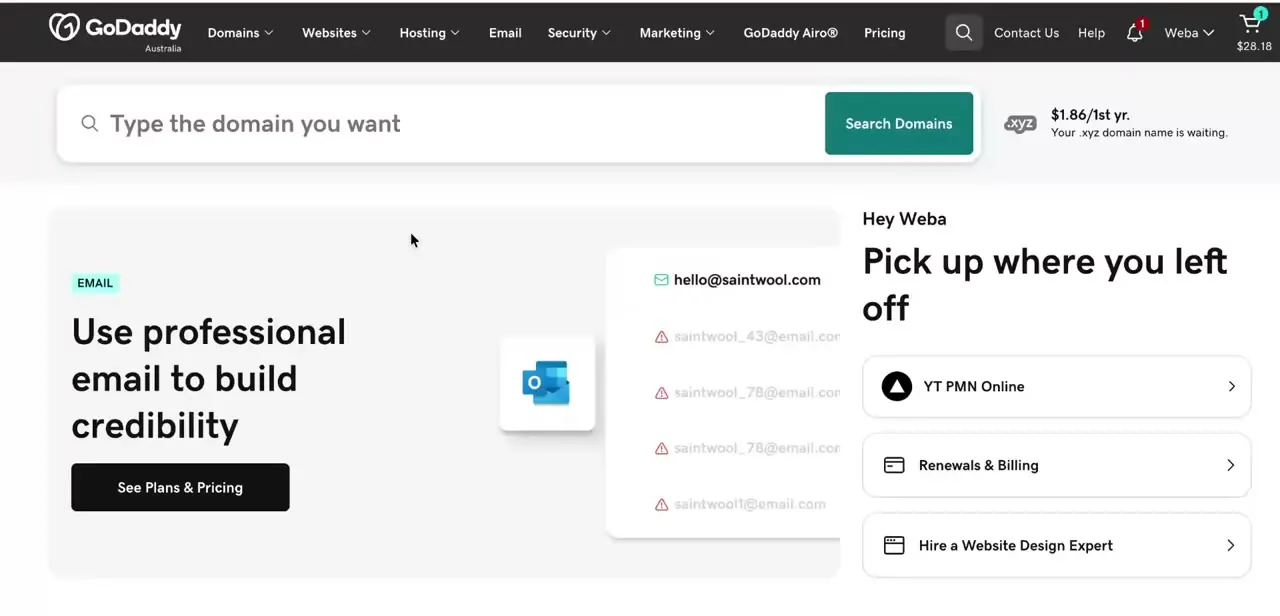
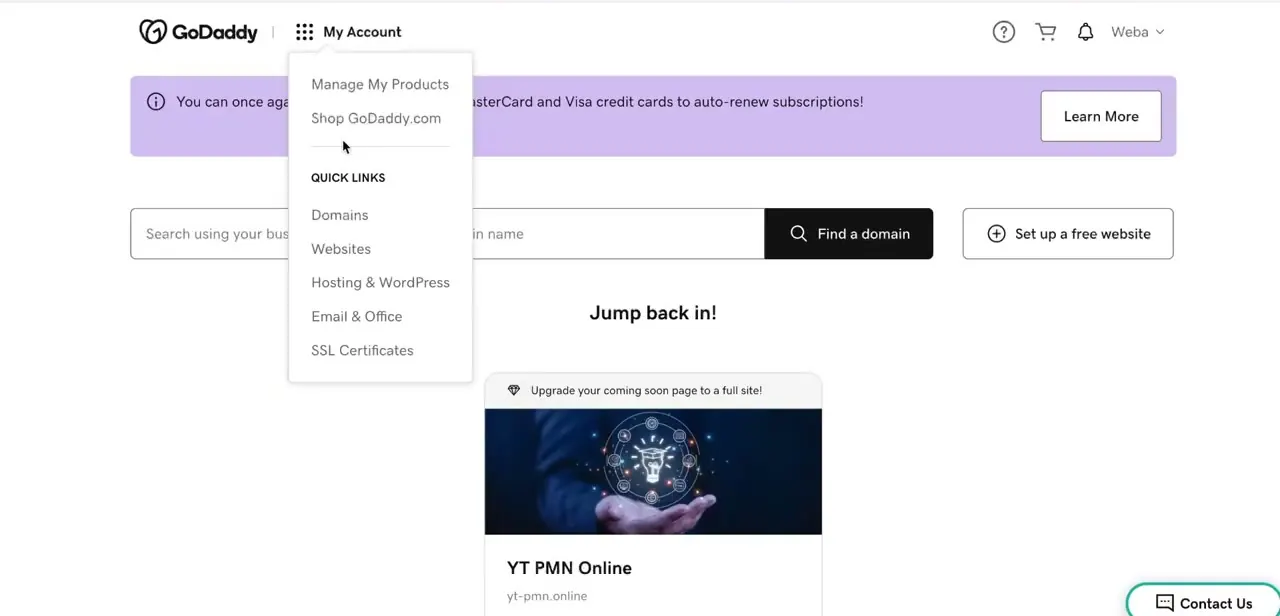
Log into GoDaddy and open the My Account menu from the top navigation bar. A dropdown appears with Manage My Products and Shop GoDaddy.com at the top, followed by a Quick Links section listing Domains, Websites, Hosting & WordPress, Email & Office, and SSL Certificates.
Click Websites, or scroll down on the account home page to the "Jump back in!" section where your existing sites are listed by name. Either route lands you on the site you want to brand.
02Use the Add Logo shortcut on your site dashboard
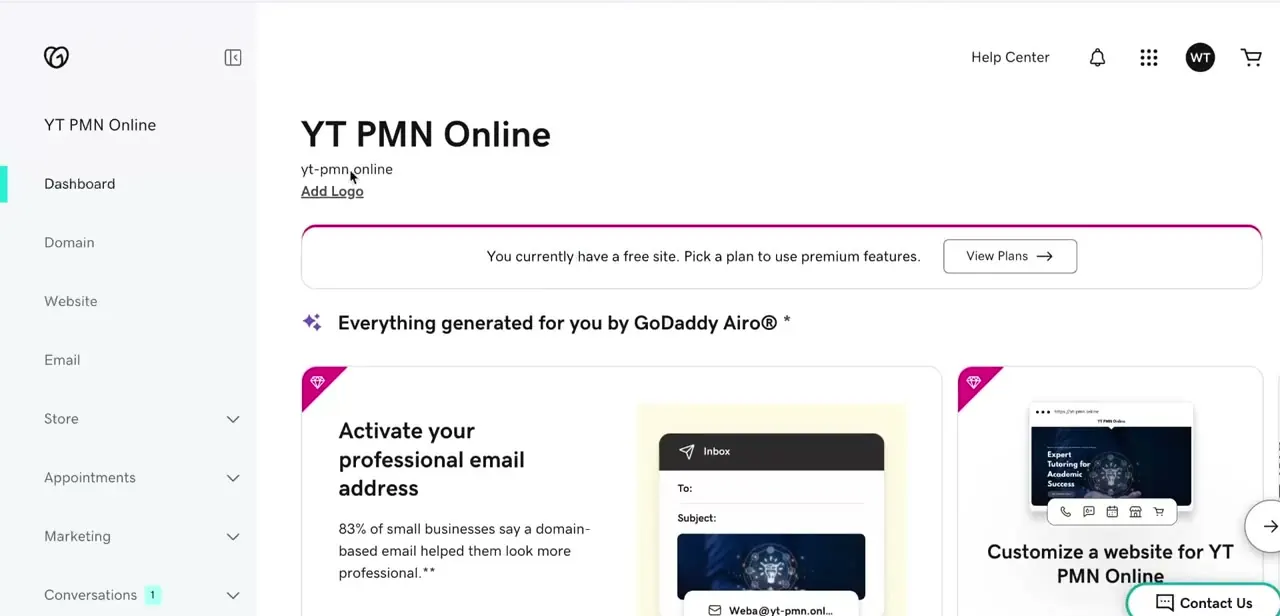
Open a specific site and you land on its dashboard: the site name at the top, its domain underneath, and directly below that a small "Add Logo" link. GoDaddy surfaces it here because it's one of the first things a new site needs, before you'd think to open a full editor. Click it to open the upload prompt right from this screen.
03Upload a file sized the way GoDaddy recommends
When the upload prompt opens, use a PNG with a transparent background if the logo needs to sit over colored or photo headers, or an SVG if you have the vector source; GoDaddy's own logo guidance recommends both formats for web use because they hold up at different display sizes. For dimensions, GoDaddy suggests roughly 250 to 400 pixels wide by 70 to 100 pixels tall for a standard horizontal logo, or about 160 by 160 pixels for a square or stacked mark. Avoid pulling a small image straight from a social media profile: a file well under those numbers will look soft once it's stretched to header size.
04Fine-tune placement in the Website editor
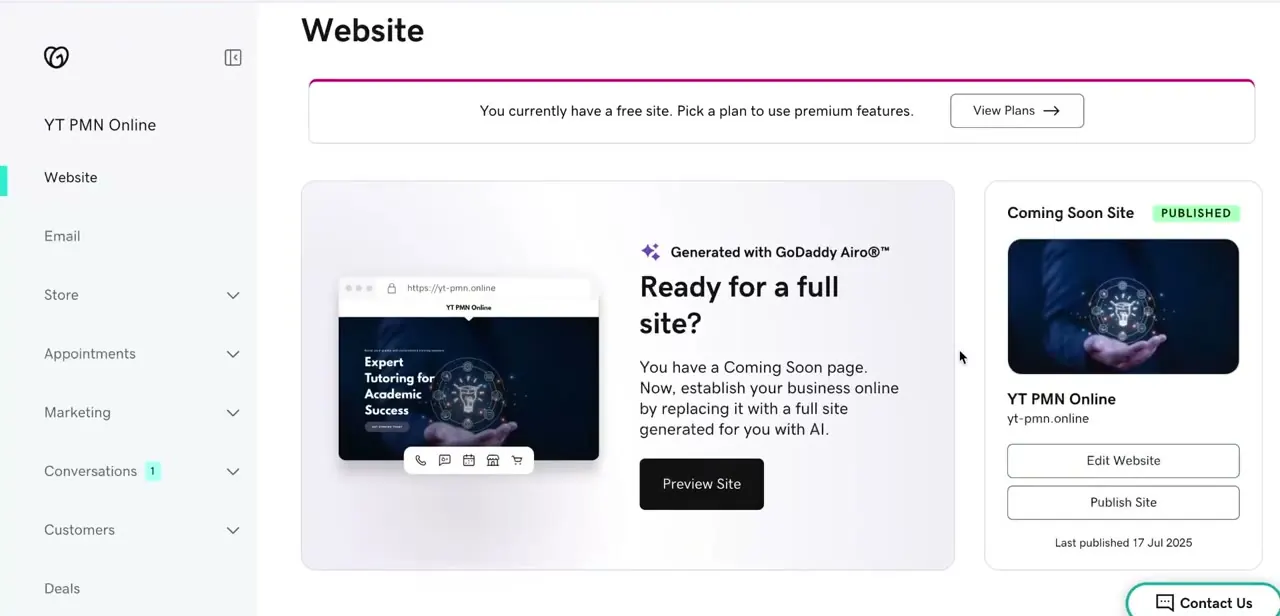
For more control than the quick Add Logo prompt gives you, go to Website in the left-hand dashboard menu. This is also where you'll find Edit Website, leading into GoDaddy's full site editor, next to a Publish Site button and a note showing when the site was last published. Inside Edit Website, click into the header block, where the logo panel lets you switch between an uploaded image, a text-based logo, or GoDaddy's AI-generated option, and adjust size and alignment relative to your navigation menu.
05Preview on both screen sizes, then publish
Before publishing, use Preview to check the logo in both the desktop header and the collapsed mobile header; GoDaddy's builder resizes the layout for smaller screens, and a logo that looks right at full width can crowd a mobile menu icon if it wasn't designed with margin around it. Once it looks right, click Publish Site.
The dashboard tracks your last published date next to the button, so you can confirm the update actually went out rather than sitting in a draft. A hard refresh afterward helps if the browser shows you the old header for a moment.
When it doesn't work
The logo shows up with a white or gray box behind it instead of blending into the header
Why: The file isn't a PNG, so it has no transparent background; other common image formats fill that space with a solid color.
Fix: Re-export the logo as a PNG with transparency, or use an SVG if a vector source exists.
The logo looks fine on desktop but crowds the menu or looks cropped on mobile
Why: The builder resizes and recomposes the header for narrower screens, and a logo with no margin around it doesn't leave room for the mobile menu icon.
Fix: Preview the mobile header specifically before publishing, and add breathing room around the mark if it's crowding the menu.
The logo still looks blurry even though the source file looked sharp on your computer
Why: The header can stretch a logo well past its native size when the uploaded file is smaller than the space it's displayed in.
Fix: Upload a file that meets or exceeds GoDaddy's own sizing guidance (roughly 250-400px wide by 70-100px tall for a horizontal logo) instead of a small icon pulled from a profile photo.
Frequently asked questions
What file format works best for a logo on GoDaddy?
SVG or PNG. GoDaddy's own logo guidance recommends SVG because it scales without losing sharpness, and PNG because it supports a transparent background; both hold up better than JPEG at header size.
What size should my logo file be?
GoDaddy suggests roughly 250 to 400 pixels wide by 70 to 100 pixels tall for a standard horizontal logo, or about 160 by 160 pixels for a square mark. A file well below that will look soft once stretched to header size.
Where do I find the option to add a logo?
Open your site's dashboard from GoDaddy's My Account menu; there's an Add Logo link directly beneath the site name and domain. For more control over sizing and style, use Edit Website in the Website section instead.
Can I reposition my logo after it's uploaded?
Yes. Go to Website in the dashboard, click Edit Website, and open the header block to adjust the logo's size, alignment, or swap it for a text-based or AI-generated logo.
Will my logo automatically resize for mobile visitors?
GoDaddy's builder adapts the header for mobile, but preview it before publishing. A logo with no margin around it can still crowd the mobile menu icon at smaller widths.
Sources and last check
Click path and screens for the dashboard Add Logo shortcut come from a recorded walkthrough of a GoDaddy Airo-generated site. The recommended formats (SVG, PNG) and the pixel dimensions in this guide were checked against GoDaddy's own logo-sizing article in September 2026, which replaced a vague 'under 300px looks soft' claim with GoDaddy's actual recommended dimensions. GoDaddy's help-center article on adding a header logo returned an access block (HTTP 403) to direct fetching in this session; the header-panel description (image, text, or AI-generated logo option) is based on that article's content as surfaced through search rather than a page this session could open directly, and it was not visible in the recorded screenshots.
About the author

Impran M N
I've been hooked on technology for as long as I can remember — especially the new tools and AI apps that seem to land every other week. Easy Tech Tuts is where I write up whatever I've just worked out: I do the task in the real product, record the screen, and turn it into the guide I wish I'd found first.