Easy Tech Tuts
How to use Streak CRM in Gmail & Google Workspace, Sheet, Calendar 2026 Easily
By Impran M NLast checked against official docs
Streak CRM brings pipeline tracking directly into your Gmail inbox, so you can manage sales, hiring, or support without switching between tabs or logging into a separate CRM. It sits in Gmail as a Chrome extension and adds its own sidebar, letting you turn any list of contacts into a spreadsheet-style board with stages, deal values, and linked emails. Pipelines themselves are not part of Streak's free plan, so this guide covers what you need before you start, building your first pipeline from Streak's templates, and what a populated pipeline looks like once it has entries.
Before you start
- Google Chrome, since Streak installs as a Chrome extension tied to your Gmail account
- A Streak Pro plan or an active 14-day trial — pipelines aren't included in the permanently free tier
01Install Streak and open the pipeline creator
Add the Streak extension to Chrome and connect it to your Gmail account. Once installed, a Streak sidebar with Mail, Contacts, Organizations, and Pipelines appears down the left edge of Gmail.
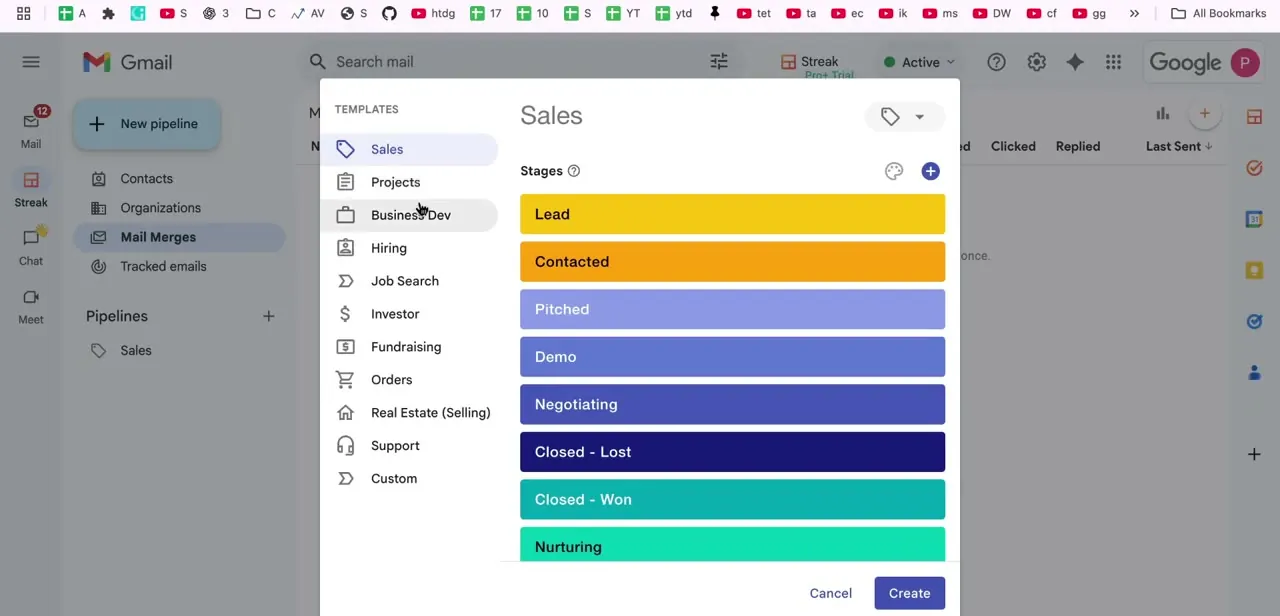
Click New pipeline, and Streak opens a template picker instead of a blank form: choose the workflow closest to what you're tracking, such as sales, hiring, projects, or support, and Streak's pipeline creator proposes stages, columns, and views you can adjust before confirming. Building a real pipeline needs a Pro plan or the 14-day trial. If your screen shows a Pro+ Trial banner like the one in this walkthrough, that trial is what unlocks the pipeline features covered below, not the free plan.
02See how a working pipeline is laid out
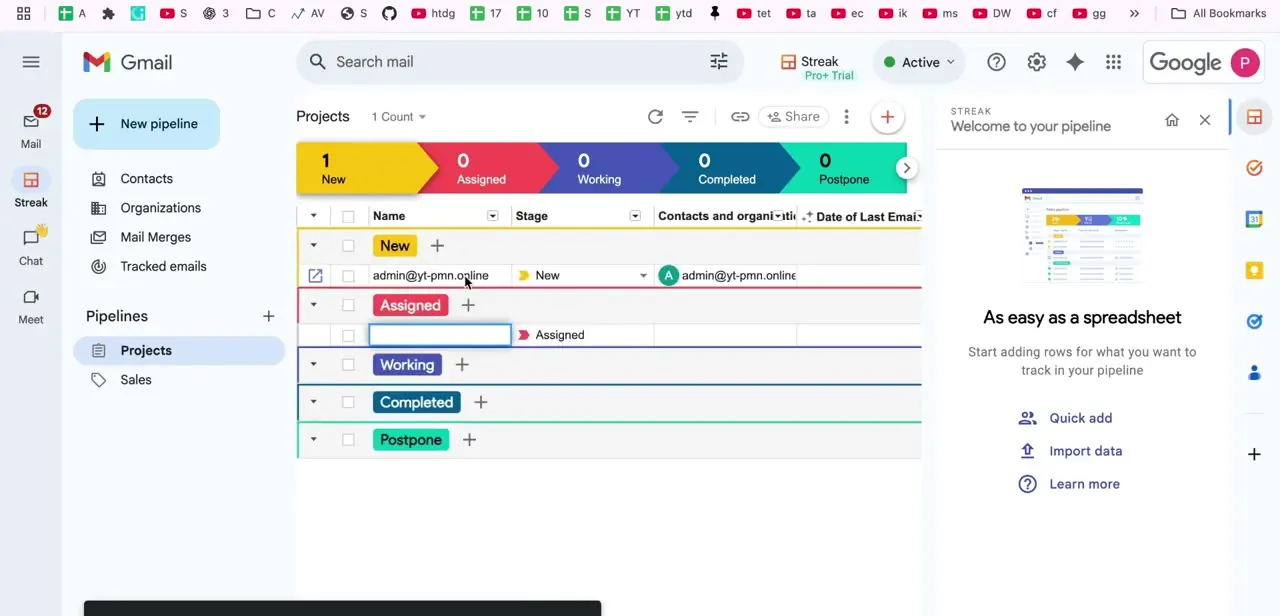
Once a pipeline has entries, Streak displays it as a spreadsheet-like table with colored stage headers across the top, each showing a live count of records in that stage. Rows underneath list each entry with editable columns for name, stage, and linked contacts and organizations, and a right-hand panel offers quick actions like Quick add and Import data for populating the board fast. This is the core Streak experience: a CRM that looks and behaves like a spreadsheet but stays tied to your email threads.
03Populate an empty pipeline with contacts
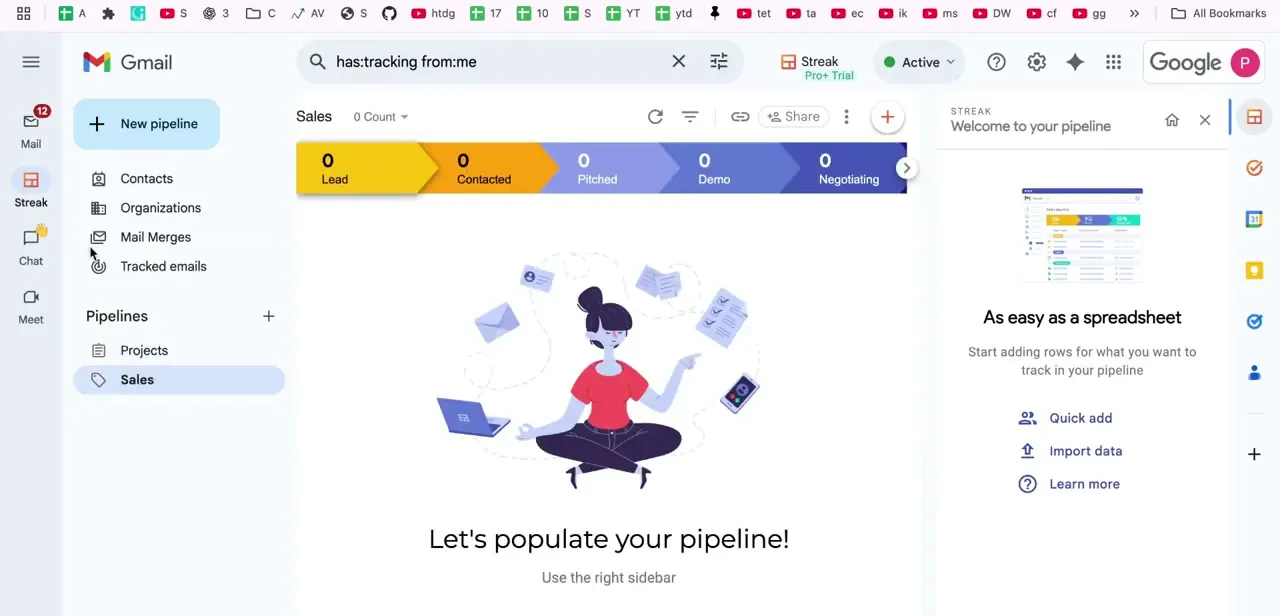
A freshly created pipeline starts empty, and Streak's onboarding panel points you toward Quick add, Import data, or Learn more instead of leaving you to guess. Quick add is the fastest way to get a handful of contacts in by hand. Import data suits migrating an existing spreadsheet of leads or clients better, since it maps your columns directly onto Streak's stage and contact fields.
04Let Streak track emails automatically
Once contacts are in a pipeline, Streak automatically links matching email threads to the right entry based on the sender's address, so a reply from a lead shows up tied to their pipeline row without you doing anything by hand. This is what saves the tab-switching the tool is built to avoid: the conversation history for a deal lives next to that deal's stage and value, inside the inbox you're already checking.
05Connect Calendar and export to Sheets
Streak ties into Google Calendar so you can schedule follow-ups and reminders directly from a pipeline entry, keeping deadlines attached to the deal instead of floating in a separate calendar app. When you need reporting beyond Streak's own views, export a pipeline to Google Sheets for pivot tables or sharing with people who don't have Streak installed, useful for a monthly summary a manager wants without giving them inbox access.
When it doesn't work
The New pipeline button doesn't offer real CRM features, or pipelines look locked
Why: The account is on Streak's permanently free plan, which includes email tracking and mail merge but not pipelines.
Fix: Start the 14-day trial or subscribe to a Pro plan. Pipelines aren't reachable on the free tier no matter where you click.
A reply from a known contact isn't linking to their pipeline entry
Why: The sender's email address doesn't exactly match the address saved on that contact, so Streak has nothing to match it against.
Fix: Open the contact and check the saved address, or add the new address to the same contact record.
Mail merge stops partway through a batch
Why: The plan's daily send cap was reached: 50 a day on the free plan, 1,500 a day on Pro.
Fix: Wait for the next day's reset, split the batch, or upgrade if you regularly send more than the cap.
Frequently asked questions
Is Streak free to use with Gmail?
Not for pipelines. Streak's permanently free plan covers email tracking, snippets, and mail merge capped at 50 sends a day, but pipelines and CRM records need a Pro plan (from $49/user/month billed annually, $59 billed monthly) or the 14-day trial most first-time users start from.
Can multiple team members collaborate on the same pipeline?
Yes. Pro and above include private and shared pipelines, so teammates on the same paid plan can view and update a shared pipeline from their own inbox using the Share option on each pipeline.
Does Streak work on mobile as well as desktop Gmail?
Yes, through a dedicated iOS and Android app that syncs with your pipelines directly, not just a stripped-down view: you can browse pipelines, update stages, and check tasks from your phone. A separate, more limited Gmail add-on also surfaces box names, email tracking, and snippets inside the Gmail mobile app itself.
Do I have to build my pipeline stages from scratch?
No. Streak's pipeline creator starts from a template for your kind of workflow, such as sales, hiring, projects, or support, and proposes stages, columns, and views you can rename or reorder afterward.
What is mail merge used for in Streak, and how many can I send?
Mail merge sends personalized bulk email to pipeline contacts while tracking opens, clicks, and replies per recipient. The free plan caps it at 50 sends a day; Pro raises that to 1,500 a day.
Sources and last check
Screens and click path come from a Streak walkthrough recorded in 2026, including the Pro+ Trial banner visible in the pipeline creator. Pricing, plan gating, and mobile app scope were re-checked against Streak's own pricing, features, and support pages in September 2026. That check corrected this guide's earlier claim that pipelines are available on Streak's free plan; they are not, and pipeline access needs Pro or an active trial.
About the author

Impran M N
I've been hooked on technology for as long as I can remember — especially the new tools and AI apps that seem to land every other week. Easy Tech Tuts is where I write up whatever I've just worked out: I do the task in the real product, record the screen, and turn it into the guide I wish I'd found first.