Easy Tech Tuts
How to Add Users in Freshdesk
By Impran M NLast checked against official docs
Getting a new hire into Freshdesk is not a long process, but knowing where the invite flow lives saves a hunt through settings. Freshdesk surfaces it from the dashboard's Quick start checklist as well as from the admin area, and the invite dialog itself is short: an email, a role, and an Invite button. This guide follows that flow, notes the fuller agent details Freshdesk's own documentation says get filled in afterward, and covers what to do if an invited agent never shows up as active.
Before you start
- Administrator permissions on the Freshdesk account. Inviting agents and the Admin > Agents section are both restricted to admins.
01Find the invite prompt in Quick start
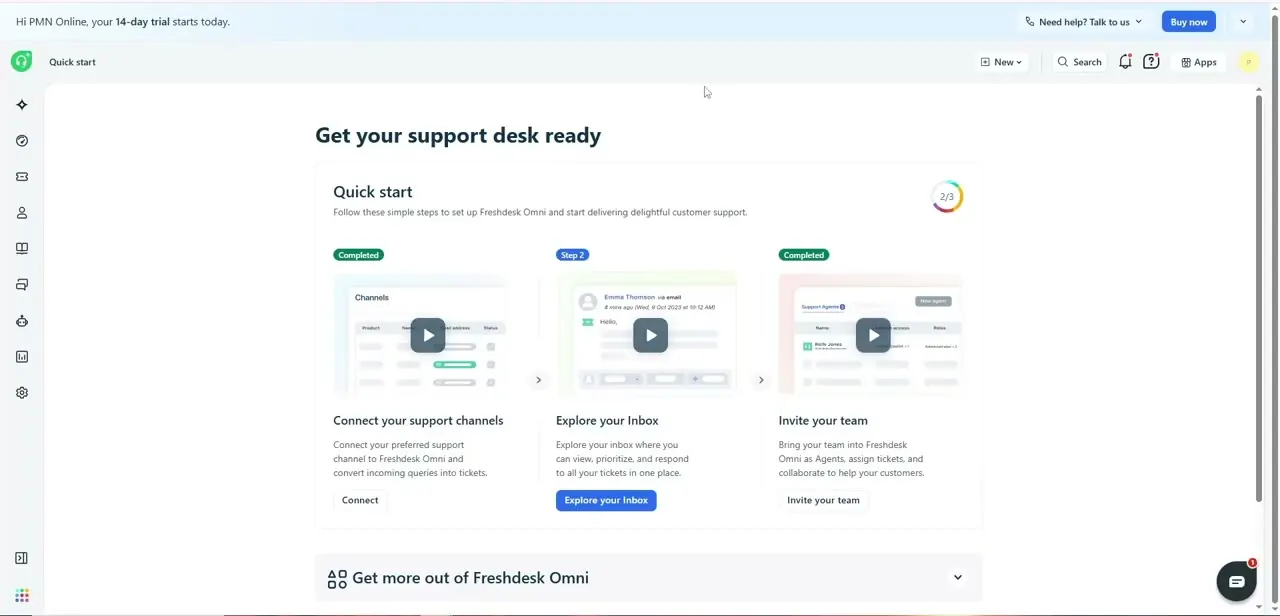
New trial accounts show a Quick start checklist on first login, walking through three cards to get the support desk ready: connecting support channels, exploring the inbox, and inviting the team. The screenshot below is from a Freshdesk Omni trial; Freshworks has folded its newer omnichannel branding into some accounts, but the invite flow underneath is the same one this guide covers.
The third card explains that bringing your team in as agents lets them view tickets, get assigned work, and reply to customers. Clicking it opens the same Invite Agents dialog you'd reach from the admin area later.
02Fill out the Invite Agents dialog
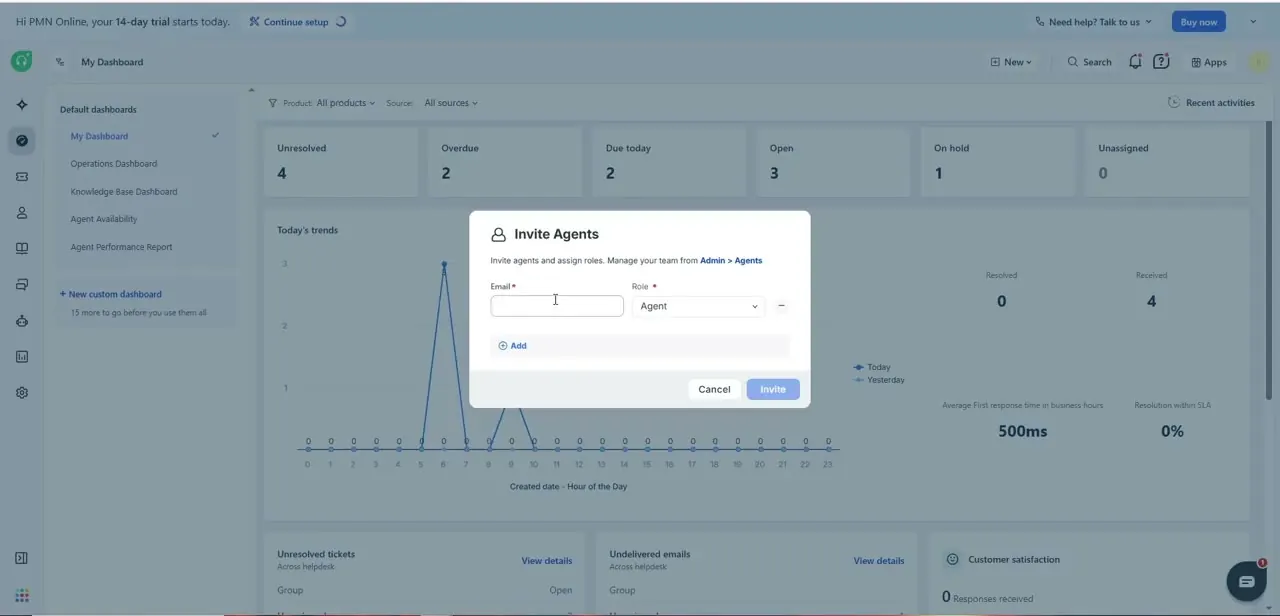
The dialog is titled Invite Agents and is deliberately short: an Email field, a Role dropdown defaulting to Agent, and a note that agents and roles are managed from Admin > Agents afterward. Type the person's email, leave the role as Agent for a standard support seat or pick something else if custom roles are configured, then click Invite. An Add link below the first row lets you queue up several people before sending anything.
03Understand what Role controls, and what this dialog leaves for later
The Role dropdown determines what the new agent can see and do once they log in: a standard Agent works tickets and replies to customers within their assigned scope, while higher roles typically add admin settings or reporting access. This quick-invite dialog only asks for email and role.
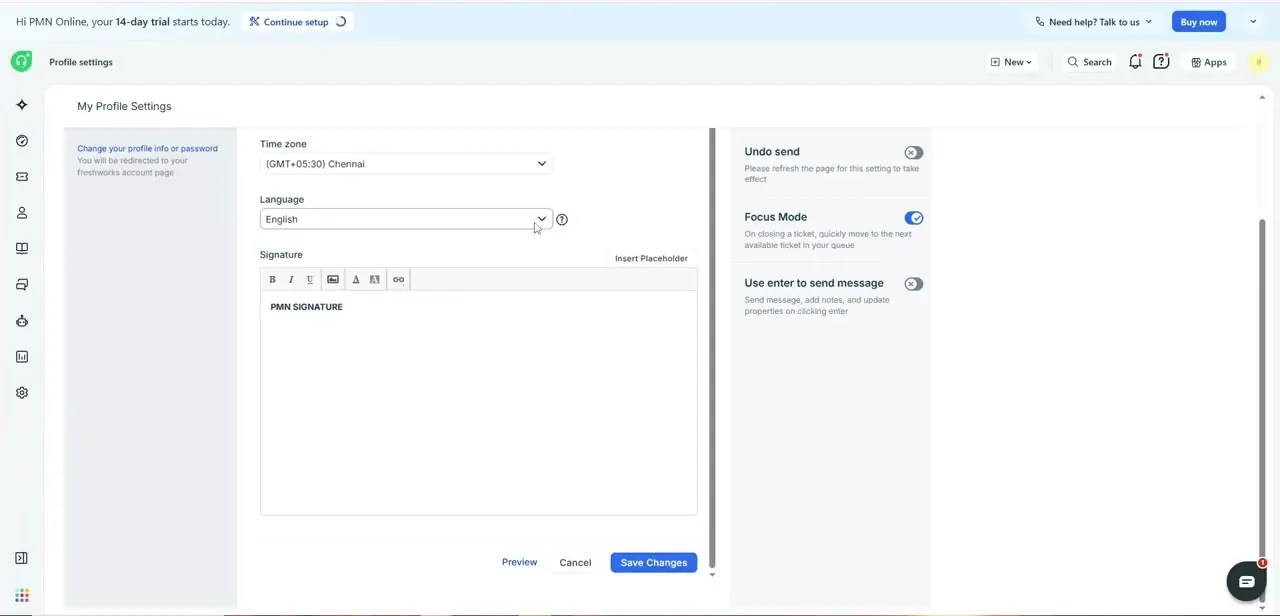
Freshdesk's own support documentation describes a fuller agent profile, covering time zone, portal language, signature, ticket scope (all tickets, a specific group, or assigned only), and group membership, which is set from Admin > Agents once the invite exists, not at invite time. If you're unsure which role someone needs, start narrower; it's easier to grant more access later than walk it back.
04Distinguish agents from customer contacts
Everything in Invite Agents is for internal team members who work inside Freshdesk. Customers become contacts automatically the first time they email in or submit a form; they aren't invited the same way, and they don't count against the agent seat limit. Adding a contact manually is a separate flow under Contacts, not Admin > Agents.
05Confirm the invitation and follow up
After clicking Invite, Freshdesk emails each address with a link to set a password and finish setup. New agents don't show as fully active until they accept. Resend an invitation from Admin > Agents if someone hasn't shown up after a day or two, instead of creating a second one.
When it doesn't work
An invited agent never shows up as active
Why: Agents aren't active until they open the invitation email and set a password; it sometimes lands in spam instead of failing outright.
Fix: Check with the person directly, then resend the invite from Admin > Agents instead of sending a fresh one, which would create a duplicate.
A new agent can't see tickets you expected them to
Why: The Invite Agents dialog only sets email and role. Ticket scope and group membership, which control what an agent can see, are separate settings filled in afterward.
Fix: Open the agent's profile from Admin > Agents and set their ticket scope and group assignments there.
Frequently asked questions
Who can add new users in Freshdesk?
Inviting agents requires administrator permissions. The Invite Agents dialog and the Admin > Agents section are both restricted to admins.
Is there a limit to how many agents I can add?
Agent seats are tied to your Freshdesk plan and billing. Customer contacts are added separately and typically aren't limited the same way.
Can I set different permission levels for agents?
Yes, through the Role dropdown in the invite dialog. Roles can be changed afterward from Admin > Agents, along with details the quick invite doesn't ask for, like ticket scope and group membership.
Do invited agents need to confirm their account?
Yes. They receive an email with a link to set a password and activate the account before they can log in.
How is inviting an agent different from adding a customer contact?
Agents are invited through Admin > Agents or the Quick start checklist and count toward the plan's seat limit. Contacts are usually created automatically when a customer first submits a ticket, through a different part of Freshdesk entirely.
Sources and last check
Click path and both screenshots come from the original recording, taken on a Freshdesk Omni trial account. Re-checked against Freshdesk's own support article on adding and editing agents in September 2026, which describes a fuller New Agent form (agent type, time zone, language, ticket scope, groups) than the quick Invite Agents dialog shown here. That gap between the quick invite and the full profile is now called out directly instead of left implied.
About the author

Impran M N
I've been hooked on technology for as long as I can remember — especially the new tools and AI apps that seem to land every other week. Easy Tech Tuts is where I write up whatever I've just worked out: I do the task in the real product, record the screen, and turn it into the guide I wish I'd found first.