Easy Tech Tuts
How to Make Facebook Reels in Canva Easily 2026
By Impran M NLast checked against official docs
Canva's Reels templates arrive with the vertical frame, motion and pacing already built, so most of the work is swapping in your own photos, clips and words. This guide follows that route from Canva's home screen to a finished video, then covers the two ways to get it onto Facebook: sharing straight from the editor, or downloading an MP4 and uploading it yourself.
One change to know before you start. In June 2025 Facebook renamed its Videos tab to Reels, and every video posted to Facebook is now shared as a reel, at any length or orientation. Vertical 9:16 is still the shape that fills a phone screen, which is why the templates use it.
01Search for a Facebook Reels template
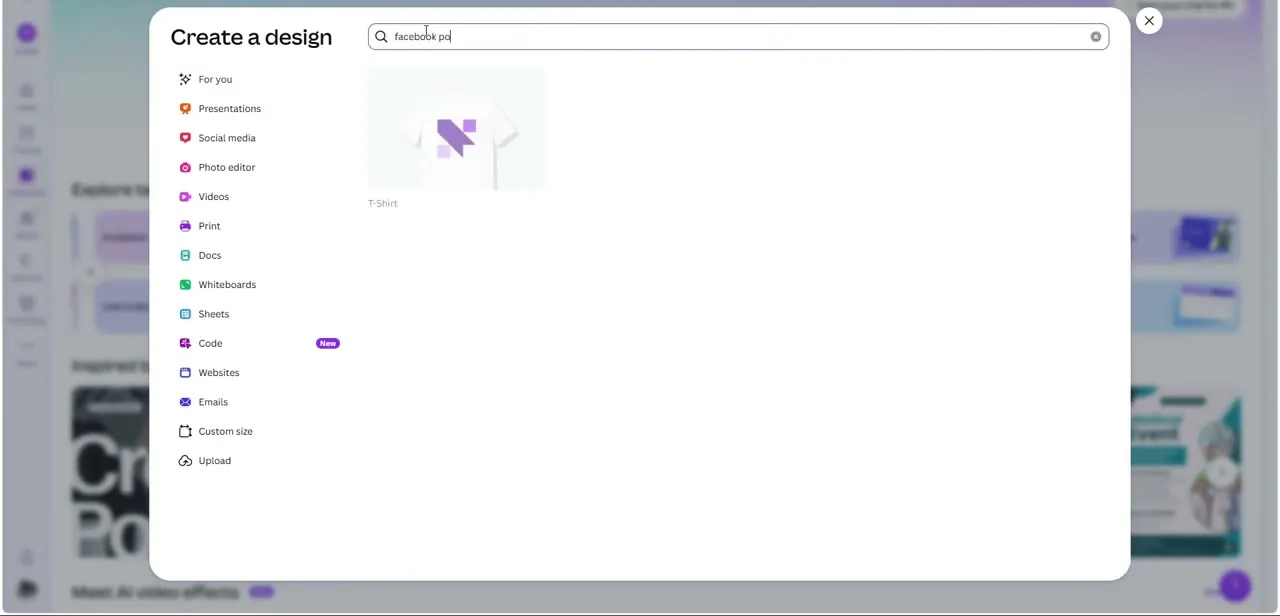
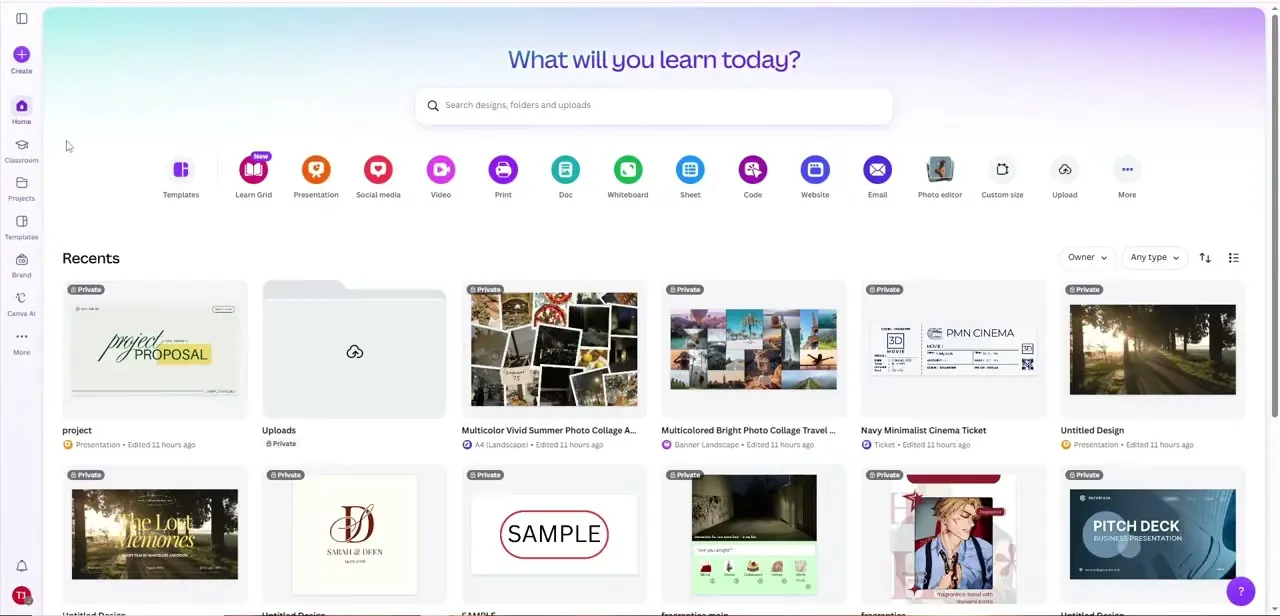
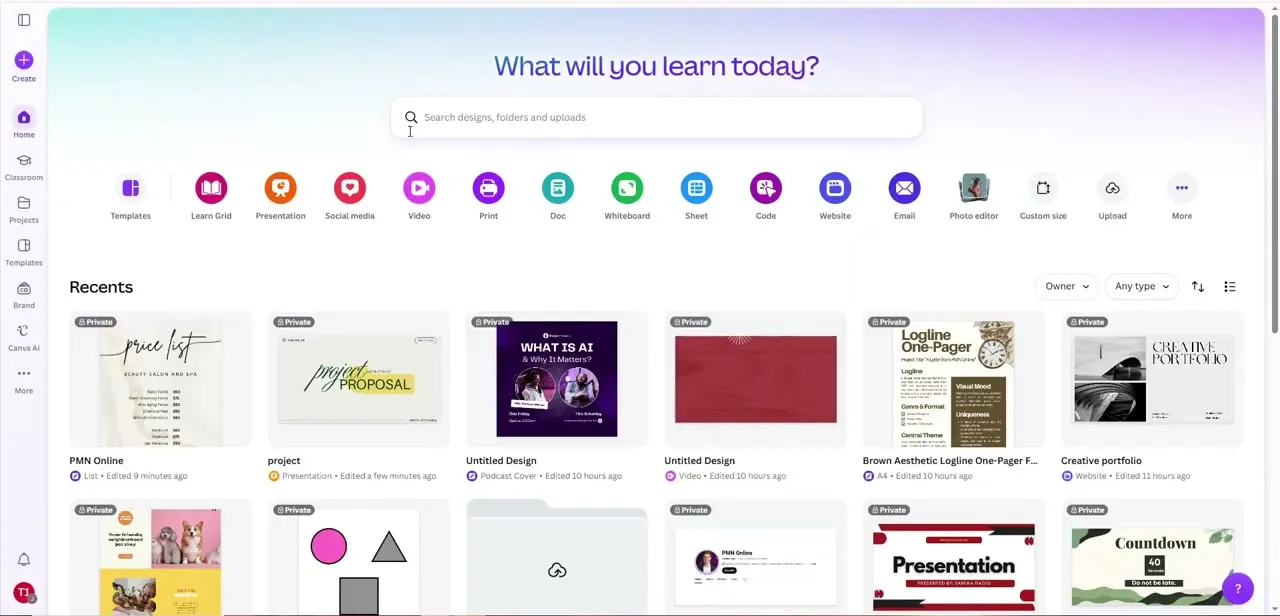
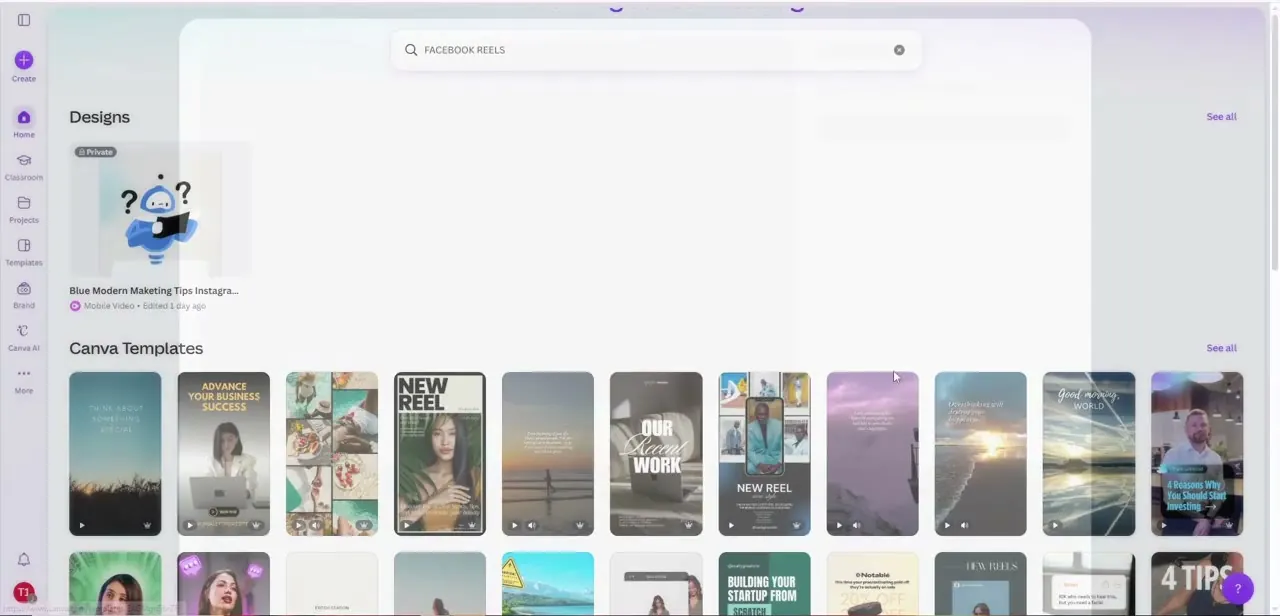
From Canva's home screen (the "What will you learn today?" page), you could open the Video shortcut, but typing "Facebook Reels" into the search bar is quicker. The results split into your own matching Designs and a large grid of Canva Templates.
02Pick a template for its pacing, and watch for the crown
Each template thumbnail plays a preview on hover. Judge it on pacing and transition style, not just the still frame: colours and text are easy to change later, but rebuilding animation timing from scratch is slow.
Look at the small icon in the bottom corner of each thumbnail. A crown means Pro content. On a free account you can still edit it, but those elements will be watermarked when you download unless you pay for them or upgrade.
03Replace the media and rewrite the text
Drag your own photos or clips from Uploads onto the template's image frames. The new media takes that slot's crop and motion, so it inherits the template's timing.
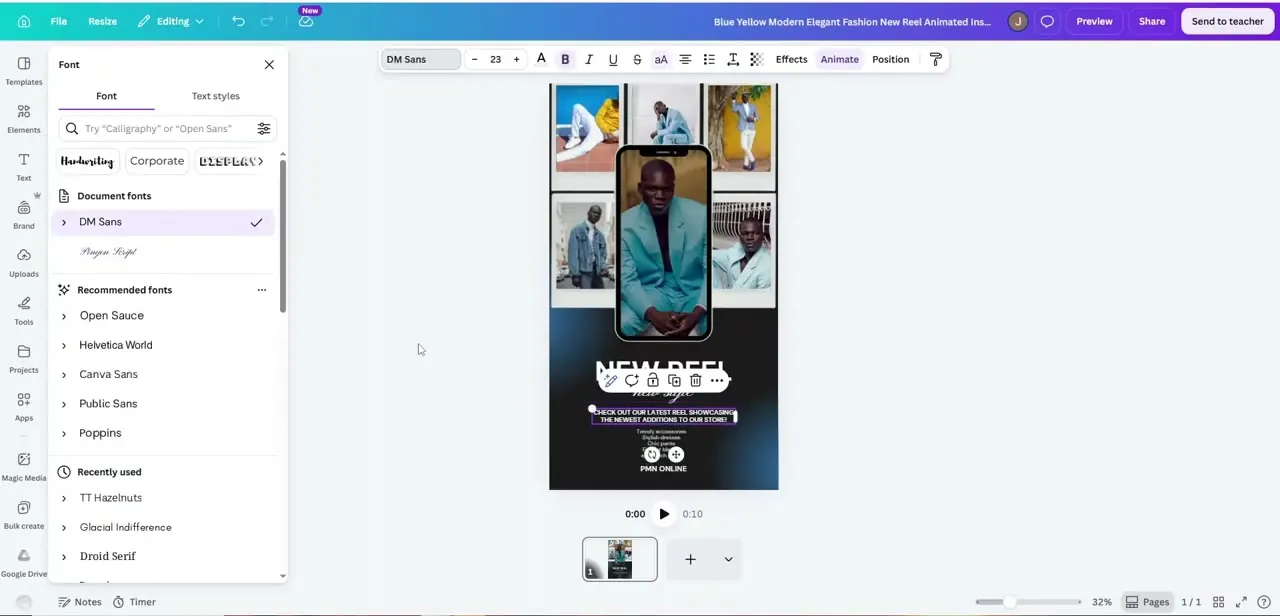
Then click a text layer and open the Font panel. Document fonts sit at the top, followed by recommended and recently used fonts, and the Text styles tab keeps headings and captions consistent. Rewrite the placeholder copy (here, "Check out our latest reel showcasing the newest additions to our store!") so it names the actual product or announcement.
04Tighten the timing and add audio
Select an element and click Animate in the top toolbar to change how it enters and exits. The play bar under the canvas shows the total length (0:10 in this template).
Play it through once and trim anything that lingers. Add a track from Canva's audio library or upload a voiceover, then trim it to the length of the video and set the volume. If you use paid audio, Canva advises verifying the licence when you download so the post doesn't draw a copyright claim.
05Share it to Facebook, or download the MP4
To post from Canva, click Share, then See all, and choose Facebook. The first time, click Connect, log in and allow access.
You may be able to add a caption and pick which page of the design to post. Canva's Facebook sharing accepts MP4 video up to 250 MB.
To post it yourself instead, click Share, then Download, choose MP4 Video and keep Quality at 1080p. Meta recommends .mp4 at 1080p for reels, so the default is already right.
Watch the file on your phone before posting. That's the screen most people will see it on.
When it doesn't work
Facebook isn't listed in the Share menu
Why: On Canva for Education accounts, social media publishing is off by default and must be enabled by an admin.
Fix: Ask the admin to enable the Facebook app, or download the MP4 and upload it to Facebook directly.
The downloaded video has a watermark
Why: The template or some of its elements are Pro content (marked with a crown), and you're on Canva Free.
Fix: Swap those elements for free ones, buy them individually with Remove watermarks, or upgrade. Pro users who still see watermarks may be signed in to the wrong team.
Sharing to Facebook fails on a longer video
Why: Canva's direct share to Facebook caps video files at 250 MB.
Fix: Shorten the video, or download the MP4 and upload it through Facebook yourself.
Frequently asked questions
How long can a Facebook Reel be?
Since June 2025, every video posted to Facebook is shared as a reel, and Meta says reels can be any length or orientation. Short and tightly paced still suits the format; many Canva templates default to about 10 seconds.
Can I post a Reel to Facebook directly from Canva?
Yes. Click Share, See all, then Facebook, and connect your account the first time. The video must be MP4 and 250 MB or smaller.
What size and format should I export?
MP4 at 1080p in a vertical 9:16 design. Meta recommends .mp4, 1080p and 24 to 60 frames per second for reels.
Is making a Facebook Reel in Canva free?
Yes, as long as you avoid crown-marked Pro content or pay for it per element. Scheduling posts in Content Planner is a paid feature.
Sources and last check
Screens and click path come from a walkthrough recorded in July 2026. Sharing, download and watermark behaviour were re-checked against Canva's help center, and reel specifications against Meta's Business Help Centre, in September 2026. That check added Facebook's June 2025 change (all videos are now reels, any length or orientation), Canva's 250 MB limit for sharing video to Facebook, and the Pro-template watermark rule, and replaced the earlier export-only ending with Canva's direct Share to Facebook option.
- Meta Business Help Centre: Requirements for Facebook Reels (official)
- Canva Help: Share on social media and messaging apps (official)
- Canva Help: Sharing on social media or apps limitations (official)
- Canva Help: Downloading designs as video or GIF (official)
- Canva Help: Watermarks or Canva logos are on my design (official)
About the author

Impran M N
I've been hooked on technology for as long as I can remember — especially the new tools and AI apps that seem to land every other week. Easy Tech Tuts is where I write up whatever I've just worked out: I do the task in the real product, record the screen, and turn it into the guide I wish I'd found first.