Easy Tech Tuts
How to Connect Facebook to GoDaddy Website Easily 2026
By Impran M NLast checked against official docs
Connecting Facebook to your GoDaddy website lets you display a feed, link your page, or add Messenger chat, giving visitors more ways to engage with your business without leaving your site. The connection lives inside GoDaddy's Marketing tools instead of the site editor itself, which is the part people usually miss the first time.
This guide walks through finding that section, connecting your Facebook page, and getting past the permissions prompt Facebook shows before the two accounts start talking to each other. It also covers a requirement GoDaddy's own documentation flags that the connect flow doesn't explain on screen: you need to already be an admin of the Facebook page you're connecting.
Before you start
- A Facebook business page you're an admin of. GoDaddy's connect flow requires Page Admin access, and a personal Facebook profile can't be connected at all, only a business page.
01Sign in and open your GoDaddy account
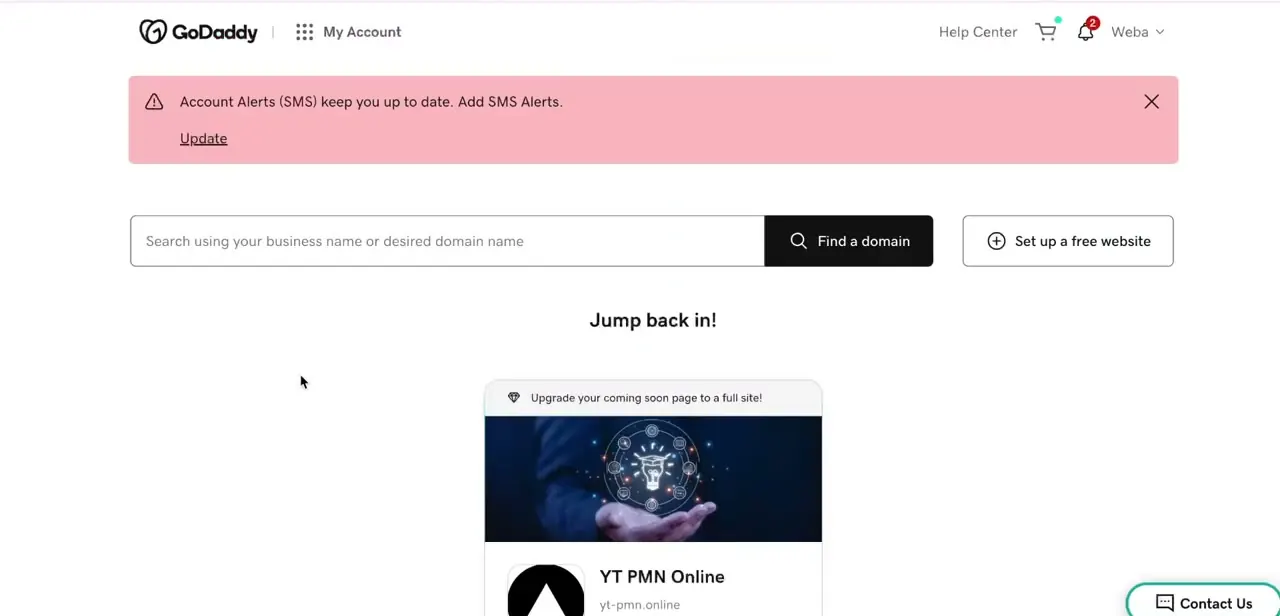
Log in to GoDaddy and land on My Account, where you'll see a "Jump back in!" section listing your existing sites, in this case a card for the site with its logo and domain name shown underneath. Click through on the site you want to connect Facebook to. This dashboard is also where you'd manage renewals, billing, and any other products on the account.
02Open Marketing and find the Social section
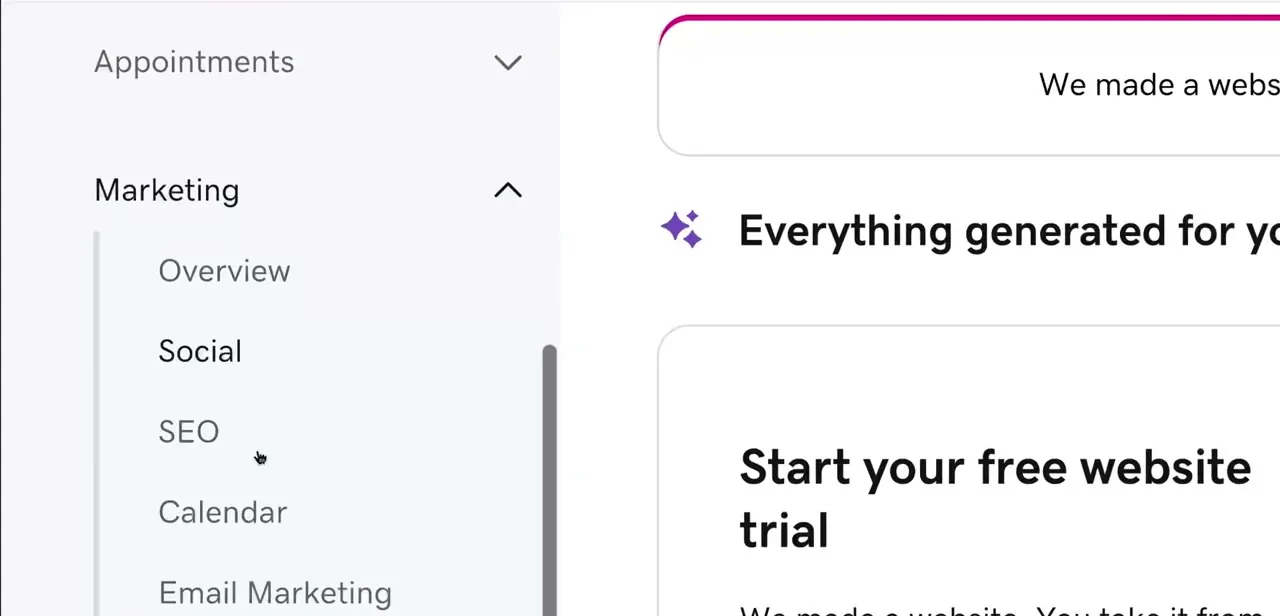
Once you're inside the site's management area, look at the left-hand navigation for a Marketing section. Expanding it reveals sub-items including Overview, Social, SEO, Calendar, and Email Marketing. Social is the hub for connecting every social platform GoDaddy supports, not just Facebook, so you'll see the same panel again if you connect Instagram or Google.
03Click Connect next to Facebook
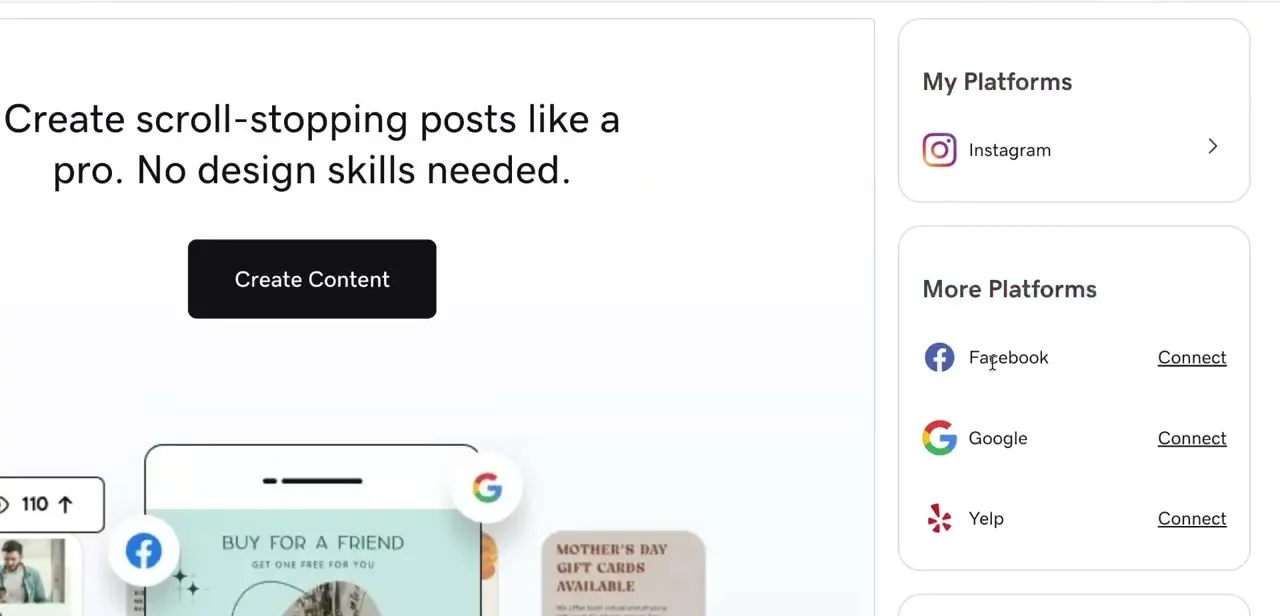
The Social page splits your accounts into "My Platforms," for anything already linked, and "More Platforms" for everything you haven't connected yet. Facebook shows up under More Platforms with a Connect link next to it, alongside Google and Yelp.
Click Connect, and GoDaddy hands off to Facebook's own login and page-selection flow in a popup or new tab. If you have more than one Facebook business page, you'll be asked to choose which one; you must be an admin of whichever page you pick.
04Authorize GoDaddy's access to your Page
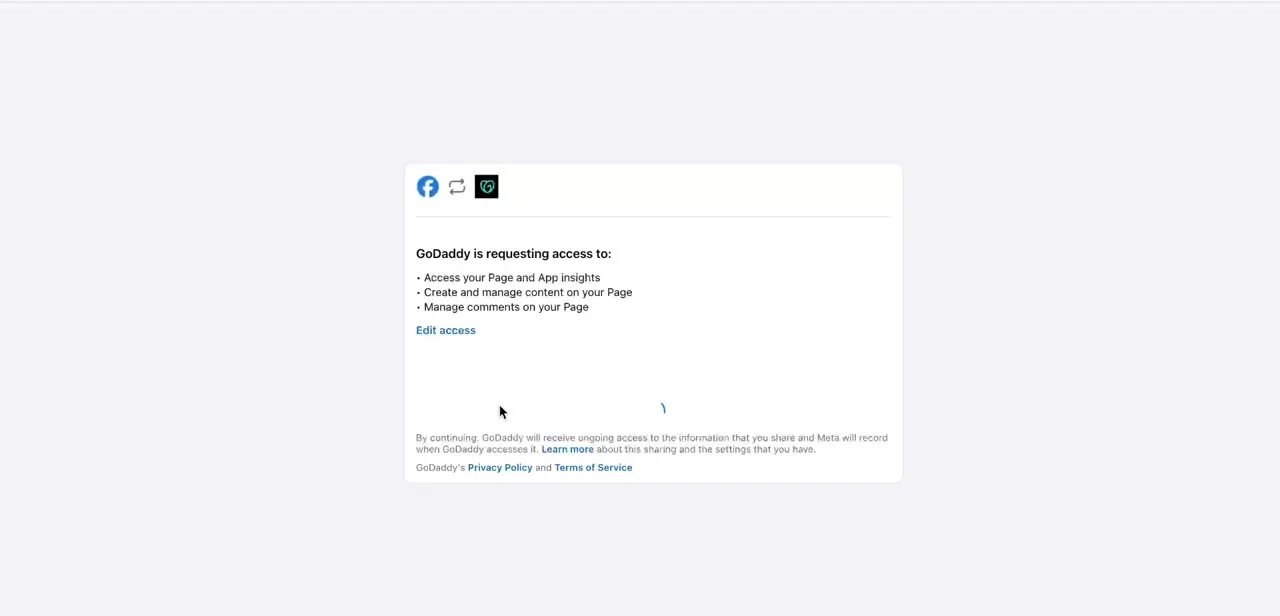
Facebook presents a permissions screen listing exactly what GoDaddy is asking for: access to your Page and App insights, the ability to create and manage content on your Page, and permission to manage comments on your Page. Review the list, use Edit access if you want to limit any of it, and continue to grant access. This is the step that links the two accounts; GoDaddy can't pull in your Facebook content or post to your Page until you approve it here.
05Choose what to display or enable
Back in GoDaddy, the connected Facebook account now appears under My Platforms, and you can decide what to do with it: pull a feed of recent posts into a section of your site, link directly to your Page from the header or footer, or turn on Messenger so visitors can chat with your business without leaving your site. Each of these is a separate toggle or content block, so you don't have to enable all of them just because the account is connected.
06Check the result on desktop and mobile
Preview your site on both a desktop browser and a phone before calling it done. Feeds and chat widgets can render differently at smaller widths, and a Messenger bubble that sits nicely in a corner on desktop sometimes overlaps other content on mobile. Publish the change, then load the live site on your own phone to confirm everything loads and the Messenger button opens a chat window when tapped.
When it doesn't work
Connect fails or throws an error partway through
Why: GoDaddy's own help documentation points to three common causes: the Facebook page is a personal profile rather than a business page, the account isn't an admin of that page, or Facebook's Business Settings no longer list GoDaddy as an active integration.
Fix: Confirm you're connecting a Facebook business page you administer. On Facebook, check Business Settings for whether GoDaddy is listed as active, then retry the connection from GoDaddy's Social page.
Facebook shows "Reconnect" instead of "Connect", and content stopped syncing
Why: Meta periodically requires re-authentication of business management permissions to keep third-party connections like GoDaddy's alive.
Fix: Click Reconnect where Connect used to be and step through the same permissions screen again.
Disconnecting Facebook also broke Instagram and removed photos
Why: GoDaddy's Facebook and Instagram connections are linked. Disconnecting Facebook disconnects Instagram at the same time and removes any images imported from either account.
Fix: There's no partial disconnect. If you only meant to reset Facebook, reconnect both afterward rather than treating this as separate from your Instagram setup.
Frequently asked questions
Can I connect a personal Facebook profile instead of a page?
No. GoDaddy's own documentation is explicit that this connects a Facebook business page, not a personal profile, and a business page has to exist before you can link it.
Do I need admin access to the Facebook page?
Yes. GoDaddy requires you to be an admin of the Facebook business page you're connecting; the connect flow will let you choose among pages you admin but won't connect one you don't.
Does connecting Facebook slow down my website?
A properly configured feed shouldn't noticeably affect load times, though it's worth testing your site's performance after adding it.
Can I add Messenger chat without a full Facebook feed?
Yes, Messenger chat can be added independently of displaying a full Facebook feed on your site.
Where in GoDaddy do I actually connect Facebook?
Under Marketing in the left sidebar, then Social. Facebook appears under "More Platforms" with a Connect link next to it.
What happens if I disconnect Facebook later?
GoDaddy also disconnects Instagram at the same time and removes any images you'd imported from either account, so treat a disconnect as affecting both platforms, not just Facebook.
Sources and last check
Click path and the permissions-screen wording were checked against the walkthrough's own screenshots, which matched exactly. The admin requirement, the business-page-only restriction, and the troubleshooting steps were pulled from GoDaddy's official help articles in September 2026 and added because the original guide didn't mention any of them, not because anything it said about the connect flow itself was wrong.
About the author

Impran M N
I've been hooked on technology for as long as I can remember — especially the new tools and AI apps that seem to land every other week. Easy Tech Tuts is where I write up whatever I've just worked out: I do the task in the real product, record the screen, and turn it into the guide I wish I'd found first.