Easy Tech Tuts
How to Create a Facebook Post in Canva Easily 2026
By Impran M NLast checked against official docs
Canva keeps the whole job in one tool: search for the format, customize a template, and publish, without exporting a file and switching apps. This guide follows that path, from finding the right pre-sized canvas through publishing straight to Facebook from Canva's own Share panel.
One constraint catches people early. Facebook does not let Canva, or any third-party app, post to a personal profile. Everything here publishes to a Facebook Page, so if you're posting for yourself rather than a business or brand, set up a Page first.
Before you start
- A Facebook Page you administer — Canva can publish to a Page, not a personal profile
- Admin or Editor access on that Page (or full/partial Page access, if it uses Facebook's newer Page-access model)
01Search for the Facebook post format
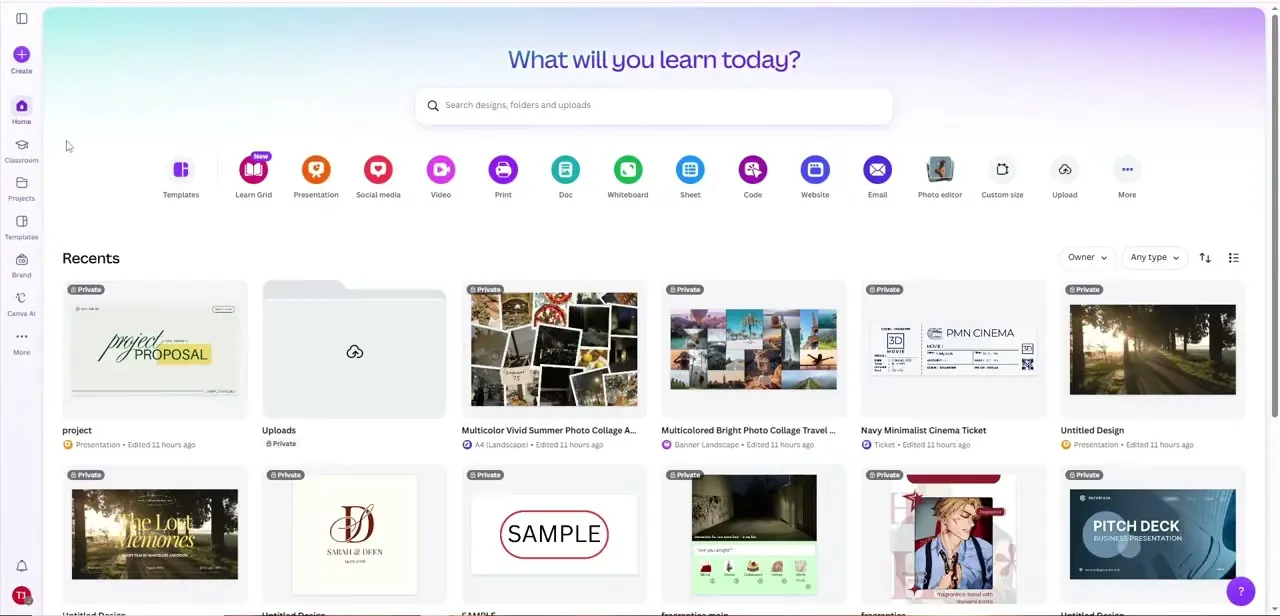
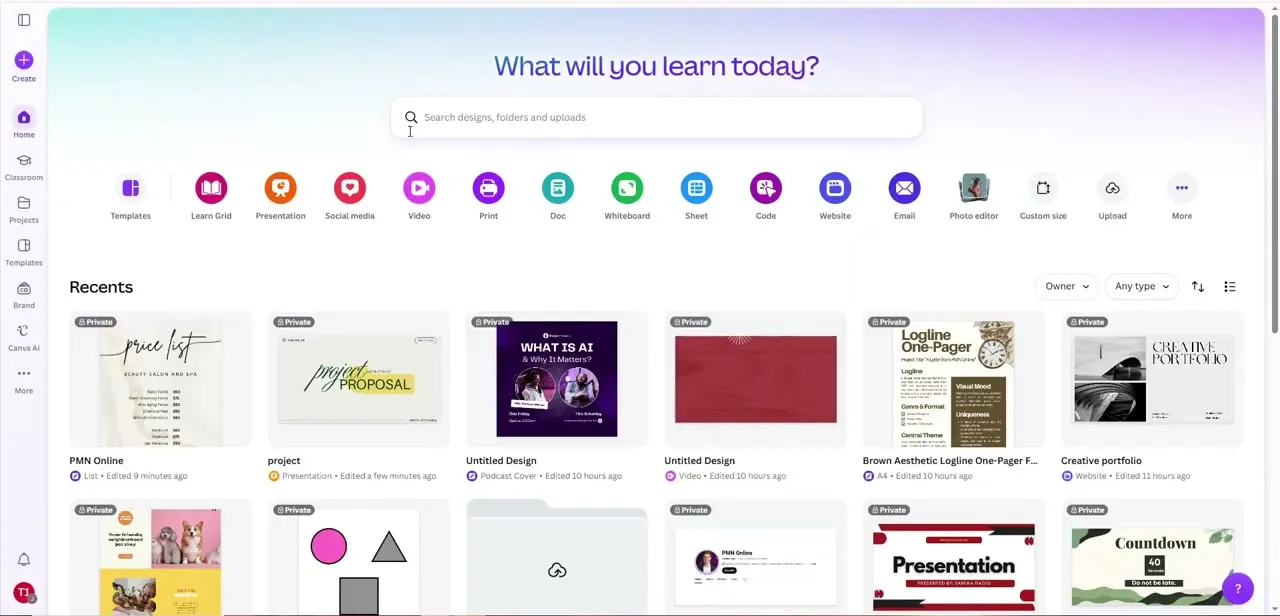
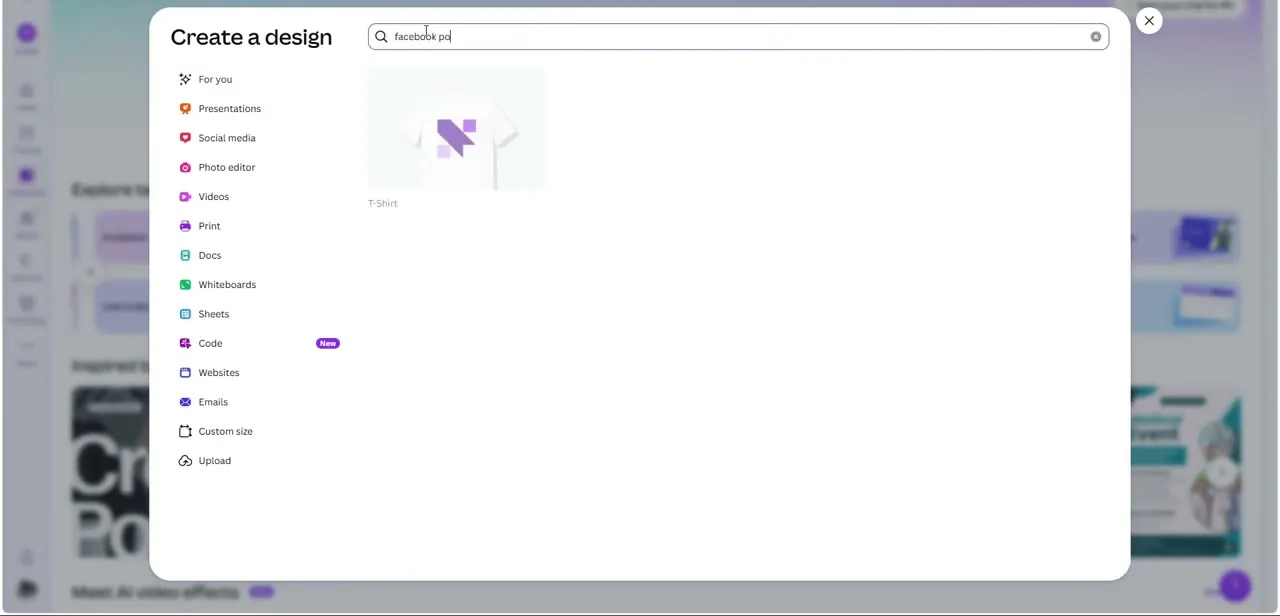
From Canva's Create a design menu, type into the search bar and Canva matches your query against its design types, listed down the left side alongside Presentations, Social media, Photo editor, and more. Typing a specific format like a Facebook post filters results to that exact canvas size. That matters because Facebook posts, cover photos, and ads are all different dimensions, and starting from the wrong one means everything gets cropped or repositioned later.
02Browse templates built for social posts
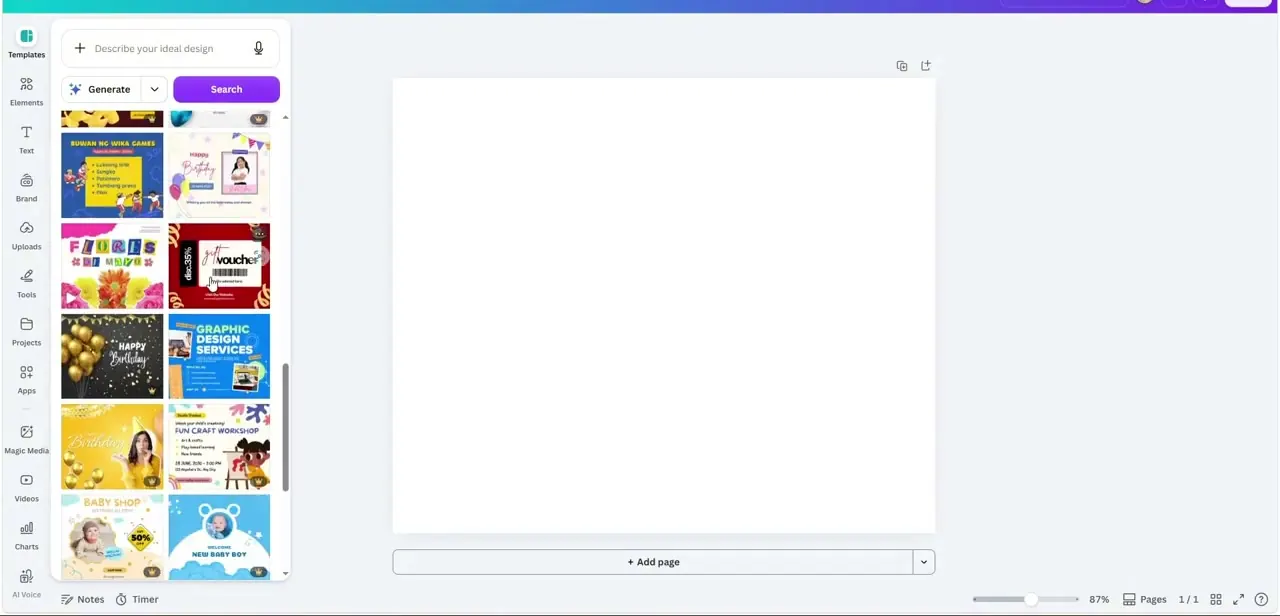
Once you're in a correctly sized canvas, the Templates panel on the left fills with ready-made designs: birthday promos, flash sales, service ads, event announcements. Each is built with layout conventions that work on social feeds, with bold headline text, a clear focal image, and room for a call to action. You can also type a description into "Describe your ideal design" and let Canva generate options, or search by keyword if you already know the style you're after.
03Swap in your own images and copy
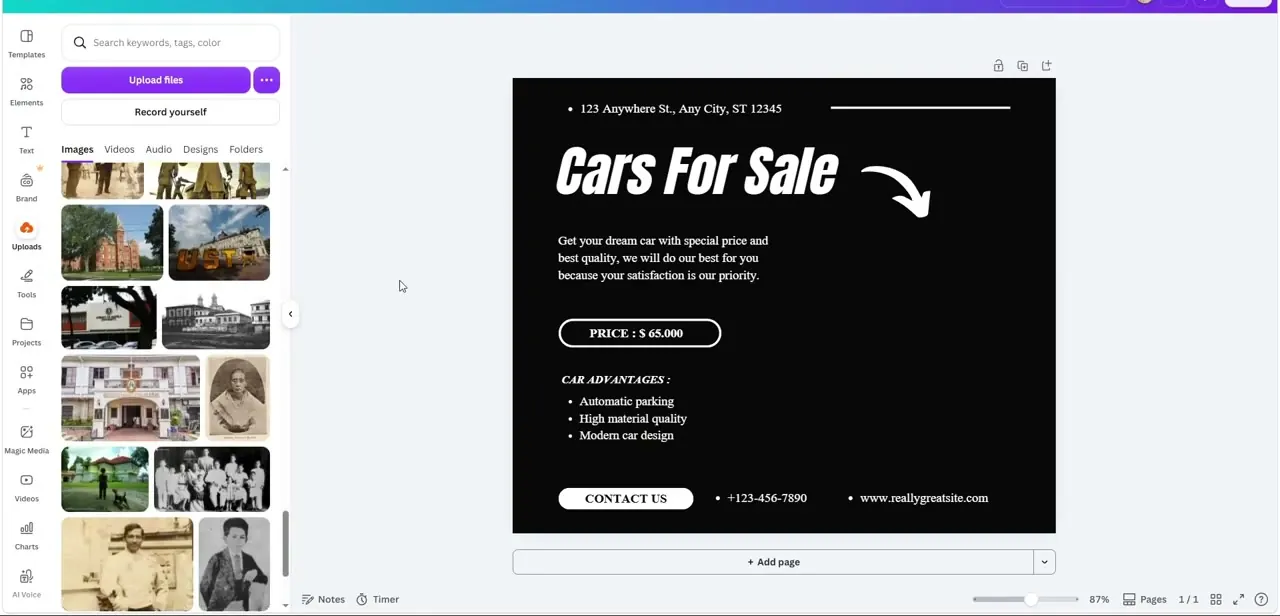
With a template selected, open Uploads to bring in your own photos, or search Canva's stock library for something new. The panel here also has Record yourself if you need original footage rather than stock. Replace the placeholder headline and body text with your actual message, keep the price or offer prominent for a promotional post, and check your contact details or website are still legible once you've swapped the background image.
04Check legibility, then keep branding consistent
Facebook posts get seen at thumbnail size scrolling past on a phone far more than full screen. Zoom out in Canva to roughly that size and check whether the headline and offer still read.
Bold, high-contrast text against a solid background survives the shrink better than a delicate script font over a busy photo. If you're posting regularly, keep the same logo placement, colors, and font pairing across designs so posts are recognizable before anyone reads the copy. Canva's Brand section, in the left sidebar, stores a logo and brand kit so you aren't re-uploading it into every new design.
05Connect a Facebook Page and publish
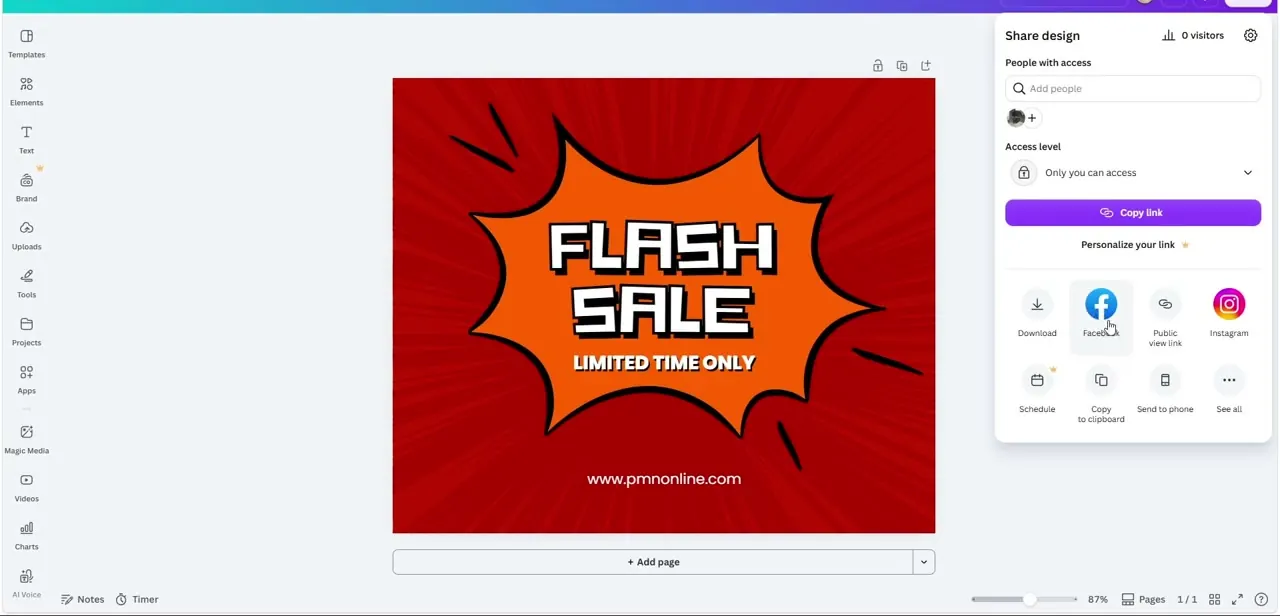
Click Share in the top-right corner of the editor. If Facebook isn't already listed, select See all and search for it.
The first time, you'll be asked to Connect and log in with the Facebook account that manages the Page, not a personal profile, since Facebook blocks third-party apps from posting to those. You also need to be an Admin or Editor on a classic Page, or hold full or partial Page access on a newer-style one; without that role Canva can connect the account but won't have anywhere to publish.
Once connected, choose the Page from the dropdown, add a caption, and select Publish now. Schedule sits next to it if you'd rather queue the post, though scheduling through Canva's Content Planner needs a paid plan: Pro, Business, Education, or Nonprofits. Publishing immediately doesn't.
| File type | Max size |
|---|---|
| PNG or JPG image | 4 MB |
| MP4 or GIF video | 250 MB |
From Canva's sharing-limitations documentation. Facebook can change these without notice.
When it doesn't work
Canva shows "We couldn't find anywhere to publish. Please log in to your account to check your permissions."
Why: Facebook only allows posting to Pages. This is Canva's documented error for when the connected account has no Page to publish to, or isn't an admin or editor on one.
Fix: Connect a Facebook Page account rather than a personal profile, and confirm you have Admin/Editor access (or full/partial Page access) before reconnecting.
The design won't upload to Facebook.
Why: It exceeds Canva's Facebook limits: 4 MB for a PNG or JPG image, 250 MB for an MP4 or GIF video.
Fix: Re-export at a smaller file size, or trim video length, before sharing again.
There's no option to schedule the post, only to publish now.
Why: Scheduling through Content Planner is restricted to Canva Pro, Business, Education, and Nonprofits accounts; a free account can only publish immediately.
Fix: Publish now instead, or upgrade if scheduling matters for your workflow.
Frequently asked questions
Can Canva post to my personal Facebook profile?
No. Facebook blocks third-party apps from posting to personal profiles, so Canva can only publish to a Page you manage.
Do I need a paid Canva plan to publish to Facebook?
Not for publishing immediately, that's on the free plan. Scheduling the post for later through Content Planner requires Canva Pro, Business, Education, or Nonprofits access.
What size should my Facebook post be?
Search for "Facebook post" in Canva's Create a design menu and it filters to the platform's correct pre-sized canvas automatically, so you don't need to look up dimensions yourself.
Why does Canva say it can't find anywhere to publish?
Usually a Page-permissions issue: the connected Facebook account either isn't linked to a Page or lacks admin/editor access on it. Reconnect with an account that has the right role.
How do I keep my Facebook posts looking consistent over time?
Reuse the same template as a base for new posts, and store your logo, colors, and fonts in Canva's Brand section so every design pulls from the same kit.
Sources and last check
Click path and screens come from a recorded walkthrough. Re-checked against Canva's own Help Center in September 2026: the Pages-only restriction, the admin/editor role requirement, the exact error message, the 4MB/250MB Facebook file limits, and the Pro/Business/Education/Nonprofits gate on scheduling are all confirmed there and were missing from this guide's earlier version.
About the author

Impran M N
I've been hooked on technology for as long as I can remember — especially the new tools and AI apps that seem to land every other week. Easy Tech Tuts is where I write up whatever I've just worked out: I do the task in the real product, record the screen, and turn it into the guide I wish I'd found first.