Easy Tech Tuts
How to Connect Facebook Pages to GoHighLevel Easily 2026
By Impran M NLast checked against official docs
If you're running conversations and leads through a Facebook Page, GoHighLevel can pull all of that into the same dashboard where you already manage email, SMS, and workflows. You connect the page once, instead of logging into Meta Business Suite separately, and let GoHighLevel handle the syncing.
This guide walks through where that connection lives inside the platform, what the account-linking screen looks like, and what to check once a page is attached so messages and leads flow through as expected. It also covers two Meta-side rules GoHighLevel's own interface doesn't spell out: whose Facebook login you need, and why personal profiles no longer work here.
Before you start
- Admin access, under one Facebook login, to every Page you want to connect — GoHighLevel only lists Pages that login administers
01Start from your GoHighLevel dashboard
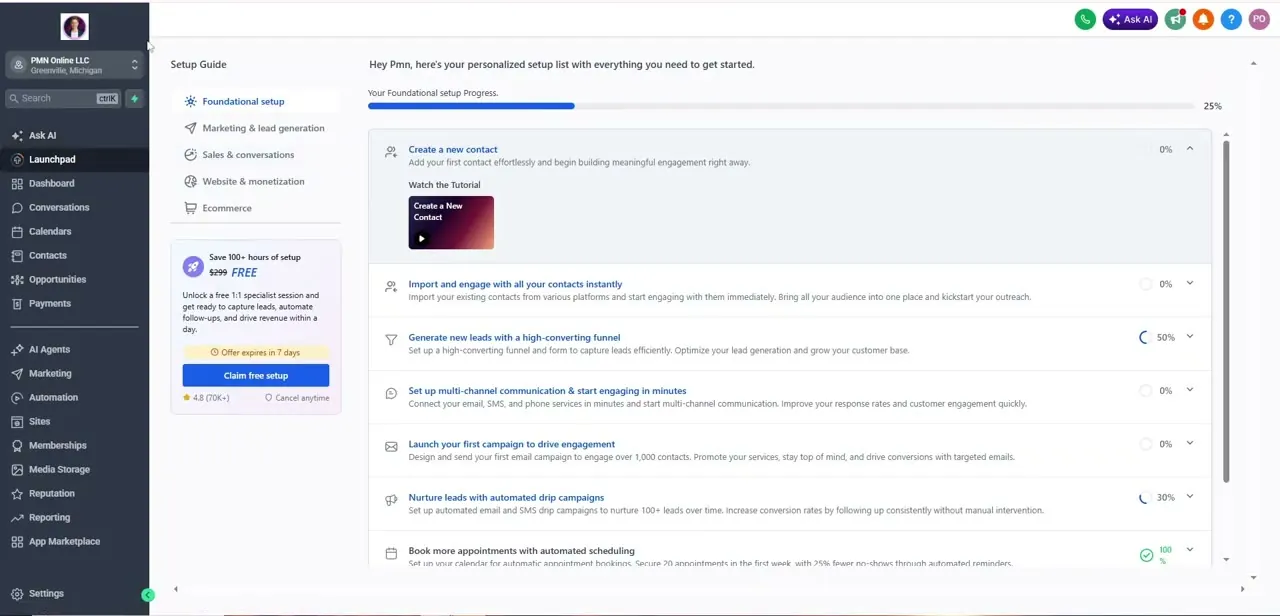
Log into your sub-account and check the Launchpad, the personalized setup checklist GoHighLevel shows new and returning users: items like adding contacts, setting up communication channels, and launching campaigns, each with its own progress percentage. Facebook isn't listed here directly, but the Launchpad is a useful home base since it confirms which foundational pieces, payments, phone numbers, email sending, are already switched on before you layer a social integration on top.
If your account is brand new, expect most items to sit at 0%. That's normal.
02Open Marketing and find the Social Planner
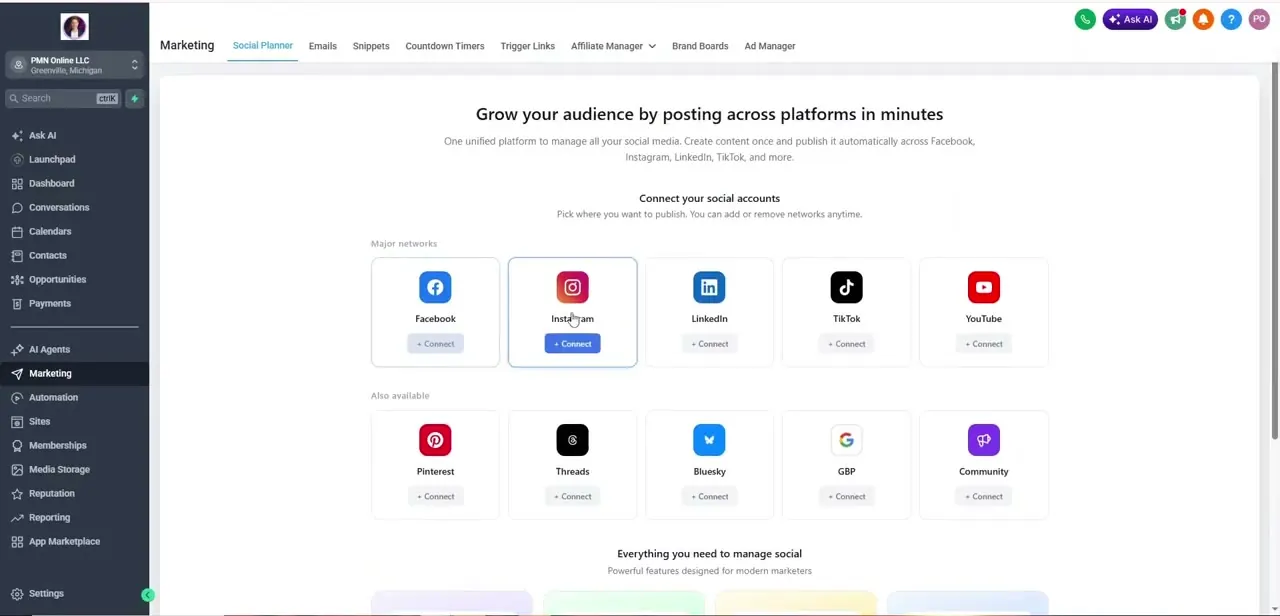
From the left-hand menu, click Marketing, then the Social Planner tab. This is where GoHighLevel manages every social account tied to the sub-account, and it's where a Facebook Page gets linked: a normal tab under Marketing, not a hidden settings menu. If you've never connected anything here, the page opens with an empty state prompting you to pick a network.
03Connect your Facebook Page from Social Planner's settings
Social Planner's main screen shows account cards for each network: Facebook, Instagram, LinkedIn, TikTok, YouTube, and more. GoHighLevel's own support documentation describes the connection step as living one level in, behind the gear icon in the top right corner of Social Planner: click it, then choose Connect a new Facebook page.
Either route hands you off to Meta's own login and page-selection screen. Sign in with the Facebook profile that has admin access to every Page you want to connect, since GoHighLevel only lists Pages that profile administers. If your business splits Page admin rights across several people's Facebook logins, connecting all of them in one pass isn't possible; you'd need to sign in separately for each admin's set of Pages.
04Grant permissions and confirm the Page is connected
Meta's authorization flow asks you to approve specific permissions: managing the Page, reading and responding to messages, and viewing Page content. Approve all of them.
Decline any single one and GoHighLevel typically can't sync that Page's conversations or leads reliably. This step happens on Meta's domain, not GoHighLevel's, so the visual switch is expected.
After authorization finishes, you're returned to Social Planner, and the Facebook card should show your Page name instead of a Connect button. Double-check you linked the right Page here, especially if your business manages more than one: GoHighLevel doesn't stop you from connecting the wrong one, and undoing it later means disconnecting and reauthorizing from scratch. If you ever need to reconnect a Page, remove GoHighLevel from that Page's Business Integrations settings in Meta Business Suite first; reauthorizing on top of a stale connection is a common reason a reconnect doesn't take.
05Check that Messenger conversations land in Conversations
With the Page connected, incoming Messenger messages should start appearing in GoHighLevel's Conversations tab alongside your SMS and email threads, and new message senders should generate contact records automatically. Send yourself a test message from the connected Page before you rely on it for real customer traffic. A missed permission during authorization is the most common reason messages don't sync, and Meta's own rules add a second one: under Meta's current API rules, GoHighLevel can no longer post to or manage personal Facebook profiles, only Pages, so a personal-profile connection simply won't work here regardless of permissions.
06Build a workflow around new Facebook leads
Once messages are flowing in, the real payoff is automation. In Workflows, trigger a sequence whenever a new contact arrives from Facebook: an instant auto-reply, a tag that routes them to the right team, or a follow-up a few hours later if no one's responded.
Keep the first automated message short and conversational. A canned corporate reply is the fastest way to make someone stop replying to a Page they just messaged.
When it doesn't work
Not all of the business's Facebook Pages show up to connect.
Why: GoHighLevel only lists Pages where the Facebook profile you signed in with has admin rights. Pages administered under a different login won't appear.
Fix: Sign in with whichever profile administers the Pages you need, or ask that Page's admin to add you before connecting.
A personal Facebook profile won't connect, or messages from it never sync.
Why: Meta's current API rules mean GoHighLevel can only manage Pages, not personal profiles, for messaging and posting.
Fix: Create or use a Facebook Page for the business instead of a personal profile, and connect that.
Reconnecting a Page doesn't fix a broken sync.
Why: The old authorization is still active in Meta Business Suite's Business Integrations settings, so a fresh connect attempt layers on top of it instead of replacing it.
Fix: Remove GoHighLevel from that Page's Business Integrations settings in Meta first, then reconnect from Social Planner.
The Page shows as connected, but Messenger conversations never appear in Conversations.
Why: One of the permissions Meta asks for, usually message access, was declined or only partially approved during authorization.
Fix: Reconnect the Page and approve every permission Meta requests during the handoff.
Frequently asked questions
Do I need a Meta account to connect my Facebook Page?
Yes, and it needs to be the profile with admin access to the Page itself. GoHighLevel only lists Pages that your login administers, so a business with several admins may need more than one connection pass.
Can I manage Facebook Messenger from GoHighLevel?
Yes. Once a Page is connected and permissions are approved, Messenger conversations appear in GoHighLevel's Conversations tab alongside your other channels.
Can I automate responses to new Facebook leads?
Yes. Workflows can trigger off a new Facebook contact or message, sending an automatic reply, applying tags, or starting a follow-up sequence.
What permissions does this integration require?
Meta will ask you to approve Page management and messaging permissions during the connection flow. Declining any of them can break message or lead syncing.
Can I connect my personal Facebook profile instead of a Page?
No. Meta's API no longer lets GoHighLevel post to or manage personal profiles, only Pages, so a personal-profile connection won't sync messages or leads.
Where in GoHighLevel do I connect Facebook?
Under Marketing → Social Planner, specifically the gear icon in the top right, then Connect a new Facebook page. It's the same general screen used for Instagram, LinkedIn, TikTok, and other networks.
Sources and last check
Click path and screens come from a July 2025 walkthrough. The connection flow, the admin-rights-per-login requirement, the personal-profile restriction, and the reconnect-via-Business-Integrations step were re-checked against GoHighLevel's official support article in September 2026, which also clarified that connecting happens via the gear icon in Social Planner instead of only the account-card row shown in the recording. Corrections above reflect that.
About the author

Impran M N
I've been hooked on technology for as long as I can remember — especially the new tools and AI apps that seem to land every other week. Easy Tech Tuts is where I write up whatever I've just worked out: I do the task in the real product, record the screen, and turn it into the guide I wish I'd found first.