Easy Tech Tuts
How to Design a Facebook Cover Photo in Canva Easily 2026
By Impran M NLast checked against official docs
A Facebook cover photo is prime real estate: it's the first wide banner anyone sees at the top of your profile or page. Designing one from a blank canvas means fighting Facebook's crop dimensions the whole way.
Canva sidesteps that by offering templates already built to Facebook Cover size, so the real work is making a template look like it belongs to you instead of whoever downloaded it first. This guide follows that path: opening Canva, searching specifically for Facebook Cover templates, picking one, and swapping its generic graphic and copy for something that matches your actual message.
01Start from the Canva home screen
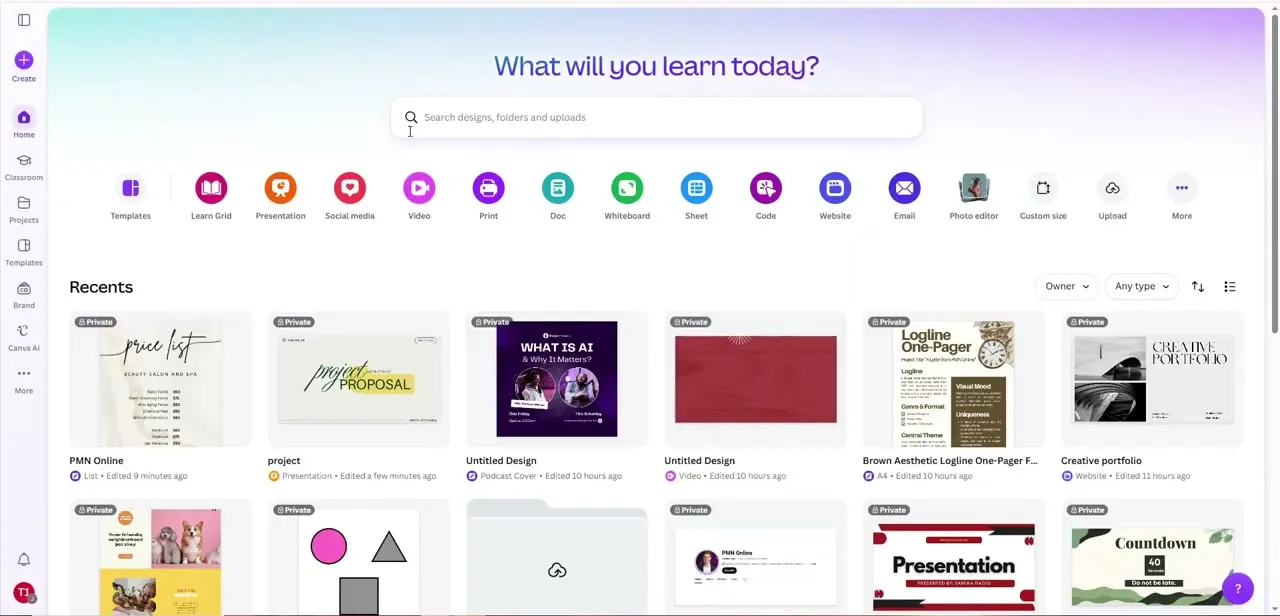
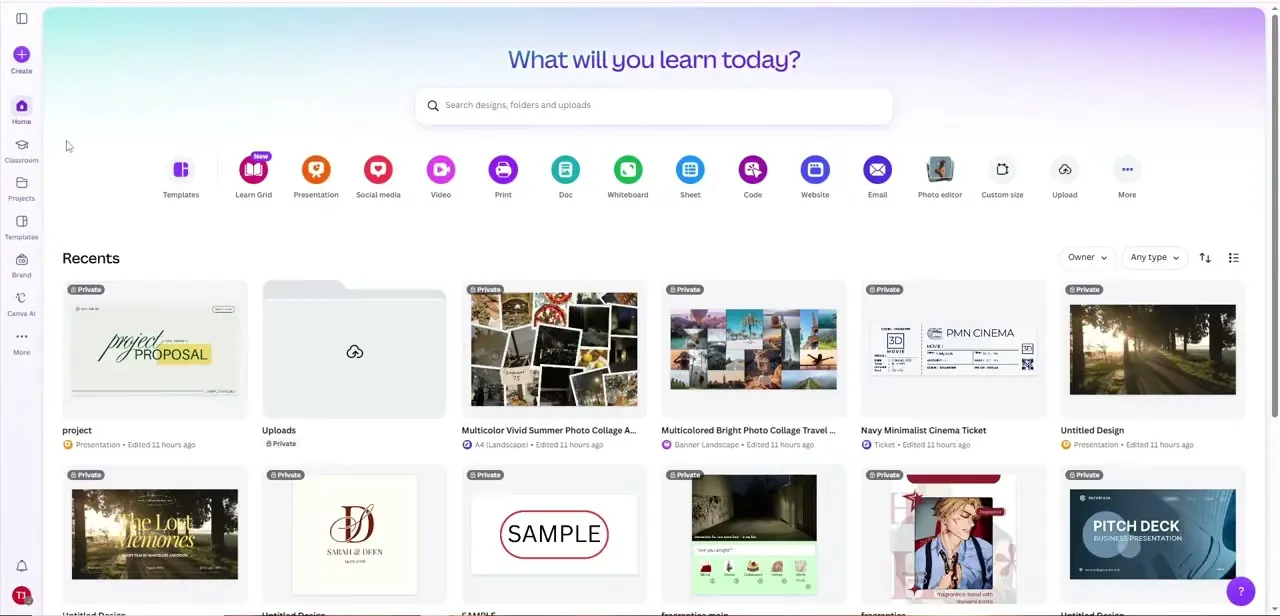
From Canva's "What will you learn today?" home screen, format shortcuts run across the top (Templates, Social media, Video, and more), plus a search bar and a grid of your recent designs below. You can click through Social media to browse by platform, but typing directly into the search bar is usually the fastest route to a specific format like a Facebook cover.
02Search for Facebook Cover templates
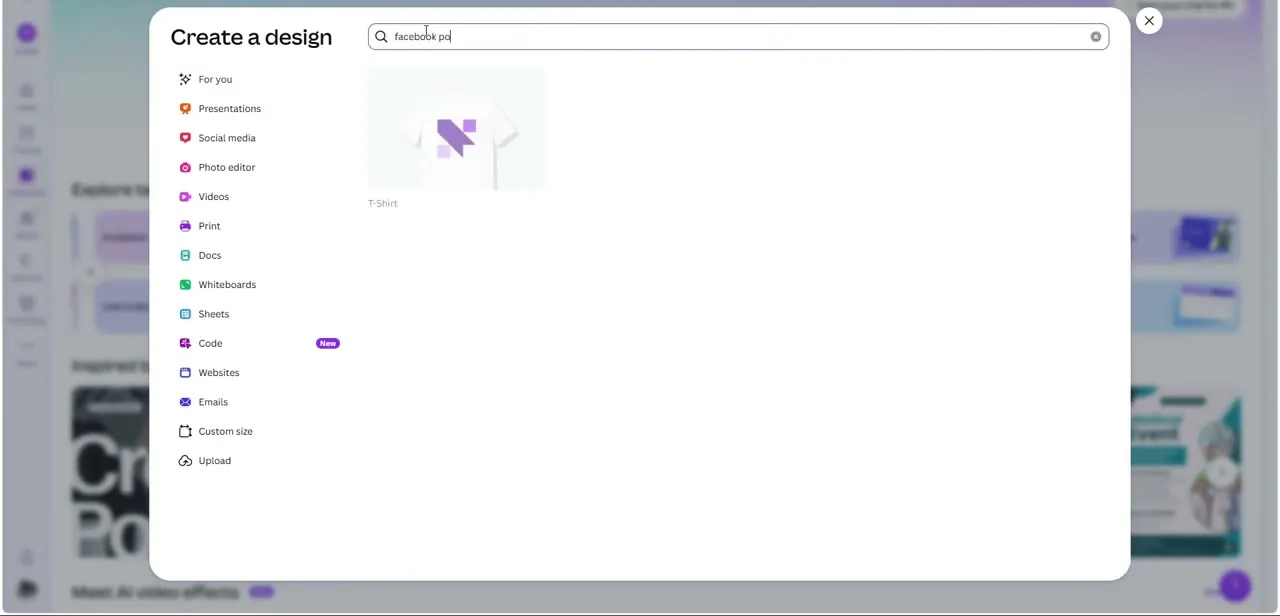
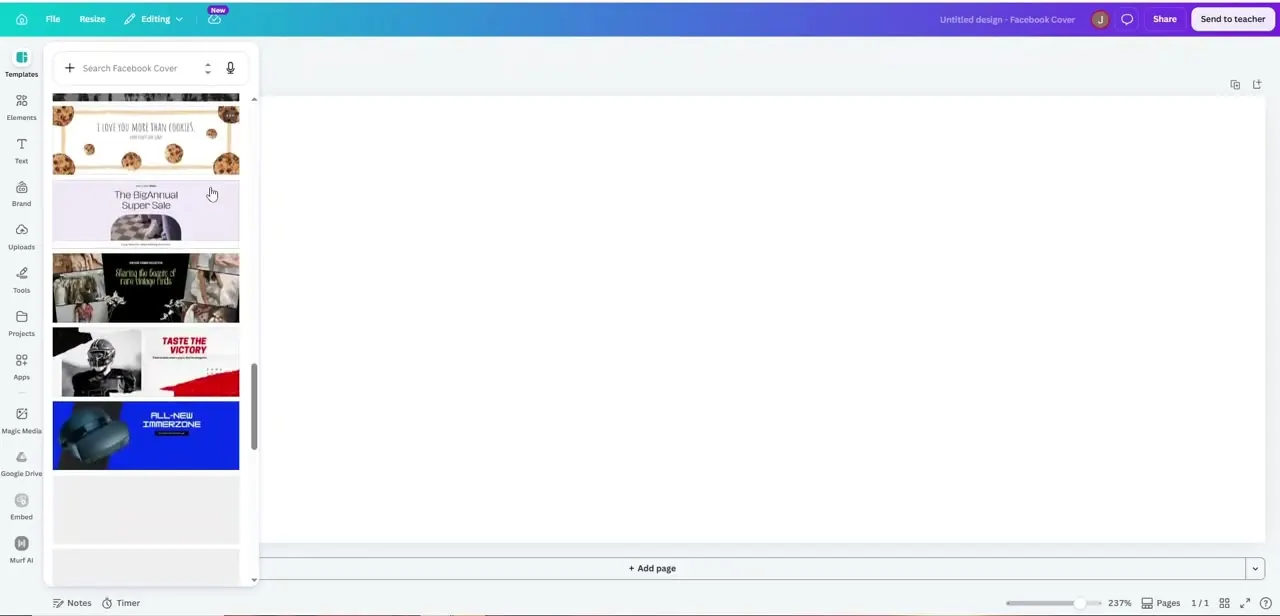
Inside a project, the Templates panel on the left has a dedicated search field. Searching "Facebook Cover" returns a scrollable list of pre-sized designs, from a cookie-themed birthday banner to a big sale announcement to a sports promo. Every one is already cropped to Facebook's cover dimensions, so once you commit to a template you're only replacing content, not fighting aspect ratio problems later.
03Open a template and read what it's giving you
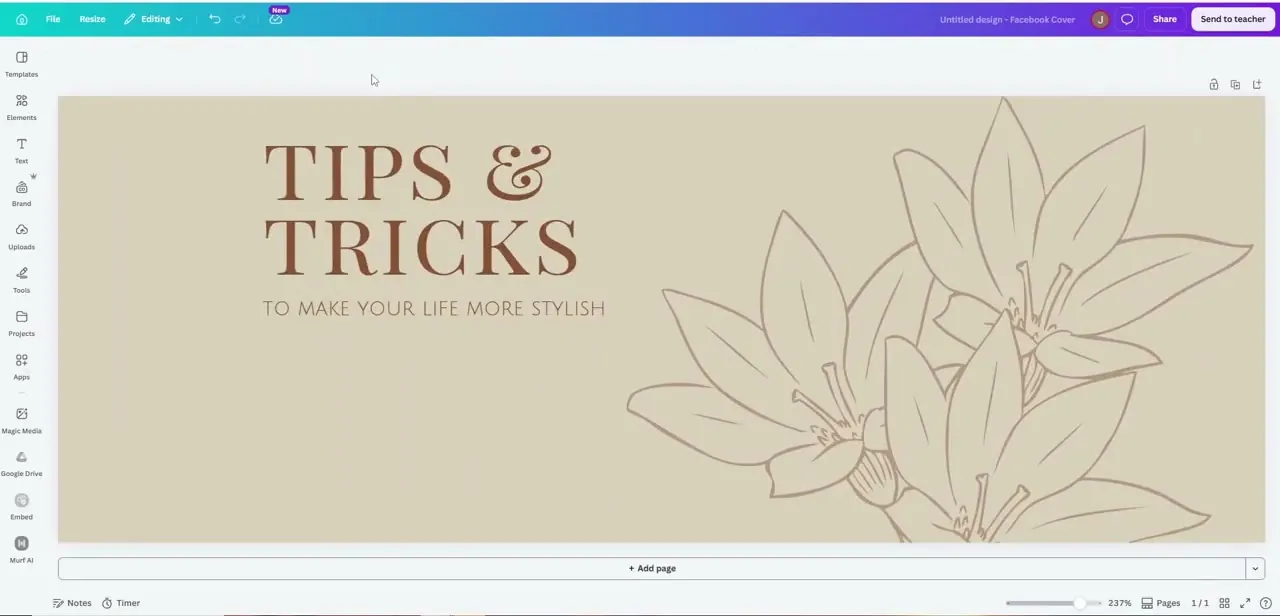
Clicking a template loads it onto the canvas at full size, in this example a soft tan cover reading "Tips & Tricks / To Make Your Life More Stylish" with a hand-drawn floral illustration on the right. Before changing anything, notice what's doing the visual work: the layout balance between text on one side and graphics on the other, the color palette, and the font pairing.
That structure is what you're keeping. The specific words and imagery are what you're about to replace.
04Replace the template's graphic with your own
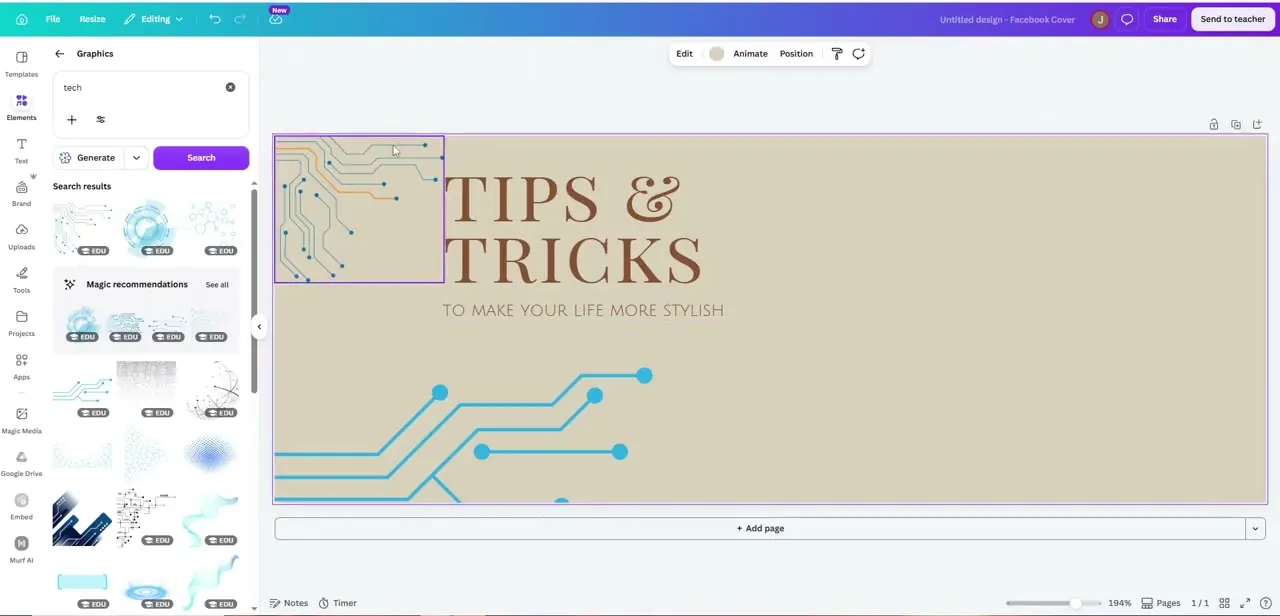
Selecting the existing graphic and opening Elements switches the left panel into Graphics search. Searching a keyword relevant to your brand, like "tech," surfaces a fresh set of illustrations plus a "Magic recommendations" row Canva generates based on what's already on your canvas. Dragging a new graphic onto the selected element's spot swaps it in at roughly the same size and position, keeping the template's original composition intact even though the imagery now matches a different topic.
05Rewrite the text and bring the colors in line with your brand
Double-click the title and subtitle text to edit them directly, replacing placeholder copy like "Tips & Tricks" with your actual page name, tagline, or announcement. Keep it short: a cover photo is glanced at, not read closely, so two or three words in the headline and one supporting line will read better than a paragraph crammed into the same space.
Once the words are in, select each text or shape element and use the color swatch in the toolbar to bring the palette in line with your brand colors or logo. Doing color last is usually easier, since you're judging contrast and readability against the real content instead of the template's placeholder version.
06Download and check it on Facebook itself
Once the design looks right, export it as a PNG or JPG at the template's native size. Canva already sized it to Facebook's cover dimensions, so there's no manual cropping before uploading. Check the preview on Facebook once it's live: the profile picture and page navigation elements overlap part of the cover on both desktop and mobile, and Facebook also crops the same image differently between the two, so a detail sitting near an edge in Canva can end up partly covered or cut on the live page.
Frequently asked questions
Do I need design skills to make a Facebook cover in Canva?
No. Starting from a template built for Facebook's cover dimensions means the layout and sizing are already handled; you're mainly swapping in your own graphics, text, and colors.
Are there templates specifically sized for Facebook covers?
Yes. Searching "Facebook Cover" in Canva's Templates panel returns designs pre-cropped to the correct banner dimensions, so nothing needs manual resizing.
How do I replace a template's graphic without breaking the layout?
Select the existing graphic, open Elements, and search a keyword related to your brand. Dragging a new graphic onto the selected element's position keeps roughly the same size and placement as the original.
Why does part of my cover photo get hidden after I upload it?
Facebook overlays the profile picture and, on some layouts, page navigation over the lower portion of the cover, and it crops the same image differently on desktop versus mobile. Keep key text and logos away from the edges and check the live page after publishing.
Can I reuse the same design for other platforms?
You can reuse the composition, but you'll need to resize the canvas for each platform, since a Facebook cover, a LinkedIn banner, and a YouTube channel art all use different aspect ratios.
Sources and last check
Click path and screens come from a walkthrough recorded in July 2025. An attempt was made in September 2026 to re-check current sizing and format rules against Canva's and Meta's own help pages, but both blocked automated fetching in this session, so no vendor-sourced correction could be made this pass. This revision is limited to restructuring (merging the text and color steps into one, since they're really a single pass) and removing generic filler; the profile-picture overlap and desktop/mobile cropping note was already present in the recording-based content and is left as a general caution instead of a cited figure.
About the author

Impran M N
I've been hooked on technology for as long as I can remember — especially the new tools and AI apps that seem to land every other week. Easy Tech Tuts is where I write up whatever I've just worked out: I do the task in the real product, record the screen, and turn it into the guide I wish I'd found first.