Easy Tech Tuts
How to Install Elementor in WordPress Localhost, Use WP Elementor Locally 2026
By Impran M NLast checked against official docs
Building websites offline with Elementor is a good way to test designs before anything touches a live server, and it starts with getting WordPress running on your own computer. Local by WP Engine (localwp.com) has become the standard way to do this.
It's free, purpose-built for WordPress, and skips the manual server configuration that older tools like XAMPP or WAMP require. This guide covers downloading Local, spinning up a WordPress site with it, installing Elementor, and building a first page fully offline, plus where Local's one-click "push live" button does and doesn't reach.
Before you start
- A Windows, Mac, or Linux computer with a few hundred MB free per WordPress site
- An internet connection for the one-time downloads of Local and the Elementor plugin (Local asks for an email address before it sends the installer link; no account or payment)
01Download and install Local
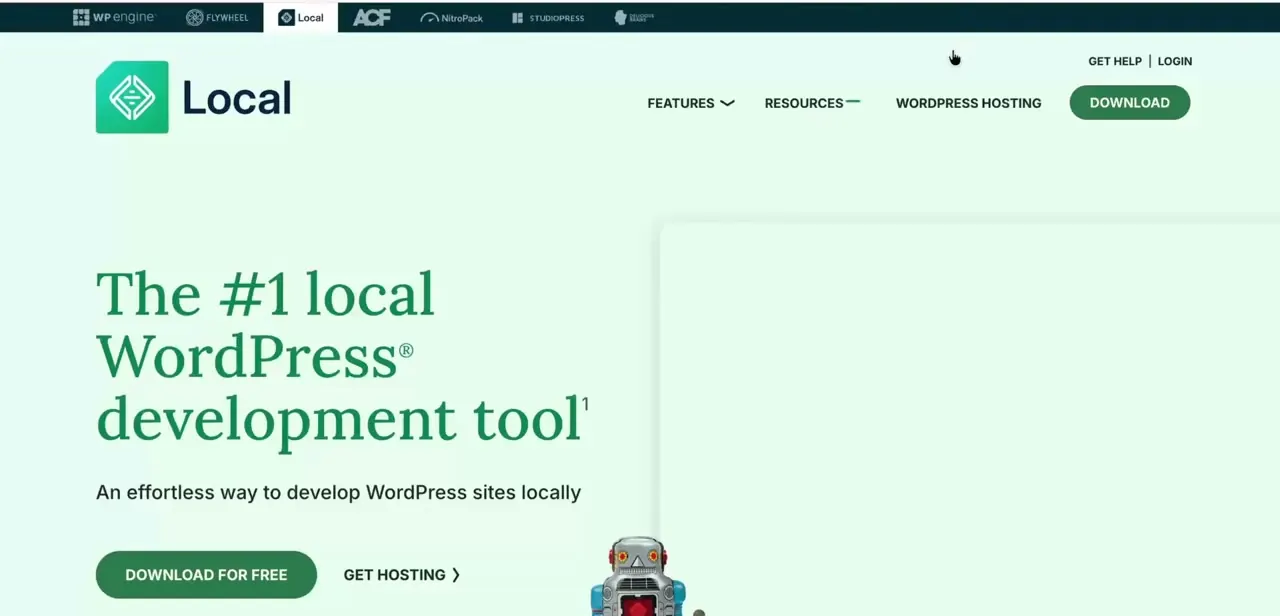
Go to localwp.com and download Local by WP Engine, which bills itself as the number one local WordPress development tool and is free to use. Unlike XAMPP or WAMP, which set up a generic local server that you then have to manually install WordPress onto, Local is built specifically for spinning up WordPress sites. It handles the web server, PHP, and database behind a simple interface, so it's the faster route when WordPress is specifically what you're testing.
02Create a new local WordPress site
Once Local is installed, use its "Create a new site" option to spin up a fresh WordPress install on your machine. You'll name the site, choose a local environment (PHP version, web server, database), and set an admin username and password.
Local handles the WordPress core download and database setup for you, and within a minute or two you'll have a working WordPress admin running at a local address instead of a public domain. This local site behaves like a live one for installing plugins and building pages; it just isn't reachable from outside your computer.
03Log into your local WordPress admin
From Local's site management screen, click into your new site and open its WP Admin. This drops you into a standard WordPress dashboard, no different from a live site's admin, just running from your own machine.
If you've built WordPress sites before, nothing here looks unfamiliar. The difference is entirely in how the site is hosted, not in how the admin works.
04Install and activate the Elementor plugin
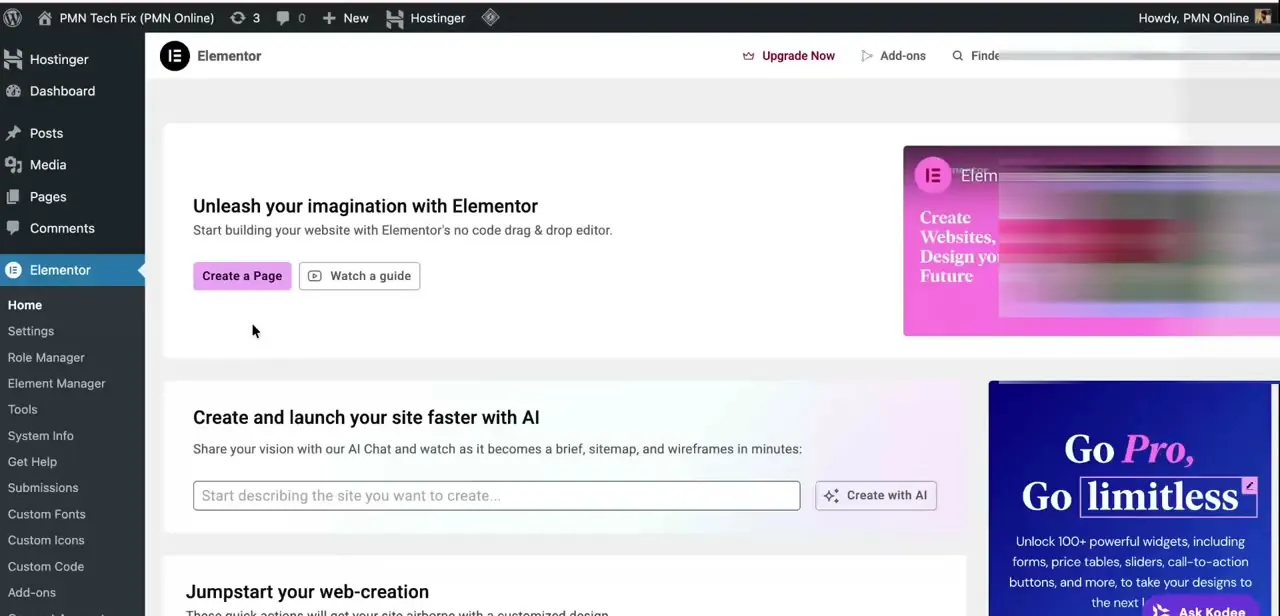
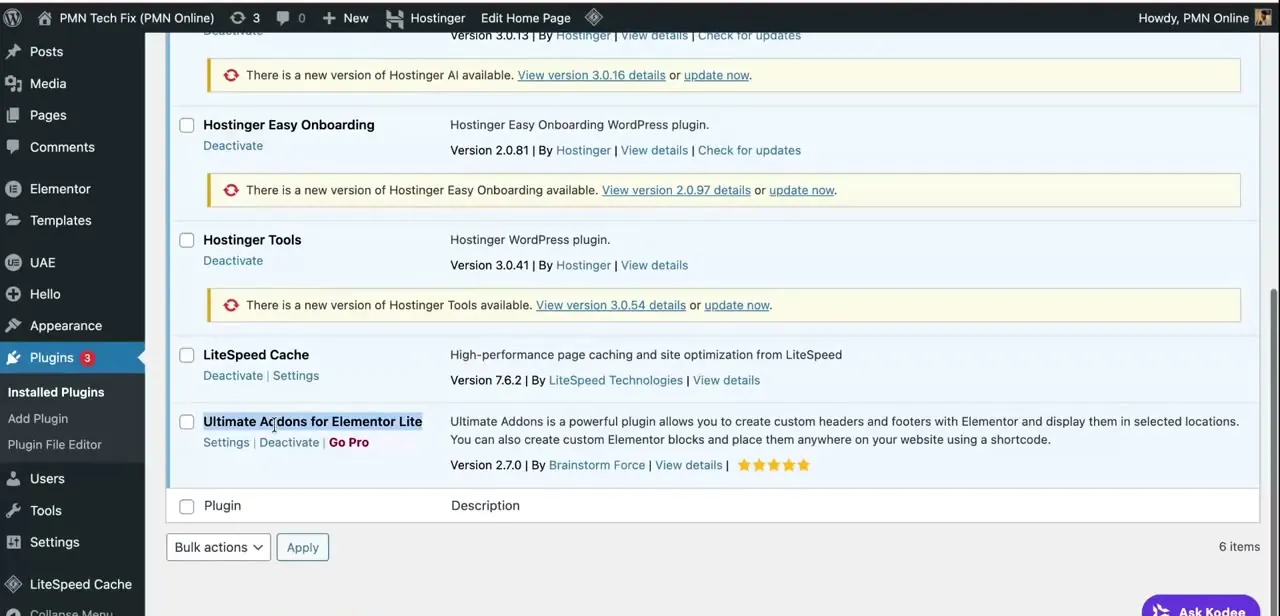
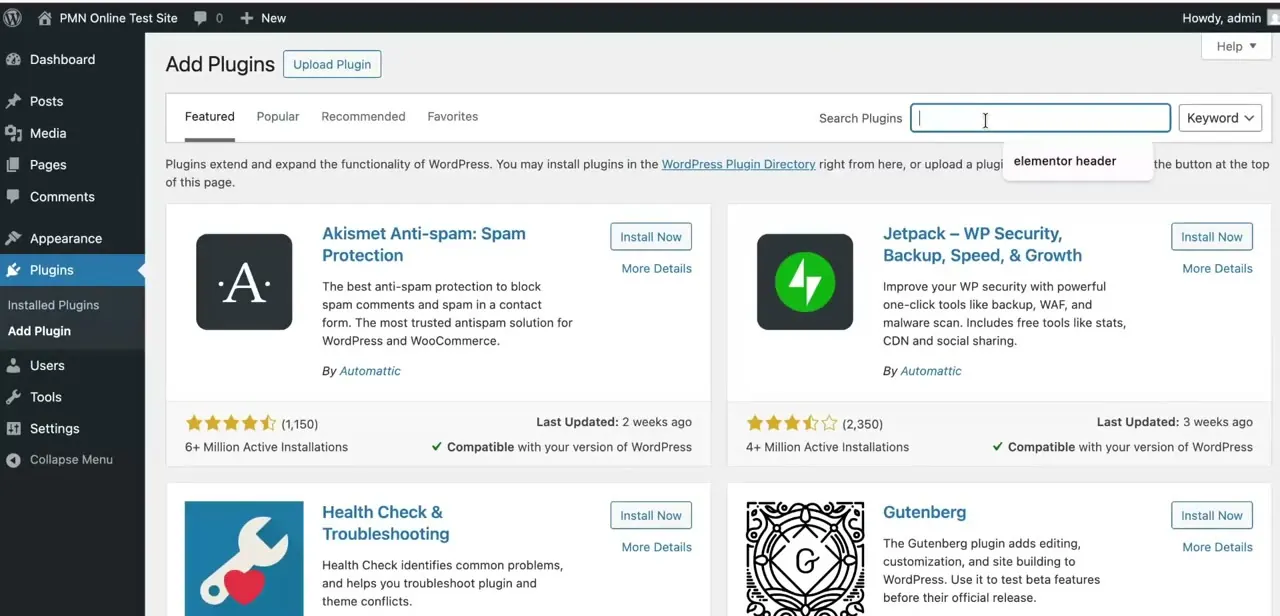
In the local WordPress admin, go to Plugins, then Add New. Search for Elementor in the search field, click Install Now on the official Elementor Website Builder result, then click Activate.
This is identical to installing Elementor on a live WordPress site, since the plugin pulls from the same WordPress.org plugin repository either way. Your computer does need an internet connection for this one installation step, even though the editing that follows doesn't.
05Build a page in the Elementor editor
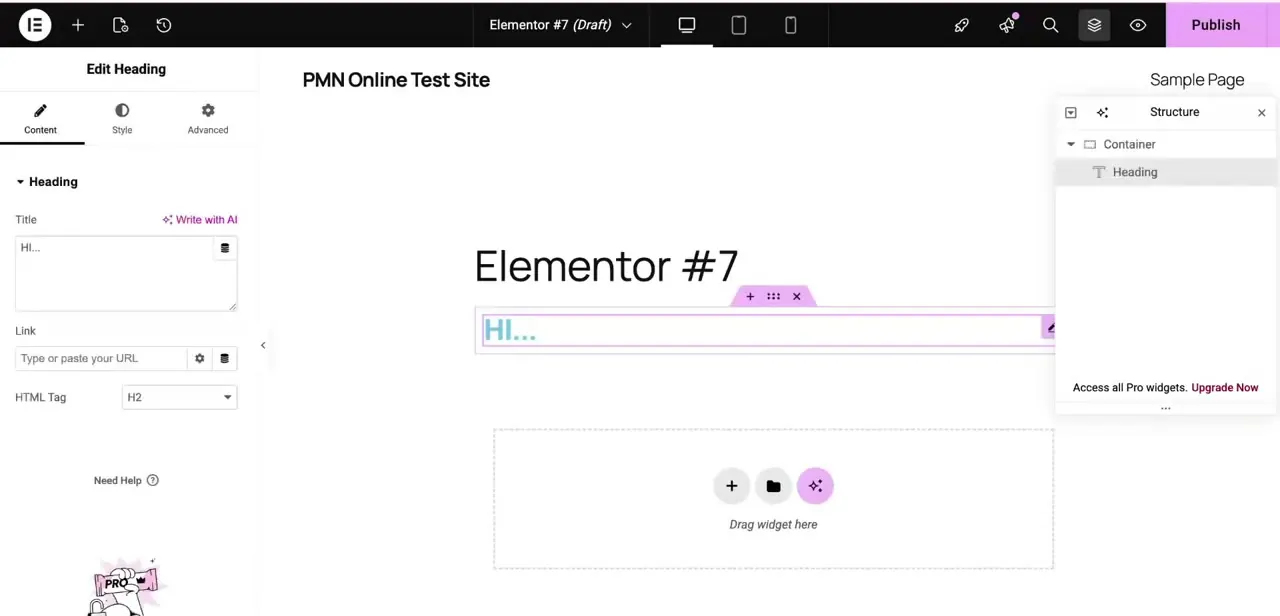
With Elementor activated, open or create a page and click Edit with Elementor to enter the visual editor. Drag a Heading widget into a container, edit its text in the Content tab on the left, and check the Structure panel on the right to see how containers and widgets nest as your layout grows. Every part of this, dragging widgets, editing content, adjusting style, runs against your local install with no dependency on an internet connection once Elementor is installed.
When it doesn't work
The local site won't load and WP Admin is unreachable
Why: The site is stopped in Local. This is the most common reason a previously working local WP Admin suddenly stops responding.
Fix: Open Local's site list and confirm the site shows as running. Start it if it's stopped, then reload WP Admin.
A page looks visually broken after installing a theme or plugin
Why: This is rarely specific to running locally. It responds to the same causes as a live site: a stale cache or a plugin conflict.
Fix: Clear any caching plugin's cache, then deactivate other plugins one at a time to isolate the conflict.
Local's one-click deploy doesn't show the host the site actually needs to go to
Why: Local's built-in Connect feature only pushes a site live to WP Engine or Flywheel hosting. It doesn't deploy to arbitrary hosts.
Fix: For any other host, export the site as a zip (through Local's own export or a plugin like WP Migrate or All-in-One WP Migration) and import that on the destination host instead of looking for a one-click push.
Frequently asked questions
Do I need internet access to use Elementor on localhost?
No, once WordPress and Elementor are installed on your local site, you can design and edit pages fully offline. You only need a connection for the initial downloads of Local and the Elementor plugin.
Is Elementor's free version enough for local testing?
Yes. The free version works the same on a local site as it does live, for basic page building and testing layouts before launch.
What's the difference between using XAMPP and Local by WP Engine?
XAMPP sets up a generic local server that you then manually install WordPress onto. Local is built for WordPress specifically and sets up the web server, PHP, and database for you in one guided flow.
Can Local push my finished site live to any host?
Only WP Engine and Flywheel get Local's one-click deploy. For any other host, export the site as a zip through Local or a migration plugin like WP Migrate, then import it on the new host manually.
Why can't I reach my local WordPress admin?
Check that the site is actually running in Local's site list. A stopped local site is the most common reason its WP Admin becomes unreachable.
Sources and last check
Click path and screens come from a walkthrough recorded on a real Local and WordPress install. The Elementor install steps (Plugins > Add New, search, Install Now, Activate) and Local's feature list were re-checked against Elementor's and Local's official documentation in September 2026. That check corrected an overstated claim that Local pushes a finished site live to any host; its one-click Connect only reaches WP Engine or Flywheel, and the article now says so along with the workaround for other hosts.
About the author

Impran M N
I've been hooked on technology for as long as I can remember — especially the new tools and AI apps that seem to land every other week. Easy Tech Tuts is where I write up whatever I've just worked out: I do the task in the real product, record the screen, and turn it into the guide I wish I'd found first.