Easy Tech Tuts
How To Add & Edit Header In Elementor for Free, Add Header & Footer Easily 2026
By Impran M NLast checked against official docs
A common misconception among WordPress beginners is that editing a header requires Elementor Pro, but a free plugin that adds theme-builder functionality gets you the same result without paying for an upgrade. This guide follows the free-plugin route from inside the WordPress admin: installing the right plugin, opening its Header & Footer Builder, creating a template, and building the header itself inside Elementor's normal drag-and-drop editor. It works across popular themes like Astra, GeneratePress, OceanWP, and Hello Elementor, since the plugin handles the header/footer logic independently of whichever theme you're running.
Before you start
- WordPress 5.0 or later with the free Elementor plugin already installed and activated
- Any WordPress theme; the plugin has native support for Astra, Hello Elementor, OceanWP, GeneratePress, Blocksy, Neve, and Kadence, and a fallback method for everything else
01Confirm you need a plugin, then install one
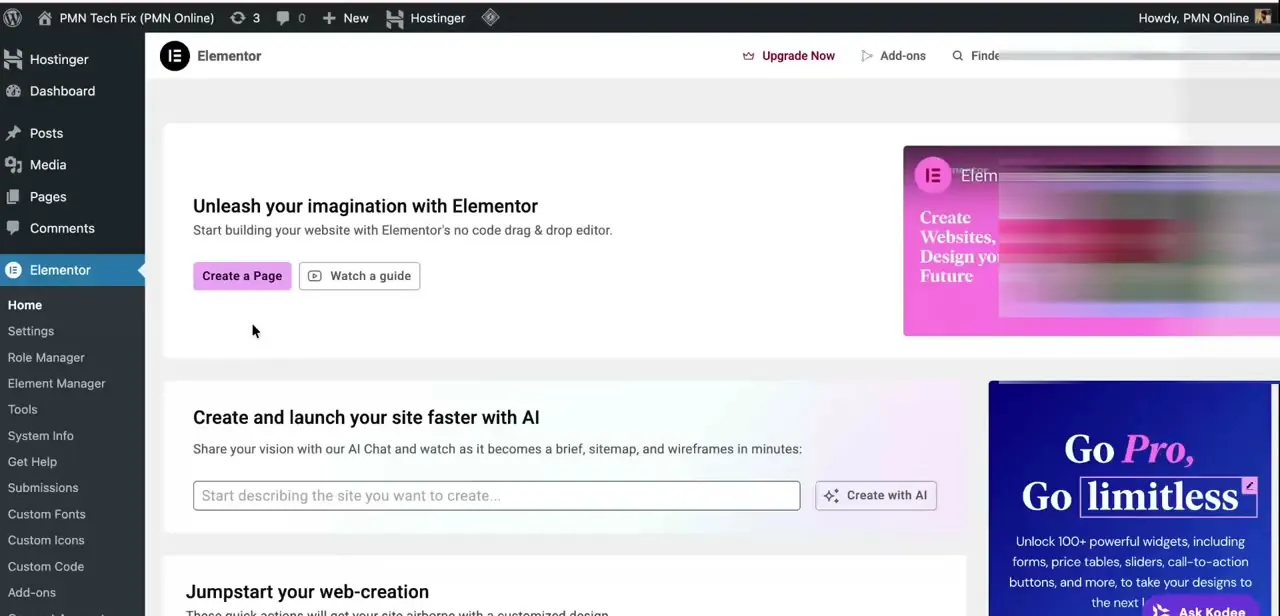
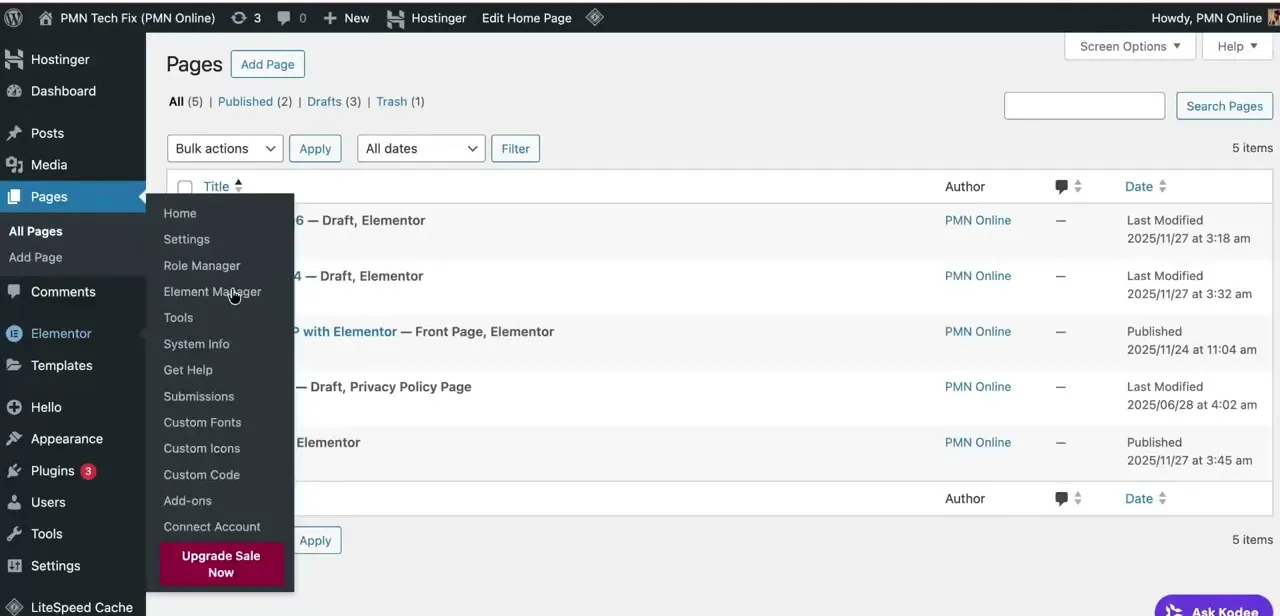
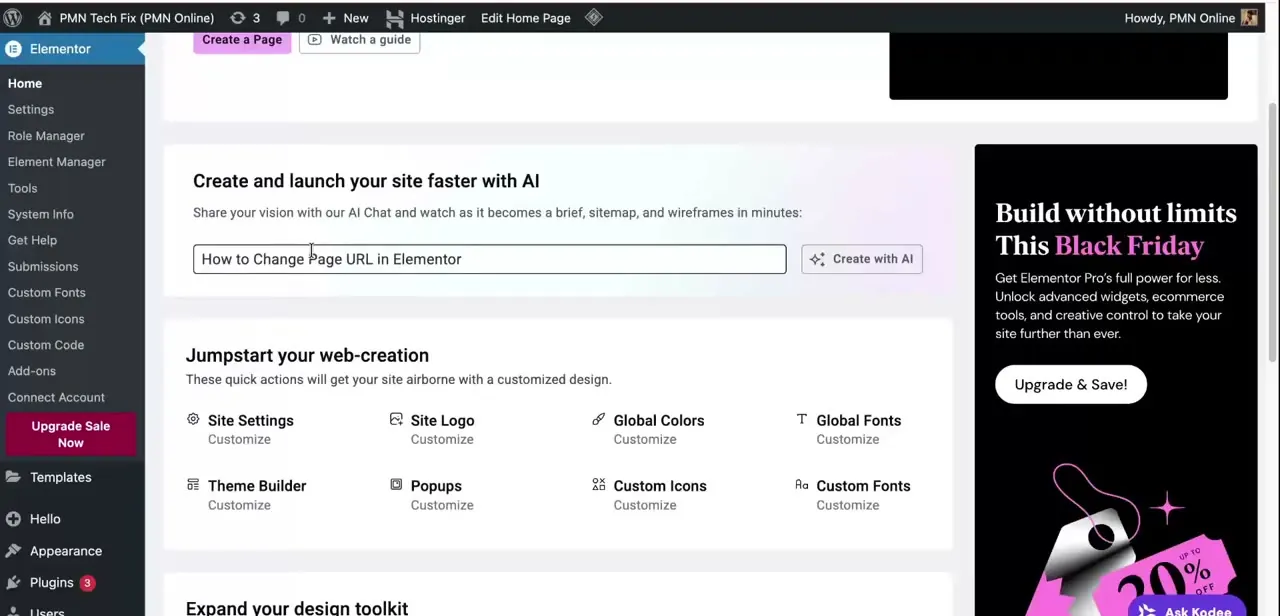
Open the Elementor menu in your WordPress sidebar and you land on its home screen: quick links to create a page, a link to watch a guide, and an AI chat box for generating a brief or sitemap. There's no option here to edit your site's header or footer.
Elementor's theme-builder feature, the part that lets you design a header once and apply it site-wide, ships only with Elementor Pro. A free plugin gets you the same result without the upgrade.
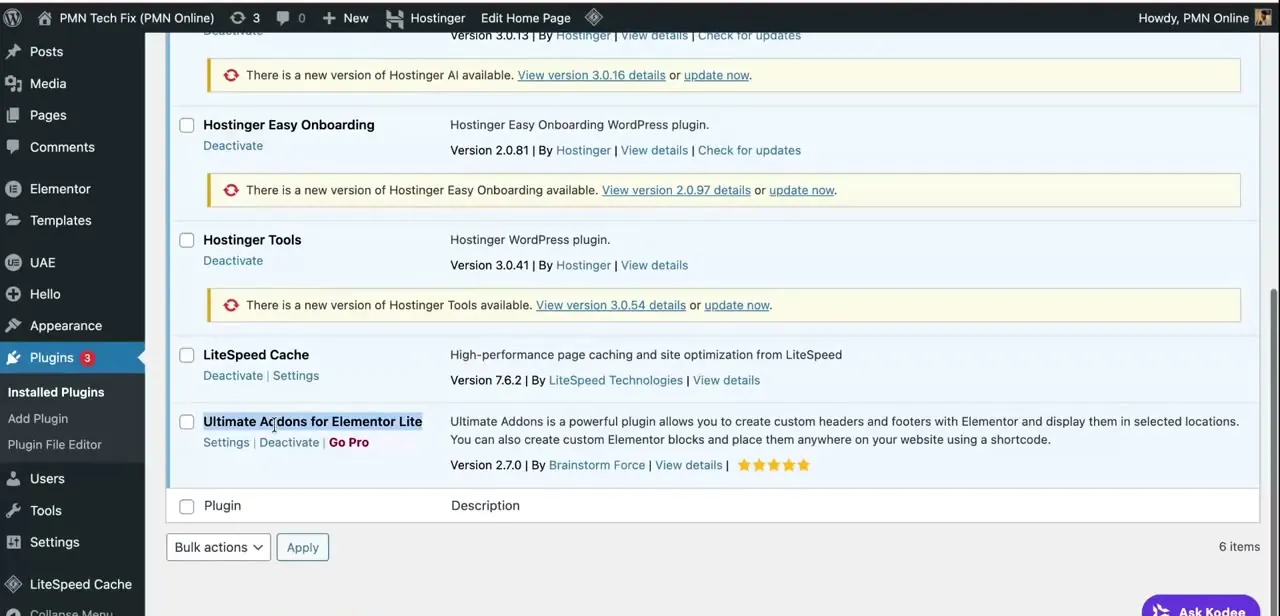
In Plugins, search for and install Ultimate Addons for Elementor. It used to be sold under the name Header Footer Elementor, so older tutorials and forum posts may still call it that. Its own description explains what it does: create custom headers and footers with Elementor and display them in selected locations, plus build reusable Elementor blocks placed anywhere with a shortcode.
02Open the Header & Footer Builder
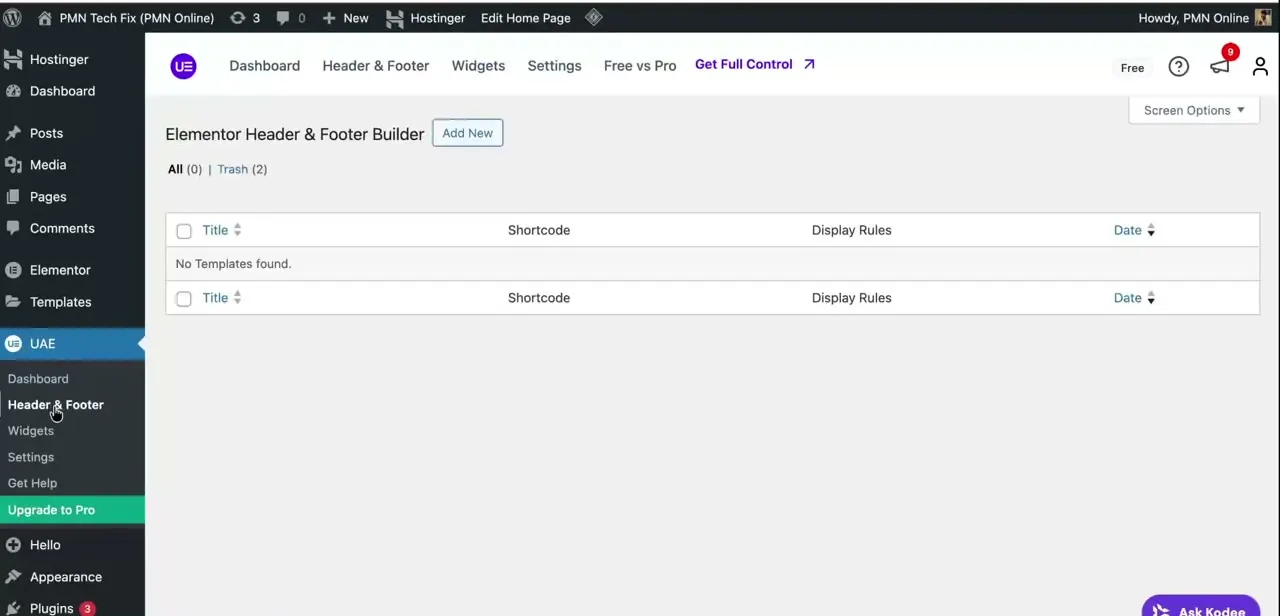
Once activated, the plugin adds its own menu item to the WordPress sidebar, separate from Elementor's own menu, with Dashboard, Header & Footer, Widgets, and Settings tabs. Click Header & Footer to reach the builder. On a fresh install this list is empty, with an Add New button and no templates found: your starting point for building a header from scratch.
03Create and name your header template
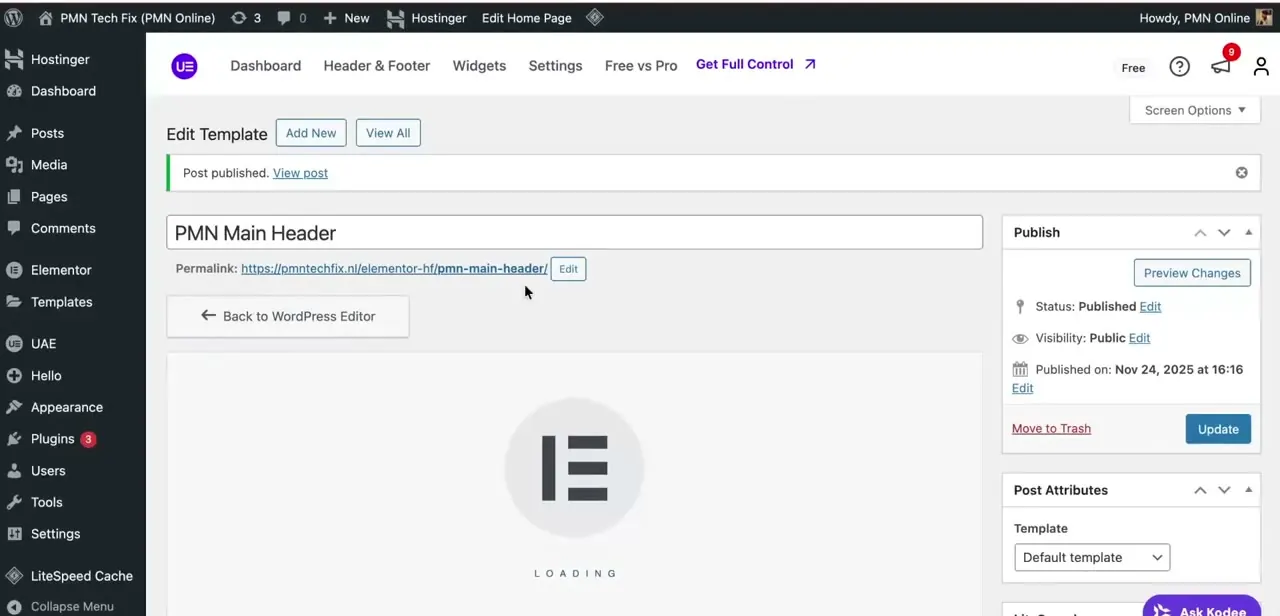
Clicking Add New opens a standard WordPress edit screen where you name the template. Something clear like "Main Header" makes it easy to find later if you build more than one.
The plugin's own documentation lists four template types: Header, Footer, Before Footer, and Custom Block, so pick Header here even though the screen otherwise looks like any WordPress post editor. Saving and publishing at this stage doesn't put anything live on your site yet. It creates the template shell and a permalink for it, along with the usual post-level controls for status, visibility, and publish date.
04Build the header inside Elementor's editor
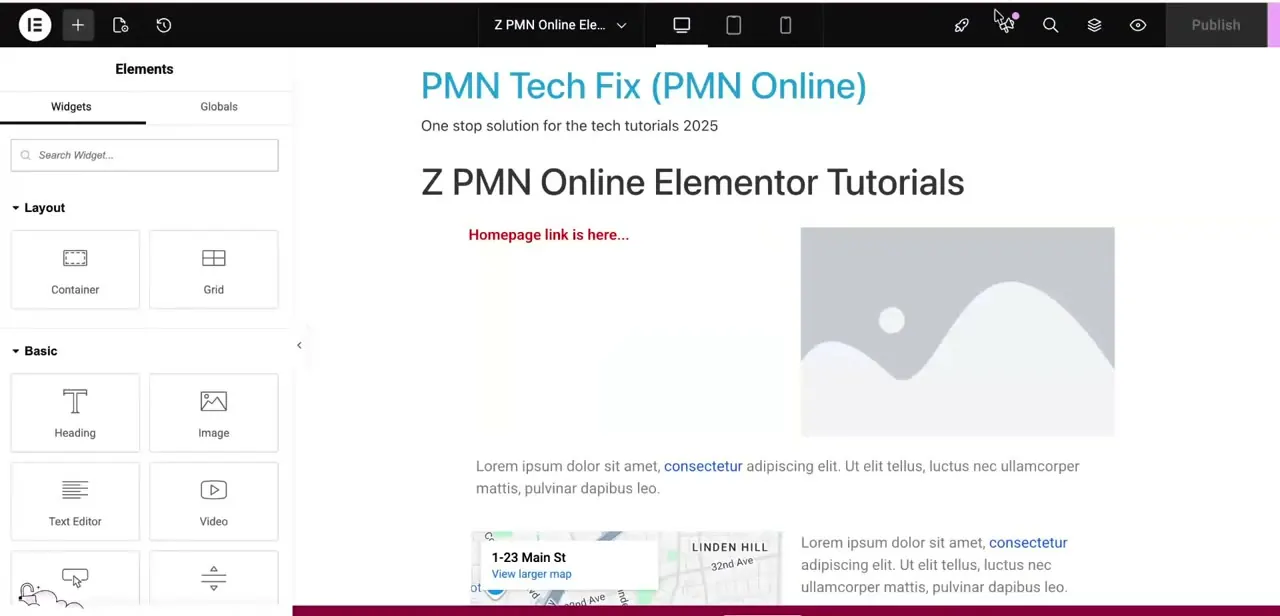
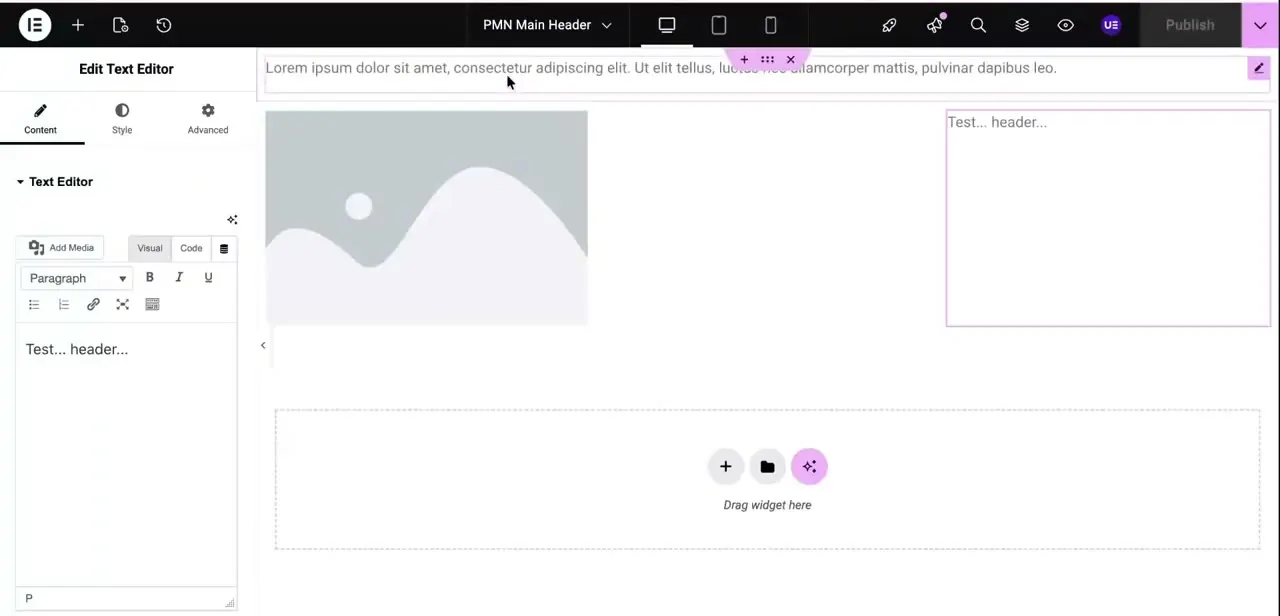
From the template screen, the design work opens in Elementor's normal drag-and-drop canvas, not a separate builder interface. Add widgets the same way you would on any page: an image placeholder for your logo, a text editor block for a tagline or heading, and further widgets dropped into the empty zone below. Editing inside this canvas behaves identically to editing content on a normal page, which is what makes the free-plugin method hold up against Pro's built-in version.
05Add navigation, logo, and sticky settings
Swap the placeholder image for your real logo through Elementor's media library, and add a Nav Menu widget to pull in whichever WordPress menu you want displayed. The widget's Style tab handles spacing, colors, and a sticky-header toggle so the header stays visible as visitors scroll, all in the same editor used for the logo and text.
06Set display rules and publish
Back in the plugin's Header & Footer list, each template carries its own Display Rules column, which controls where the header appears: the whole site, specific pages, or particular post types. Set the rule to match your intent and publish the template.
It takes over your site's header without touching your active theme's own header file, so the same header survives a theme switch as long as the plugin stays active. If your theme still shows its own header alongside the new one, check the plugin's Settings tab for theme-specific support. UAE ships native integration for Astra, Hello Elementor, OceanWP, GeneratePress, Blocksy, Neve, and Kadence, and falls back to a generic method for everything else, which doesn't always suppress the old header cleanly.
| Type | What it's for |
|---|---|
| Header | Replaces your theme's header, site-wide or on the rules you set |
| Footer | Same idea, for the footer |
| Before Footer | A content band that sits just above the footer |
| Custom Block | A reusable Elementor section placed anywhere with a shortcode |
From the plugin's own documentation, current as of September 2026.
When it doesn't work
The theme's original header still shows alongside the new one
Why: Not every theme automatically hides its built-in header for a plugin-built one. UAE ships native support for themes like Astra, Hello Elementor, and OceanWP, but falls back to a generic method for others that doesn't always suppress the old header.
Fix: Check the plugin's Settings tab for a theme-support option for your active theme. If there isn't one, hide the header through your theme's own display settings instead.
The template is published but nothing changes on the live site
Why: The template's Display Rules weren't set, or don't match the page you're viewing.
Fix: Open the template, check Display Rules, and confirm it's set to Entire Website or the pages you actually want, then republish.
There's no header or footer option anywhere inside Elementor
Why: The builder was never part of Elementor itself. It lives in the separate plugin's own menu.
Fix: Look for the menu item the plugin added (UAE, or a similarly named entry depending on version) in the WordPress sidebar, not inside Elementor's own menu.
Frequently asked questions
Do I really need Elementor Pro to edit my header?
No. A free plugin, Ultimate Addons for Elementor, adds the theme-builder functionality Elementor's base plugin reserves for Pro, so you can create and edit a custom header without upgrading.
Does this method work with any WordPress theme?
Yes. It works with any WordPress theme. UAE has native support for Astra, Hello Elementor, OceanWP, GeneratePress, Blocksy, Neve, and Kadence, plus a generic fallback method for every other theme.
Where do I find the Header & Footer Builder after installing the plugin?
The plugin adds its own menu item to the WordPress sidebar with a Header & Footer tab. That's separate from the main Elementor menu, so look there instead of inside Elementor itself.
Why isn't my header showing or updating after I edit it?
Check the template's Display Rules first. If the rule doesn't match the page you're viewing, the header won't appear there even though it's published. If an old header shows up alongside the new one, check the plugin's Settings tab for theme-specific support.
Can I add a sticky header using the free method?
Yes. Sticky-header behavior is a styling option on the header widgets inside Elementor's editor, available once you've built the header through the free plugin.
What happened to the plugin's old name, Header Footer Elementor?
Ultimate Addons for Elementor used to be sold under the name Header Footer Elementor, and before that as Elementor Header & Footer Builder. Older tutorials or forum threads mentioning that name are describing the same plugin under a previous brand.
Sources and last check
Click path and screens come from a walkthrough recorded in 2026. The plugin's free/paid split, its rebrand from Header Footer Elementor to Ultimate Addons for Elementor, its theme-support list, and its four template types were re-checked against the plugin's official WordPress.org listing and documentation in September 2026. The original draft did not mention the rebrand, the theme-support fallback behavior, or the template types beyond Header.
About the author

Impran M N
I've been hooked on technology for as long as I can remember — especially the new tools and AI apps that seem to land every other week. Easy Tech Tuts is where I write up whatever I've just worked out: I do the task in the real product, record the screen, and turn it into the guide I wish I'd found first.