Easy Tech Tuts
How to Change Page URL in Elementor, Fix Slug Setting Not found in WP Elementor Easily 2026
By Impran M NLast checked against official docs
Many beginners assume Elementor controls the page URL, but the link, or slug, is managed through WordPress's own page settings, not the Elementor canvas. That's why searching Elementor's panels for a URL field comes up empty. This guide shows where the slug setting actually lives, including a Quick Edit shortcut that skips opening the full page editor, then covers what to check afterward so menus, internal links, and the page itself keep working.
01Find Elementor in your WordPress dashboard
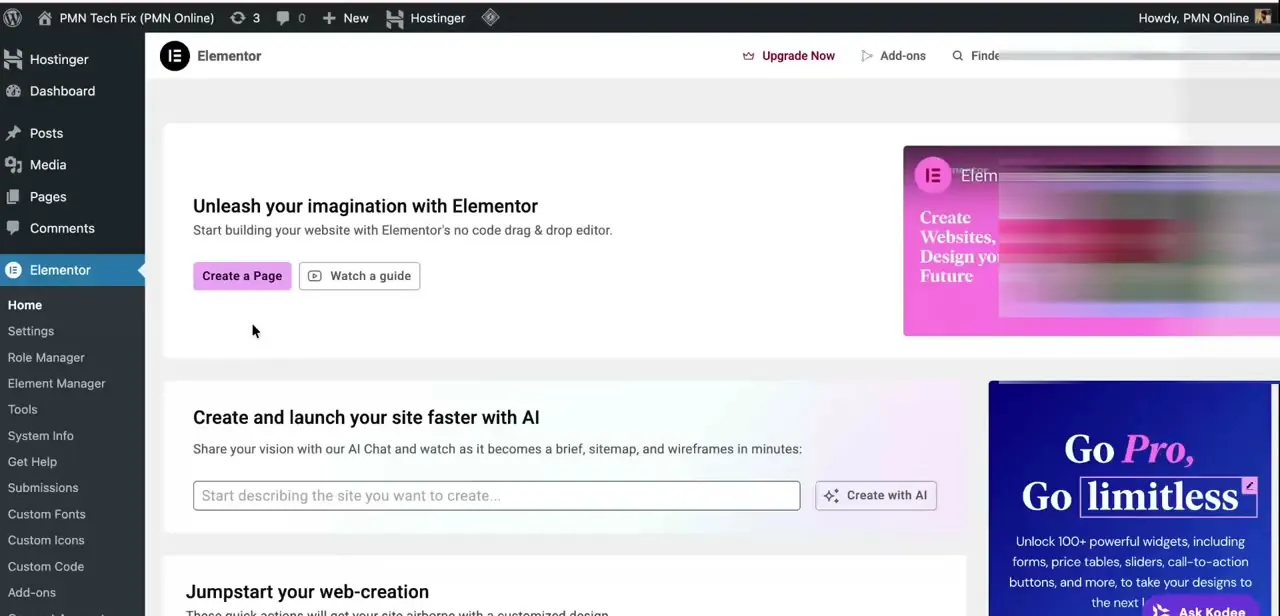
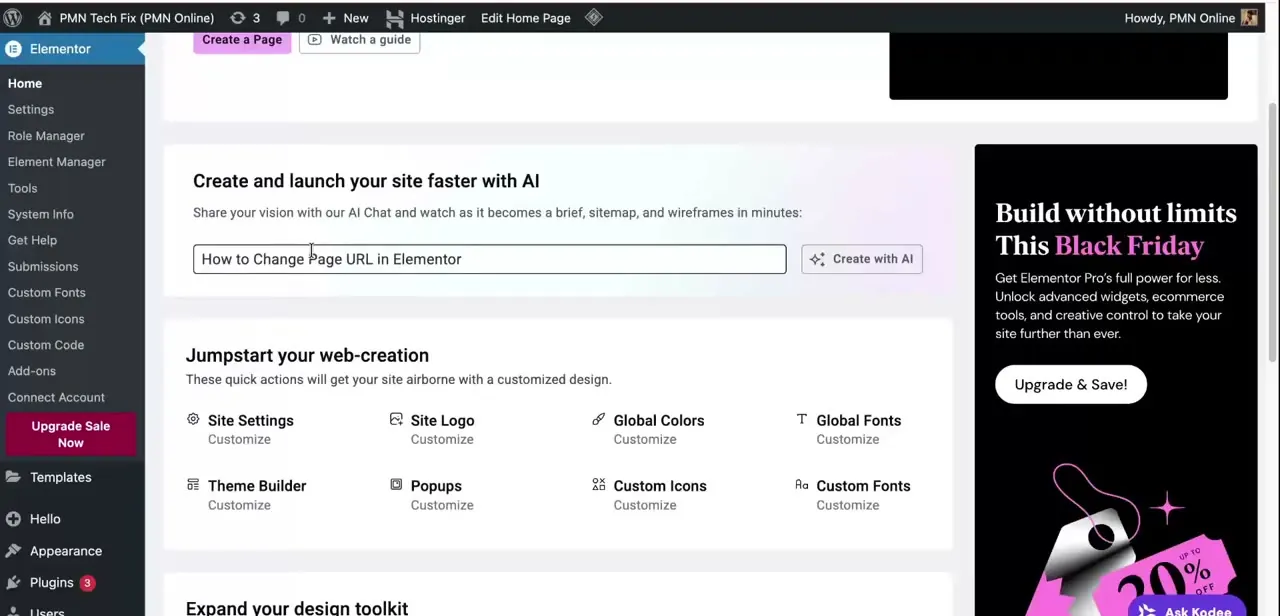
Elementor installs as a plugin, so it shows up as its own menu item in the WordPress admin sidebar, with Home, Settings, and Templates underneath it. This is a good place to get oriented, but nothing in Elementor's own menu controls a page's URL. That setting lives one level up, in WordPress's own Pages screen, which is the next stop.
02Open the Pages list in WordPress
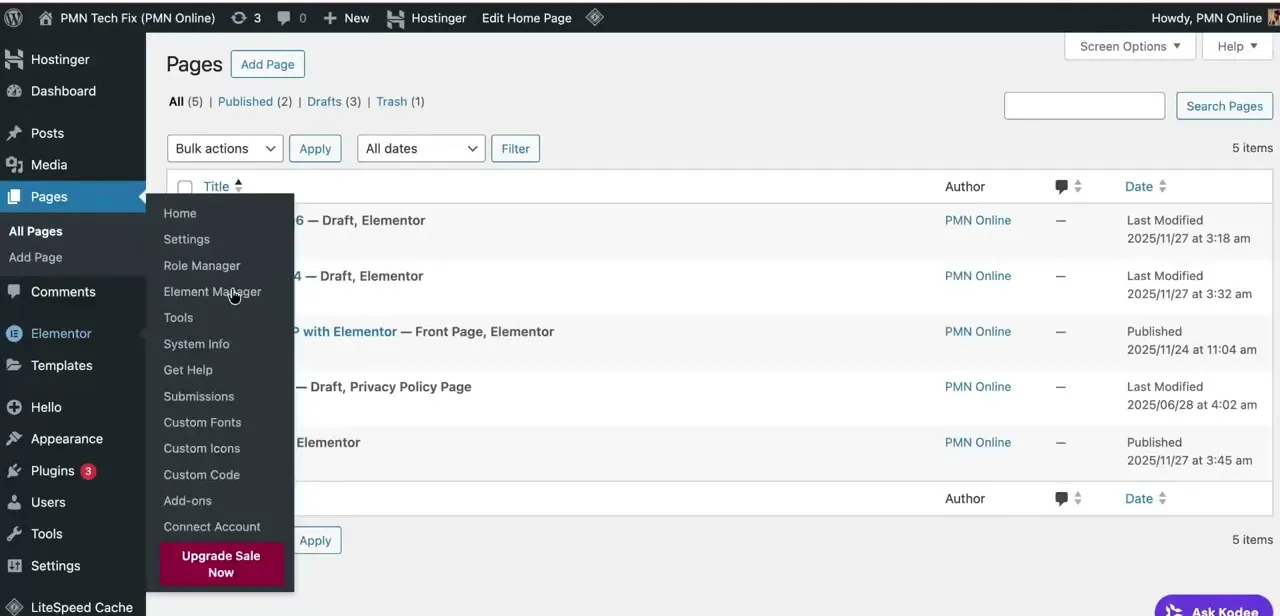
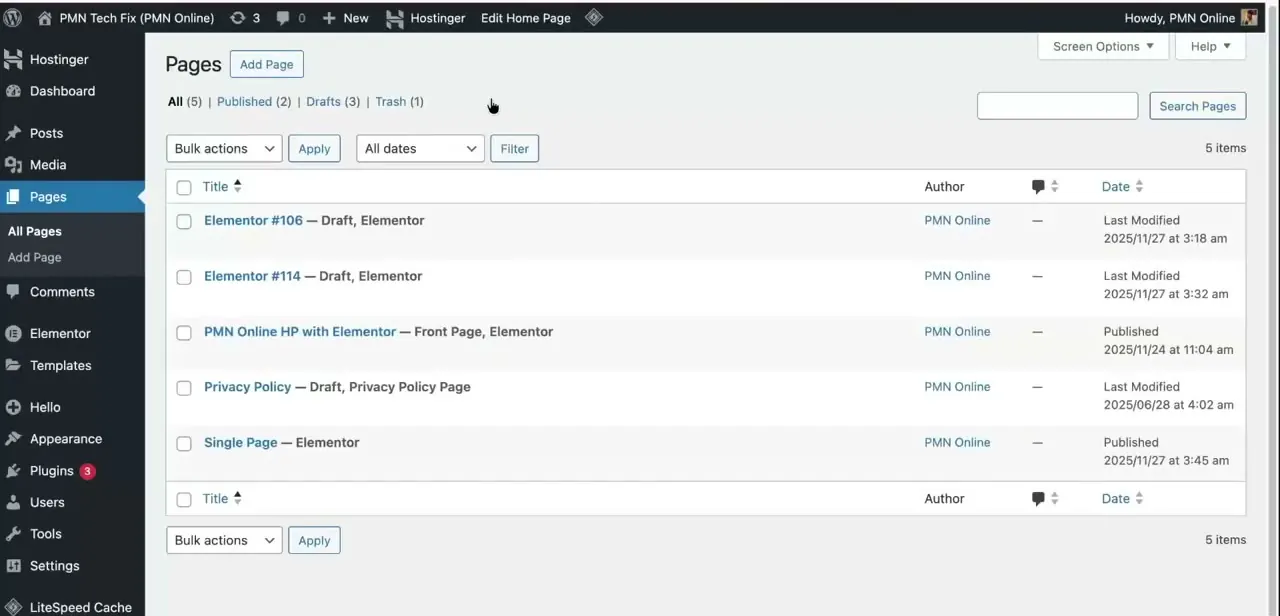
From the main WordPress sidebar, not Elementor's, click Pages to see every page on the site with its status (Published, Draft, or Trash) and when it was last modified. Hovering over a page title reveals a Quick Edit link, which opens an inline form with a Slug field right there in the list, useful if you just need a fast change and don't need the full editor. For anything else, click into the page itself.
03Locate the Slug field in the page settings
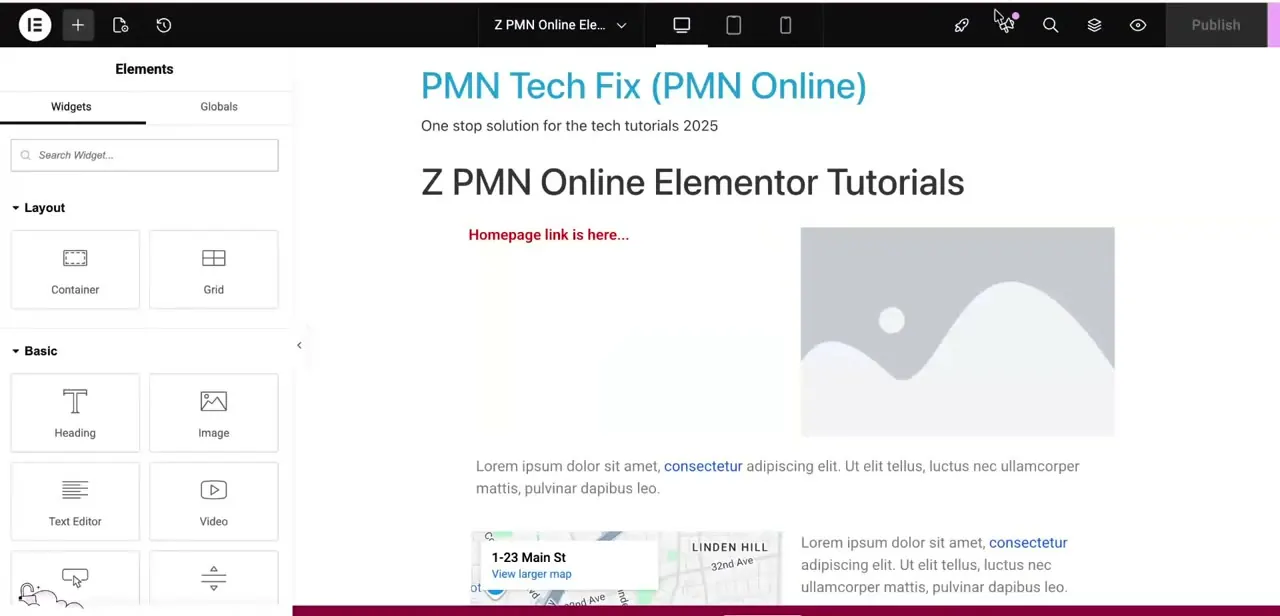
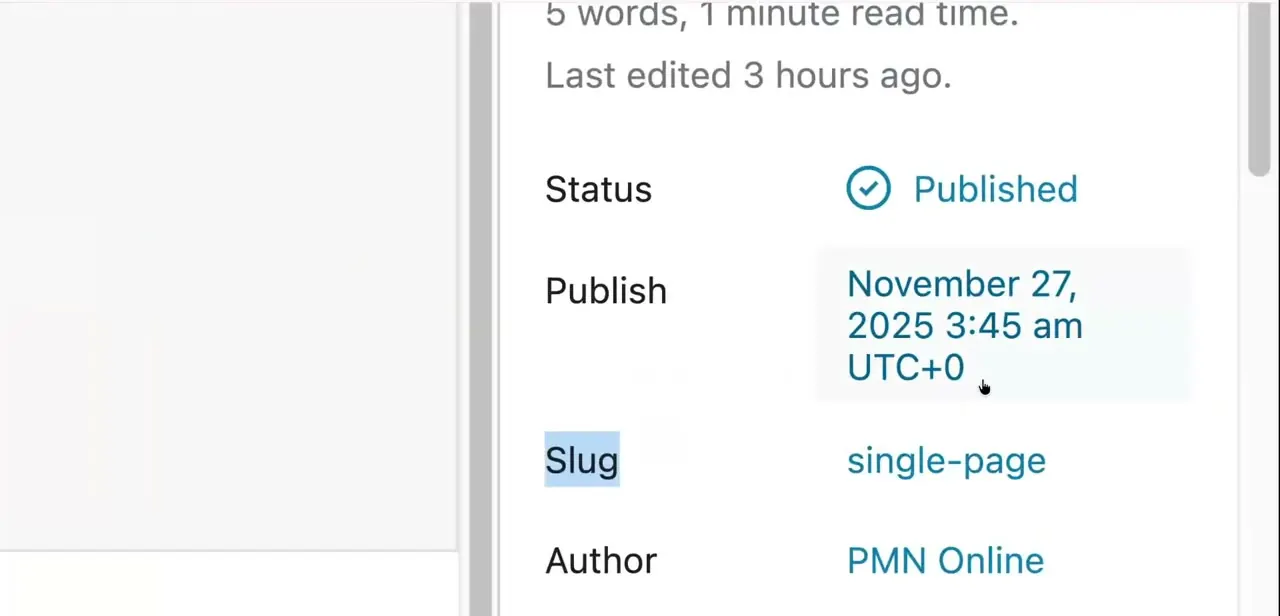
Once you're editing the page, open the settings sidebar (in the block editor, or the equivalent panel if the site uses the classic editor rather than the Elementor canvas). Look for the Permalink section; inside it sits the Slug field, showing the current URL segment, which on a fresh page usually defaults to something generic derived from the title. Click the slug value to make it editable.
04Edit the slug and save
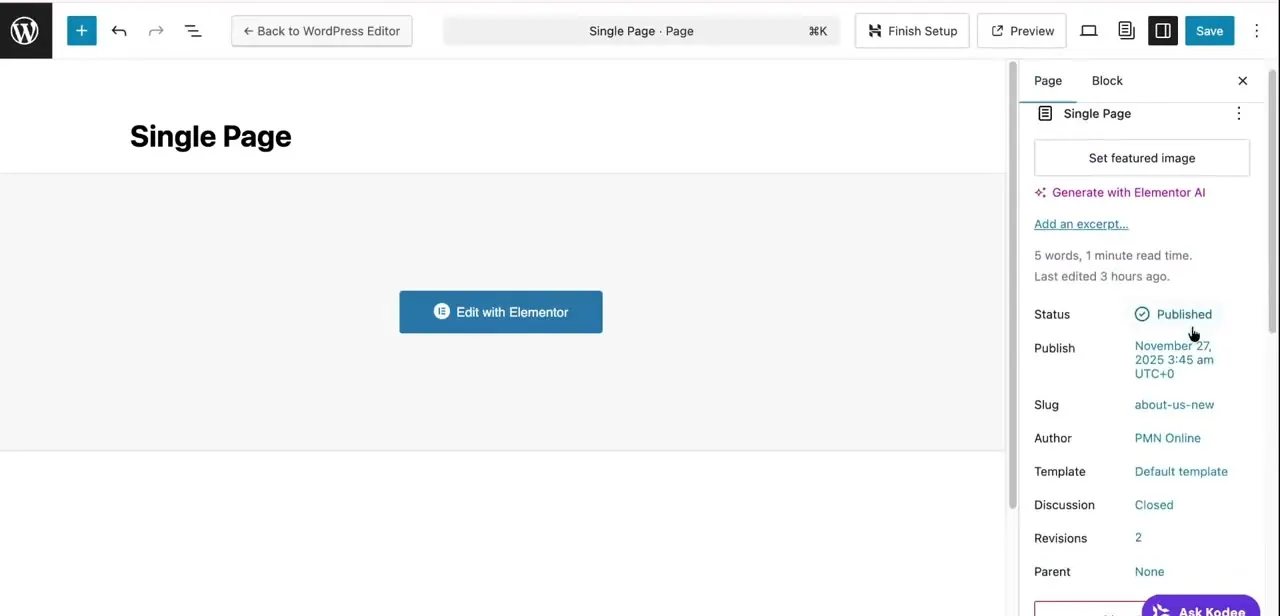
Type the new slug: keep it lowercase, use hyphens instead of spaces, and skip special characters, since WordPress strips or encodes them automatically anyway. Press enter or click away to confirm, then hit Save or Update on the page itself; the slug field alone doesn't commit the change. That saved value becomes the live address visitors and search engines use going forward.
05Set up a redirect before, not after, if the page is already live
If the page is new and unpublished, changing its slug carries no risk. If it's already published and indexed by search engines, changing the slug changes its URL, and the old one starts returning a 404 the moment you save.
Set up a 301 redirect from the old URL to the new one as part of the change, not as a fix you scramble for once someone reports a broken link. This preserves most of the page's existing search ranking instead of losing it.
06Fix a page that won't load after the change
If the page throws a 404 or looks broken right after saving, the most common cause is a caching plugin or the host's server cache still serving the old URL structure. Clear any active WordPress caching plugin, and on managed hosting, clear the host-level cache from its own panel too. If that doesn't resolve it, open Settings > Permalinks in WordPress and re-save that screen without changing anything; this flushes and rebuilds WordPress's internal rewrite rules, which clears most post-slug-change 404s.
07Update menus and internal links
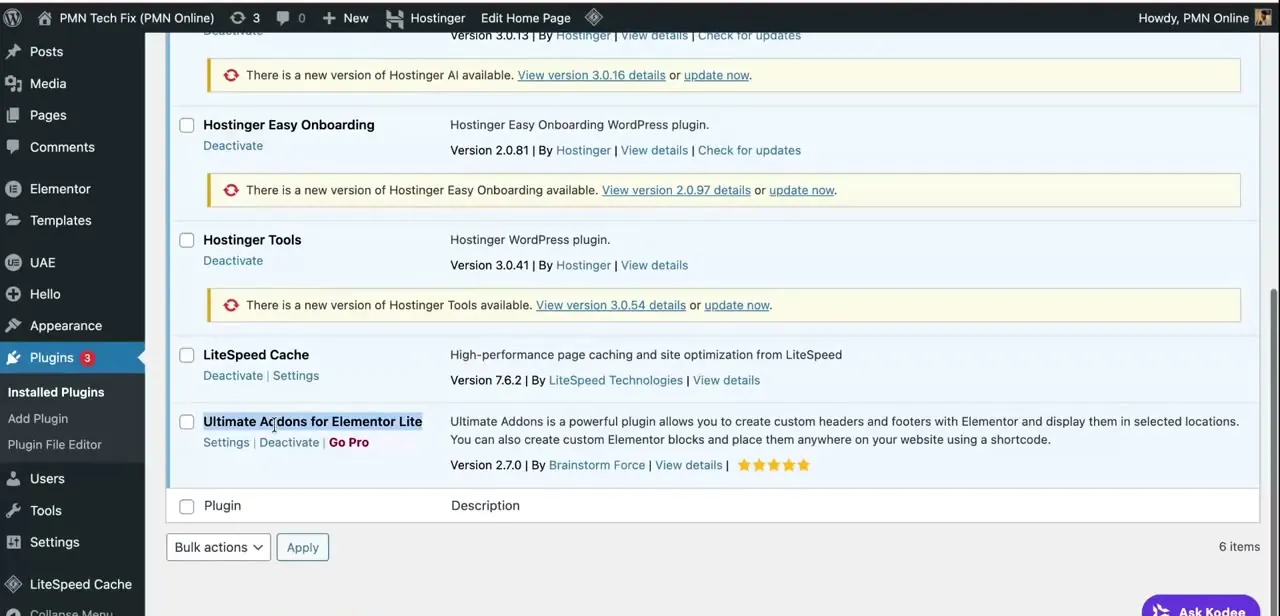
Changing a slug doesn't automatically update navigation menus or internal links elsewhere on the site; those still point to the old URL as literal text or stored IDs, depending on how they were built. Check Appearance > Menus for any manually added links using the old slug, and look through other pages or posts that link to this one directly.
When it doesn't work
The page returns a 404 right after the slug is changed
Why: A caching plugin, or the host's server-level cache, is still serving the previous URL structure.
Fix: Clear any WordPress caching plugin and the host-level cache if one exists. If that doesn't fix it, re-save Settings > Permalinks to flush WordPress's rewrite rules.
A menu link or internal link still leads to the old URL
Why: Menus and internal links store the old slug as literal text or an ID that doesn't update automatically when the page's slug changes.
Fix: Check Appearance > Menus and any pages or posts that link to this one, and update the link manually.
Search results still show the old URL, or visitors hit a dead link
Why: No redirect was set up from the old slug to the new one before or immediately after the change.
Fix: Add a 301 redirect from the old URL to the new one as soon as possible to preserve search ranking and avoid broken links for anyone with the old address bookmarked.
Frequently asked questions
Does Elementor control the page URL?
No. The URL, or slug, is managed by WordPress's core page settings, specifically the Slug field under Permalink, not Elementor's design editor.
Where exactly is the Slug field?
Open the page in the WordPress editor, open the settings sidebar, and look for the Permalink section. The Slug field sits inside it.
Is there a faster way to change a slug without opening the full editor?
Yes. Hover over the page in the Pages list and click Quick Edit; it includes a Slug field you can edit inline, then save without opening the page itself.
Should I set up a redirect before or after changing the slug?
Before, if the page is already live and indexed. Setting the redirect up front, rather than after someone reports a broken link, preserves most of the page's existing search ranking.
Why does my page show an error after changing the slug?
Usually a caching plugin or host-level cache still serving the old URL. Clear the caches, and if that doesn't help, re-save Settings > Permalinks to flush the rewrite rules.
Can changing a URL break my Elementor design?
No. The Elementor design itself isn't affected by a slug change, but menus and manually added links referencing the old slug elsewhere on the site need updating separately.
Sources and last check
Click path and screens come from a recorded walkthrough; the core claim, that Elementor doesn't control the URL and WordPress's own Slug field does, held up against both sources checked. Checking Elementor's own blog post on slugs and WordPress.com's support article in September 2026 added the Quick Edit shortcut, which the original guide didn't mention, and tightened the redirect advice to recommend setting it up before the slug changes on a live page rather than only after something breaks.
About the author

Impran M N
I've been hooked on technology for as long as I can remember — especially the new tools and AI apps that seem to land every other week. Easy Tech Tuts is where I write up whatever I've just worked out: I do the task in the real product, record the screen, and turn it into the guide I wish I'd found first.