Easy Tech Tuts
How To Add HTML Code To Elementor Wordpress 2026 Easily
By Impran M NLast checked against official docs
Elementor's HTML widget is a quiet workaround for dropping in custom code, embedding a third-party widget, or firing off a script without touching a theme file. It ships with both Elementor Free and Pro, which makes it one of the more dependable tools in the page builder. This guide walks through opening the editor, finding the widget, pasting real code, and checking the result before you publish: the sequence that trips people up the first time.
Before you start
- A WordPress site with Elementor installed (Free or Pro) and a page you can edit
01Open Elementor from your WordPress dashboard
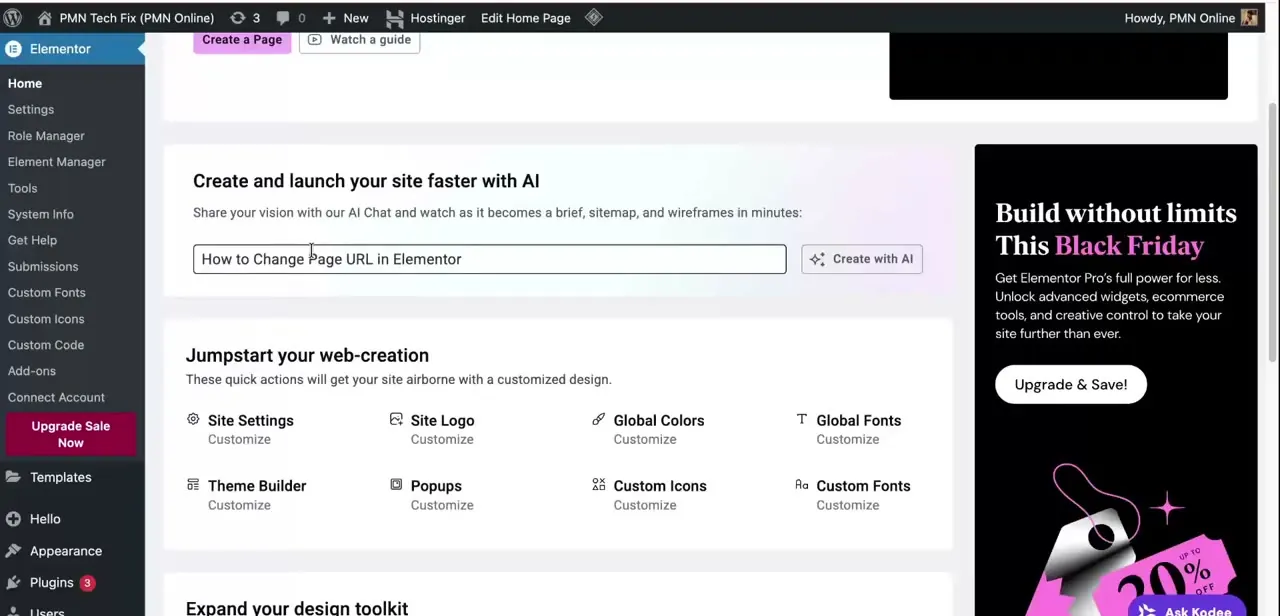
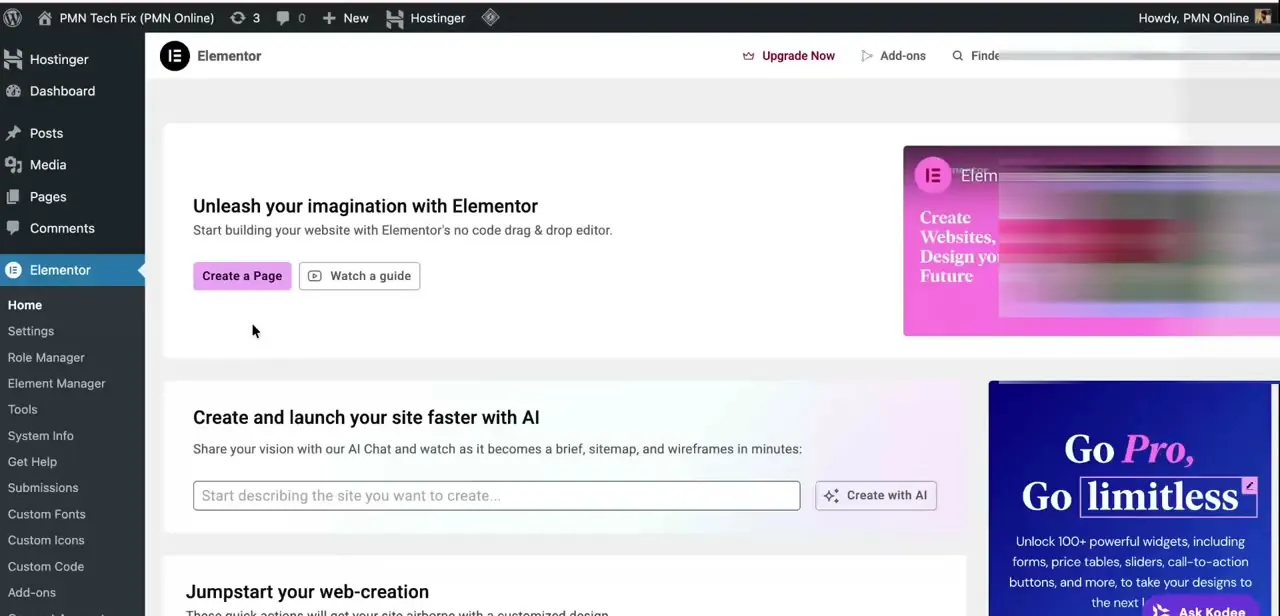
Log into wp-admin and click Elementor in the left sidebar to reach its home screen, where you'll see a Create a Page button next to prompts for building with AI or starting from a template. Nothing on this screen is where code gets pasted; it's just the entry point.
Elementor keeps this dashboard separate from the classic WordPress Pages list, with its own home for templates, settings and add-ons. If you're editing a page that already exists instead of starting a new one, skip this screen and go straight to Pages.
02Find your page and launch the editor
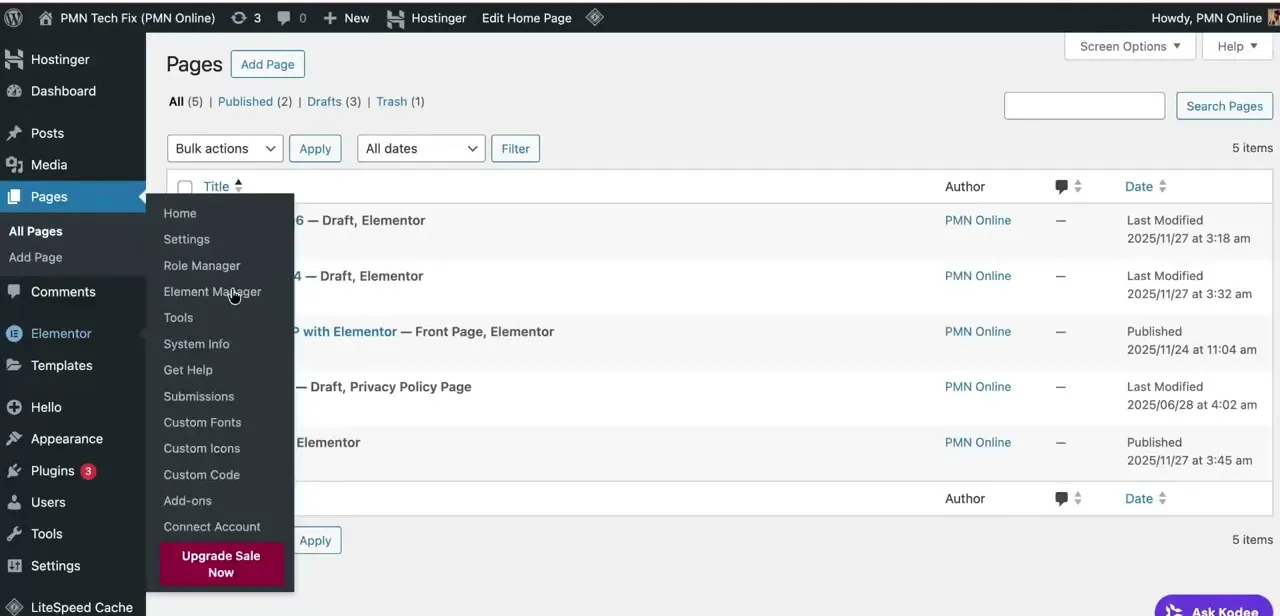
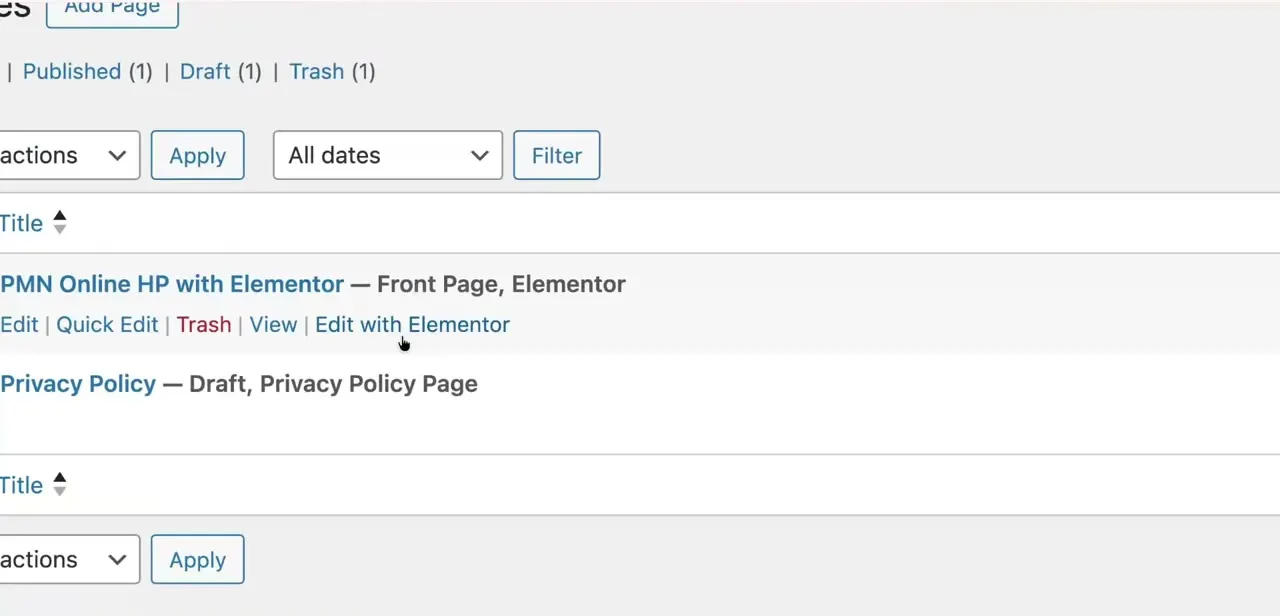
Go to Pages in the WordPress sidebar, hover over the page you want to edit, and click Edit with Elementor instead of the standard Edit link. The default WordPress editor won't give you access to Elementor's widgets at all.
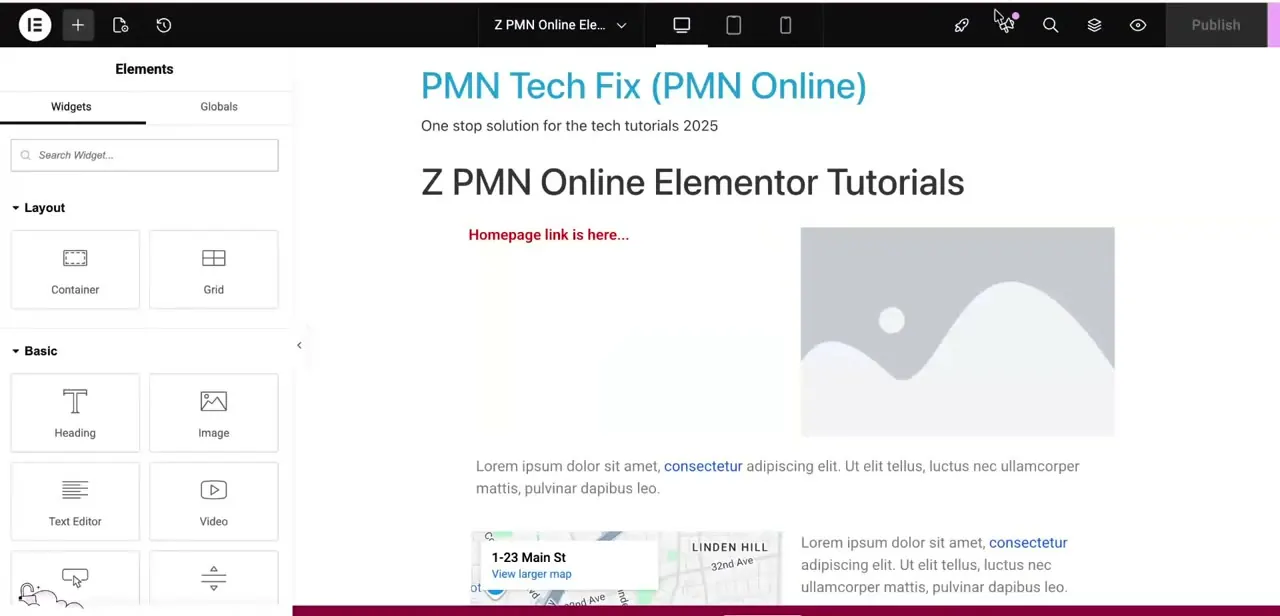
This trips up a lot of people: they land in the block editor wondering where the HTML widget went, when they simply opened the wrong editor. Once you click through, Elementor loads the page in its drag-and-drop canvas with the widget panel docked on the left.
03Add the HTML widget to your layout
In the widget panel, search "HTML" and the HTML widget appears. It ships with Elementor's free widget set, so no Pro upgrade is needed just to place it.
Drag it onto the section or container where the code should render, the same way you'd place a heading or image widget. It behaves like any other element: it can sit inside a column, stack above or below other widgets, and be resized or repositioned afterward without touching the code inside it.
04Paste your custom HTML code
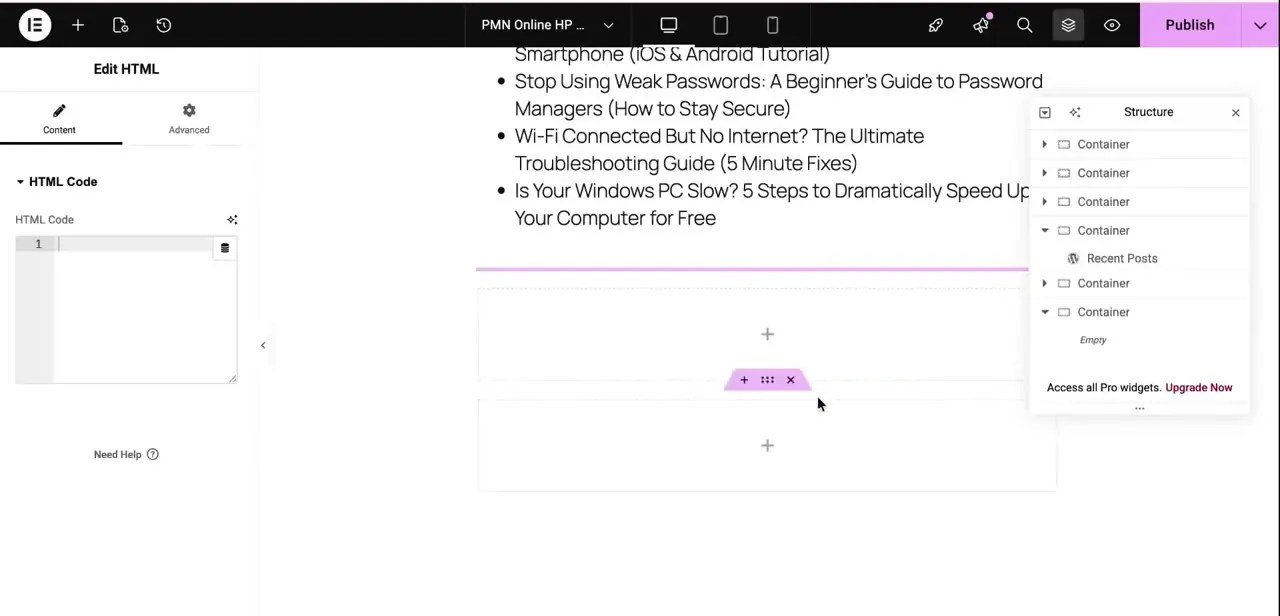
With the widget placed, its settings panel opens on the left with a Content tab showing an HTML Code field: a plain text area where you type or paste markup directly. This is where an embed snippet from a third-party service, a custom form, or hand-written HTML goes.
Elementor renders it live in the canvas as you type, so you get a rough preview before saving. There's no formatting toolbar here by design. It's a raw code field, which is what lets it hold scripts and embeds that a normal text widget would strip out.
05Style it: what's free and what needs Pro
JavaScript goes straight into the HTML widget's own code field, wrapped in <script> tags, on Free or Pro at no extra cost. Styling is where the plans diverge.
The per-widget Custom CSS field on the Advanced tab and the site-wide Custom Code panel are both Elementor Pro features; Elementor's own documentation lists Custom Code as a Pro capability and notes it does not accept PHP. On Free, the practical workaround is to wrap your styles in <style> tags inside the same HTML widget, or add them through WordPress's own Customizer under Additional CSS.
06Save and preview before publishing
Click Update (or Publish on a new page), then use Elementor's preview icon to check the live page instead of trusting the editor canvas by itself; some scripts and embeds only run correctly outside the builder's iframe. Check both the desktop view and the mobile preview toggle at the top of the editor, since an embed that fits a wide screen can overflow or get clipped on mobile. A broken result is almost always a missing closing tag or a script that needs to fire after the page loads rather than during it.
When it doesn't work
The Custom CSS field doesn't show up in the Advanced tab
Why: Per-widget Custom CSS is an Elementor Pro feature; it isn't present in Elementor Free.
Fix: Wrap the CSS in <style> tags directly inside the HTML widget's code field instead, or add the rules through WordPress's Customizer under Additional CSS.
The embed looks fine in the editor but breaks on the live page
Why: The editor renders the canvas inside an iframe, so some scripts and third-party embeds behave differently there than on the published page.
Fix: Judge the result from Elementor's preview icon or the live URL, not the editor canvas.
The HTML widget doesn't appear in the widget search
Why: The page was opened with WordPress's default editor instead of Edit with Elementor; the HTML widget only exists inside Elementor's own panel.
Fix: Go back to Pages and reopen the page with Edit with Elementor.
Frequently asked questions
Do I need Elementor Pro to add HTML code to my page?
No. The HTML widget that holds your HTML, CSS and JavaScript is included in Elementor Free. Pro is only needed if you want to style that code through the widget's Advanced-tab Custom CSS field or the site-wide Custom Code panel.
Can adding custom HTML break my WordPress site?
Badly formatted or conflicting code can cause display issues. Preview changes, including on mobile, before publishing, and remove anything that looks off.
Can I add JavaScript through the HTML widget, not just HTML?
Yes. The HTML widget accepts script tags along with HTML, so you can embed JavaScript-driven widgets or custom functionality the same way.
Does styling an HTML embed require Elementor Pro?
Only if you use Elementor's own CSS tools. The per-widget Custom CSS field and the Custom Code panel are both Pro features. On Free, wrap your CSS in <style> tags inside the HTML widget itself, or add it through WordPress's Additional CSS in the Customizer.
Will custom HTML added through Elementor work with any WordPress theme?
Yes. Since the HTML widget renders independently of the theme's templates, it should work consistently across different WordPress themes.
Why don't I see the HTML widget in my editor?
Make sure you opened the page with Edit with Elementor instead of the default WordPress editor. The HTML widget only appears inside Elementor's own widget panel.
Sources and last check
Click path and screens come from a recorded walkthrough. Widget availability on the Free plan, and the Pro/Free split for per-widget Custom CSS and the site-wide Custom Code panel, were checked against Elementor's official help pages in September 2026 - that check corrected the earlier version's claim that per-element Custom CSS and the Custom Code panel are available without Pro.
About the author

Impran M N
I've been hooked on technology for as long as I can remember — especially the new tools and AI apps that seem to land every other week. Easy Tech Tuts is where I write up whatever I've just worked out: I do the task in the real product, record the screen, and turn it into the guide I wish I'd found first.