Easy Tech Tuts
How To Clear Elementor Cache In WordPress, Delete Cache, Solve Error 500 Easily 2026
By Impran M NLast checked against official docs
When Elementor stops loading properly, widgets break, or a page throws an Error 500, cached files are often the real cause, not the design itself. WordPress caching happens in more than one layer.
Elementor keeps its own cache of generated CSS, and a separate caching plugin such as LiteSpeed Cache adds another layer on top of that. This guide covers clearing both, in the right order, plus what to check if the error survives a cache clear.
Before you start
- Administrator-level access to the WordPress dashboard. Elementor's Tools menu is hidden from Editor and other roles by default.
01Open Elementor's Tools menu
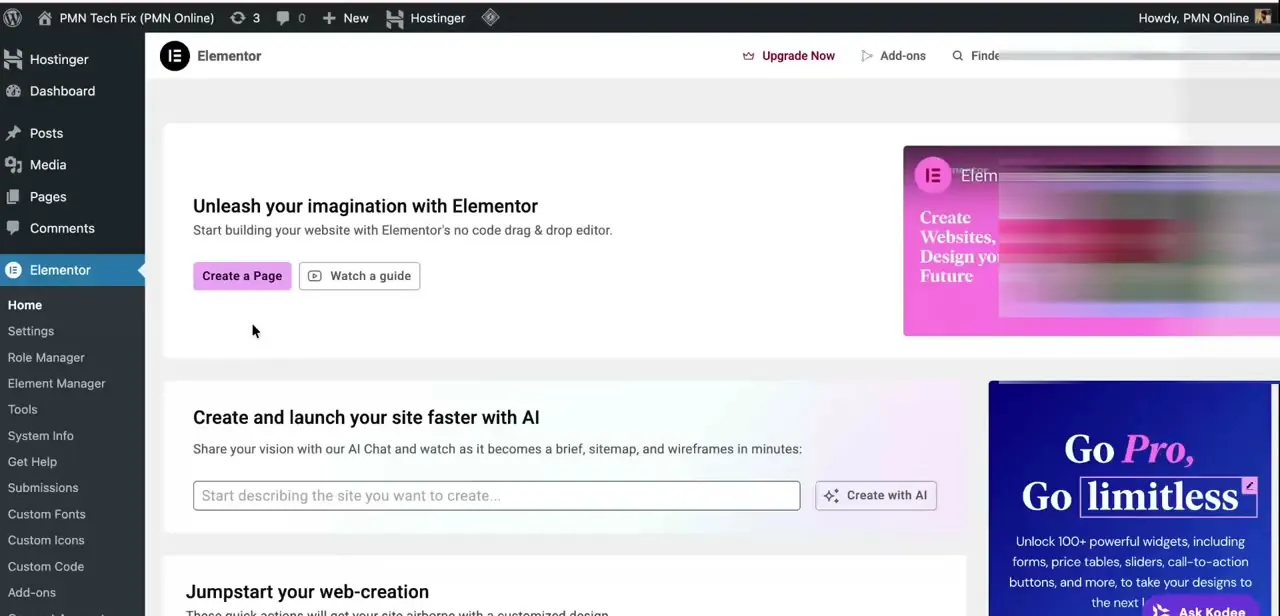
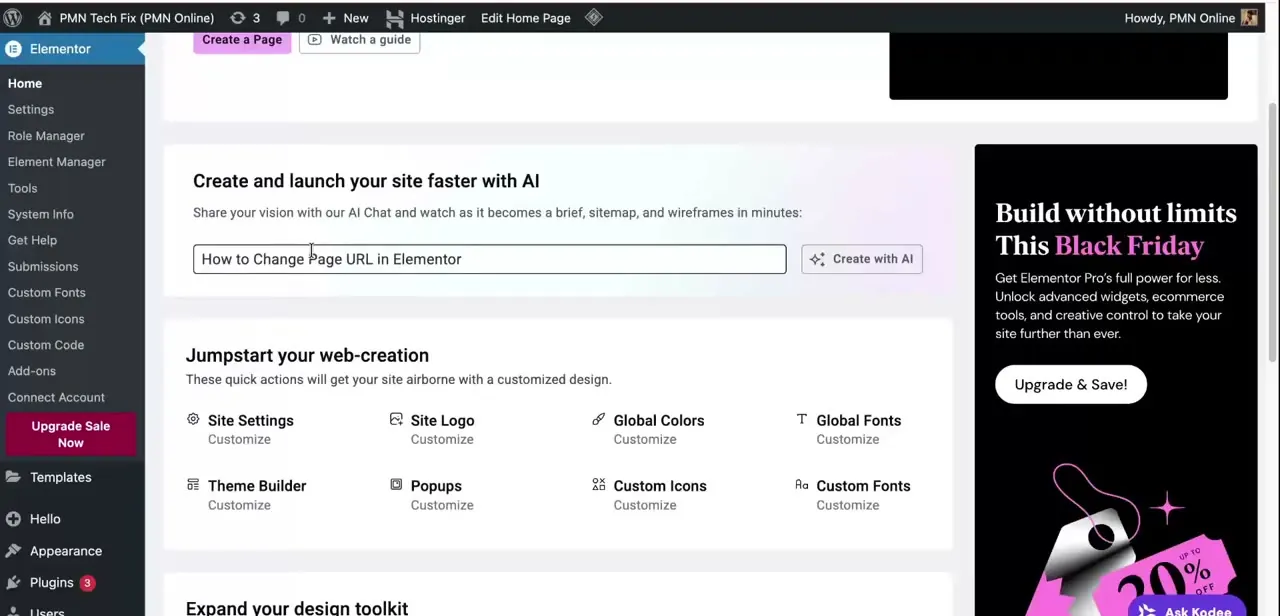
In your WordPress admin, hover over Elementor in the left sidebar. The submenu expands to show Home, Settings, Role Manager, Element Manager, Tools, and several more items further down.
Tools is the one that matters here: the cache and CSS controls live in the admin dashboard, not inside the visual editor, so this menu is easy to miss if you go straight into a page instead. One thing to know before you look for it: only Administrators see this menu by default. Elementor gates its own admin pages behind WordPress's manage_options capability, so an Editor or Contributor account won't have Tools in its sidebar at all.
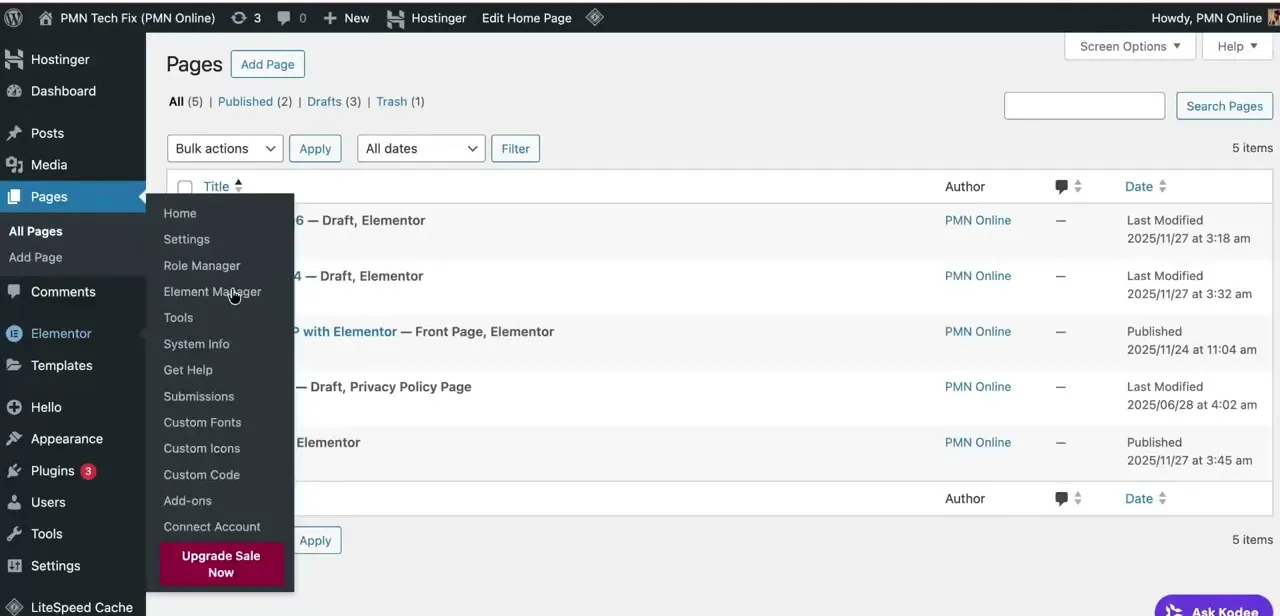
02Clear Elementor's own cache
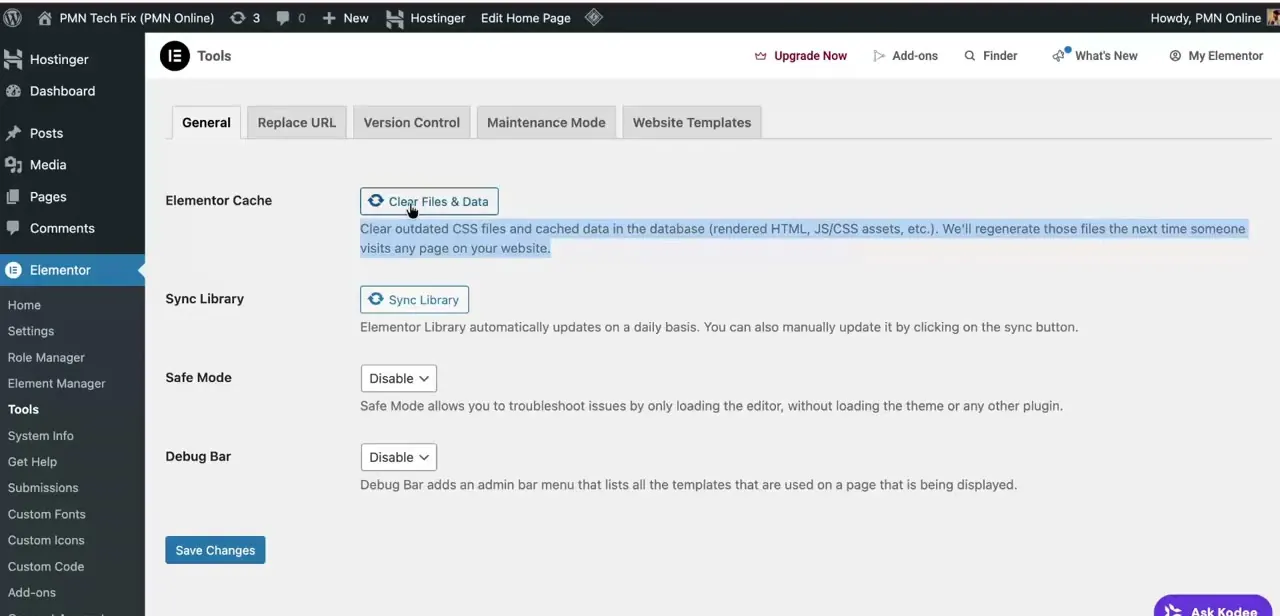
On the Tools page's General tab, the Elementor Cache section has one button: Clear Files & Data. Elementor renamed this section from Regenerate CSS & Data a while back, so older screenshots and guides sometimes show a different label for the same control.
Clicking it removes outdated CSS files and any cached HTML, JS, or CSS the database is holding. Elementor rebuilds fresh versions the moment someone next loads a page on the site, so there is no separate rebuild step.
This same button is also the fix for a related problem: a layout that looks broken or half-styled right after updating Elementor, a theme, or a plugin Elementor's styling depends on. Run Clear Files & Data first, before assuming the update broke something structurally.
Two more controls sit on the same screen. Sync Library manually pulls the latest Elementor template library instead of waiting for its daily auto-update. Safe Mode loads only the editor, without your theme or any other plugin active, which is how you tell a stale cache apart from a plugin conflict.
03Clear your caching plugin separately
Elementor's cache and a caching plugin's cache are two different systems. Clearing one does not touch the other.
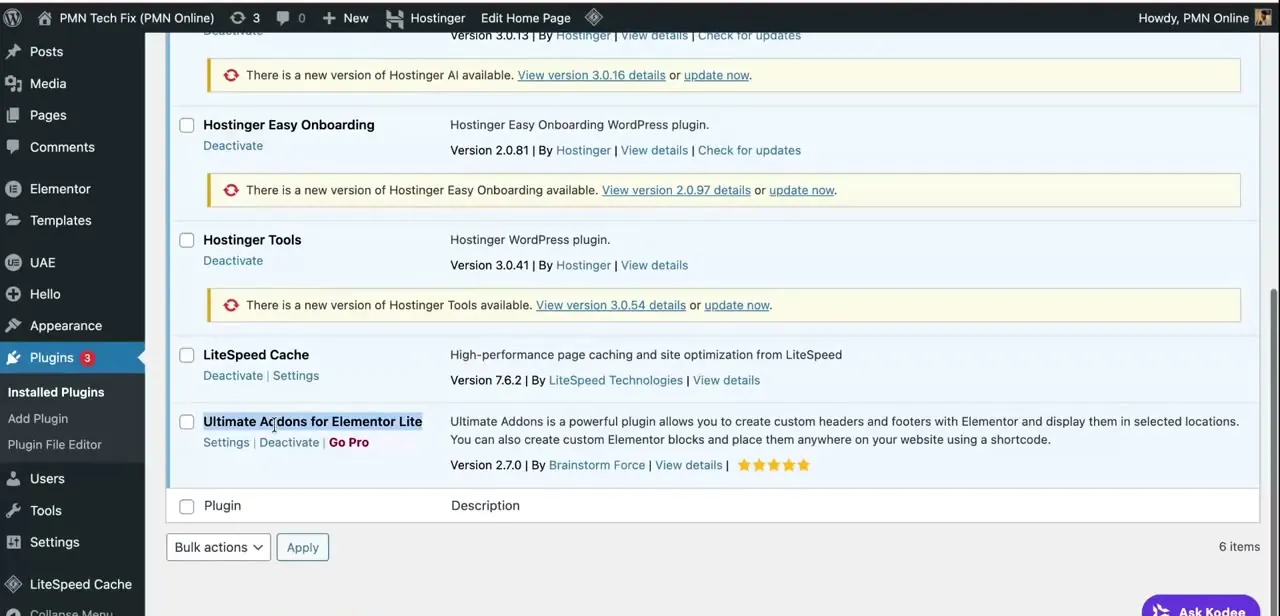
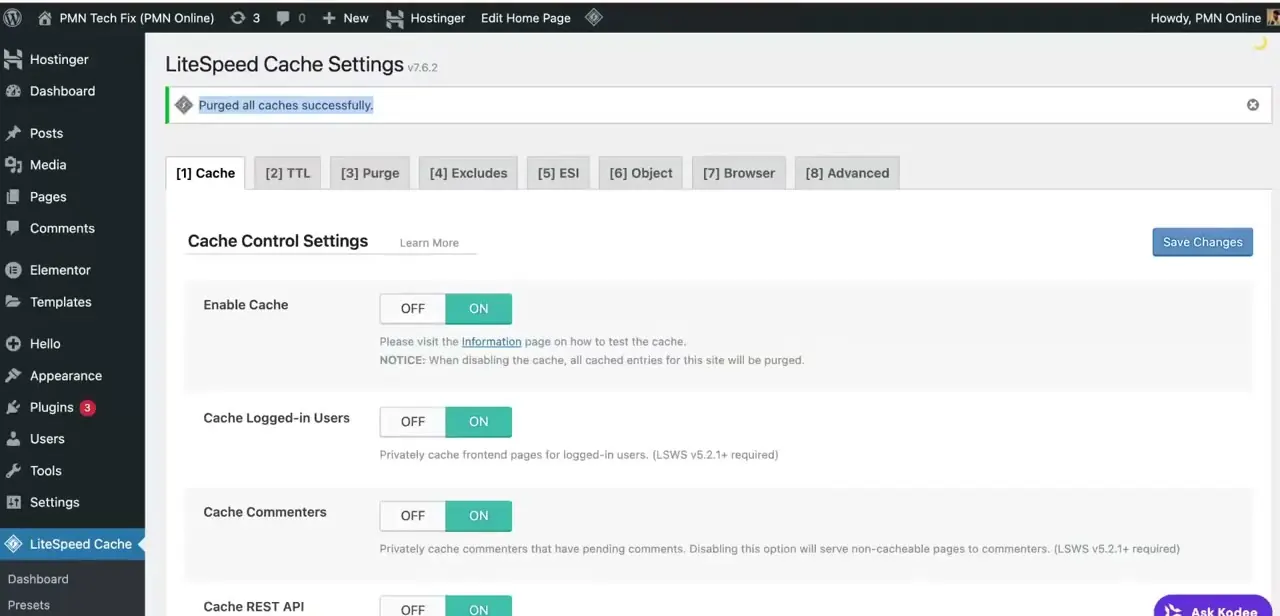
If the site runs LiteSpeed Cache, WP Super Cache, W3 Total Cache, or something similar, open that plugin's own settings and use its purge option. LiteSpeed Cache confirms with a "Purged all caches successfully" banner once it's done. Skipping this step is the most common reason someone clears Elementor's cache, sees no change on the live site, and concludes the fix didn't work.
04If Error 500 persists, look past the cache
A 500 error is a generic server-side failure, so clearing both cache layers is the right first move, not necessarily the last one. Reload the site in a private browser window first, to rule out a page your own browser is still serving from its cache.
If it's still broken, check the host's PHP error log for the exact line that failed. Elementor's own troubleshooting page for this error points to an exhausted PHP memory limit as a frequent cause: Elementor asks for at least 256MB, and recommends 512MB once other plugins are active. Raising the memory_limit value, through the host's control panel or wp-config.php, is a different fix than a cache clear and won't come from clicking Clear Files & Data again.
05Confirm the fix in both places
Reopen the affected page in the Elementor editor first, not just the live front end, and check that widgets render and styling looks right. Then check the live page too. The two can show different results if one picked up the refreshed files before the other did, so checking both is the only way to know the fix landed everywhere and not just in one place.
When it doesn't work
Clicked Clear Files & Data, but nothing changed on the live site
Why: A caching plugin (LiteSpeed Cache, WP Super Cache, W3 Total Cache, etc.) is still serving an older cached page. It runs as a separate cache layer from Elementor's own.
Fix: Open that plugin's own settings and purge its cache too.
Elementor's Tools menu doesn't show up in the sidebar
Why: Elementor's admin pages require the manage_options capability, which only the Administrator role has by default.
Fix: Log in as, or ask, an Administrator, or grant the role access through Elementor's own Role Manager.
The page still throws Error 500 after both caches are cleared
Why: Often an exhausted PHP memory limit, not a caching problem. Elementor's help documentation lists 256MB as the minimum and 512MB once other plugins are active.
Fix: Check the host's PHP error log for the exact failure, then raise memory_limit through the host's control panel or wp-config.php.
The editor shows the fix but the live page still looks broken (or the reverse)
Why: The editor and the live front end can pull from different cache states if one refreshed before the other.
Fix: Hard-refresh, or open the live URL in a private window, before concluding the fix didn't work.
Frequently asked questions
Can clearing cache fix Elementor's Error 500?
Sometimes. Stale cached CSS or rendered HTML can conflict with code after a plugin or theme update, and clearing both Elementor's cache and any caching plugin's cache forces a rebuild instead of serving the broken version. If the error survives that, it isn't a caching issue: check the PHP error log next.
Why can't I find Elementor's Tools menu?
Only WordPress Administrators see it by default. Elementor's admin pages are gated behind the manage_options capability, so Editor and Contributor accounts won't have it in their sidebar.
Do I need to clear cache after every Elementor update?
It's good practice after major Elementor, theme, or plugin updates. Clear Files & Data also regenerates CSS and heads off leftover styling conflicts.
Does a plugin like LiteSpeed Cache affect Elementor?
Yes. It caches pages at a separate layer from Elementor's own cache. If changes aren't showing after an Elementor cache clear, purge the caching plugin too.
What if clearing both caches doesn't fix a 500 error?
Check the host's PHP error log for the specific failure. Elementor's troubleshooting guidance points to an exhausted PHP memory limit as a common cause: 256MB minimum, 512MB once other plugins are running.
Sources and last check
Menu path, button labels, the Sync Library control and the Safe Mode toggle were checked directly against the walkthrough's own screenshots, which already show Elementor's current Elementor Cache section and its Clear Files & Data button. The Error 500 guidance was re-checked against Elementor's own help and blog pages in September 2026, which is where the PHP memory-limit figures (256MB minimum, 512MB recommended) came from — the original article didn't mention memory limits or the Administrator-only access to the Tools menu, both added here.
About the author

Impran M N
I've been hooked on technology for as long as I can remember — especially the new tools and AI apps that seem to land every other week. Easy Tech Tuts is where I write up whatever I've just worked out: I do the task in the real product, record the screen, and turn it into the guide I wish I'd found first.