Easy Tech Tuts
How To Add Subscribe Newsletter Form In Elementor for Free with Fluent Forms & FluentCRM 2026
By Impran M NLast checked against official docs
Elementor Pro sells a Forms widget as one of its premium features, but you don't need it to put a working, CRM-connected signup form on an Elementor page. Fluent Forms builds the form for free and adds its own widget to Elementor's panel with no separate add-on required, FluentCRM stores the subscribers, and Elementor's free widget set is enough to embed the result and style it to match your page. This guide covers the plugin setup, building the form, wiring it to FluentCRM, embedding it in Elementor, and styling it once it's on the page.
Before you start
- A WordPress site with Elementor, Fluent Forms, and FluentCRM installed
01Confirm all three plugins are active
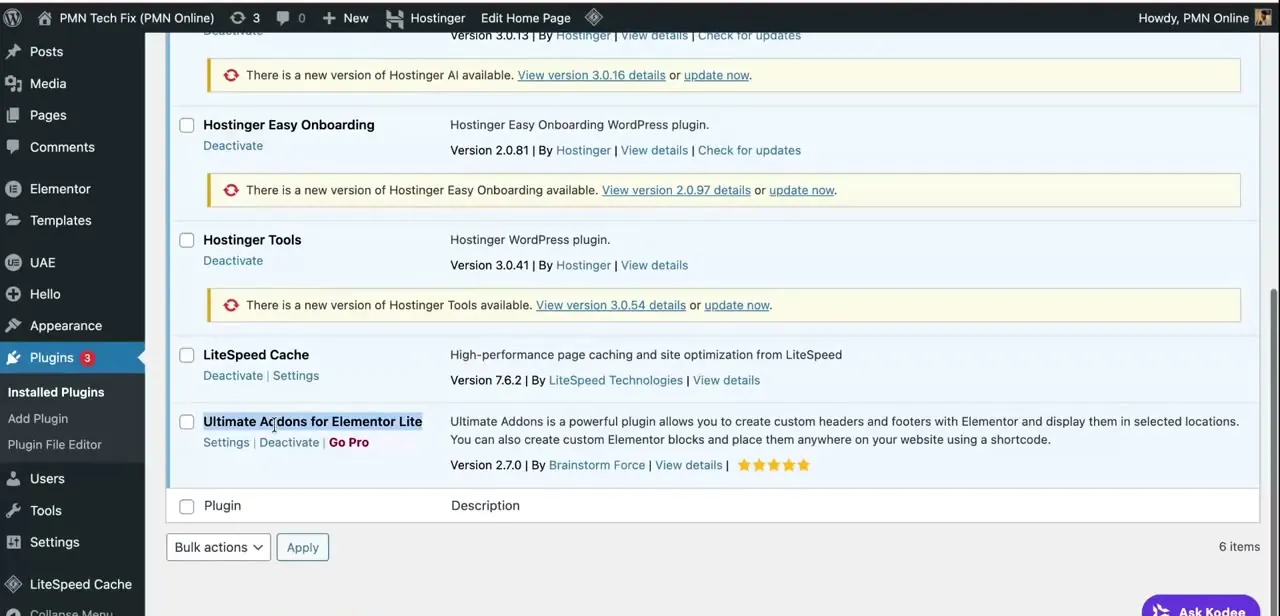
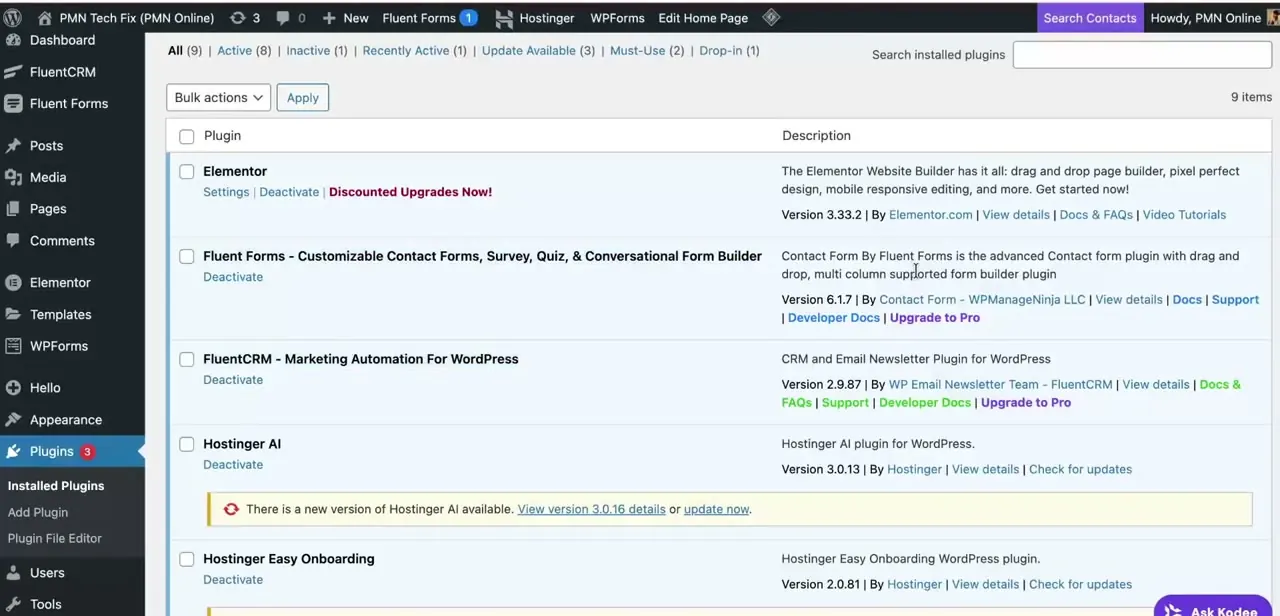
This workflow needs three plugins working together: Elementor for the page layout, Fluent Forms for the form itself, and FluentCRM for storing subscribers. Check Plugins in your WordPress admin and confirm all three are active. It's easy to install Fluent Forms and forget FluentCRM, since Fluent Forms works standalone without it and won't flag the missing connection until you go looking for the integration option.
02Build the newsletter form
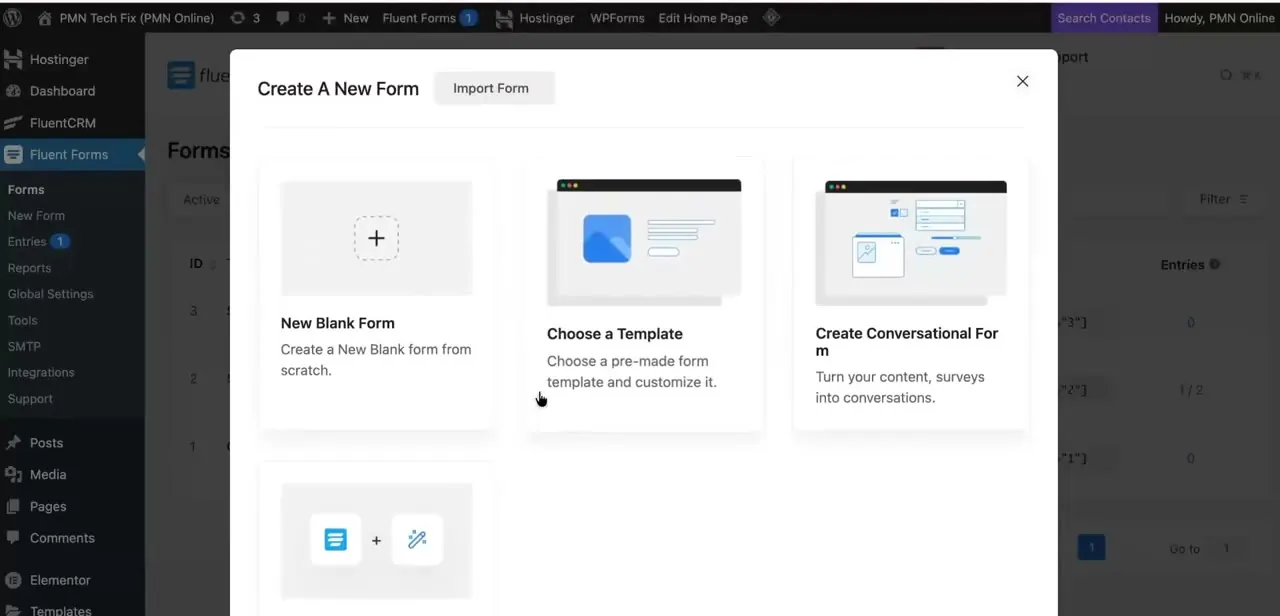
In Fluent Forms, create a new form and choose between a blank form, a pre-made template, or a conversational form that asks one question at a time. For a plain newsletter signup, a blank form with just an email field, plus a name field if you want one, is usually faster than adapting a template built for something else.
Give the form a clear internal name. You'll need to find it again in a dropdown when you embed it in Elementor, and a vague name like "Form 1" gets confusing once you have several.
03Add a FluentCRM integration feed
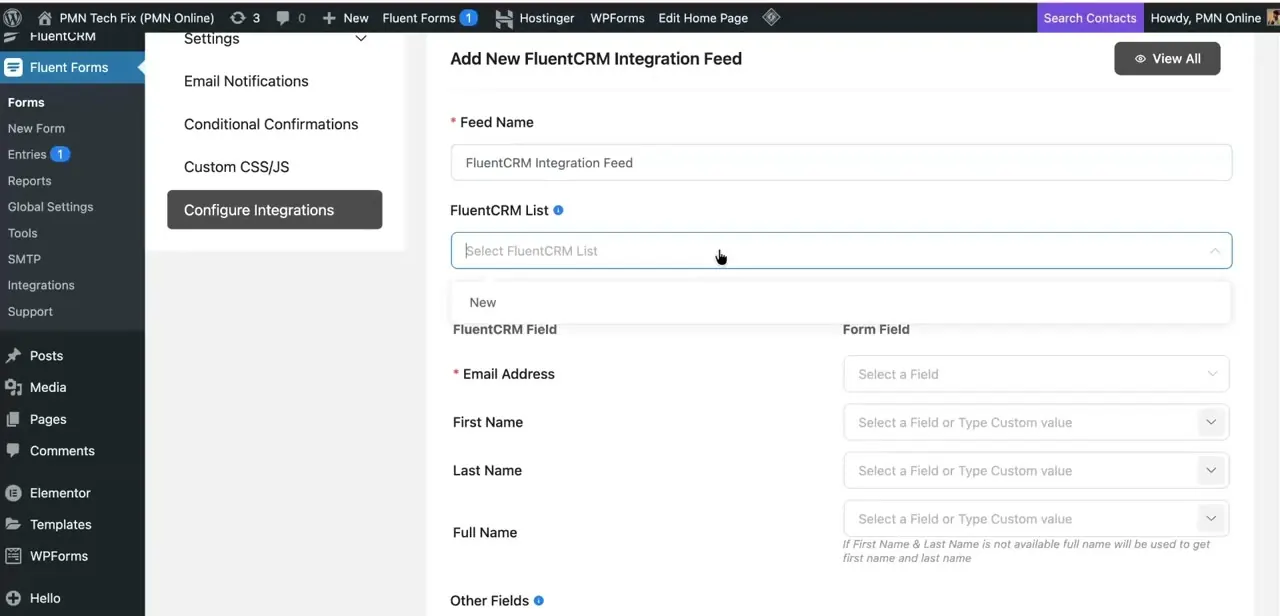
Open the form's settings, go to Configure Integrations, and add a new FluentCRM Integration Feed. Name the feed, pick the FluentCRM list the subscriber should join, and map each form field to its FluentCRM counterpart.
Email Address is the only required mapping; First Name, Last Name, and Full Name are optional but worth adding if your form collects them. This mapping is what moves a submission out of Fluent Forms' own entries table and into FluentCRM as a real contact. Skip it and the form still works, but nobody ends up on your list.
04Embed the form in an Elementor container
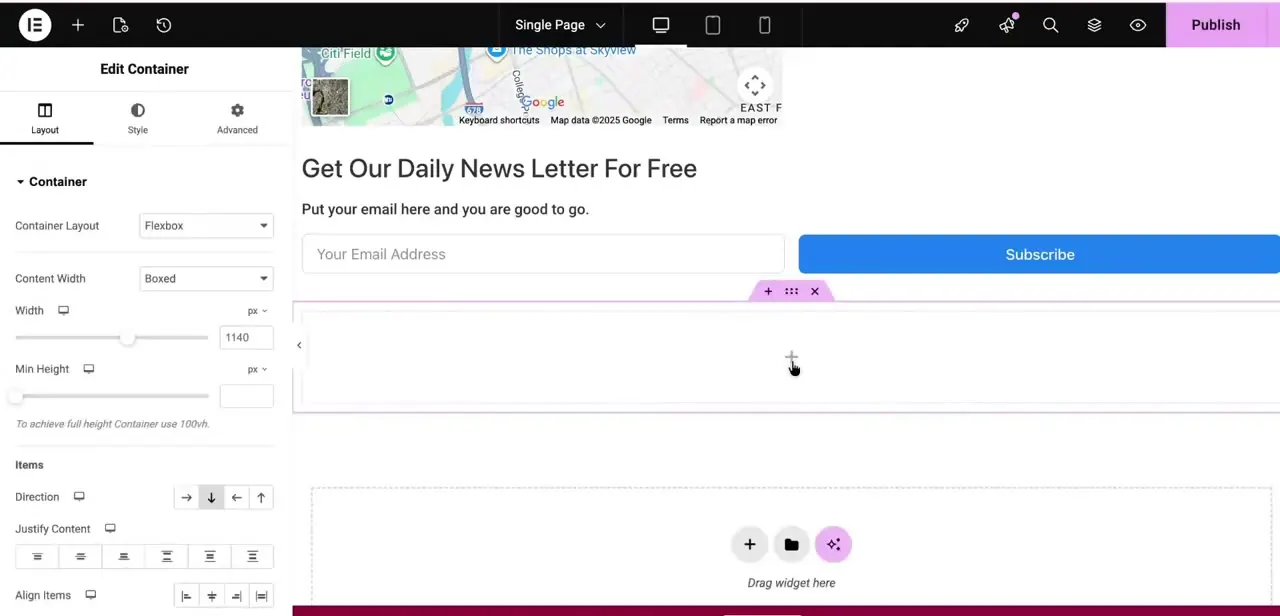
Open the page in Elementor, search the widget panel for Fluent Forms, and drag it into the container where the signup form should appear. In the widget's settings, select the form you built by name from the dropdown; if you've built more than one form, this is where a vague name becomes a real problem. The form renders live in the editor, so you can check field and button styling before publishing.
05Style the form to match the page
Elementor's own container and widget controls handle the space around the form: background, padding, alignment. The form's fields, colors, and button styling are set inside Fluent Forms itself, in the form editor's Style tab.
Keep the two separate in your head. Resizing the container won't change how wide the email field looks if the field's own width is fixed, and changing Fluent Forms' theme won't fix a container that's too narrow around it. Preview the page at desktop and mobile sizes before publishing.
When it doesn't work
The widget shows on the page in the editor, but the form is blank or missing on the live site
Why: A caching plugin or the host's server-side cache is serving an old version of the page.
Fix: Clear any caching plugin and your host's cache, then reload the live page in a private browser window.
The form area is just empty space on the live site
Why: The form was unpublished or deleted in Fluent Forms while the Elementor widget still references its old ID.
Fix: Open the widget in Elementor and re-select the form from its dropdown; this re-links it to a valid form.
The form doesn't render at all, even in the editor
Why: A conflicting plugin's script is blocking Fluent Forms' own scripts from loading.
Fix: Check the browser console for a JavaScript error, then disable other plugins one at a time to isolate the conflict.
Frequently asked questions
Can I add this form without Elementor Pro?
Yes. Fluent Forms includes its own free Elementor widget; you don't need to install a separate add-on or Elementor Pro's paid Forms widget.
Is FluentCRM free to use?
Yes, FluentCRM has a free tier for contact lists and tagging. Automation triggers, sequences, and advanced reporting are Pro features, but they're not needed for a basic signup form.
Why isn't my newsletter form showing up on the live page?
Usually caching. Clear your caching plugin and host cache, then reload in a private window. If that doesn't fix it, the Elementor widget may be pointing at a form that was renamed or deleted; re-select the form from the widget's dropdown.
Can I customize the form's design in Elementor?
Yes, partially. Elementor's container and widget settings control spacing and alignment around the form; the fields, colors, and button styling are configured inside Fluent Forms itself.
Do I need to map every field to FluentCRM?
No. Only Email Address is required in the FluentCRM Integration Feed. Mapping First Name and Last Name is optional but lets you personalize future campaigns.
Sources and last check
Click path and screens come from a recorded walkthrough. The FluentCRM integration steps, the claim that Fluent Forms' Elementor widget needs no separate add-on, and the free-vs-Pro feature split were re-checked against Fluent Forms' own documentation in September 2026 and matched the article; no factual corrections were needed. The 'form embeds but doesn't show' content was moved out of the step list into troubleshooting, since it's a fix for a failure mode, not a step in the core task.
About the author

Impran M N
I've been hooked on technology for as long as I can remember — especially the new tools and AI apps that seem to land every other week. Easy Tech Tuts is where I write up whatever I've just worked out: I do the task in the real product, record the screen, and turn it into the guide I wish I'd found first.