Easy Tech Tuts
How to Add Google Maps in Elementor, Integrate Google Maps API Easily 2026
By Impran M NLast checked against official docs
Elementor's Google Maps widget looks like one of the simplest widgets in the builder: drop it on the page, type an address, and a map is meant to appear. What trips people up is assuming that works without any setup.
Elementor's own documentation is direct about it: the widget needs a Google Maps API key to function, not just for busy sites. This guide covers getting that key first, then adding the widget, setting the location and style, and fixing the blank map or watermark that shows up when the key side isn't wired up correctly.
Before you start
- A Google Cloud Platform account with a billing method attached. Elementor's widget needs a working API key, and Google requires billing enabled on the project before it issues one, even though ordinary use of this specific API stays free.
- Elementor installed on the site. The Google Maps widget ships with Elementor itself, so there's nothing extra to install for the widget.
01Get a Google Maps API key first
In Google Cloud Console, create a project or pick an existing one, then open APIs & Services > Library and enable the Maps Embed API specifically. That's the API Elementor's widget calls, not the Maps JavaScript API or Places API.
Then go to APIs & Services > Credentials, click + Create Credentials, and choose API key. Google won't hand you a working key until the project has a billing account attached, so add a payment method under Billing if you haven't already.
02Restrict the key and add it to Elementor
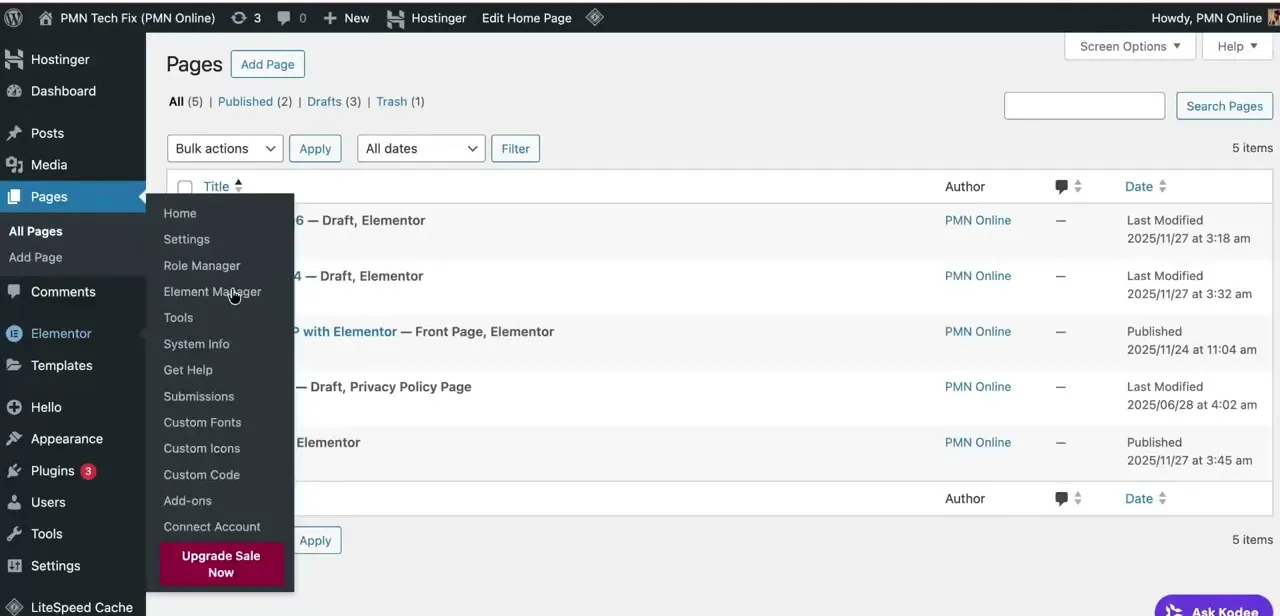
Back on the Credentials page, edit the new key and add an HTTP referrer restriction limited to your site's domain, so it can't be lifted and used to run up charges against your project elsewhere. Then, in your WordPress admin, go to Elementor > Settings, open the Integrations tab, find the Google Maps Embed API field, and paste the key in. This is the only place it needs to go, not the widget itself and not a theme file.
03Add a container and drop in the Google Maps widget
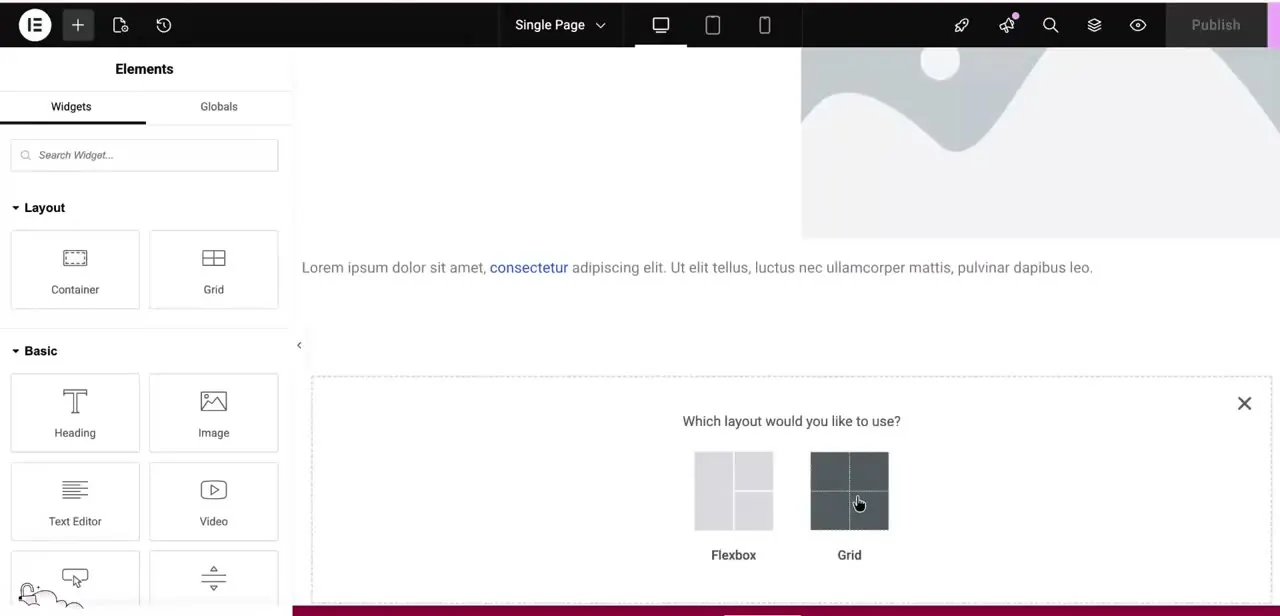
In the Elementor editor, add a new section or container to hold the map, choosing between a Flexbox or Grid layout depending on how you want it to sit alongside other content on the page. From the Widgets panel, search for Google Maps and drag it into the container.
04Set the location, zoom level, and height
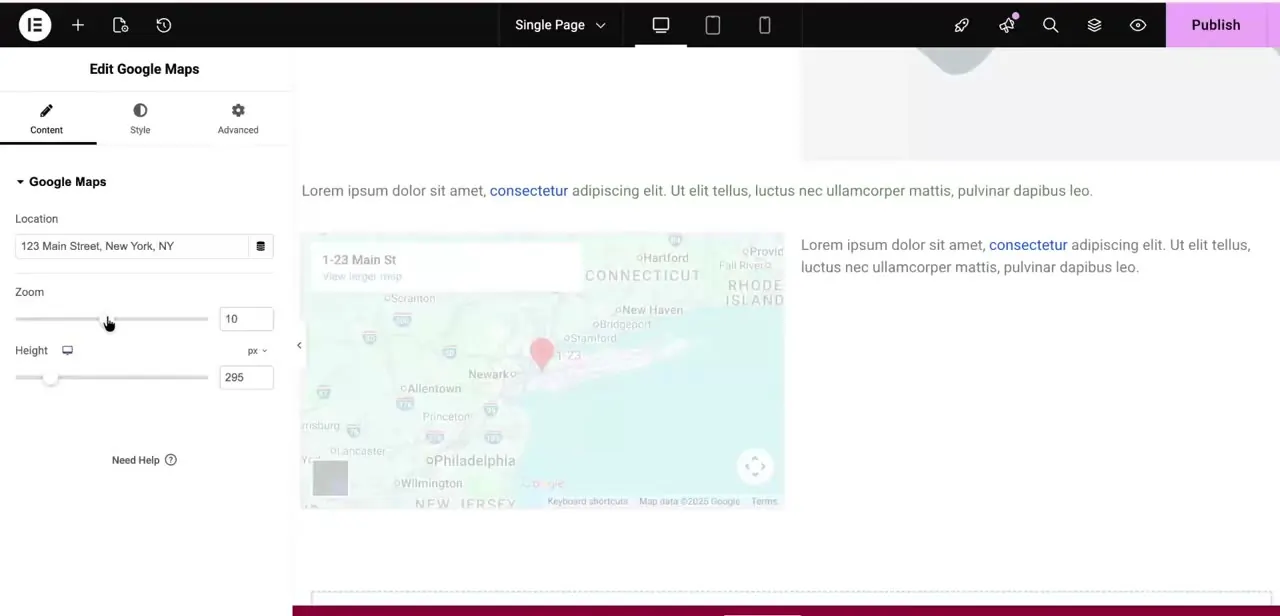
With the widget selected, the Content tab shows a Location field. Type an address like "123 Main Street, New York, NY" and Elementor centers the map there using its address search, no coordinates needed.
Below that, the Zoom slider controls how close the initial view is, and Height sets the map's pixel height on the page; a zoom around 10-14 and a height of 250-400px covers most contact-page use cases. With a working key in place from the earlier steps, the preview updates live in the editor as you adjust either value.
05Style the map to fit your page
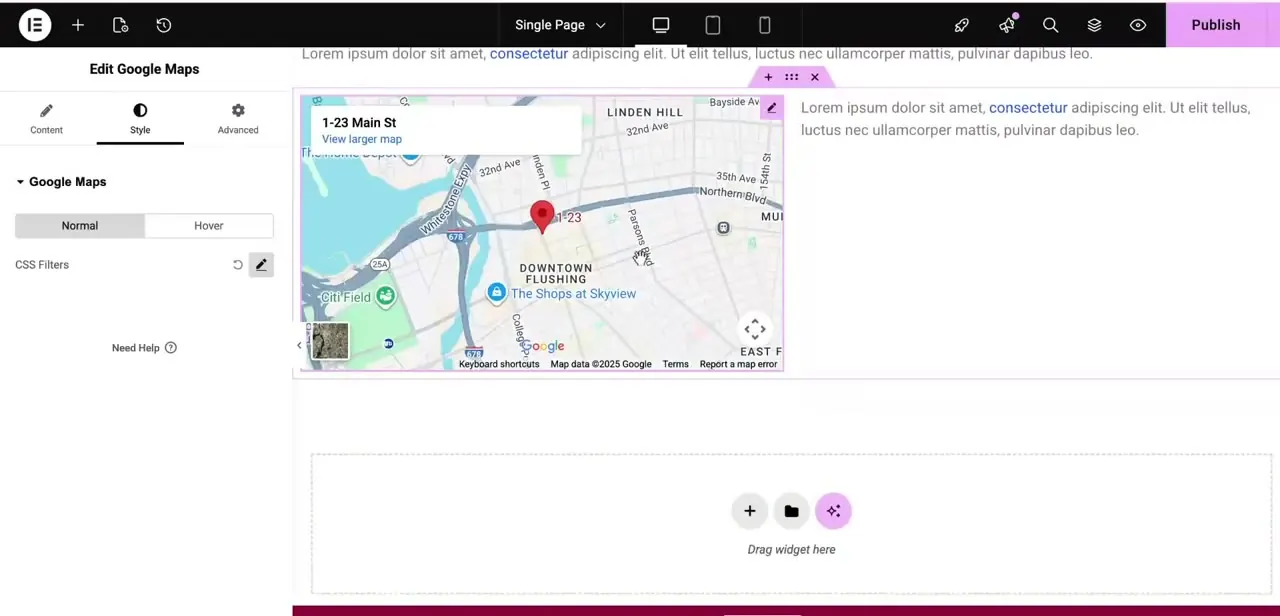
The Style tab gives you Normal and Hover states along with a CSS Filters control, letting you adjust saturation, brightness, and contrast on the map tiles themselves, not just the container around them. That matters if your site uses a muted or monochrome look and a full-color Google map clashes with it.
It's a lighter styling toolkit than most Elementor widgets get. Google's own map tiles limit how much you can restyle beyond filters, but it's enough to tone a map down.
06Fix a map that's still blank or watermarked
A gray box or a "for development purposes only" watermark almost always traces back to the key: missing, mistyped, or sitting on a project without billing enabled. Confirm the key is saved under Elementor > Settings > Integrations, and confirm in Google Cloud Console that the project it belongs to has a billing account attached and the Maps Embed API enabled.
If the key looks right but the map is still blank, check the referrer restriction includes your live domain, not just a staging URL. Once the key side checks out, rule out an unresolved address, a Height value left at zero, or a caching plugin serving an old version of the page. Reload in a private window to bypass cache.
When it doesn't work
The map shows a gray box or a "for development purposes only" watermark
Why: The API key is missing or invalid, or the Google Cloud project it belongs to doesn't have billing enabled. Google requires billing on the project even though the Maps Embed API itself is free.
Fix: Check the key is saved under Elementor > Settings > Integrations, then confirm in Google Cloud Console that a billing account is attached to the project that key belongs to.
The map is blank even with a key saved in Elementor
Why: The Maps Embed API hasn't been enabled for that specific project, or the key's HTTP referrer restriction doesn't include the live domain.
Fix: In Google Cloud Console, check APIs & Services > Library that Maps Embed API shows as enabled, and check the key's restrictions cover your actual site address.
The map still won't load after the key checks out
Why: A caching plugin is serving a version of the page saved before the widget or key was added, or Elementor's location search couldn't resolve the typed address.
Fix: Reload the published page in a private window to bypass cache, and test with a simple, well-known address to isolate the cause.
Frequently asked questions
Is the Google Maps API free to use?
The specific API Elementor uses, the Maps Embed API, is listed as unlimited and free on Google's own pricing page. You still need a Google Cloud project with a billing account attached before Google issues a working key, since that requirement applies platform-wide, not per API.
Where do I paste a Google Maps API key in Elementor?
In your WordPress admin, go to Elementor > Settings > Integrations, and find the Google Maps Embed API field there. That's the only place the key needs to be added.
Why is my map showing a gray box, blank space, or a watermark?
Most often a missing or invalid API key, or a Google Cloud project without billing enabled. Confirm both before checking smaller causes like an unresolved address or a stale cached page.
Can I restyle how the map itself looks in Elementor?
To a limited degree. The widget's Style tab includes CSS Filters for adjusting saturation and brightness on the map tiles themselves, though full custom map styling goes beyond what the free widget offers.
Sources and last check
The container, Content-tab, and Style-tab steps come from a recorded walkthrough. Re-checked against Elementor's own official documentation and Google's Maps Platform pricing pages in September 2026. That check reversed the article's central claim: Elementor's documentation states a Google Maps API key is required to use the widget at all, not only in rare high-traffic cases as this article previously said. Pricing details reflect Google's per-SKU free-tier model introduced in March 2025, which replaced the older flat $200 monthly credit.
About the author

Impran M N
I've been hooked on technology for as long as I can remember — especially the new tools and AI apps that seem to land every other week. Easy Tech Tuts is where I write up whatever I've just worked out: I do the task in the real product, record the screen, and turn it into the guide I wish I'd found first.