Easy Tech Tuts
How to Link Bank Account on Ebay , Add Bank or Card info faster Payout & Checkout 2026 Easily
By Impran M NLast checked against official docs
eBay treats payment methods differently depending on which side of a transaction you're on. Sellers need a way to receive payouts, buyers just need a card on file to skip re-entering details at checkout, and both live in the same Payments section of My eBay.
What's easy to miss is that eBay's rules for the payout side are stricter than they look: only one bank account can be on file at a time, it has to be a checking account, not savings, and the name on it has to match your eBay account. This guide walks through both paths from the Payments page, what eBay accepts for each purpose, and the requirements that cause a payout to silently fail when they're not met.
Before you start
- For payouts: a personal or business checking account (not savings) in a name matching your eBay account, or a Visa/Mastercard debit card
- Any existing account restriction on your eBay account resolved first, since payouts stay on hold regardless of what's linked until that clears
01Sign in and open My eBay Payments
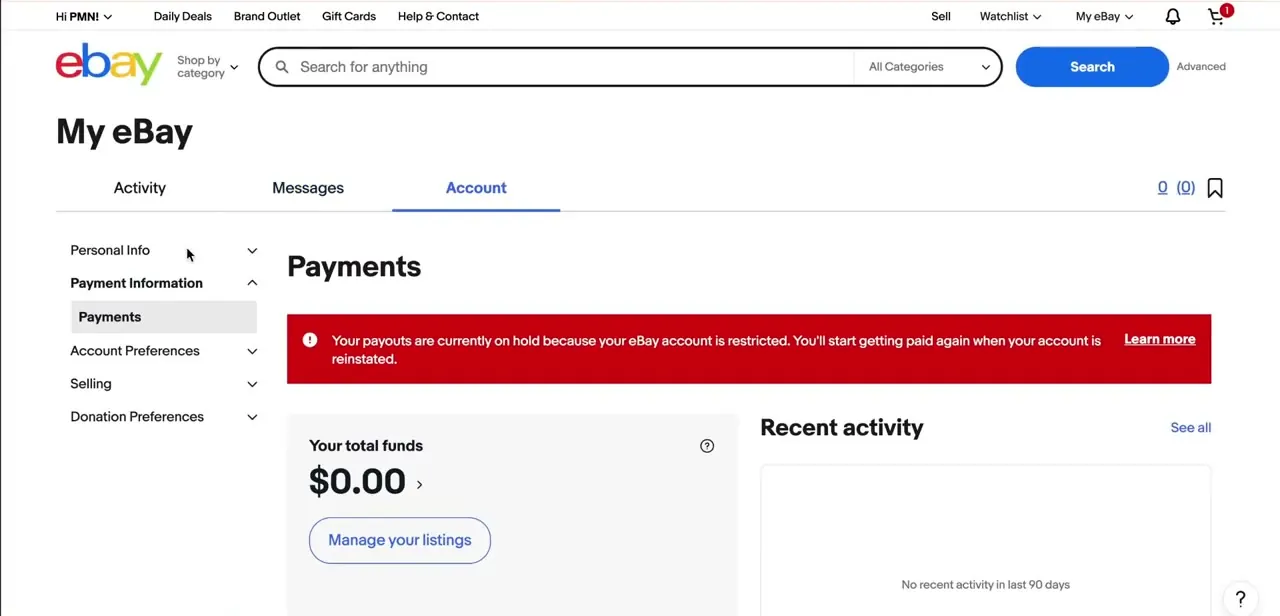
Log into your eBay account, then go to My eBay in the top navigation and select Account, followed by Payments under the Payment Information section. This page is the control center for everything money-related on eBay: your current balance, recent payout activity, and any charges or holds. If your account shows a red banner saying payouts are on hold because the account is restricted, deal with that first; adding or changing a bank account won't lift a restriction hold on its own.
02Know which method covers payouts
Sellers aren't limited to a bank account for receiving money. eBay's own registration guidance lists two options for payouts: a personal or business checking account, or a Visa/Mastercard debit card. A credit card doesn't work for this purpose, and neither does a savings account. Buyers who only want faster checkout skip all of this and just add a card for that purpose in the next step.
03Add a bank account for payouts
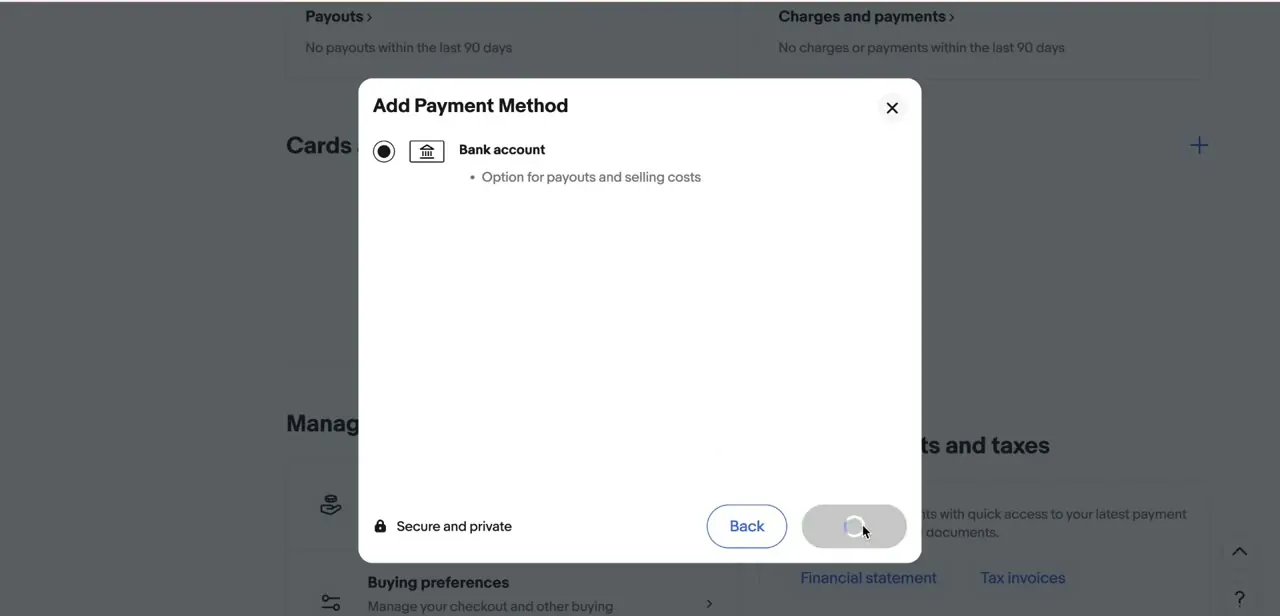
From the Payments page, open Add Payment Method and select Bank account. eBay lets you log in to your bank directly (the fastest option) or enter the routing and account numbers manually. Two things eBay checks that aren't obvious from the form: the account has to be a checking account, since savings accounts are rejected, and the name on the account has to match your eBay account name (or your registered business name for a business account). You can also only have one checking account on file for payouts at a time; adding a new one means deleting the old one first.
04Or add a card, and choose what it's for
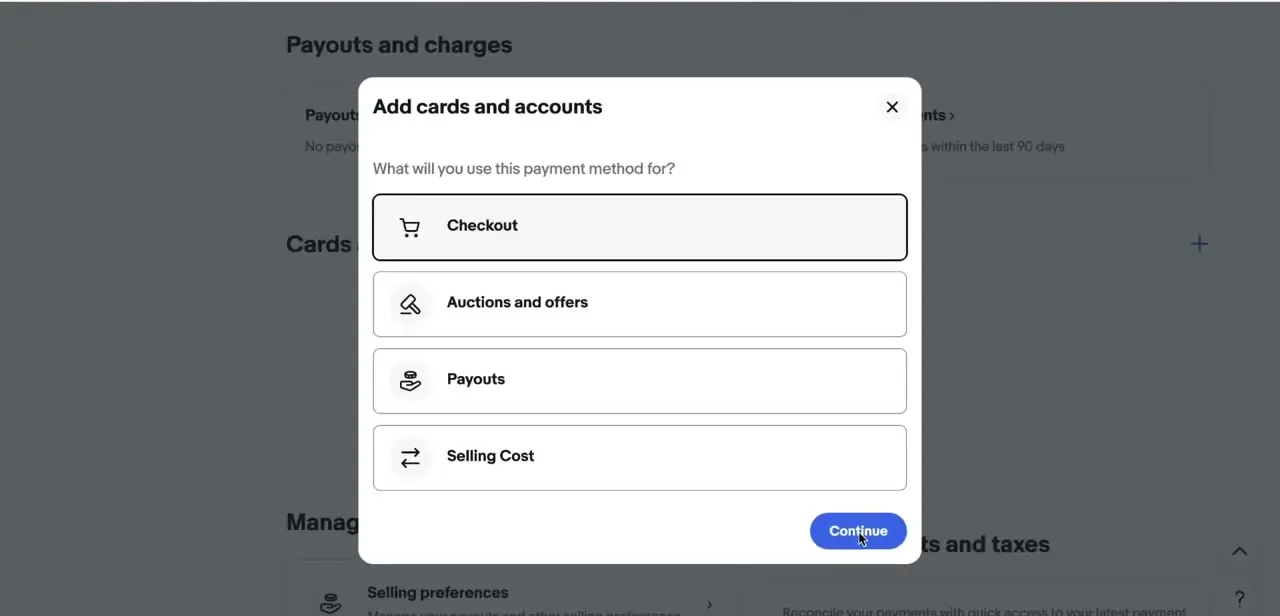
If you're adding a card instead, eBay asks what you'll use it for before showing the form: Checkout, Auctions and offers, Payouts, or Selling Cost. Pick Checkout for faster purchases as a buyer.
Pick Payouts only if you're using a Visa or Mastercard debit card to receive seller funds instead of a bank account; a credit card can't be selected for that option. This choice determines where the card shows up later, so match it to the real reason you're adding it.
05Enter your card or bank details
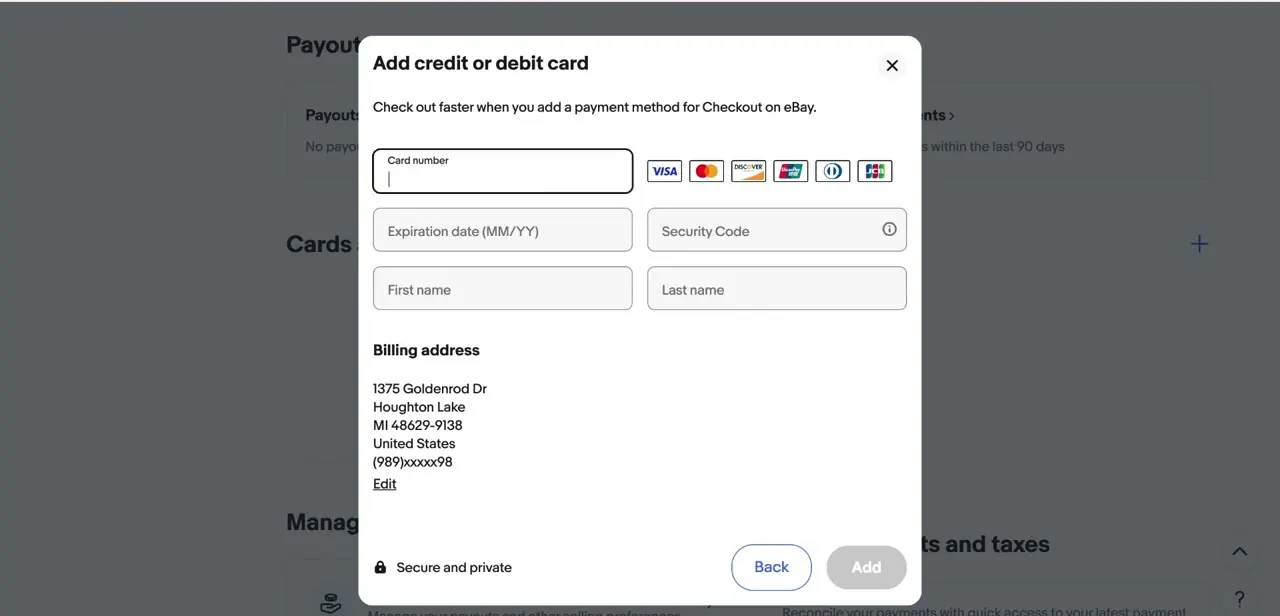
The card form is short: card number, expiration date, security code, name on the card, and a billing address eBay usually pre-fills from your account profile; check it and click Edit if it's out of date. eBay accepts all major card networks, shown as icons next to the card number field, and marks the form as secure and private. For a bank account, eBay asks for routing and account numbers and typically confirms them within 2 business days. If eBay verifies through small test deposits instead of a direct bank login, that method can take 2 to 4 business days instead of 2.
06Confirm and set your preferred method
After saving, the new bank account or card appears in the Cards and accounts list on the Payments page. If you've added several cards over time, open the list and set which one is used by default for checkout or for selling costs. Remember that the bank account slot is different: there's only ever one on file for payouts, so "changing" it there means removing the old one and adding the new one, not choosing between two.
07Watch for verification and payout delays
A newly added bank account needs its verification window (2 business days typically, longer if eBay used microdeposits) before a payout can be sent to it; funds may show as pending until then. If a payout fails afterward, check three things before contacting support: the routing and account numbers against your bank statement, that the account is a checking account and not a savings account, and that the name on the account matches your eBay account or business name.
| Purpose | Accepted method |
|---|---|
| Checkout (buying) | Credit or debit card |
| Auctions and offers | Credit or debit card |
| Payouts (getting paid as a seller) | Personal or business checking account, or a Visa/Mastercard debit card |
| Selling Cost (fees) | Credit or debit card |
Only one checking account can be on file for payouts at a time; cards can be added in multiples.
When it doesn't work
eBay won't let a second bank account be added for payouts
Why: eBay allows only one checking account on file for payouts at a time.
Fix: Delete the existing bank account from Cards and accounts first, then add the new one.
A new bank account gets rejected or a payout to it fails
Why: The account is a savings account (eBay only accepts checking), the routing or account number doesn't match your bank statement, or the name on the account doesn't match your eBay account or business name.
Fix: Confirm it's a checking account, re-enter both numbers digit by digit from a recent statement, and check the registered name matches.
Payouts stay on hold after a valid bank account is added
Why: The eBay account itself is restricted, shown as a banner on the Payments page, pending identity or account verification.
Fix: Resolve the restriction first. No bank account or card fixes a hold caused by a restricted account.
Verification is taking longer than the 2 business days eBay quotes
Why: eBay verified the account through microdeposits instead of a direct bank login, and that method runs 2 to 4 business days.
Fix: Wait out the longer window before contacting support, or try linking again via direct bank login if it's offered.
Frequently asked questions
Do I need a bank account on eBay if I only buy, not sell?
No. Buyers only need a card on file for checkout. A bank account, or a debit card set up for payouts, is only needed if you plan to sell.
Can I use a debit card instead of a bank account to get paid?
Yes. eBay's own guidance lists a Visa or Mastercard debit card as a valid payout method alongside a checking account. A credit card doesn't qualify for payouts.
What are eBay's requirements for the bank account itself?
It has to be a personal or business checking account, not savings, and the name on it has to match your eBay account name or registered business name. You can also only have one checking account on file for payouts at a time; adding a new one means removing the old one first.
How long does it take to verify a new bank account on eBay?
About 2 business days when verified through a direct bank login. If eBay uses microdeposits instead, it can take 2 to 4 business days. Either way, add it a few days ahead of when you expect a payout.
Why did my eBay payout fail after I added a bank account?
The most common causes are a mismatched routing or account number, a savings account where a checking account is required, or a name on the account that doesn't match your eBay account. Check all three before contacting support.
Is it safe to add my card or bank details directly on eBay?
eBay processes payment details through its own secure payments system instead of storing raw card numbers, and the entry forms are marked secure and private, consistent with standard practice across major marketplaces.
Sources and last check
Click path and screens come from a recorded walkthrough. The payment-method rules were re-checked against eBay's own help pages in September 2026, which corrected this guide's earlier claim that only a bank account can receive payouts (a Visa/Mastercard debit card also qualifies), added the one-checking-account limit, the checking-not-savings requirement, the account-name-matching rule, and the more precise 2-business-day (up to 2-4 for microdeposits) verification window in place of a vague estimate.
About the author

Impran M N
I've been hooked on technology for as long as I can remember — especially the new tools and AI apps that seem to land every other week. Easy Tech Tuts is where I write up whatever I've just worked out: I do the task in the real product, record the screen, and turn it into the guide I wish I'd found first.