Easy Tech Tuts
How to Combine Postage on eBay, Create Flat or Promotional Shipping Rules Easily 2026
By Impran M NLast checked against official docs
Buyers who add three items to their cart and see three separate shipping charges often abandon the order. Combined postage fixes that: eBay can automatically discount or flatten shipping once someone buys more than one item from you.
Set the rule up once in Seller Hub and you won't need to manually adjust an invoice for every multi-item sale. This guide covers where the combined shipping settings live, how the flat shipping rule works, how to layer a promotional rule on top during a sale, and which items eBay excludes from combined shipping no matter what your rules say.
Before you start
- An eBay seller account with at least one active listing to apply the rule to
- Listings using flat-rate or calculated shipping — local-pickup listings aren't eligible for combined shipping rules
01Sign in to your eBay seller account
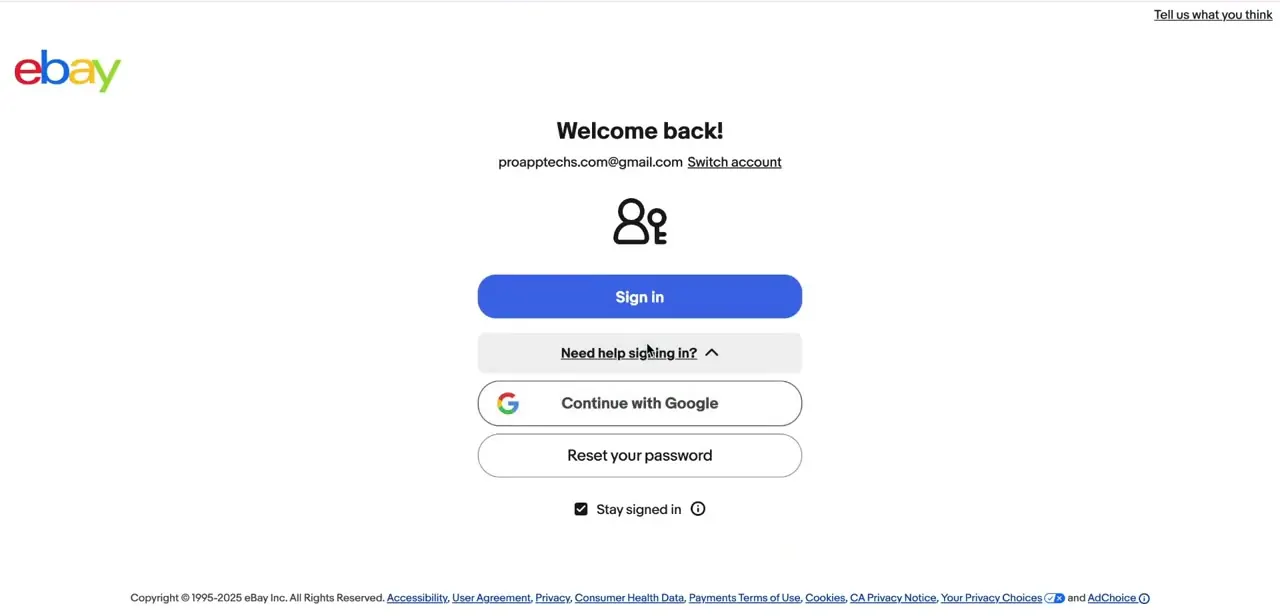
Combined shipping rules are account-level settings, so sign in to the seller account whose listings you want them applied to, not just browse eBay as a guest. From the eBay homepage, click Sign in and enter your credentials, or use Continue with Google if that's linked to your account.
If you manage more than one storefront, eBay will remember whichever one you were last using, so confirm you're on the right account before changing anything. Shipping rules apply store-wide, across every active listing on that account.
02Open Shipping preferences in Seller Hub
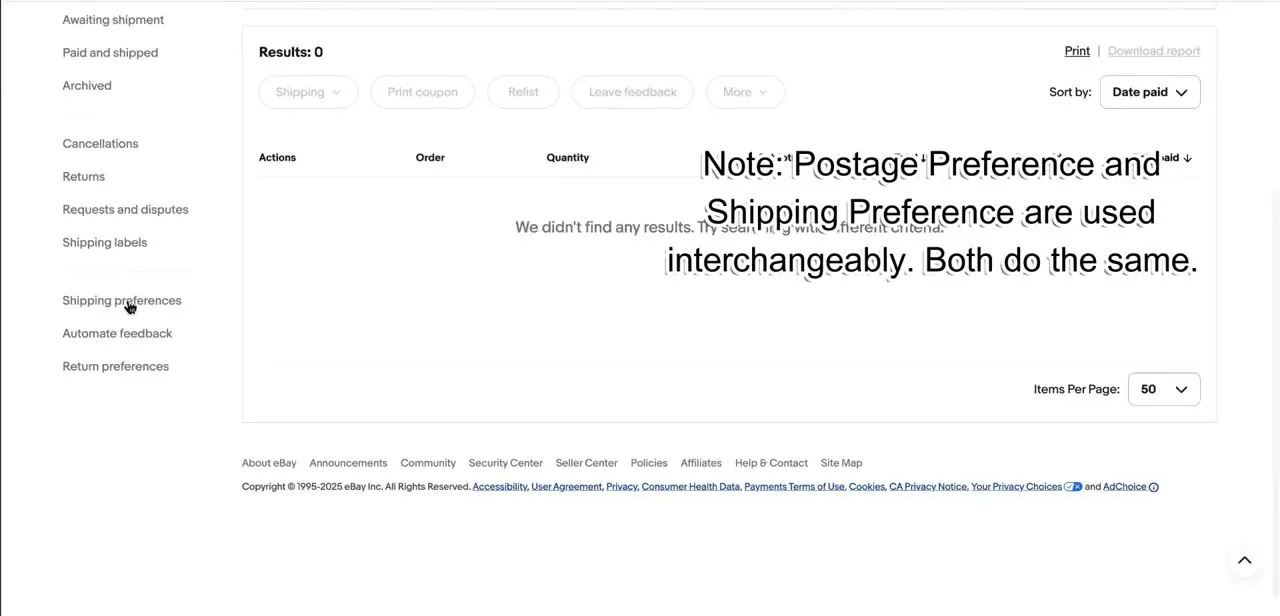
From My eBay or Seller Hub, look in the left-hand menu for Shipping preferences, usually grouped near Automate feedback and Return preferences under your account settings. eBay's own interface flags that "Postage Preference" and "Shipping Preference" are used interchangeably and both do the same thing, so don't worry if the wording shifts between pages. This is also where general shipping defaults live, like your handling time and dispatch location.
03Open Combined shipping rules and start a flat rule
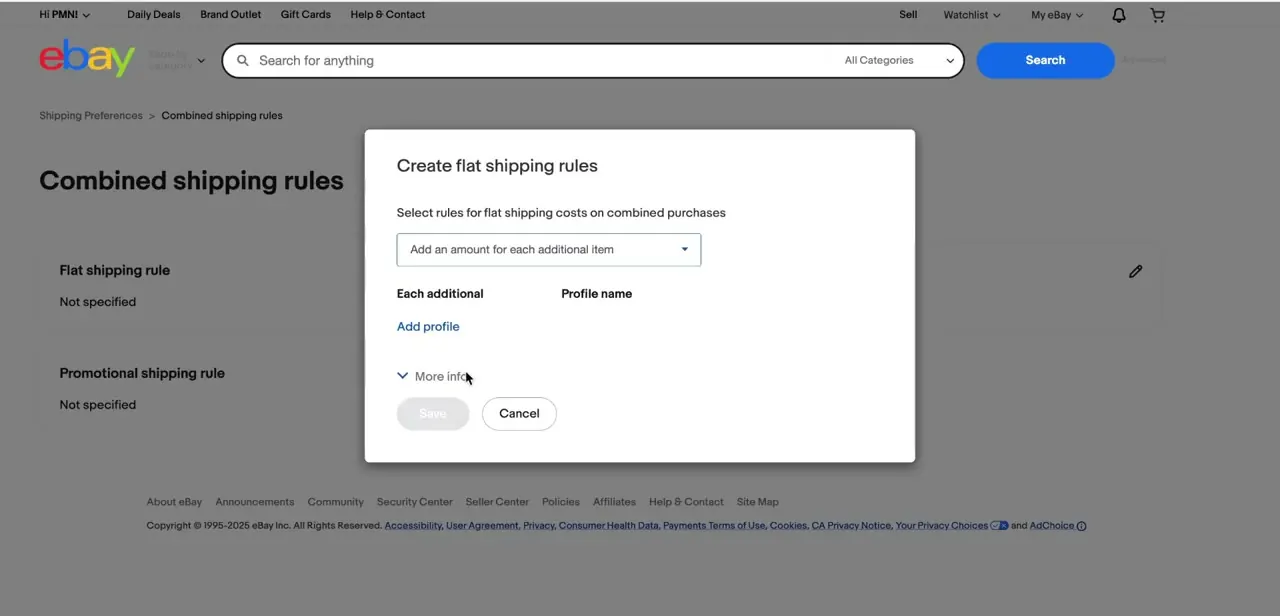
Inside Shipping preferences, click into Combined shipping rules. Next to Flat shipping rule, click the pencil/edit icon to open the Create flat shipping rules dialog, which sets how postage is charged once a buyer adds more than one item to an order. The dropdown defaults to "Add an amount for each additional item," the most common setup: the buyer pays full postage for the first item, then a smaller flat add-on for each item after that instead of paying full shipping multiple times.
04Set your per-item amount and save a profile
Enter the additional-item charge as a fixed amount. If your standard shipping is $6 and you want each extra item to add only $2, that's what goes in the "Each additional" field.
Give the rule a clear profile name, since you can build multiple shipping profiles for different categories of listings (lightweight items versus bulky ones, for instance) and reuse them later. Click Add profile, then Save, and the rule sits under Combined shipping rules ready to be applied to your listings.
05Add a promotional shipping rule for extra incentive
Below the flat shipping rule section sits a separate Promotional shipping rule option, which goes further than a flat add-on: free shipping on the second item, or a maximum shipping cost once an order crosses a certain value. This is the setting for a sale event or clearance push, since eBay applies it instead of your flat rule whenever a buyer qualifies for both — promotional rules take priority over flat and calculated ones. Like the flat rule, it's saved as its own profile so you can switch it on and off without rebuilding it each time.
06Apply the rule to your listings and test it
Saving a rule under Combined shipping rules doesn't attach it to any listing by itself. Open the listing's shipping section, or use Seller Hub's bulk edit tool, to assign the profile to the items you want covered.
Once applied, add two or more of the eligible items to a cart yourself, or ask a trusted buyer to, and walk through checkout to confirm the discounted or flat postage calculates correctly before it goes live to real customers. A few listing types are excluded from combined shipping regardless of which rule you build: Authenticity Guarantee items, PSA Vault items, local-pickup listings, Best Offer purchases, and some eBay International Shipping categories. If your test item falls into one of those, the combined rate won't show at checkout, and that's expected.
When it doesn't work
A rule is saved under Combined shipping rules, but buyers still pay full shipping on each item
Why: Saving a flat or promotional rule doesn't attach it to any listing automatically. It has to be assigned to the listings' shipping policy, either one at a time or through Seller Hub's bulk edit tool.
Fix: Open each listing's shipping section (or the shared business policy) and set the combined shipping profile there, then re-test at checkout.
A buyer already paid for two items separately, and now wants the combined discount
Why: eBay's help documentation is explicit that shipping can only be combined automatically before payment. Once an item is paid for individually, eBay can't merge it into another order after the fact.
Fix: Issue a partial refund for the shipping difference from Orders in Seller Hub or My eBay instead of trying to re-combine the order.
Combined shipping never becomes an option at checkout for a specific item
Why: Certain listing types are excluded from combined shipping by design: Authenticity Guarantee items (aside from repeat quantities of the same streetwear or sneaker listing), PSA Vault items, local-pickup listings, Best Offer purchases, and some eBay International Shipping categories.
Fix: Check what type the listing is. If it's one of the excluded categories, the combined rate isn't available for it no matter which rule you build.
A flat rule and a promotional rule are both active, and the charge doesn't match the flat rule's math
Why: This is expected. eBay applies the promotional rule instead of the flat rule whenever a buyer qualifies for both.
Fix: Pause or remove the promotional rule for the period when you want the flat-rate numbers to apply.
Frequently asked questions
Where do I find combined shipping settings on eBay?
In Seller Hub, open Shipping preferences from the left-hand menu, then click into Combined shipping rules. From there you can build both a flat and a promotional shipping rule.
What's the difference between a flat rule and a promotional rule, and which one wins?
A flat rule adds a fixed extra charge per additional item, so shipping scales down predictably. A promotional rule is more aggressive, like free shipping on item two, and is meant for sale periods. eBay applies the promotional rule instead of the flat rule whenever a buyer qualifies for both.
Does combined shipping apply automatically once I save a rule?
No. A saved rule sits under Combined shipping rules until you assign it to the specific listings you want covered, either individually or through Seller Hub's bulk edit tool.
Which items are excluded from combined shipping?
eBay excludes several categories regardless of your rules: Authenticity Guarantee items, PSA Vault items, local-pickup listings, Best Offer purchases, and some eBay International Shipping categories. There's no toggle to override this on the rules page itself.
Can I still get a combined discount if a buyer already paid for items separately?
Not automatically. eBay can only combine shipping before payment. If the buyer already paid for each item on its own, issue a partial refund for the shipping difference instead.
Will combined shipping work for international buyers too?
It can for calculated shipping, though rates still vary by destination. Some eBay International Shipping categories are excluded from combined shipping outright, so test an international order specifically before relying on it.
Sources and last check
Click path and screens come from a walkthrough recorded on a live eBay seller account, including the on-screen note confirming "Postage Preference" and "Shipping Preference" are the same setting. Rule mechanics, the promotional-over-flat override, and combined-shipping exclusions were re-checked against eBay's official Shipping discounts and Offering combined shipping help pages in September 2026. That check replaced a vague claim about a configurable "exclusions list" with eBay's actual excluded categories (Authenticity Guarantee, PSA Vault, local pickup, Best Offer, some International Shipping items) and added the pre-payment-only limit on combining.
About the author

Impran M N
I've been hooked on technology for as long as I can remember — especially the new tools and AI apps that seem to land every other week. Easy Tech Tuts is where I write up whatever I've just worked out: I do the task in the real product, record the screen, and turn it into the guide I wish I'd found first.