Easy Tech Tuts
How to Add a Domain in Cloudflare Easily 2026
By Impran M NLast checked against official docs
Getting a domain onto Cloudflare starts with letting the platform pull in your existing DNS setup so nothing breaks in the switch. The 2026 onboarding flow folds a couple of newer decisions into that same first screen: whether to import your DNS records automatically, and how to treat AI crawlers hitting your site, alongside the core steps of naming your domain and repointing your registrar's nameservers. This guide walks through the onboarding screens as they appear today, plus the one setting that can knock a domain offline if it's skipped.
Before you start
- Access to the account at whichever registrar the domain is registered with, since the last step happens there, not inside Cloudflare
- DNSSEC turned off at the registrar first, if it's enabled on the domain (see the nameserver step below)
01Start from your Cloudflare Account home
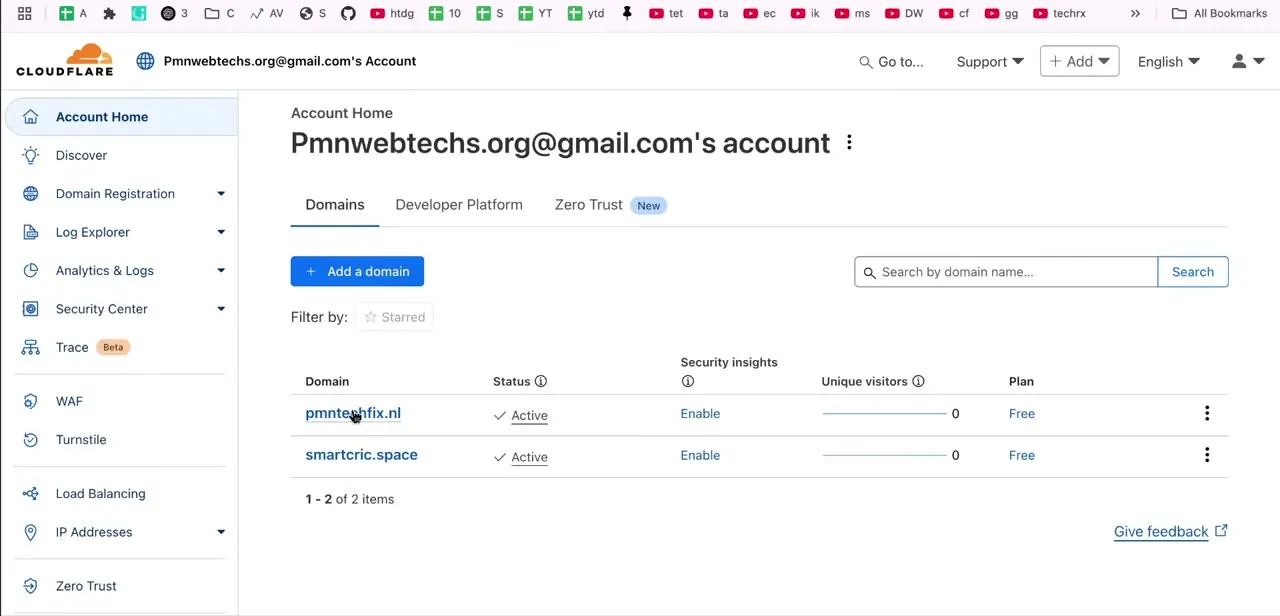
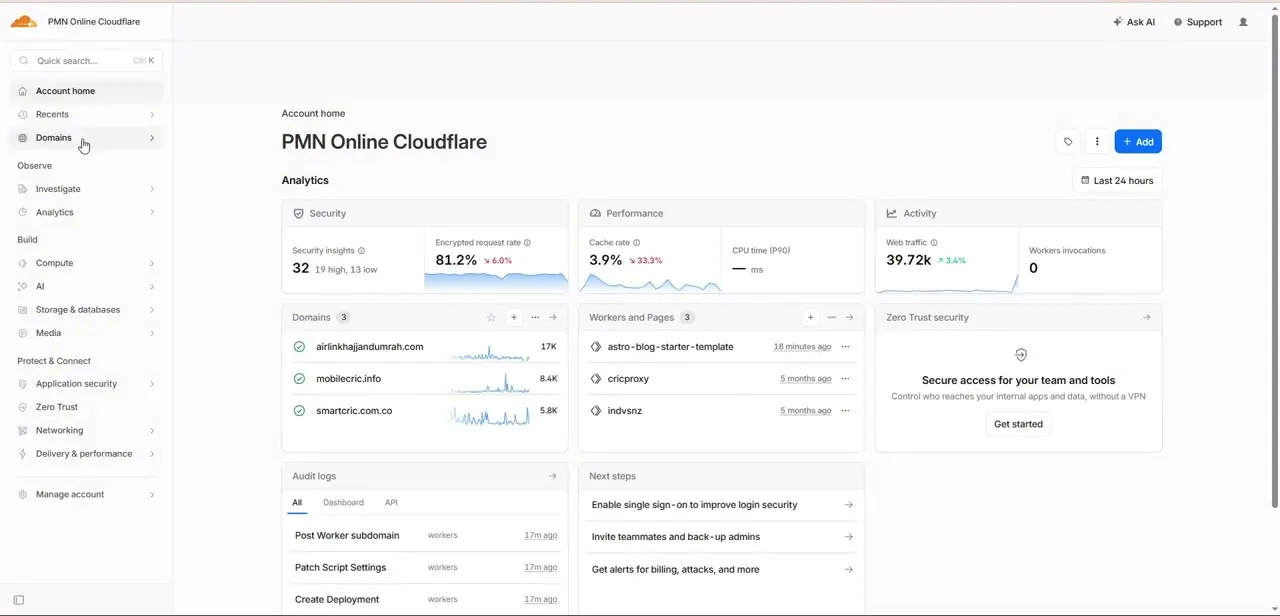
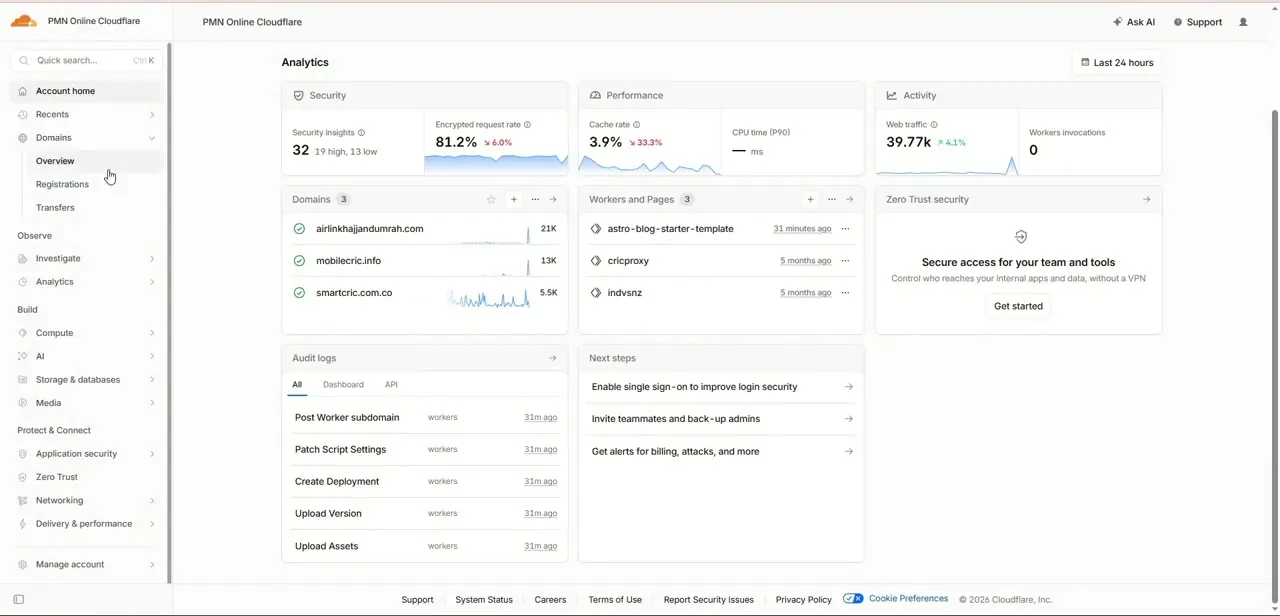
Logging into Cloudflare drops you on Account home, a dashboard that's useful if you manage more than one property: a Domains card listing each site with its recent traffic, a Workers and Pages card for any deployed projects, Zero Trust security shortcuts, and an Audit logs feed of recent account activity. A Next steps panel nudges you toward things like enabling single sign-on or inviting teammates. Worth a glance, but not required before adding a new domain.
02Open Connect your domain and enter the name
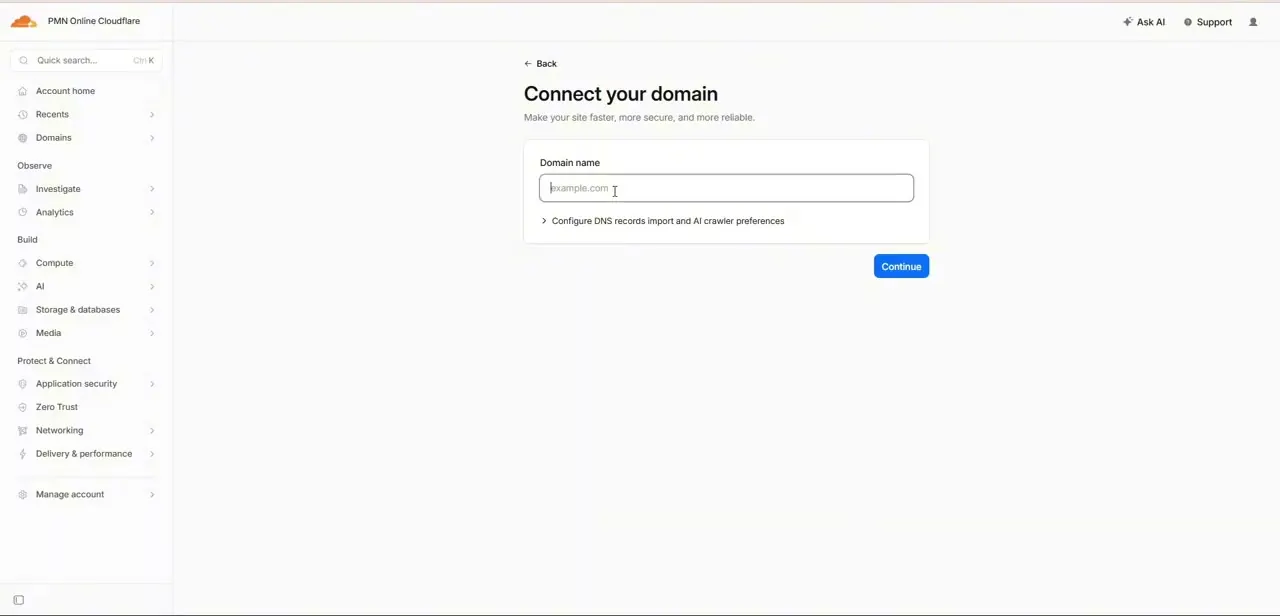
From Domains in the left sidebar, starting the onboarding flow opens a screen titled "Connect your domain" with the subhead "Make your site faster, more secure, and more reliable." It's a single required field, Domain name, with a placeholder like example.com, plus a Continue button and a collapsed link reading "Configure DNS records import and AI crawler preferences" for anyone who wants to adjust the defaults before proceeding.
03Expand the import and AI crawler preferences
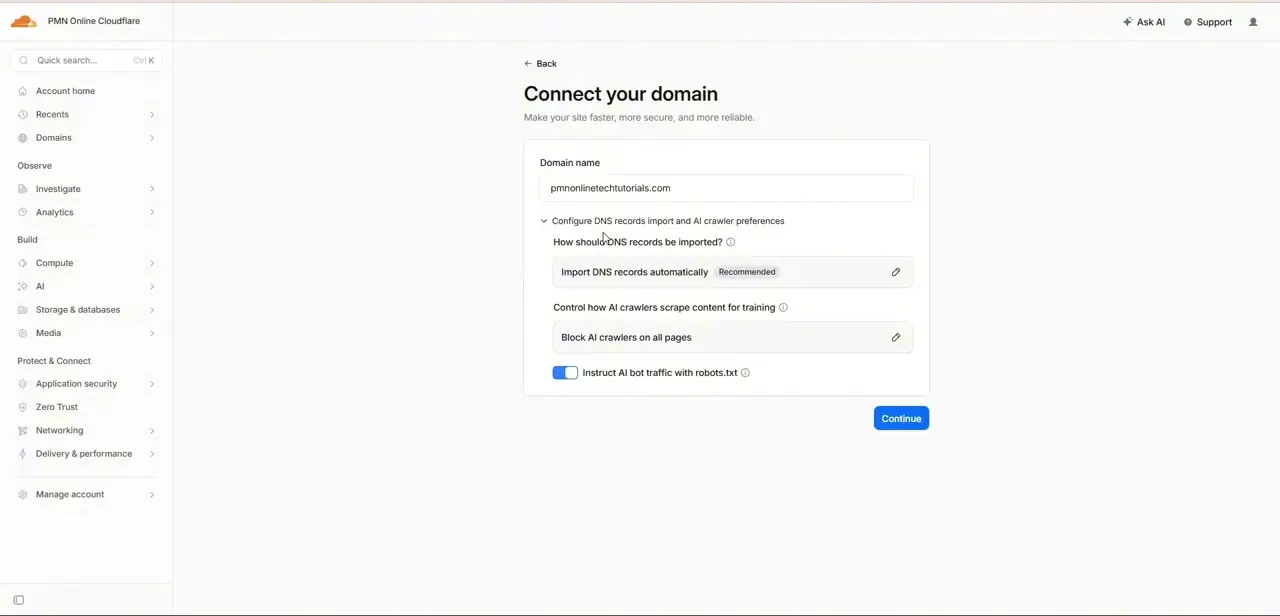
Typing a domain name and expanding that preferences link reveals two decisions Cloudflare wants up front. The first, "How should DNS records be imported?", defaults to "Import DNS records automatically" (marked Recommended), which scans the domain's current records so mail and hosting entries carry over without re-entering them by hand.
The second, "Control how AI crawlers scrape content for training", defaults to "Block AI crawlers on all pages", with a toggle for "Instruct AI bot traffic with robots.txt" underneath. That second control is a recent addition to onboarding, reflecting how much AI training crawler traffic has grown, and it lets you block that traffic site-wide from the moment the domain connects.
04Continue and choose your plan
Clicking Continue moves you into plan selection, where the Free tier sits alongside paid options. For a typical small site, Free is enough to get started: it includes DNS management, proxying, and Cloudflare's baseline security features, with paid tiers adding things like advanced page rules, image optimization, and more granular analytics. Nothing about the DNS import or AI crawler choices from the previous screen changes based on which plan you pick here.
05Review the imported DNS records
After the scan finishes, Cloudflare shows the records it found. Read this screen instead of clicking past it: check specifically that MX records for email are present and that the A or CNAME rows pointing at your hosting are correct.
Cloudflare's own documentation is explicit that the automated scan isn't guaranteed to catch every existing record, so a subdomain or an unusual entry a previous host set up by hand can occasionally be missed. It's easier to add that manually now than to chase down a broken inbox after nameservers have already switched.
06Turn off DNSSEC before you switch nameservers
If the domain has DNSSEC enabled at its current registrar, turn it off there before doing anything else in this step. Cloudflare's documentation warns plainly that changing nameservers while DNSSEC is still active can make the domain unreachable. You can re-enable DNSSEC through Cloudflare once the domain shows as active.
07Switch nameservers at your registrar
The last step happens outside Cloudflare: it assigns the domain a unique pair of Cloudflare nameservers, and you need to log into the registrar and replace the existing nameservers with those two values. Cloudflare's own guidance is to allow up to 24 hours for the registrar to process the change, though it's often much faster. The dashboard shows the domain as active once it detects the new nameservers are live, and it rechecks periodically during that window.
When it doesn't work
The domain won't resolve at all right after switching nameservers
Why: DNSSEC was still active at the registrar when the nameservers changed.
Fix: Turn off DNSSEC at the registrar, confirm the domain resolves again, then re-enable DNSSEC through Cloudflare once the domain is active there.
Cloudflare still shows "Pending Nameserver Update" after a full day
Why: Cloudflare's own guidance allows up to 24 hours for a registrar to process the change, and some registrars run past that. A more common cause is the nameservers being typed slightly wrong or added alongside the old ones instead of replacing them.
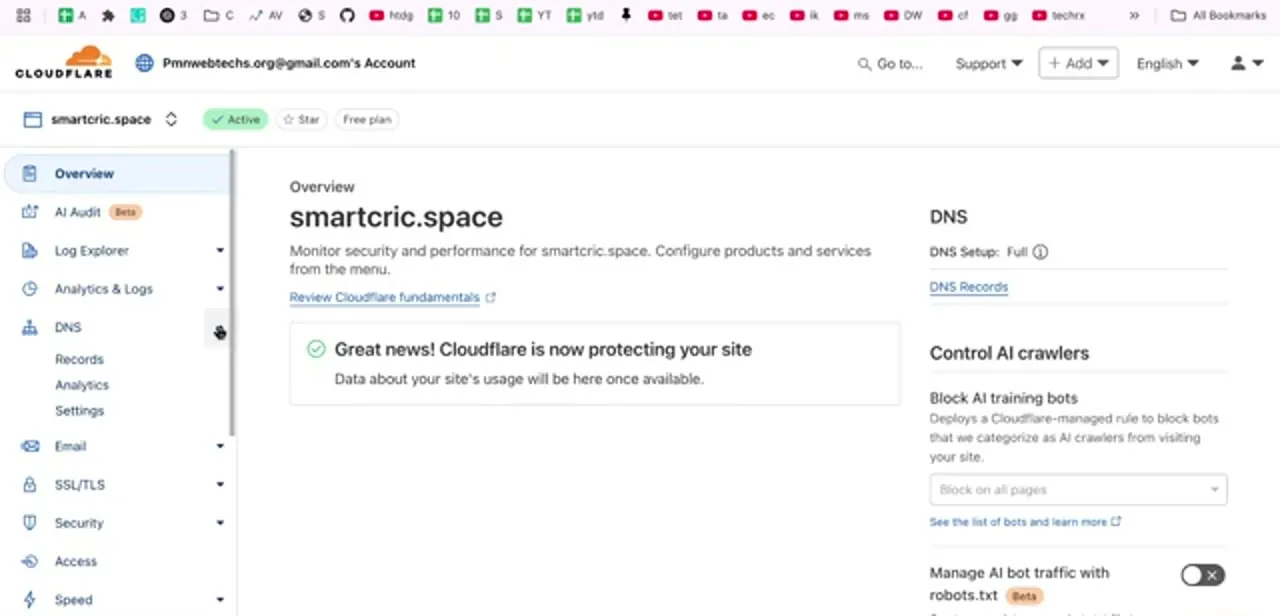
Fix: Confirm at the registrar that only the two Cloudflare nameservers are set, with nothing left over from before, then use the "Check nameservers now" option on the Overview page.
Email stopped arriving after the switch
Why: The automatic DNS import isn't guaranteed to catch every record, and a missed MX row is the most common casualty.
Fix: Compare the MX records in Cloudflare's DNS tab against the domain's previous DNS panel before relying on the migration, and add anything missing by hand.
Frequently asked questions
Will adding my domain to Cloudflare break my existing email?
As long as the automatic DNS import correctly captures your MX records before you switch nameservers, email routing should keep working. Check those rows on the review screen before proceeding, since the scan isn't guaranteed to catch everything.
Is the free Cloudflare plan enough for a basic website?
The free plan includes core DNS management, proxy caching, and basic security features, which covers many small sites.
What does the AI crawler setting during onboarding do?
It's a recent addition to the Connect your domain screen that defaults to blocking AI training crawlers on all pages, with an option to instead instruct them through robots.txt.
How long does nameserver propagation take after switching to Cloudflare?
Cloudflare's own guidance is up to 24 hours, though it's often quicker. If it runs well past that, double-check the nameservers were entered correctly at the registrar and that DNSSEC is off.
What if the DNS import misses some of my records?
Add the missing record manually in the DNS Records panel, before or after switching nameservers, the same way you'd add a new subdomain.
Do I need to do anything about DNSSEC before switching?
Yes, if it's enabled. Turn it off at the registrar first. Changing nameservers with DNSSEC still active can make the domain unreachable, and Cloudflare lets you turn it back on once the domain is active there.
Sources and last check
Click path and screens come from a recorded walkthrough of the Connect your domain flow. The nameserver timing, the DNS-scan caveat, and the DNSSEC warning were checked against Cloudflare's own onboarding and DNS documentation in September 2026. The DNSSEC warning is a genuine addition: the original write-up didn't mention it at all, and it's the one step in this flow that can take a working domain offline if it's skipped.
About the author

Impran M N
I've been hooked on technology for as long as I can remember — especially the new tools and AI apps that seem to land every other week. Easy Tech Tuts is where I write up whatever I've just worked out: I do the task in the real product, record the screen, and turn it into the guide I wish I'd found first.