Easy Tech Tuts
How to Create a Survey With Canva Easily 2026
By Impran M NLast checked against official docs
Canva can make two quite different kinds of survey, and most guides blur them together. The first is a survey template: a nicely designed page with question boxes that you print or send as a PDF, and people fill in by hand.
The second is a Canva Form, an interactive element from the Elements panel that collects answers online and stores them against your design. This guide walks through editing a survey template, which is what the screenshots show, and then covers when to switch to a Canva Form and how its responses come back to you.
Pick the route before you start writing questions. A template exported as a PDF will never collect a single response on its own.
01Search for a survey template and pick the right kind
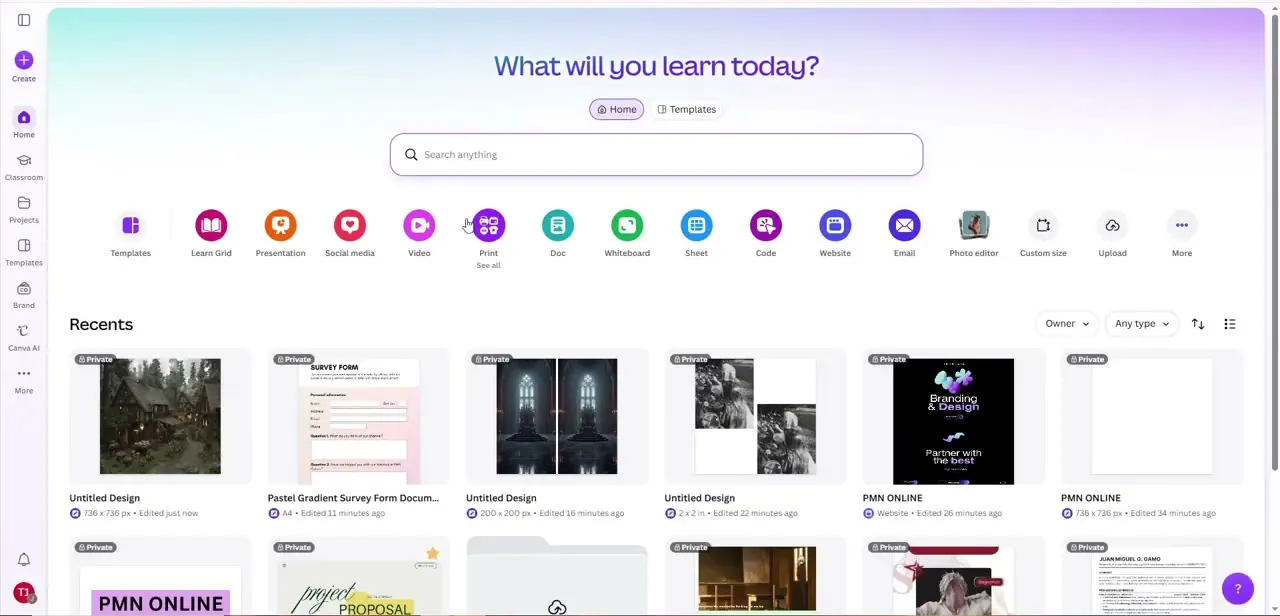
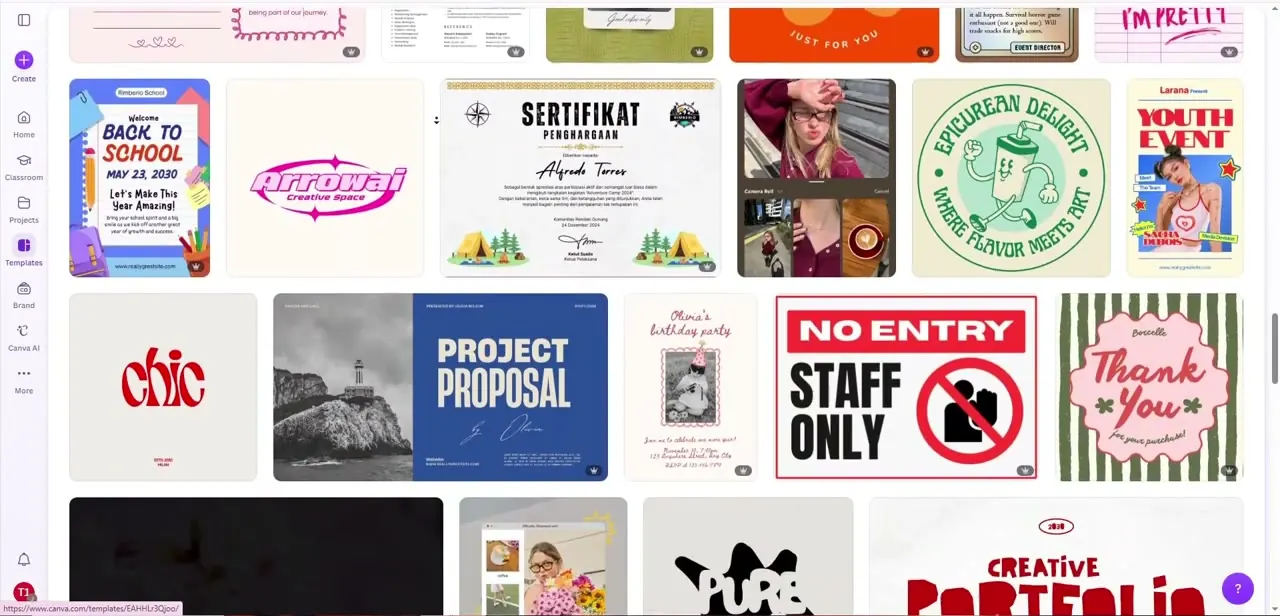
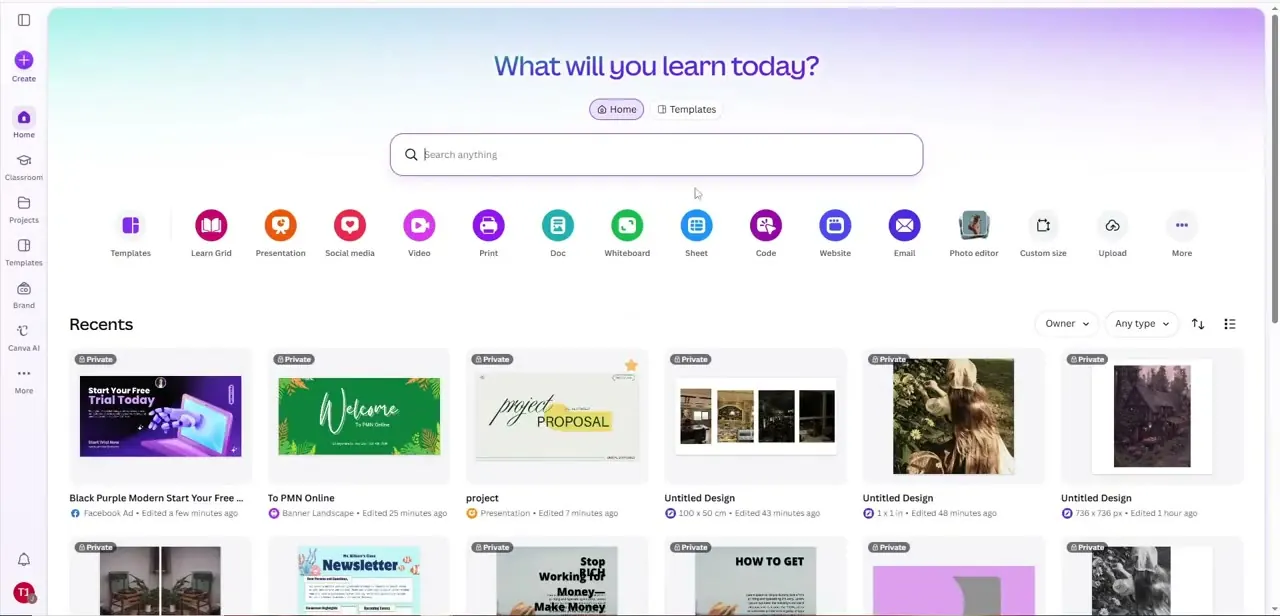
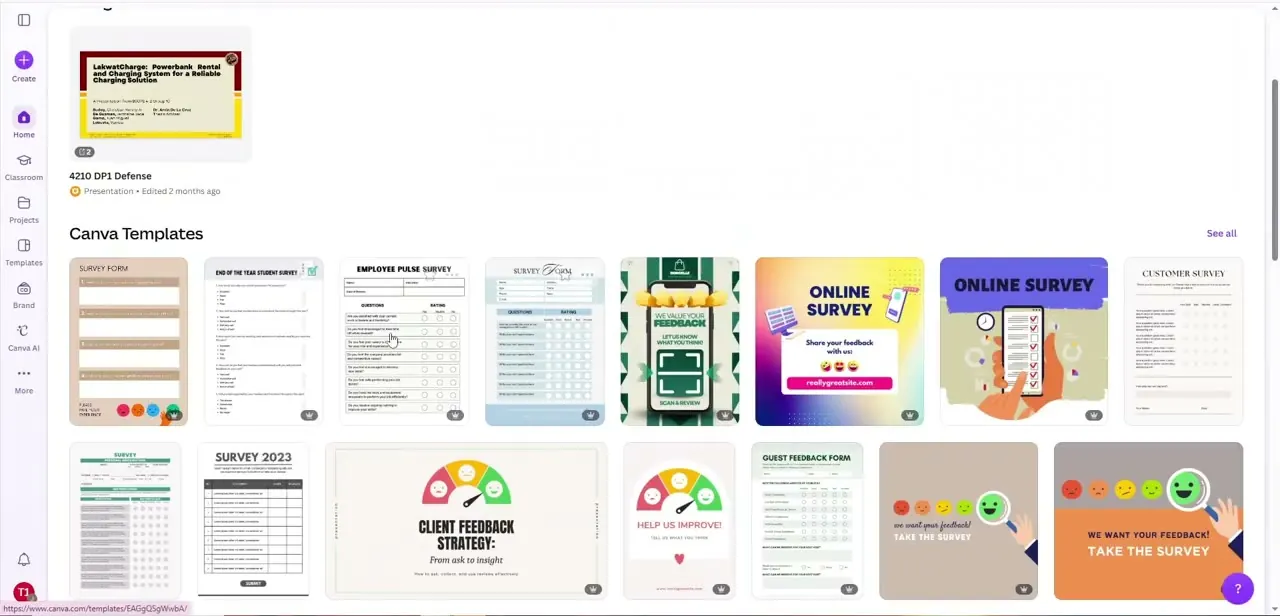
From the Canva home screen, search "survey". The results mix several things: plain document-style survey forms, colorful "Online Survey" social posts, client feedback decks, and rating-scale graphics with smiley faces.
They do different jobs. A document-style template is the one to open if you want a printable form people write on. The social-post designs are built to advertise a survey that lives somewhere else, so they're useful later for promotion but won't hold any questions themselves.
02Open a survey form template
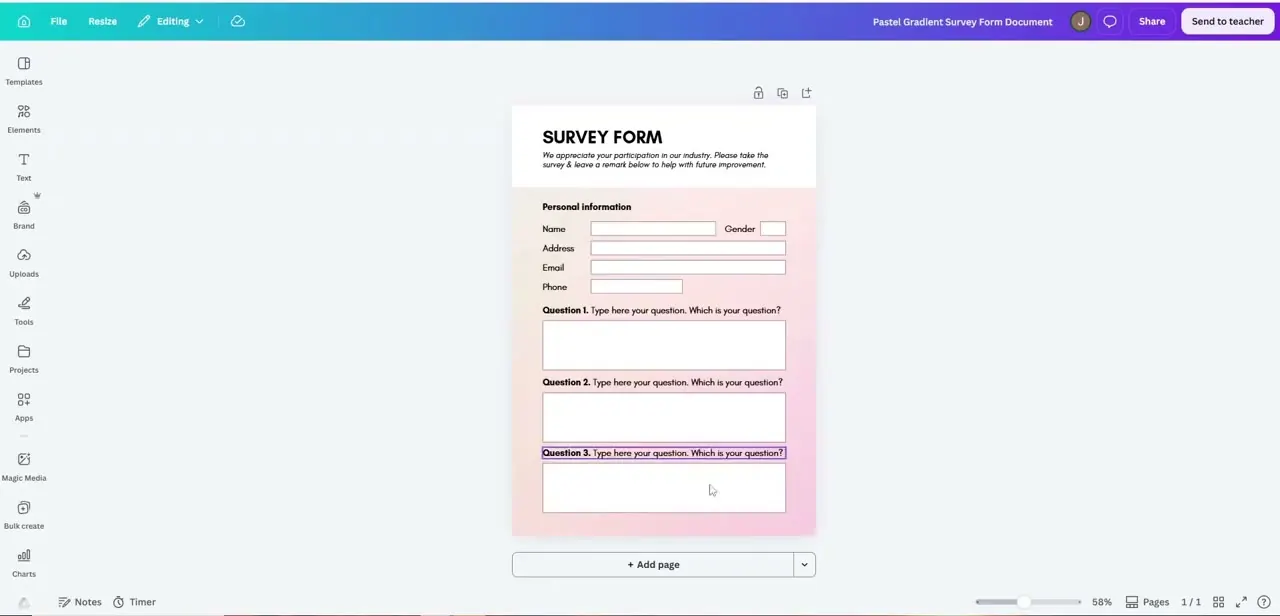
The Pastel Gradient Survey Form used here opens as a one-page document. It has a SURVEY FORM header, a short line explaining why the survey exists, a Personal information block (Name, Gender, Address, Email, Phone), and three numbered question boxes that each read "Type here your question.
Which is your question?" Every piece is a separate element. You can click any label, box or heading and edit it without disturbing the rest of the layout.
03Replace the questions and trim the personal fields
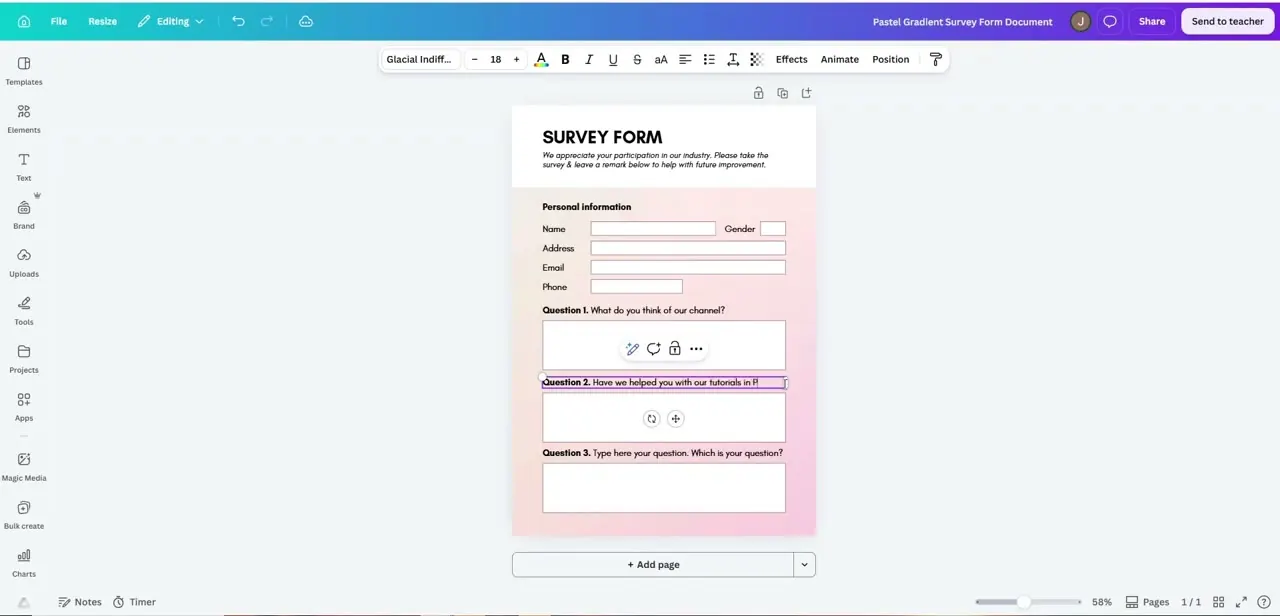
Click into each question heading and type the real question. The recording swaps in "What do you think of our channel?" and "Have we helped you with our tutorials?".
Concrete, neutral questions get more useful answers than vague or leading ones. Size each answer box to the reply you expect.
A yes/no question doesn't need the same tall box as an open comment. Then go through every box on the page, because it's easy to rewrite the first two and ship the third still saying "Type here your question." The Personal information block asks for five things, which is more than most feedback surveys need. Delete any field you won't use; a quick product survey rarely needs a mailing address.
04Match the design to your brand
Select the header, background or accent shapes and change colors and fonts with the normal Canva toolbar. Brand Kit, a Pro feature, stores your logo, colors and fonts so you don't have to re-enter them. A survey that looks like the rest of your material is easier to recognise when it lands in someone's inbox.
05Print it, or add a Canva Form to collect answers online
If paper or a PDF is fine, download the design and you're done. Respondents fill it in by hand and you collect the sheets yourself.
If you want answers gathered for you, open Elements in the editor side panel, choose Forms under categories, and pick one of the preset forms (See all expands each form type). Select the form and choose Edit.
The Questions tab lets you add or remove questions, change question types, mark fields as required and add helper text. The Settings tab controls whether the header shows, what the submit button says, and whether respondent names are collected.
Forms can also be generated from a prompt: type a description into the Elements prompt box, open the Generate dropdown and choose Forms. A form holds up to 10 questions with up to 10 options each. Canva's help page notes the feature is still rolling out, so it may not appear on every account yet.
06Share the link and read the responses
A Canva Form only collects answers when people open the design through a Canva share link. Downloading the design as an image, video or PDF produces a picture of the form that can't submit anything.
To see results, select the form and choose Responses. A panel lists what's come in, and More, then Download as CSV exports the data.
Canva's Forms page also describes sending responses into Canva Sheets. Once the form is live, edit it carefully. Deleting an option marks earlier submissions for it as "Inactive", and renaming an option relabels every past answer that chose it.
| Survey template (document) | Canva Form element | |
|---|---|---|
| How people answer | By hand on a printout or PDF | Online, in the shared design |
| Collects responses for you | No | Yes, viewable under Responses |
| How to share | Download and print or email | Canva share link only |
| Question limit | Whatever fits on the page | 10 questions, 10 options each |
| Export of answers | None | CSV download; Canva Sheets |
Form limits from Canva's Add forms and quizzes help page, checked September 2026. Up to 10 forms per page and 20 per design.
When it doesn't work
Nobody's answers are showing up
Why: The design was sent as a downloaded PDF, image or video. Canva states forms don't collect responses in those formats.
Fix: Share the design through a Canva link instead, and check the Responses panel on the form.
There's no Forms category in Elements
Why: Forms can't be added to Canva Docs or Email designs, and the feature is still rolling out to some accounts.
Fix: Try a different design type such as a presentation or website. If Forms is missing everywhere, it hasn't reached your account yet.
Old responses changed after editing the form
Why: Deleting an option marks its earlier submissions "Inactive", editing an option label rewrites past answers, and changing a quiz's correct answer re-scores earlier entries.
Fix: Finalise options before you share the link. If you must change them later, download the CSV first to keep the original data.
Frequently asked questions
Can a Canva survey collect responses automatically?
Yes, if you use a Canva Form from the Elements panel and share the design by Canva link. A plain survey template exported as a PDF can't; people fill it in by hand.
How many questions can a Canva Form have?
Up to 10 questions per form, with up to 10 options per question. You can place up to 10 forms on a page and 20 in one design.
Are the responses anonymous?
It depends on the form's settings. With name collection off, responses are anonymous even from logged-in users. With it on, names are collected from logged-in users. On Canva Websites, responses are always anonymous.
Where do I find the results?
Select the form and choose Responses. From there, More then Download as CSV exports everything.
Sources and last check
Template search, the Pastel Gradient Survey Form and the question edits come from a recorded walkthrough. The Forms element, its 10-question limit, link-only response collection, anonymity rules and CSV export were checked against Canva's Help Center and Forms page in September 2026. That check corrected this guide's earlier claim that Canva can't collect survey responses on its own.
About the author

Impran M N
I've been hooked on technology for as long as I can remember — especially the new tools and AI apps that seem to land every other week. Easy Tech Tuts is where I write up whatever I've just worked out: I do the task in the real product, record the screen, and turn it into the guide I wish I'd found first.