Easy Tech Tuts
How to Add music in Canva Website Easily 2026
By Impran M NLast checked against official docs
Canva websites don't autoplay background audio, but that's not a limitation once you know where the Audio Player app lives. It gives visitors a real, interactive player instead of a track that starts without their consent. This guide follows the actual app: installing it from Canva's Apps library, picking a template that matches what you want to embed, and getting the finished widget onto a live page, which doesn't work quite the way it looks like it should.
01Open the Audio Player app from your website workspace
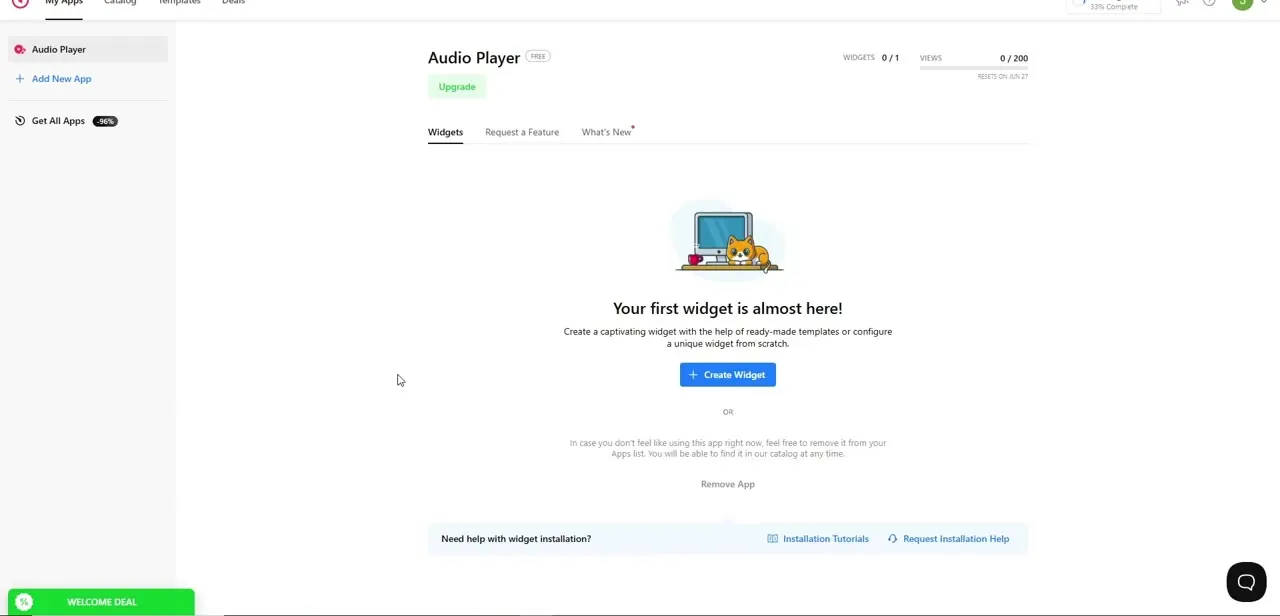
From your active website project, open the Apps panel in the sidebar and find Audio Player, a free app dedicated specifically to embedding playable tracks. On first opening it, you'll land on its overview screen showing your widget usage (0 of 1) and view count (0 of 200), with a prompt reading "Your first widget is almost here!" and a Create Widget button front and center.
02Choose a template that matches your content
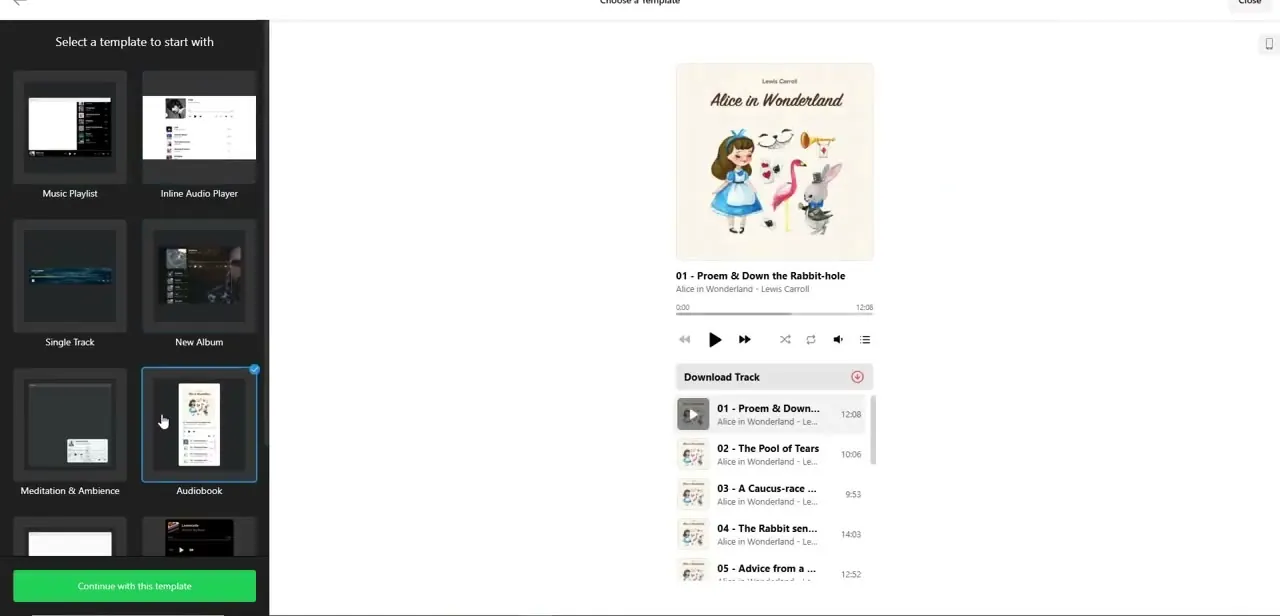
Clicking Create Widget opens a template picker with several starting points: Music Playlist, Inline Audio Player, Single Track, New Album, Meditation & Ambience, and Audiobook. Each template previews live on the right. The Audiobook option, for example, shows a full cover-art player with chapter tracks and running times listed underneath: a layout worth picking if you're embedding a multi-track playlist instead of one standalone song.
03Add your tracks to the widget
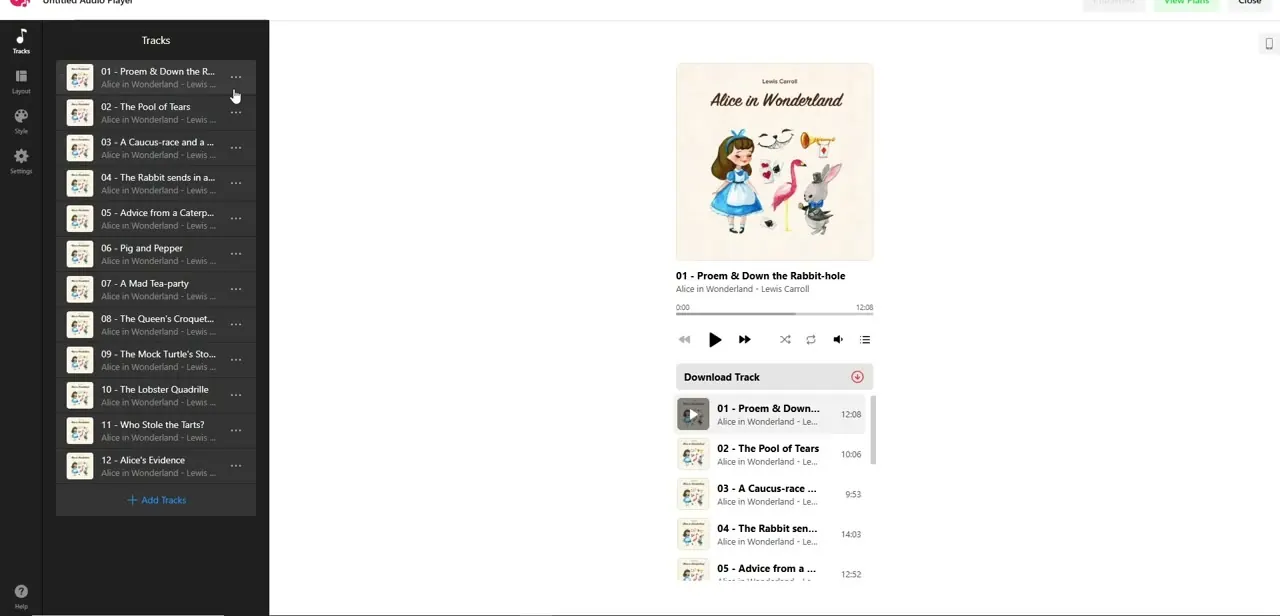
Once you continue with a template, the editor splits into a Tracks panel on the left, where you add, reorder, or remove individual songs or chapters, and a live preview on the right showing how the player will look and behave once published. Each track can be a direct file upload or a link to hosted audio or video, including YouTube, Vimeo, and SoundCloud, per the app developer's own documentation. There's no bulk-upload shortcut, so building out a full playlist means adding entries one at a time.
04Adjust the layout and style
The same editor panel includes Layout, Style, and Settings tabs alongside Tracks, letting you switch how the player displays, adjust its color scheme to match your site, and control playback behavior like autoplay-on-click or loop settings. These are worth reviewing before you add the widget to your page, since changing the layout afterward can shift the embed's proportions and require resizing it again.
05Get the widget's link and add it to your page
The finished widget doesn't drop onto the page as a native design element you drag out of a panel. Canva's own developer documentation states that its Embed element works from a pasted link, not raw HTML, JavaScript, or iframe code; Canva renders the linked page inside an iframe on its own.
Use the Audio Player editor's Add to Website option to get the widget's link, then add an Embed element to your Canva website page and paste that link into it. Resize the resulting frame to fit your grid the way you would any other embedded element.
06Publish and test playback on the live page
Publish your site and open the live URL to confirm the player loads and plays as expected. A widget that looks right in the editor can still behave differently once it's rendered on the published page, especially across mobile versus desktop. Click through the play, skip, and track-list controls yourself before sharing the link, since a broken player on a musician portfolio or podcast landing page undercuts the whole point of adding it.
When it doesn't work
The widget won't drag onto the page the way other elements do
Why: Audio Player isn't a native design element. Canva's website Embed block only accepts a pasted link, not a draggable widget or raw HTML/iframe code.
Fix: Copy the widget's link from its own Add to Website option, add an Embed element to the page, and paste the link there instead of trying to drag the widget in.
The embedded player shows blank on the published page
Why: Canva's own documentation notes an embed can stay blank if the source page blocks being framed by another site, a restriction the destination controls and Canva can't override.
Fix: Re-copy the widget's public share link (not a private editor URL) and re-paste it into the Embed element. If it's still blank, the block is coming from the widget host, not from Canva.
Frequently asked questions
Will the music autoplay when visitors land on my site?
No. Canva websites don't support autoplaying background tracks, so visitors need to click play on the embedded Audio Player widget themselves.
Can I use a YouTube or SoundCloud link instead of uploading a file?
Yes. The Tracks panel accepts both direct file uploads and links to hosted audio or video, including YouTube, Vimeo, and SoundCloud, according to the app developer's own documentation.
How do I get the finished player onto my website page?
Use the widget editor's Add to Website option to copy its link, then add an Embed element to your Canva page and paste the link there. Canva's Embed element works from a pasted link, not a draggable widget or raw embed code.
Will the player look the same on mobile?
The embed resizes with your layout grid. Still, preview the published site on mobile specifically to confirm the player looks and functions correctly at a smaller size.
Do I need a Canva Pro plan to embed audio?
No, though the Audio Player app itself has its own separate free tier: 1 widget and 200 views a month on the account observed here, resetting monthly. Heavier traffic means upgrading with the app's developer, Common Ninja, not with Canva.
What templates does the Audio Player app offer?
Music Playlist, Inline Audio Player, Single Track, New Album, Meditation & Ambience, and Audiobook, each with a different layout suited to different kinds of content.
Sources and last check
Click path and screenshots come from a recorded walkthrough of the Audio Player app inside a live Canva website project, including the exact 0/1 widget and 0/200 view counters shown on screen. How the widget lands on the page, and what audio sources it accepts, were checked against Canva's own developer documentation and the Audio Player app's own documentation (it's built by Common Ninja) in September 2026. That check corrected two claims in this guide's earlier version: the widget cannot be dragged onto the page as a native element (Canva's Embed block takes a pasted link, not HTML or iframe code), and tracks are not limited to file uploads (links to YouTube, Vimeo, and SoundCloud are supported too).
About the author

Impran M N
I've been hooked on technology for as long as I can remember — especially the new tools and AI apps that seem to land every other week. Easy Tech Tuts is where I write up whatever I've just worked out: I do the task in the real product, record the screen, and turn it into the guide I wish I'd found first.